
Video editing software has undergone drastic changes and upgrades over the past few years due to the rapid development of AI technology. One of the biggest beneficiaries of this innovation is video editing tools powered by AI, such as Topaz Video AI. In this article, we will explore how to use Topaz Video AI for slow-motion effects and why it works better than standard slow-motion effects, which can look choppy and dated. We will explore the modern systems available in the tool, especially the AI-driven frame interpolation, which promotes smooth motion.

In terms of AI-supported video editors, Topaz Video AI stands as one of the better options on the market, made possible by its Frame Interpolation system. This frame-based enhancement tool improves video quality by adding additional frames between your video's frames. As a result, your clip will look better and way smoother.
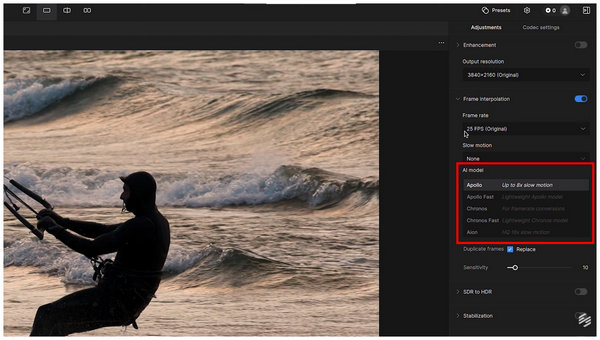
What supports this frame interpolation system are the smart slow-motion models in Topaz AI for Apollo, Apollo Fast, Chronos, Chronos Fast, and Aion. These models have their own strengths and are advisable for use ins organic motions, frame rate conversions, and precision improvements.
When learning how to use Topaz Video AI, make sure to discover the basics and the main strengths of these slow-motion models.
Now that we have provided an overview of what makes Topaz AI video a good tool for applying slow-motion effects, let us proceed to the basics of adding this effect in the video editor.
Note that the three-step guide below covers only the basics of adding slow-mo effects. It is still highly recommended to explore other effects and editing options in Topaz AI.
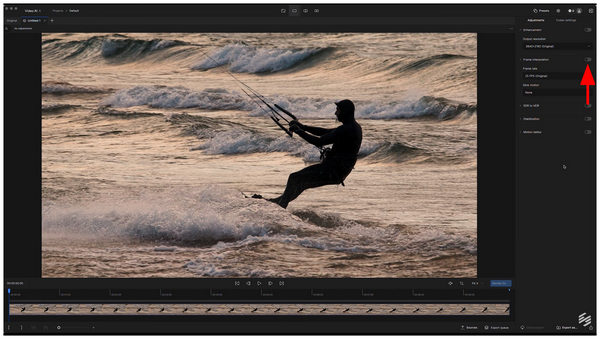
1 Import the video you want to put in slow motion in Topaz AI, then click on the Frame Interpolation toggle to enable it.
2 Once the Frame Interpolation option is active, you may now select which AI Model you want to use. For organic motion, use Apollo. To improve the video's frame rate, use Chronos. Finally, use the Aion model for precise effects on heavy movements and extreme slow motion.
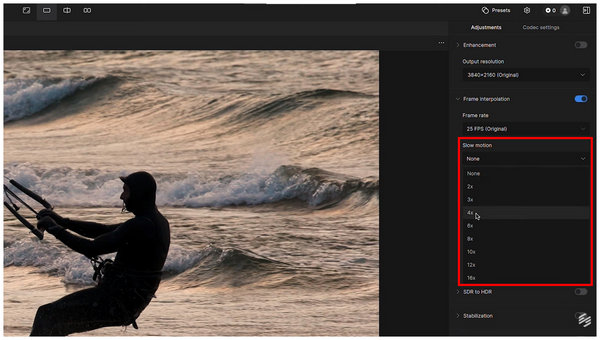
3 With your chosen AI model now active, click on the Slow Motion dropdown menu. Then, select the Slow-mo Multiplier you want to use.
Since we have discussed the main strengths of each AI model, a good mental note to always remember is that Apollo is best for human or animal movements, Chronos should be used for videos with poor framerate, and Aion is the most precise option for randomized movements embedded with extreme slow-mo.
If you are having trouble with Topaz Video AI 4x slow motion looking bad, the issue might be due to unaligned FPS settings in your video or the AI model you are using. As such, learn the recommended FPS for each model and use the right one for your video.
Since Topaz AI is extremely advanced and not meant for beginners, make sure to learn about the most common issues that often occur in the program and how to fix them. These are usually subject to ghosting, warping, motion smear, and other visual issues.
When editing projects on Topaz AI, you have to learn how to use the proper codecs as well. As a general rule, using HEVC (H.265) is the safest option, as it is more efficient for processing higher-quality videos, usually above 4K UHD.
When applying slow-motion effects, your video’s audio is often affected. To prevent this from happening, make sure to smooth your audio by detaching it from the video, replacing it, or retimeing the slow motion settings.
Although Topaz AI offers more advanced slow-motion models, it is not the best option, especially for beginners, due to its technical requirements and steep pricing. As such, using an easier, more practical alternative is best, and AnyMP4 Video Converter Ultimate fits the bill.
Equipped with an exclusive Video Speed Controller tool, AnyMP4 Video Converter Ultimate can slow down videos by up to 0.125X while maintaining a smooth frame rate and preserving the video’s original quality.
Additionally, the program supports 500+ file formats, including popular video formats such as MP4, MOV, WMV, AVI, MKV, and GIF. For advanced users, more advanced settings, such as frame rate, resolution, bitrate, and similar adjustments, may also be edited in the program.
To learn how to use it for simple slow-motion video production, please read our guide below. Do not forget to download the software as well for easier follow-up with our guide.
Secure Download
Secure Download
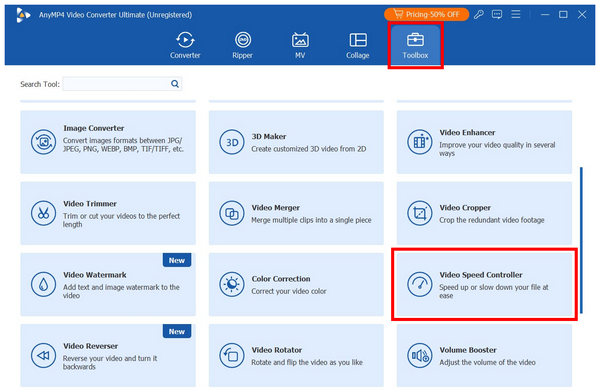
1 Open AnyMP4 Video Converter Ultimate and move to the Toolbox section. Then scroll down and find the Video Speed Controller click it.
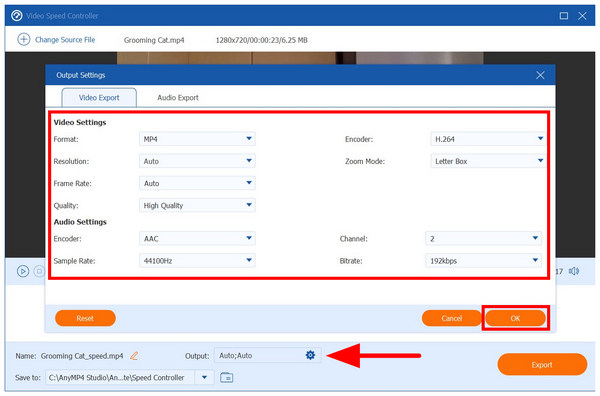
2 If you wish, you may adjust the video output of the file using Output Options. These adjustments include editing the video Format, Resolution, Frame Rate, Quality, and more. Click on OK to confirm your settings.
3 If the default output settings are sufficient for you, you may proceed directly to choosing the speed multiplier for your video from 0.125X to 8X. To apply a slow-motion effect, select a multiplier under 1X. Finally, select Export to produce the slow-mo video.
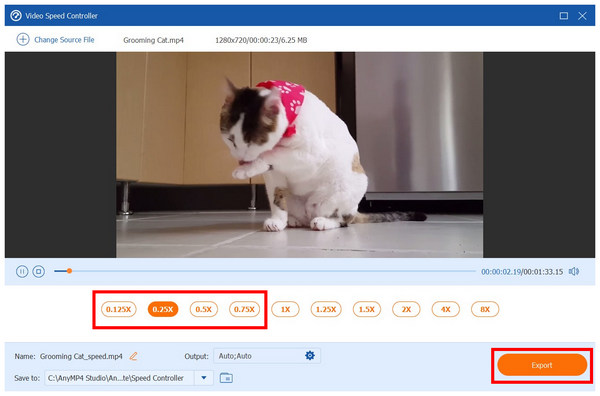
Using three simple steps, you can easily apply slow-motion effects to your videos without concerning yourself with intricate AI models and frame interpolation settings. The practicality and ease of use alone make AnyMP4 Video Converter Ultimate an excellent option to change video speed.
Can Topaz Video AI create smooth slow motion from 24 fps or 30 fps footage?
Yes, it can. This will be made possible by the program's Frame Interpolation system. This is one of the more reliable tools for learning how to apply slow motion to video.
How long does it take to process slow motion with Topaz Video AI?
There are too many variables to assess slow-mo video production. It includes the video size, the AI model, your computer's power, and more. For shorter clips, several minutes may be enough, but longer videos may take hours or even days.
Will Topaz preserve image quality when creating slow motion and upscaling?
Yes, Topaz AI can preserve image quality. However, it will be affected by the slow-motion AI model you use. Make sure to use the proper model to avoid making your video look AI.
Is Topaz AI free?
No, it is not. Topaz AI is a paid video editing software. It also does not offer any free-to-use options.
Does Topaz AI produce organic-looking videos?
It depends heavily on the AI model you use. Some models may apply too much enhancement. However, there are models on the tool that preserve an organic look.
Now that we have provided our readers with an overview of using Topaz AI to apply slow motion to videos, we hope the guide, tips, and quick reviews in this article will be enough to meet your video editing needs. Otherwise, we highly recommend using our alternative, AnyMP4 Video Converter Ultimate, which can be downloaded using the link below.
Secure Download
Secure Download
 Updated by Mark Cristobal to Edit Video
More readings
 Slow Down a Video on Instagram Using Built-in & Editing Tool
Want to slow down a video on Instagram but don’t know how? Check our guidepost to learn how to use Instagram’s slow-motion features and using third-party tools.
 How to Speed Up or Slow Down a Video Using Sony Vegas
How do you slow down a video in Sony Vegas 14? How to control the speed of a video on Sony Vegas Pro? Get a detailed guide to slow down a video on Sony Vegas.
 4 Efficient Ways to Slow Down A Videos on TikTok with Magic Effects
Whether you want to slow down a video on TikTok to add dramatic effects on your videos or watch videos in slow-motion, click here to learn 4 easy solutions.
 How to Slow Down A Video on Snapchat Easily [2 Solutions]
Click here to learn 2 ways to slow down a video on Snapchat. In this way, you can create dramatic Snapchat videos or play Snapchat videos in slow-motion.
 Add your comments to join the discussion here