
Watching videos on YouTube is a great way to learn new things, watch tutorials, or enjoy entertainment. However, sometimes the videos are long, and not everyone has the time to watch them at normal speed. Fortunately, YouTube offers a Playback Speed feature that allows you to fast-forward videos without missing any details. By adjusting the video speed, you can consume content more efficiently, saving time while still comprehending it. In this post, we will teach you how to fast-forward on YouTube. You’ll learn how to speed up videos up to twice the normal speed using the built-in tools. We’ll also cover options for speeding up videos beyond YouTube’s limits using external tools. Keep reading to learn all the tips and tricks for efficiently fast-forwarding videos on YouTube.

Fast Forward on YouTube refers to the process of increasing the playback speed of a video. This allows it to play faster than its normal pace. This feature is part of YouTube’s Playback Speed tool, which allows viewers to watch content more efficiently. By fast-forwarding, you can absorb information more quickly without skipping parts of the video. Fast forwarding also helps skip slow sections, repeat important points at a slower speed, or speed up repetitive content. On computers, YouTube allows you to adjust the playback speed up to 2× (double speed). On the YouTube mobile app, regular users can also speed up videos up to 2×. However, if you’re a YouTube Premium user, you can increase the speed up to 3 times, providing faster access to content.
The Playback Speed feature enables you to increase playback speed on YouTube videos. You can change the video speed up to 2×, saving you time while absorbing all the information. Increasing the YouTube video’s playback speed helps you consume more content efficiently.
Here’s a quick guide to fast-forward on YouTube PC:
1. On YouTube, select the video you want to speed up and play it as usual. Click the Settings button and select the Playback Speed option from the menu.

2. A list of speed options ranging from 0.25× (slowest) to 2× (fastest) will appear. Select 2× or your desired playback speed to play the video faster.
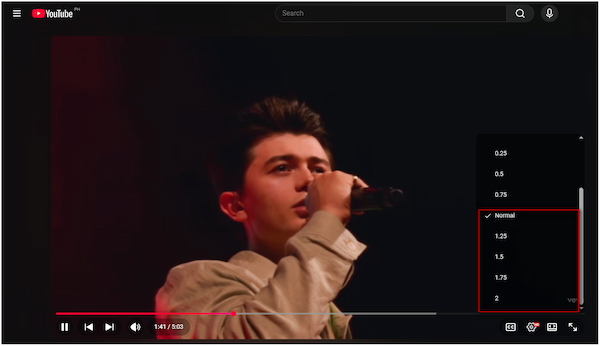
The YouTube Fast Forward feature allows you to adjust the video playback speed of a YouTube video. You can speed up playback to twice its normal speed. However, if you need to speed up beyond 2×, YouTube does not offer options to go faster than that.
In the mobile app version, YouTube video playback speed offers more flexibility. You can speed up videos up to 3 times the normal speed, helping you watch long videos more efficiently. This feature allows you to control the playback speed of the video directly within the app.
Here’s how to fast-forward videos on YouTube on mobile:
1. Open the YouTube app and head to the video you want to speed up for watching. Tap the video once to display the control menu overlay, then tap the Settings button.
2. Select the Playback Speed option and tap your preferred playback speed. You can choose from 1.0, 1.25, 1.5, 2.0, or 3.0.
That’s how to use Fast Forward on YouTube mobile. It allows you to watch videos faster and save time, just like on a computer. The main difference is that you can speed up videos up to 3× the normal speed. However, this 3× speed option is only available for YouTube Premium users.
Why can’t I fast-forward on YouTube? In some cases, bugs and glitches prevent the YouTube player to speed forward the video playback. In such cases, use AnyMP4 Video Converter Ultimate to control video playback speeds beyond the built-in YouTube limits. This software enables you to speed up videos from 1.25× to 8×, surpassing YouTube’s 2× limit. Additionally, it offers a Preview Window so you can see each speed adjustment. It supports the most common video inputs, including MP4, MOV, WMV, and over 500 other formats. It also allows you to configure output settings and export them in MP4, MOV, WMV, AVI, MKV, and GIF formats.
Here’s how to fast forward on YouTube alternative:
1. Beforehand, secure the free download of AnyMP4 Video Converter Ultimate. Install the YouTube video speed controller and finish the setup process. Once completed, open the software to begin the video speed-changing process.
Secure Download
Secure Download
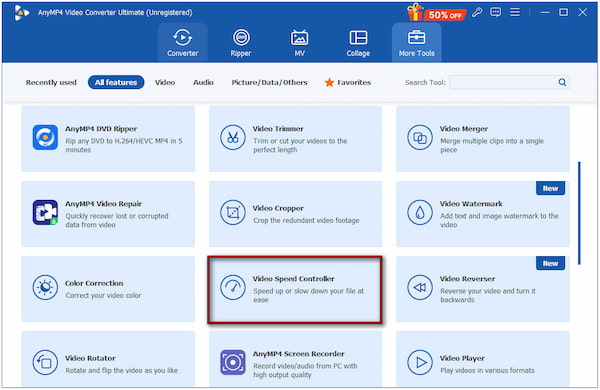
2. As it launches, you’ll be headed to the Converter tab by default. To access the video speed controller, move to the More Tools tab and select the Video Speed Controller tool. Click it to add the YouTube video you want to fast-forward.
3. In the Video Speed Controller window, you will see a range of fast-forward options. Choose a speed that matches your desired pace. You can choose from 1.25×, 1.50×, 2×, 4×, and 8×, depending on how fast you wish to play the video.
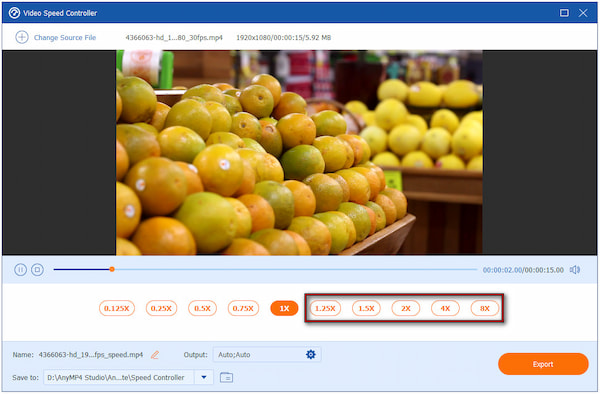
4. Use the Preview Window to check the fast-forward effect. For the best output, click the Output selector to adjust video and audio settings. Once you’re satisfied with the video speed, click Export to render and save your video.

AnyMP4 Video Converter Ultimate is a powerful video maker and creator for speeding up videos. Beyond speed control, it provides over 20 editing tools, including Video Cropper, Video Rotator, and Video Merger, among others. It also includes Converter, MV Maker, Collage Maker, and more.
For regular YouTube viewers who want to watch videos faster, here are some helpful tips:
• On a computer, you can use YouTube keyboard shortcuts for fast-forward. Simply press the L or right arrow key to jump the video 10 seconds forward.
• For mobile users, only YouTube Premium users can speed up videos beyond 2×. This means regular YouTube users can only speed up videos to the 2× limit.
• If a video has important sections, note the timestamps and adjust the playback speed only for less critical parts to save time.
• At higher speeds, the audio can become difficult to understand. Using headphones or turning on captions can help retain comprehension.
• In tutorials, it would be best to play the video in slow motion to catch every detail.
Not all videos on YouTube allow full speed control. There are a few common reasons why YouTube fast forward not working:
• You can’t adjust playback speed for live videos unless the stream ends.
• Copyright-protected content restricts features like fast-forwarding or slow motion.
• Videos embedded on other websites sometimes disable playback speed adjustments.
• On mobile, certain older versions of the YouTube app may not show all speed options.
If you find that fast forwarding a video isn’t working as expected, try these troubleshooting steps:
• Try another device: If playback speed works on one device but not another, it may be a device-specific issue.
• Clear cache and cookies: A corrupted cache can interfere with playback features. Clearing it often fixes the problem.
• Reload the video: Sometimes the video player may temporarily glitch. Refreshing the page can restore the speed controls.
• Check video restrictions: Some videos don’t allow speed changes due to live streaming, embedding, or copyright restrictions.
• Update the YouTube app or browser: Older versions may have bugs or lack full functionality. Ensure you’re using the latest version.
Can you fast-forward commercials on YouTube TV?
No, you cannot fast-forward commercials on YouTube TV. Ads are integrated into the video stream, and YouTube TV enforces them to ensure advertisers reach viewers.
How do you stop fast-forwarding on YouTube?
To stop fast forwarding on YouTube, simply return the playback speed to its normal setting. Once the speed is reset, the video resumes at its regular pace.
Can you speed up YouTube Shorts?
Currently, YouTube Shorts cannot be sped up using the built-in playback speed controls. Shorts does not include the speed adjustment feature, unlike regular YouTube videos.
Video fast-forward on YouTube is a great way to save time and watch videos more efficiently. It helps you control how fast you watch without skipping any important parts. While YouTube allows users to speed up videos up to 2× (or 3× for Premium mobile users), sometimes you may want to go even faster. For that, you can use AnyMP4 Video Converter Ultimate. It allows you to adjust the video speed up to 8 times faster and edit your videos freely.
Secure Download
Secure Download
 Updated by Mark Cristobal to Edit Video
More readings
 [Solved] How to Fast Forward Flash FLV Videos on Windows/Mac
Unable to fast forward Flash videos? Click here to learn the detailed steps to fast forward the playback of FLV files, or you can speed up them in advance.
 How to Fast Forward on TikTok - Change TikTok Video Speed
How do you speed up a video on TikTok? Can you fast forward a TikTok video within the app? You can learn a detailed guide to change the video speed on TikTok.
 2 Efficient Ways to Compress Videos for YouTube Upload Free Online
When uploading a video more than 1 hour on YouTube, it may take a long time. Here are 2 efficient ways to compress videos for uploading or sharing quickly.
 How to Make YouTube Shorts: Step-by-Step & Best Tools
Learn how to make YouTube Shorts on mobile & PC from this step-by-step guide with the best tools, editing tips, and strategies to boost views & engagement.
 Add your comments to join the discussion here