
Reversing videos has become a popular video editing technique for creative purposes. Whether it’s to create funny clips, rewind effects, or artistic sequences, it adds a unique twist to ordinary footage. Many editors use this technique to capture attention, tell stories in a new way, or demonstrate processes in reverse. The good news is that you don’t need to be a professional or download heavy software to reverse a video. This effect can be achieved directly in your browser, making it fast, convenient, and accessible. In this post, we will teach you how to reverse video online using popular tools. We will help you create engaging and eye-catching content in just a few minutes. You will learn how they work and how to quickly apply them to your own projects.
Reverse video editing is a technique where the clip is played backward from its original sequence. This effect makes actions appear to move in the opposite direction, creating a unique motion. It is common in social media clips, music videos, tutorials, or experimental films.
Reversing Playback vs. Reversing Timeline:
Reversing playback simply flips the video during viewing, so the motion appears backward without altering the underlying file. It’s like watching a normal video in reverse for a moment. On the other hand, reversing the timeline involves editing the video. It permanently rearranged the sequence of frames from end to start.
Best For: Reversing video at different speeds.
Clideo is a suite of online video editing tools that offers a reverse video maker. It allows you to reverse a video clip online at normal, slow-motion, or faster speed. It supports several video formats, including 3G2, 3GP, AVI, ASF, F4V, FLV, M2TS, and more.
What You’ll Like:
• It supports various video inputs.
• It reverses videos at different speeds.
• It accepts videos locally and from cloud services.
What to Consider:
• Its free version adds a watermark.
• Its upload size is restricted to 500MB only.
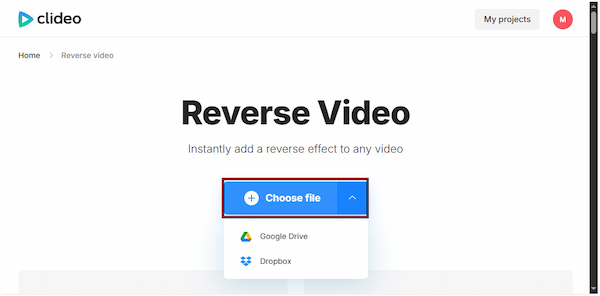
1. On the Clideo homepage, click the Choose File button to upload a video. You can also import videos from Dropbox or Google Drive, making it convenient to access your files on the go.
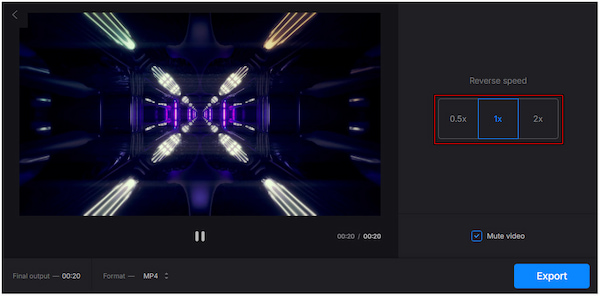
2. Once your video is uploaded, it automatically sets up your clip for reversal. Before reversing, you can change the playback speed: 0.5×. 1×, or 2×.
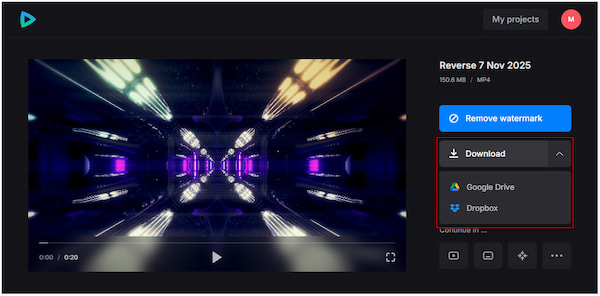
3. Choose your format and click Export to generate your video and flip the motion. Preview the result to confirm it plays backward, and if satisfied, click the Download button.
Using Clideo allows you to reverse video online; no download or installation needed. However, the upload size and export resolution are limited on the free plan. Also, it adds a watermark to your exported videos, requiring an upgrade to remove marks.
Best For: Reversing GIFs and common video formats online.
Ezgif is a completely free, internet-based tool known for its quick video and GIF editing functions. In addition to GIF creation, it allows you to easily reverse videos online for free. It supports various video formats, including common ones such as MP4, WebM, AVI, MPEG, and MKV.
What You’ll Like:
• It is ideal for quick, free video editing.
• It reverses video online without a watermark.
• It does not require you to pay or register to reverse videos.
What to Consider:
• It cannot handle video files larger than 200MB.
• It slightly reduces the final video file size during export.
1. From the Ezgif main page, click the Choose File button to import the video clip. You can also drag and drop or paste the video URL for convenient uploading.
2. In a new window, scroll down to and click the Reverse Video button. The tool will process your video clip and automatically reverse its motion.
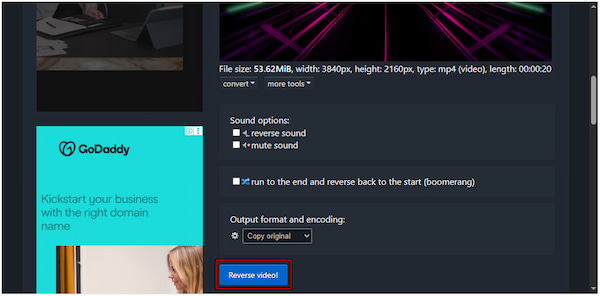
Ezgif is the best free online video reverser, offering a convenient way to create backward-motion clips. However, the process can be time-consuming, especially when uploading video files and generating the reversed output.
Best For: Reversing videos with access to advanced editing tools.
Kapwing is a dedicated tool that allows you to play videos backwards or reverse video online. This advanced reverse video tool goes beyond reversing as it offers a range of editing tools. It allows you to save the video in up to 4K resolution if you upgrade your account.
What You’ll Like:
• It accepts video inputs with resolutions of up to 4K.
• It is equipped with a range of basic and advanced tools.
• It retains the original video quality even after the reversal.
What to Consider:
• Its free version can only export the final video in 720p.
• Its free plan includes a watermark on the reversed video.
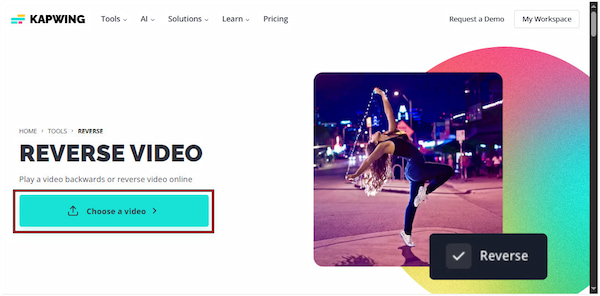
1. Visit the Kapwing Video Reverse homepage and click the Choose a Video button to add your clip. You can also paste a video URL from social media or upload one from Vimeo.
2. In the Kapwing editor, find the Reverse button on the right-hand pane and toggle it on. This action will turn your video into a backward-motion clip; edit further if needed.

3. When your video is reversed, click the Export Project button. Choose your file type, format, and resolution, and click Exports as [Format] to download the final video.
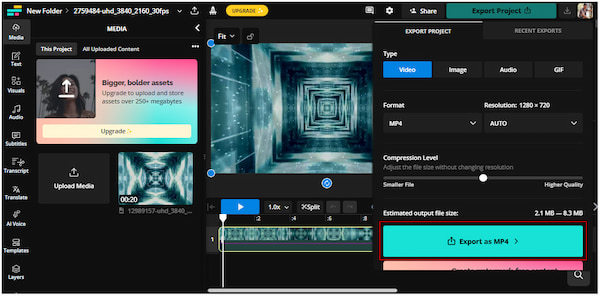
Kapwing is a solid choice to reverse and play video backwards online. However, it can be confusing for non-professional users, as the interface is feature-rich and complex. Additionally, many of the advanced tools and higher-quality export options are only accessible in the premium version.
AnyMP4 Video Converter Ultimate is an all-around media software bundle compatible with Windows and Mac. It’s an excellent tool for those who don’t want to reverse video online. Beyond video conversion, it comes with a Toolbox equipped with more than 20 editing tools. It includes a professional Video Reverser tool, which you can use to rewind video motion. With it, you can reverse the entire video or flip a specific portion. It even includes a preview window, allowing you to see the reversed effect in real-time before exporting. It accepts MP4, MKV, AVI, and over 500 other media files, and supports saving the reversed video with 4K resolution.
1. Begin by obtaining the free download of AnyMP4 Video Converter Ultimate. Install the offline reverse video tool and complete the installation process. Once the setup process is finished, run the software to start the reversal process.
Secure Download
Secure Download
2. As soon as it opens, you will be headed to the Converter tab by default. Navigate to the More Tools tab and select the Video Reverser from the list of tools. In the Video Reverser window, click the big Plus to load the video you want to reverse.
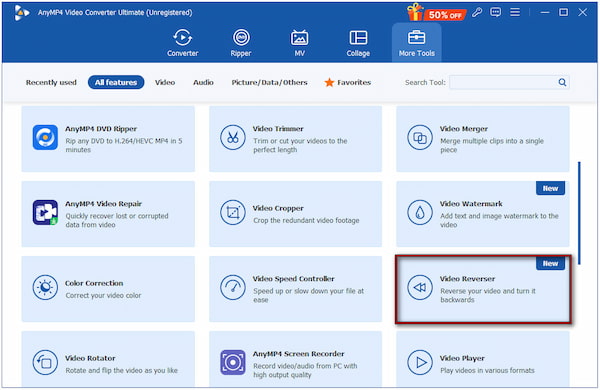
3. Manually enter times in the Set Start and Set End boxes to choose the exact portion you want to reverse. To reverse the entire clip, simply select the full duration. Once your video is ready, click Export to generate your reversed video.
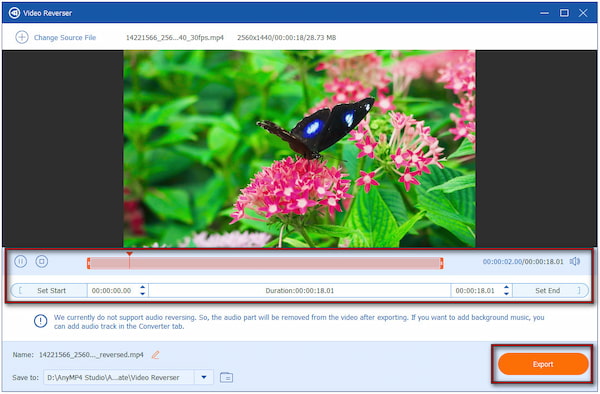
Important Note: The Video Reverser tool does not currently reverse the embedded audio track. If you want reversed sound, you will need to add a separate audio track manually later.
AnyMP4 Video Converter Ultimate offers a professional, fast, and reliable solution to rewind a video. It ensures stable performance on Windows and Mac, requiring no internet connection to operate. Additionally, it allows you to see the reversed effects in real-time before saving.
Can I reverse a video without downloading software?
Yes, you can reverse a video without downloading any software using an online video reverser. Some of the popular options include Clideo, Ezgif, and Kapwing.
Do online video reversers add watermarks?
Yes, many online video reversers add a watermark to the exported video, particularly in the free version. It is a common practice to encourage users to upgrade to premium or paid plans.
Can I reverse a video with sound online?
Yes, you can reverse a video with sound online. However, the audio will also play in reverse, creating a backward sound effect.
Reversing video is a fun and creative editing technique that anyone can use. With Clideo, Ezgif, and Kapwing, you can easily reverse a video online without needing to download any software. These tools make it quick and convenient to produce engaging backward-motion effects. However, online tools come with limitations, such as watermarks, file size restrictions, and slower processing times. If you're looking for a more professional, fast, and flexible solution, AnyMP4 Video Converter Ultimate is highly recommended. This offline tool can easily reverse full videos or specific segments. You can also customize output formats and parameters without restrictions.
Secure Download
Secure Download
 Updated by Mark Cristobal to Edit Video
More readings
 How to Reverse a Video on TikTok - Put TikToks in Reverse
How to put a video in reverse on TikTok? Can I reverse audio on TikTok? This post gives you a detailed guide on how to reverse a video on TikTok in 2 ways.
 How to Reverse a Video on CapCut in One Minute [Updated]
Learn how to reverse a video on CapCut with this easy-to-follow guide. Our detailed guide works for both desktop and mobile apps to create engaging edits.
 Rotate Videos Online - No Watermark | 3 Fast & Easy Tools
Instantly rotate videos online for free with no watermarks. Fix sideways videos instantly without installing via Google Photos, Clideo, and a Chrome plugin.
 How to Trim/Cut a Video on iPhone 18/17/16/15/14
How to cut out parts of a video on iPhone? How to trim the middle of a video on iPhone? Get a detailed guide to trim a video on iPhone 11 and other models.
 Add your comments to join the discussion here