
Want to add a cool rewind effect to your videos? Reversing videos on Android is easier than you think. Whether it’s for TikTok, Instagram, or creative storytelling, reversing a video can make your content pop. This effect is often used in social media clips, tutorials, prank videos, and cinematic sequences to create artistic content. By simply flipping the playback direction, you can make objects appear to move backward. The best part? You don’t need professional editing equipment. You just need your Android device and the right app. This post will show you how to reverse a video on Android. We will help you find the best and most reliable apps available and demonstrate effective ways to create that rewind effect.
| InShot | Reverse Movie FX | AnyMP4 Video Converter Ultimate | |
|---|---|---|---|
| Best For | Quick reverse edits for social media clips | Flexible video reversal | High-quality reversed video |
| Reversed Audio |  |
|
 |
| Portion of Video You Can Reverse | Entire | Entire Clip or Trimming Segment | Full Video or Selected Portion |
| Watermark on Free | |
|
|
| Free Version Available | |
|
|
| Watermark on Free | |
|
|
| Quality/4K Support | 1080p | 720p | 4K |
InShot is a comprehensive video maker and editor that allows you to play videos backwards on Android. It features a wide range of editing tools, including a Reverse feature that turns ordinary clips into rewind sequences. It lets you play your video backward, creating a rewind motion effect in your project.
Here’s how to make a reverse video on Android using InShot:
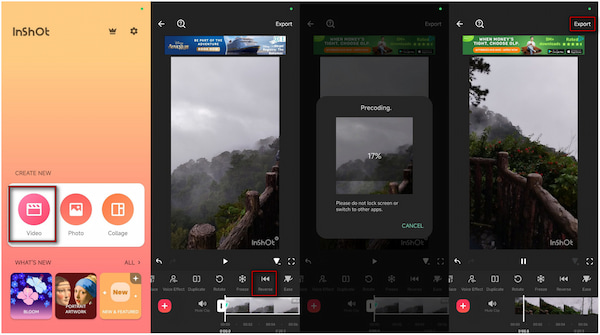
1. In the InShot main interface, tap the Video option under the CREATE NEW section. Next, select the clip you want to reverse from the device gallery.
2. Tap the uploaded video clip in the timeline to select it. Swipe through the toolbar options until you find the Reverse option; tap it to begin the reversal.
3. nShot will start processing the reverse effect, and the duration depends on the video’s length. Once completed, tap Export to save your video with a rewind effect.
I was surprised by how simple it was to use InShot’s Reverse feature. In under three minutes, I had a smooth backward playback ready for preview. However, the app froze momentarily when I tried to preview the reversed video immediately after processing.
Reverse Movie FX is a specialized reverse video maker that focuses entirely on reversing videos. It lets you trim a clip to the exact section you want to play in reverse. This video reverse app for Android can help you rewind clips without the need for complicated video editing.
Here’s how to rewind video on Android using Reverse Movie FX:
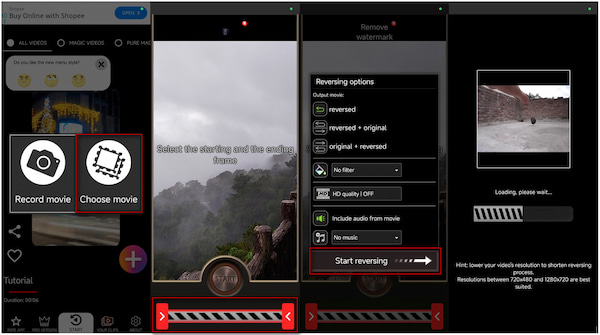
1. From the main interface of Reverse Movie FX, tap the + button and select Choose Movie. Alternatively, you can tap the Record Movie option to record a new clip for reversal.
2. Adjust the left and right handles to select only the part you want to reverse. To reverse the entire video, simply tap the Start button to proceed.
3. In the Reversing Options window, configure the output movie, filter, quality, and audio. Next, tap Start Reversing to generate the rewind effect and save it to your gallery.
In my experience, Reverse Movie FX handled the reversal smoothly, and the final playback looked accurate. However, the experience was consistently disrupted by an ad that triggered with every tap. Furthermore, the outdated interface makes navigation less intuitive than modern editors.
AnyMP4 Video Converter Ultimate is a one-stop media software bundle compatible with Windows and Mac. Unlike free video reverse apps, it delivers high-quality video output and offers fast reversal processing. It supports MP4, MOV, WMV, AVI, MKV, and 500 more media file inputs. Beyond format conversion, it comes with a Toolbox boasting more than 20 editing tools, including the Video Reverser. With it, you can quickly reverse the entire clip or specify a particular portion of the video. It also includes a built-in preview window, so you can see your reversed effect in real-time before exporting.
Here’s how to reverse a video on Android alternative:
1. Start by getting the free download of AnyMP4 Video Converter Ultimate. Install the video reverser tool and complete the installation process. Once the setup process is finished, launch the software to begin the video reversal.
Secure Download
Secure Download
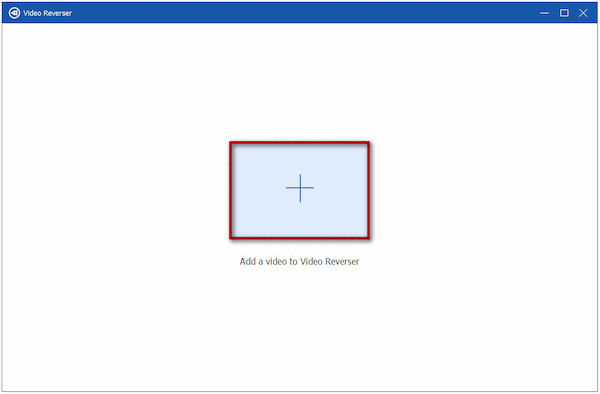
2. As soon as it opens, you will be taken to the Converter tab by default. Navigate to the More Tools tab and select the Video Reverser from the list of tools. In the Video Reverser window, click the big Plus button to import the video you want to reverse.
3. Enter times in the Set Start and Set End boxes to define the portion you want to reverse. Alternatively, you can use the progress bar to select the video segment. To reverse the entire video, select the full duration. Once ready, click Export to generate your reversed video.

Important Note: In the current version of AnyMP4 Video Converter Ultimate, the Video Reverser tool does not support reversing the audio track. If you want reversed sound, you can manually add an audio track afterward.
My experience with AnyMP4 Video Converter Ultimate was significantly more impressive than using Android's video reverse playback feature. It handled large, high-resolution files without lag or freezing. It provides a flexible and professional way to reverse video in just seconds. In addition to video reversing, it also offers MV Maker, Converter, Video & Photo Collage Maker, and many more.
Does reversing a video reduce its quality?
Reversing a video does not directly affect its quality, but rather depends on the app used. Mobile apps like Reverse Movie FX compress videos during processing, which lowers resolution.
Can I reverse videos without an app?
Yes, you can reverse videos without installing an app using online video reverser tools. However, online tools have file size limits and slower upload speeds.
What video formats can I reverse on Android?
On Android, most video editing apps support common video formats like MP4, MOV, and AVI. For broader format support, consider using AnyMP4 Video Converter Ultimate.
Why does my video not play after I reverse it?
If your video doesn’t play after being reversed, it’s often due to incompatibility with the format. Some apps compress or change the codec during export, making the file unreadable by certain players.
Learning how to reverse a video on Android is a creative way to turn your clips into shareable content. Reversing a video is now easier than ever with the right Android apps. From InShot to Reverse Movie FX, these apps make it simple to flip your clips and add that rewind effect. However, if you want high-quality video reversal with more control, consider switching to AnyMP4 Video Converter Ultimate. This powerful desktop software provides smooth playback and previews, ensuring that your reversed video maintains its full resolution.
Secure Download
Secure Download
 Updated by Mark Cristobal to Edit Video
More readings
 Full Guide to Removing Background Noise in Adobe Audition
Let us improve your audio quality by removing the background noise using Audition. This tool outcasts the low-quality sound we can hear behind.
 Why and How to Fix Squealing Noise from Audio Files
Let us ease the squealing noise from your audio files using these methods. See the step-by-step procedure below as we fix the issue.
 How to Get Rid of Background Noise Using Premiere (Advance Tips)
This article is all you need to reduce background noise in Premiere Pro. We will guide you on doing the advanced method together with an alternative tool.
 How to Add Noise Suppression to Mic in OBS: Full Guide
Do you want to learn how to activate OBS studio noise suppression? This article explains how to get noise suppression on OBS for improved recording quality.
 Add your comments to join the discussion here