
Reversing videos has become increasingly popular for its fun and creative effects. This video editing technique can turn an ordinary clip into something entertaining and unique. Fortunately, you can achieve this effect directly on your iPhone, making it easier than ever to craft engaging content. Many iPhone users often search for ways to reverse a video directly on their device. Not to mention, not all built-in apps support this feature. That’s why this post will show you how to reverse a video on iPhone, with and without an app. We will help you understand how to reverse videos easily and efficiently using practical tools. By reading this guide, you’ll learn which apps work best for video reversal, how to use them, and even how to reverse videos using a computer.

Reversing a video can create a fun and creative effect, perfect for making rewind clips. For this purpose, iMovie is an excellent option. It is Apple’s built-in video editing app available on iPhone, iPad, and Mac. It enables you to perform basic editing and create professional-looking videos with ease. The question is: can you reverse a video on an iPhone? Unfortunately, NO.
Despite its many editing capabilities, iMovie on iPhone does not natively support reversing videos. This means there’s no built-in feature or button within the iMovie iOS app that allows your video to play backward. The only way to do it using iMovie is by creating the reverse effect on a Mac version. Then, sync the finished video to your iPhone through AirDrop. While this method works, it’s quite time-consuming, especially if you only want to reverse a short video.
iMovie is a video editor developed by Apple Inc. exclusively available on macOS and iOS. It comes with essential and creative tools for creating movies, mini-vlogs, school projects, and more. Unfortunately, iMovie for iPhone doesn’t support reversing video clips directly. The iOS version primarily focuses on basic editing, omitting advanced editing tools such as video reversal. However, with workarounds, you can reverse your video using iMovie on a Mac and then sync it to your iPhone.
Here’s how to reverse a video on iPhone:
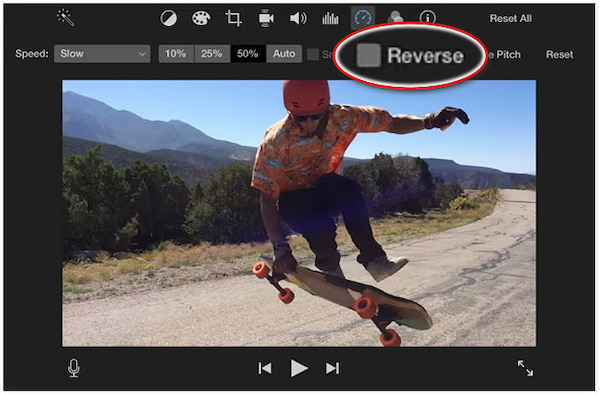
1. In iMovie, drag and drop the video from the media library onto the timeline. Highlight the clip to access the editing tools in the video preview window. Click the Speed button to reveal the speed adjustment controls for the highlighted clip.
2. In the Speed settings, tick the Reverse checkbox to instantly reverse your video clip. If needed, you can further adjust its playback speed using the speed slider. After you’ve reversed and edited your clip, click File and select Share to export the video.
3. Transfer the reversed video to your iPhone using AirDrop. Highlight the video, select Share, click AirDrop, and choose your iPhone from the list of nearby devices. The video will be instantly transferred to your Photos app.
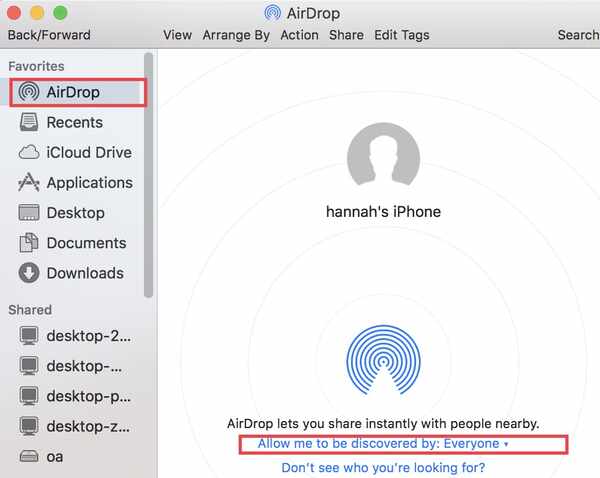
While you can’t directly backward video on iMovie for iPhone, the Mac version provides a reliable workaround. Once reversed, you can transfer the clip back to your iPhone using AirDrop. However, it's time-consuming and requires iMovie for Mac for reversal before re-syncing.
InShot is the best app to reverse video on an iPhone without needing a Mac. This app goes beyond basic editing by offering presets, filters, and transitions. However, here’s the deal: The app comes with pop-up ads, which you have to deal with unless you pay for the premium membership. Still, it is a good option for quickly reversing videos.
Here’s how to reverse video on iPhone for free:
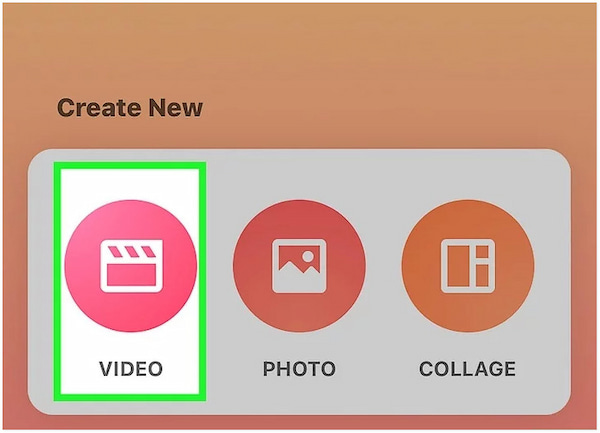
1. Get the InShot Video Editor application on the App Store. After installation, open the app and agree to the terms and conditions to proceed. On the home screen, tap the Video option under the Create New section to open the camera roll.
2. Browse through your library and tap the video you want to reverse. Then, tap the Checkmark button to import it into the editing timeline. Once loaded, tap it to bring up the editing toolbar. Swipe left the toolbar until you find the Reverse tool.
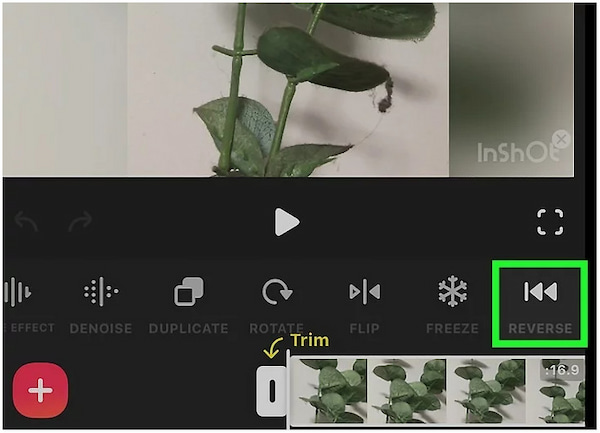
3. Simply tap the Reverse tool, and InShot will start processing your video in reverse. The processing time depends on the video’s length. Once the reversal is complete, tap Save, select your output settings, and then tap Save again to export the reversed video.
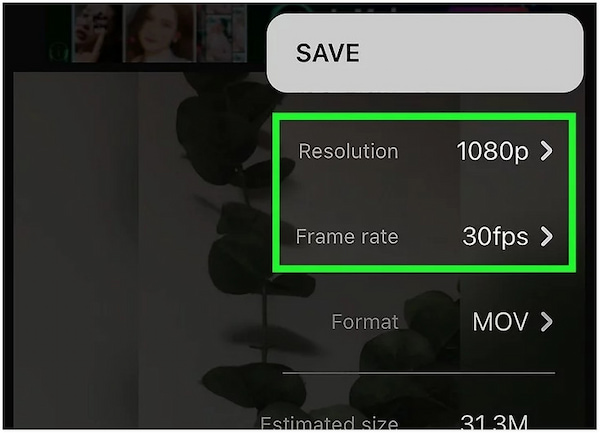
Reversing a video with InShot is quick, simple, and doesn’t require a Mac. You can easily turn any clip into a fun rewind effect in just a few taps. However, the pop-up ads interrupt you while editing the video, requiring a premium membership to remove.
AnyMP4 Video Converter Ultimate is a complete media software bundle available for Windows and Mac. Apart from converting media, it includes a Video Reverser tool that allows you to quickly reverse video clips. It allows you to reverse iOS video entirely or specify a particular segment. It supports various formats, including MP4, MOV, WMV, AVI, MKV, and over 500 others. It even includes a preview window, allowing you to see the reversed effect in real-time before exporting.
Here’s how to put a video in reverse on iPhone alternative:
1. Start by obtaining the free download of AnyMP4 Video Converter Ultimate. Install the video reverser software and finish the installation process. Once the setup process is completed, open the software to begin the video reversing process.
Secure Download
Secure Download
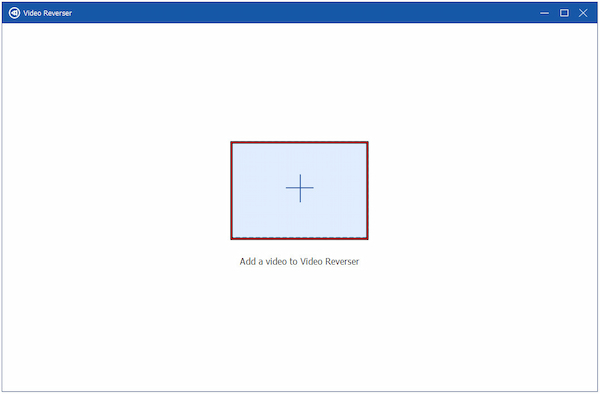
2. Upon startup, the software opens in the Converter tab by default. Switch to the More Tools tab and find the Video Reverser from the list of tools. In the Video Reverser window, click + to add the video clip you wish to reverse.
3. Use the progress bar or manually enter times in the Set Start and Set End boxes. Choose the exact portion of the video you want to reverse. To reverse the entire video, simply select the full duration. Once ready, click Export to generate your reversed video.
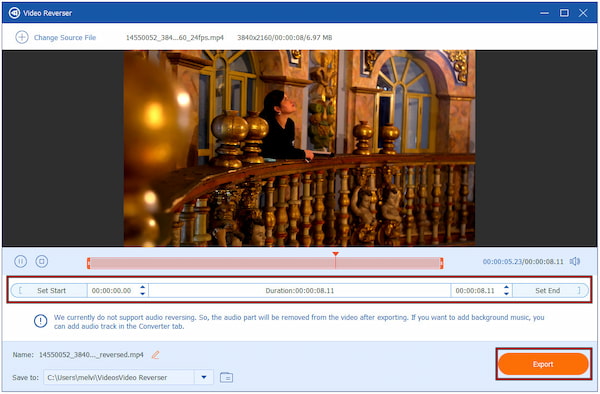
Important Note: The Video Reverser tool does not currently reverse the audio track. If you need to reverse the sound, you can manually add a separate audio track to the final video later.
AnyMP4 Video Converter Ultimate provides a fast, flexible, and professional solution to reverse iMovie video. Aside from video reversing, AnyMP4 Video Converter Ultimate also offers MV Maker, Converter, Video & Photo Collage Maker, and more. Whether you need to reverse an entire video or just a portion of it, it delivers outstanding results in seconds.
Can I reverse a video on an iPhone without an app?
No. The iPhone’s built-in Photos and iMovie apps do not include a reverse video feature. This means you need to install a third-party app to reverse video on iPhone. Alternatively, you can use an online video reverser through Safari. These web-based tools let you reverse video online on iPhone and download the result directly to your device.
What’s the best free app to reverse video on iPhone?
The best free app to reverse videos on iPhone is InShot. It’s a powerful yet easy-to-use video editor that allows you to reverse, trim, crop, etc. InShot also processes video reversals quickly and supports high-quality exports without needing a computer. However, this app is bundled with pop-up ads, which may interrupt your editing experience.
Does iMovie on iPhone support video reversal?
No, iMovie on iPhone and iPad does not support video reversal. The mobile version focuses on basic editing only and lacks advanced features, such as clip reversal. To reverse a video using iMovie, you’ll need to use a Mac version, which has a Reverse option. After reversing the video on your Mac, you can sync it to your iPhone using AirDrop.
In conclusion, reversing videos adds a fun and creative twist to video clips. While you can’t reverse video on iPhone directly, there are several effective methods. Each approach allows you to achieve high-quality reverse effects, giving your videos a professional look. For the most efficient and versatile solution, consider using AnyMP4 Video Converter Ultimate. This all-around media software bundle makes reversing videos simple and precise. It allows you to reverse entire clips or specific segments with ease.
Secure Download
Secure Download
 Updated by Mark Cristobal to Edit Video
More readings
 How to Reverse a Video on CapCut in One Minute [Updated]
Learn how to reverse a video on CapCut with this easy-to-follow guide. Our detailed guide works for both desktop and mobile apps to create engaging edits.
 How to Play a Video in Reverse on Snapchat
This article is a complete guide to teaching how do you reverse a video on Snapchat. We will explore two options, using snapchat and without using it.
 How to Send Long Videos on iPhone [100% Functional]
Are you having trouble sending your videos due to their file size being too large? Worry not! Learn how to send a long video on your iPhone here.
 How to Trim/Cut a Video on iPhone 18/17/16/15/14
How to cut out parts of a video on iPhone? How to trim the middle of a video on iPhone? Get a detailed guide to trim a video on iPhone 11 and other models.
 Add your comments to join the discussion here