
Multimedia editing holds significant value in the current market, as social media posts and other forms of online content are most effectively shared in video format. Aside from basic video editing, another advanced skill that can help you capture viewers is applying aesthetically pleasing color design. As such, this article will involve highlighting the five best color grading software to help our readers choose which option suits their needs based on editing skill, device in hand, and intended purpose. We will review each program while featuring its best uses, pros, and cons.
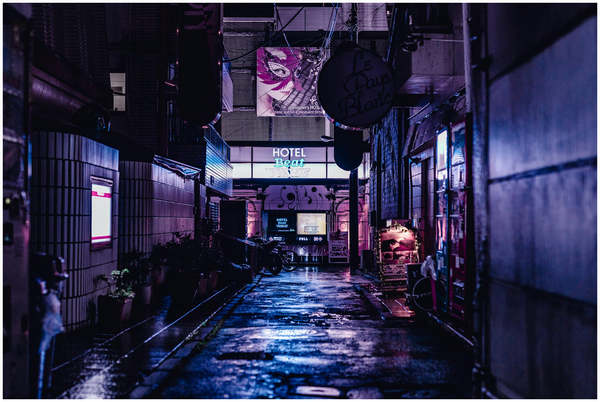
Before proceeding to our software reviews, let us first discuss what color grading is and why these advanced editing skills matter for aspiring multimedia practitioners. To start, properly using film grading software heavily affects the mood of your video projects. When used properly, it can make a scene lively, gloomy, scary, or any other form of emotion you want to convey.
With the concept of color grading now discussed, it is important to learn that this skill is totally different from video color correction. Unlike grading, which is used for cinematic purposes, correction adjustments fix bad color design from your video to enhance the color’s natural look. It usually involves adding exposure, contrast, and editing the tint color balance of your project.
Now that the importance and function of color grading and color correction have been discussed, let us move forward to the review of the best video grading apps for desktop computers.
To provide an objective review of the featured color grading software in this article, we used three specific measurements to assess the video color editor performance of the best color grading software we have featured.
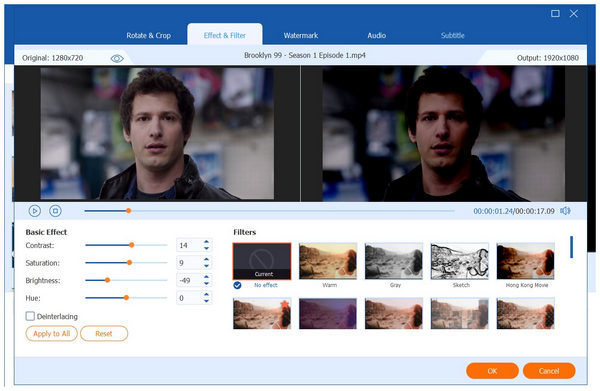
Since color correction’s primary function is to readjust unwanted color design, the first assessment tool we have used is exposure recovery. As its name suggests, this was used to judge each program’s video repairing capabilities if too much exposure was applied.
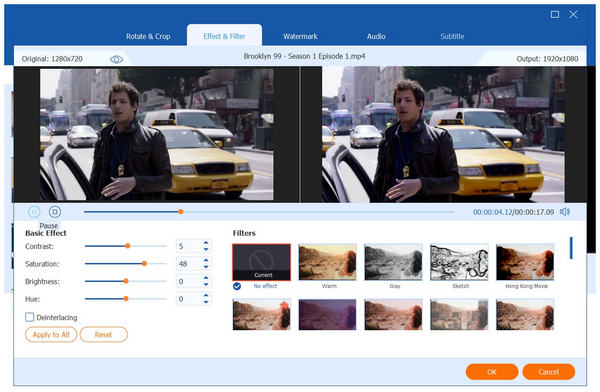
For video projects with people as their main subject, preserving a natural-looking skin tone is crucial. Too much color grading may affect the skin color of your models, and such visuals are not appealing and may look weird to the viewers. To test this factor, we made each video color editor correct a video sample with the models having their skin look orange and plastic-y.
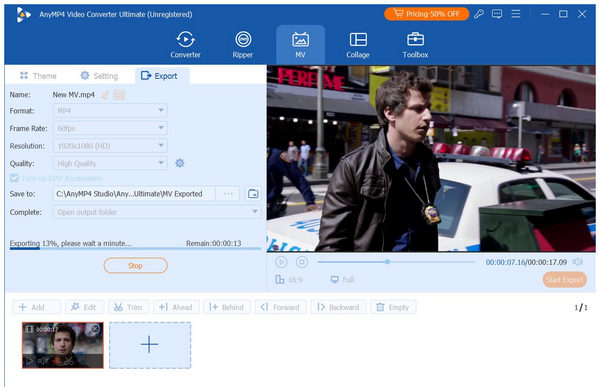
Finally, the performance of the tools is graded via their rendering speed. To keep it consistent, we rendered a 1-minute video in 4K quality and timed each tool based on how fast it rendered the video.
With the reviewing of measurements now discussed, let us move forward to reviewing some of the best programs for color grading.
| Color Grading Software | Best Used For | Ease of Use | Price | Unique Features |
|---|---|---|---|---|
| AnyMP4 Video Converter Ultimate | Automatic color correction and color grading filters. Best used for beginners. | Very beginner-friendly | Free - $18.75 | ●Supports 500+ media formats. ●Versatile format converter tool. ●Easy-to-use filters and color adjustment options. |
| DaVinci Resolve | Professional-quality color adjustments for advanced visual effects. | Professional-use | Free - $295.00 | ●Advanced color toolkit settings. ●Supports flashy visual effect integration. ●Practical collaboration tool. |
| Adobe Premiere Pro | Professional video editing works. Integrated with other Adobe Creative Cloud programs. | Professional-use | $21.99 - $34.49/month | ●The Lumetri Color panel is designed for advanced color curves and editing. ●Highly optimized for collaborative editing via shareable project files. ●Deep plug-in support. |
| Final Cut Pro | High-performance editing and color adjustments for Mac. | Intermediate | $299.99 | ●Highly optimized for Apple Silicon. ●Dedicated color editing tools. ●Supports other premium Apple media software. |
| Filmora | Beginner editors who want to take the first step to learning traditional editing tools. | Easy | $49.99/year - $79.99 one-time payment. | ●Built-in video editing templates. ●Basic control tools for simple color grading work. ●Designed for beginners. |
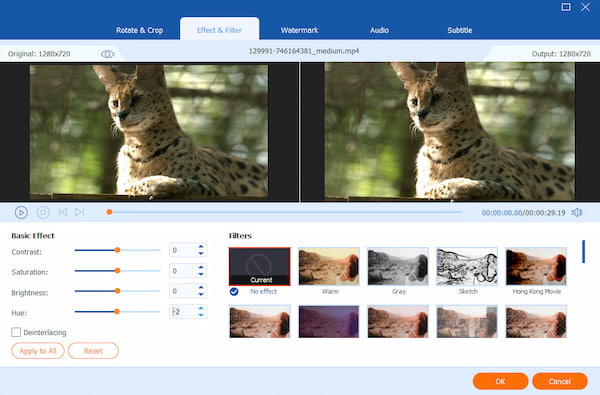
To start our lineup for the top five color grading software for desktop, we will highlight the best option first in terms of versatility, ease of use, and practicality, with none other than AnyMP4 Video Converter Ultimate.
Among the programs on this list, this tool is by far the simplest to use in terms of interface design and video processing. For automated color editing, the Video Enhancer tool of the software works wonders for beginners, as it applies balanced color adjustments to videos processed in it.
If you want more control over your color grading adjustments, you still have the option for manual editing via the Effects and Filter tab in the video editor of the program, which allows editing the contrast, saturation, brightness, and hue of your video.
With the help of the automated Video Enhancer tool and the manual color effect settings of the program, you now have all the tools for the simplest option to adjust the color grading of your video project.
This sheer practicality and ease of use are what make AnyMP4 Video Converter Ultimate a solid option, especially since you can also use it to convert, compress, and edit the coloring effect of video via a single export.
To learn more about one of the best free video grading software for Windows and Mac, make sure to read its pros and cons below. Do not forget to download it as well to start using the easiest color grading tool for desktop.
Secure Download
Secure Download
PROS
CONS
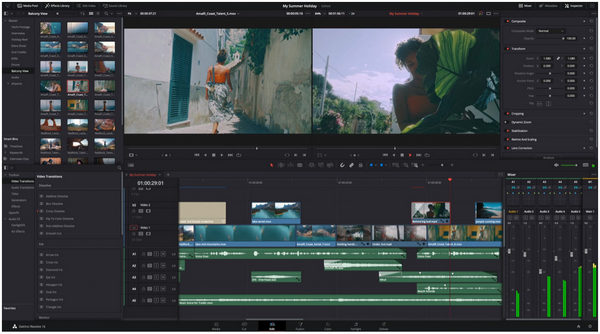
With the easiest color grading tool now discussed, let us now move forward to the complete opposite with DaVinci Resolve. Among the color grading options in this article, this software is arguably the hardest and most technical to use.
However, this steep learning curve was made possible by the limitless editing options in the program. This includes the color correction options in the software. Unfortunately, the high technical requirements to run the software properly are what prevent it from being accessible.
Despite that, it is still one of the best free color grading software programs, especially for users with enough experience in multimedia editing.
PROS
CONS
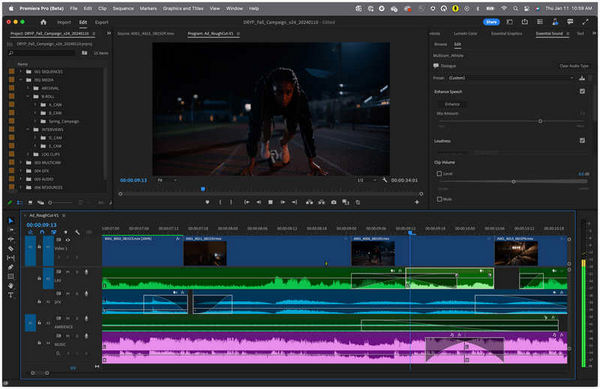
Continuing the trend for professional-grade options, we have the most popular option in this list with Adobe Premiere Pro. Similar to the previous option, this tool is also equipped with limitless editing options, making it very rewarding for experienced users.
Although not inherently easy to use, the design of the software, being similar to other Adobe Creative Cloud tools, gives it a small point in terms of accessibility. This made the software a good color grading tool for those with experience in other Adobe software, such as Photoshop
Unfortunately, the program is still hard to use despite this familiarity. Its learning curve is also challenging since its tools are very technical in terms of their capabilities.
PROS
CONS
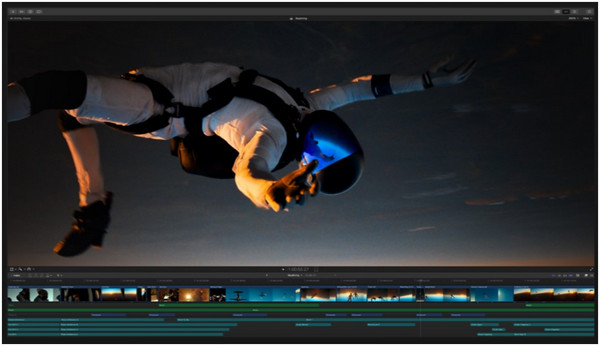
With the options for beginners and professionals now highlighted, we can move forward to the option in between with Final Cut Pro. Highly optimized for Apple Silicon processors, this video editor tool for Mac offers balance in terms of color grading and ease of use.
Although it is easier than professional-grade options, it is equipped with intermediate editing tools, making it a balanced option for beginners who want to move forward with their editing skills. Unfortunately, its exclusivity to macOS computers limits its overall accessibility.
PROS
CONS
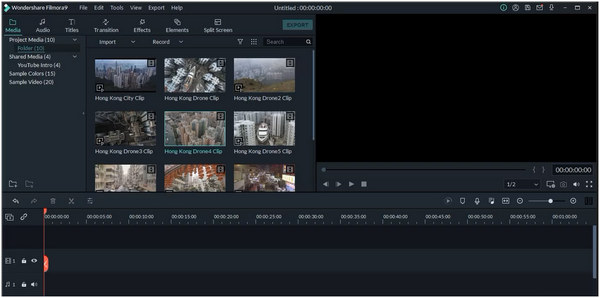
We will finish this top five by featuring another beginner-friendly option. Similar to AnyMP4 Video Converter Ultimate, Filmora is also optimized for ease of use. However, it has traditional video editing tools, which make it beginner-friendly but are enough for experienced editors.
Despite its balanced tools, Filmora is still a beginner-friendly option at its core. This made the program limited in terms of advanced color grading and correction tools. However, it can still get the job done, although only on a basic level.
PROS
CONS
Do I need professional software for YouTube videos?
Yes, you may use professional editing tools for YouTube videos. However, beginner-friendly options can still get the job done. But if you are experienced enough, professional software may serve you better.
Which software is best for cinematic projects?
For cinematic editing, professional-grade options are the best. DaVinci Resolve and Premiere Pro are good options. However, beware that these options are very technical to use.
Can I use LUTs across different platforms?
Yes, you can. Lookup tables that work as preset color filters can be copied and used across different software. This is because LUTs are saved in a different file format.
What is a LUT?
Lookup tables are file types that can preserve color grade settings from editing tools. This makes sharing color grade adjustments easier between different options. This is a big practical option for video editors.
Does color grading reduce video quality?
No, it does not. Color grading videos does not affect video quality itself. It will only adjust the color balance of the video.
With some of the best color grading software now discussed, we hope that you will now be able to select which option will work best for your skill, needs, and the device you are using. For complete beginners, we highly recommend AnyMP4 Video Converter Ultimate, as it provides both automatic adjustment and manual video editing options. You may download it using the link below.
Secure Download
Secure Download
 Updated by Mark Cristobal to Edit Video
More readings
 3 Ways to Change the Color of a Video (Beginner Guide)
Learn how to change the color of a video like a pro here! Discover effective methods for color transformation to add visual impact to your videos.
 Colorize Video: Enhance Visuals Like Never Before
Discover the magic of colorize video! Learn how to breathe life into old black-and-white footage, turning them into stunning, vibrant masterpieces.
 Color Grading in Premiere Pro to Fix Video Visual Effect
Check this and learn the secrets of color grading in Premiere Pro with this guide. Elevate your editing skills and create visually captivating content.
 Improve Video Using Color Correction in Premiere Pro
Do your videos look bland? Check this post and learn the color correction in Premiere Pro. This post includes the steps to achieve a natural-looking clip.
 Add your comments to join the discussion here