
Free Download100% Clear & Secure
Free Download100% Clear & Secure
File management and security have grown over the years from basic file renames and using password-protected apps. Since then, the concept of internal metadata has started to gain wide popularity for users who want to improve their files’ privacy. In this article, we will explore how to change the modified date of a file using both computer-based programs and online tools to help our readers discover the best solutions to enhance the protection of their files.
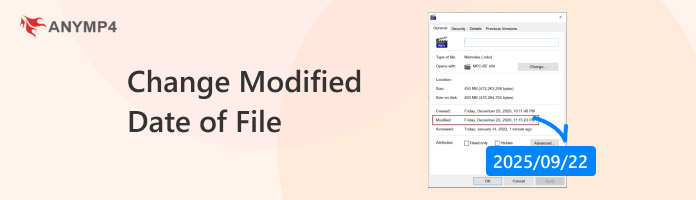
Metadata are pieces of digital information embedded in all digital files, regardless of their type and format. Among them, specific dates in the lifespan of a file can be seen and hold such importance, such as Created Date, Accessed Date, and Modified Date.
| File Modified Date Changer | Ease of Use | Best Used For | Pricing | Supported File Type | Supports Batch Editing |
|---|---|---|---|---|---|
| AnyMP4 Video Converter Ultimate | Easy | Easy batch processing and metadata adjustments for files. | Free - $12.45 | MP4, MP3, MOV, JPG, PNG, DOCS, TXT, and more. |  |
| BulkFileChanger | Intermediate | Advanced metadata editing for experienced users. | Free | JPG, DOCX, PNG, MP3, MP4, and all Windows system files. | |
| Metadata2Go | Easy | Online metadata editing for computers with no installed options. | Free - $39.17 | DOC, DOCX, PDF, PPT, XLSX, JPEG, PNG, TIFF, RAW, MP4, AVI, MOV, MP3, WAV. |  |
These dates and timestamps refer to the date the file was created, when it was last opened, and when it was last edited or modified. As such, these contain critical information since they can confirm if your file has been edited or tampered with.
Fortunately, learning how to change the modified date of a file in Windows, Mac, Linux, and even online is easy. To have a quick overview of these options, make sure to read our table below.
If you are looking for a desktop-based solution to change the modified date or timestamp of your files, AnyMP4 Video Converter Ultimate should be your top choice since this multimedia editing tool was designed for cross-platform availability for Windows and Mac.
Equipped with a professional-grade File Date Changer tool, editing the Created, Accessed, and Modified dates of a file can be done within a few clicks. These adjustments may also be applied to multiple files at once for better efficiency and seamless workflow due to the batch processing option in the tool.
You can use these editing options for all files and the 500+ formats supported by the program, from videos, audio, documents, and Excel files, to enhance their security and improve file management.
To learn how to use the program, make sure to read our three-step guide below and download the tool for an easier time following our guide.
Secure Download
Secure Download
1. Open AnyMP4 Video Converter Ultimate, and go to the Toolbox tab. Scroll down to find the File Date Changer tool and then select it. In the add file menu pop-up, browse through your File Manager to find the files you want to edit
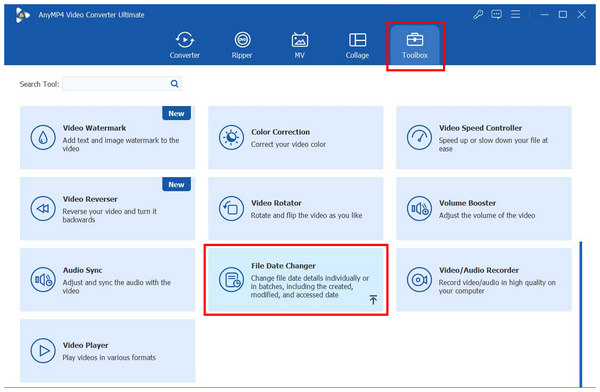
2. Once your file has been imported to the metadata editing tool, click on the textbox under the Modified tab. Then, write your custom modified date. Press Enter on your keyboard to confirm the adjustment.
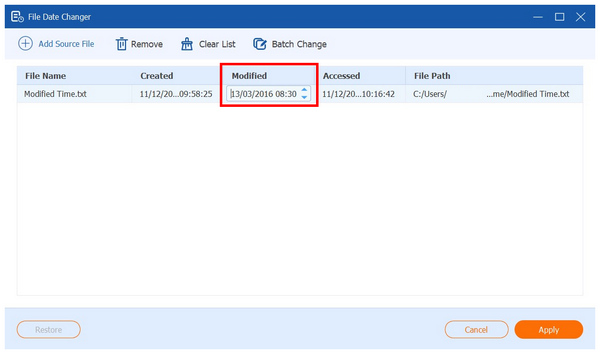
3. With the custom date now applied, you may select Restore to undo your adjusted time. Otherwise, click on Apply to confirm the modified date you added.
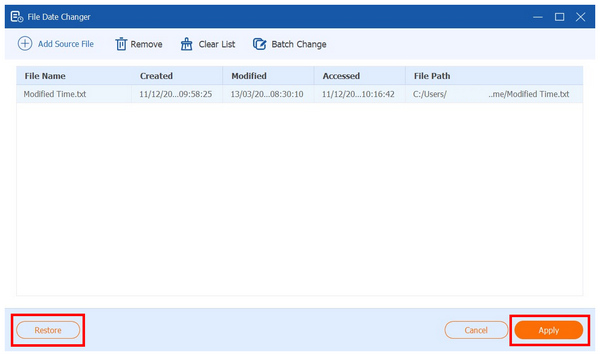
Now that we have provided our readers with the guide for the easiest modified date editor tool on both Windows and Mac, we hope that this guide has provided you with an easier understanding of what makes the AnyMP4 Video Converter Ultimate file date changer tool both practical and effective.
With two of the most popular operating systems now discussed, we can move forward to the best option for changing metadata on Linux with BulkFileChanger. Among the options in this article, this program is the only one that offers completely free services.
Unfortunately, this comes at a cost of heavier technical requirements since learning how you change the modified date of a file on BulkFileChanger requires prior knowledge of basic file management programs.
Although harder to use than its peers, this program can still get the job done, and we will make this possible by providing a three-step guide on how to use it below. These steps are selected to be as simple as possible.
Take note that our guide below uses the Windows version of the program, but these steps are also applicable to the Linux version.
1. Open BulkFileChanger and click the Add File button on the left-most part of the taskbar.
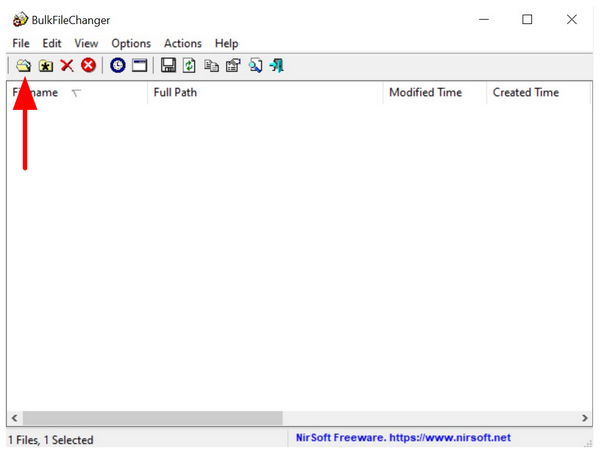
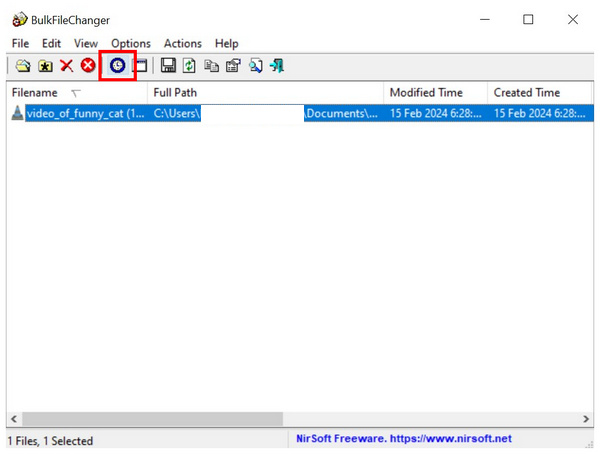
2. Once your file has been added, select it. Then, click on the Change Time Attributes button to access the file date modifier menu.
3. In the Change Time Attribute tab, click on the Check Box beside Modified. Once selected, you can now click on the drop-down menu to set a custom date. To confirm your adjustment, select Do It.
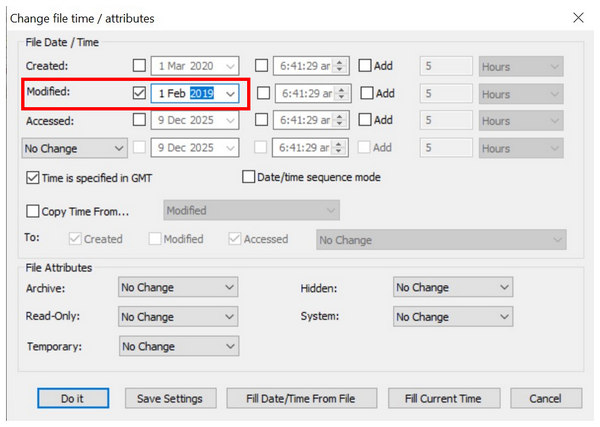
Although harder to use, BulkFileChanger gives incentives to its users by providing more metadata editing options, such as completely removing metadata from video and audio. However, some of these elements might be overwhelming to use and could also pose a threat to the stability of the file.
When limited in time, online tools may still get the job done if you have no access to an installed program. In this case, Metadata2Go should be one of your top picks. As its name suggests, this online tool was designed to edit metadata information of files processed in it.
However, this option has prominent limitations since it can only scan limited metadata on the files you will upload. Other files, such as videos, may only have their frame rate scanned. It is not nearly as reliable as other tools when it comes to scanning all the metadata of files.
To learn how to use Metadata2Go, make sure to read our three-step guide below for quick and easy Modified Date adjustments.
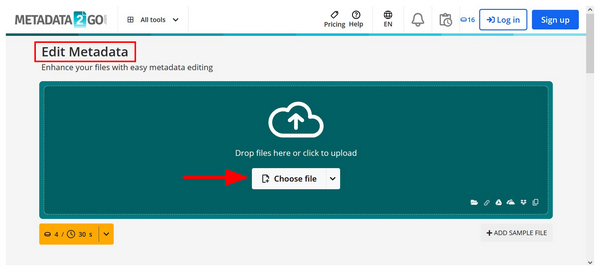
1. Open Metadata2Go’s Edit Metadata tool. Then, select the Choose File option to add the file you want to edit. Wait for the file to be uploaded.
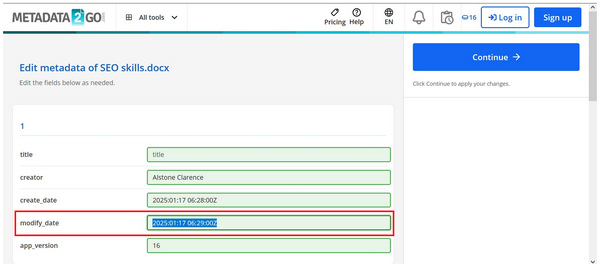
2. Once the file has been added, you may now edit its Modify Date by editing the values in the Text Box.
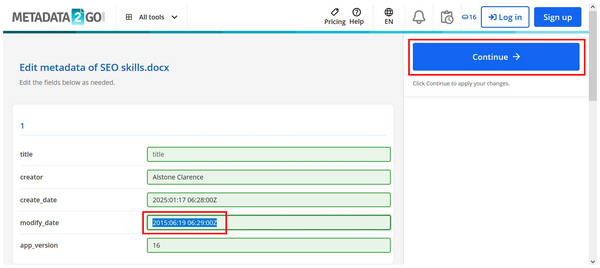
3. After editing the Modify Date value of your file, you may now click on Continue to start producing the file with edited metadata.
After following this three-step guide, your newly downloaded file will have edited metadata, which will improve its privacy and security. Metadata information editing also allows easier file management.
Can I change the modified date without editing the file?
Yes, you can. You can use metadata editing tools to make this possible. Fortunately, our guides above will help you get started editing the metadata of videos or files.
Is it legal to change a file’s modified date?
Yes, there are. Metadata2Go is an example of one. Unfortunately, this program can only change the modified date of one file at a time.
Is there an online tool to change the modified date of a file?
Yes, there are. Metadata2Go is an example of one. Unfortunately, this program can only change the modified date of one file at a time.
How to change the modified date of a file on Mac?
You can use third-party tools like AnyMP4 Video Converter Ultimate. For built-in options, you may use command lines within the Terminal of your Mac PC. Among these two, using AnyMP4 Video Converter Ultimate is the more accessible option.
Is it hard to change the modified date of files?
No, it is not. Changing the file modified date can be done using different options. Some of which are designed to be simple and accessible, like the tool in AnyMP4 Video Converter Ultimate.
With the best options to change the modified date of files now featured, we hope that these guides will be enough to help you learn how to edit your own files for better privacy and for file management purposes. However, it is better to use programs that are designed for simplicity, and AnyMP4 Video Converter Ultimate will be the best choice for you. Download it using the link below.
Secure Download
Secure Download
 Updated by Mark Cristobal to Edit Video
More readings
 2 Effective Ways to Check the Audio Bitrate on Mac
Knowing the audio stand is a must, especially if you are in the media field. Let's see how we can check the bitrate of audio in Mac to avoid low-quality sound.
 How to Change Video Speed: Slow Down or Speed Up Videos
Learn how to change video speed with top tools for iPhone, Mac, Windows, and online. Speed up or slow down videos in seconds with the 5 tools now.
 5 Ways to Merge MKV Files Seamlessly [2026 Updated]
Looking for a way to change video thumbnails on Windows 11? Learn how to customize video covers for MP4, MKV, and more without re-encoding.
 5 Ways to Merge MKV Files Seamlessly [2026 Updated]
This is the ultimate guide to merging two or more MKV files. Here you can learn some details about combining MKV videos with SRT and audio files.
 Add your comments to join the discussion here