How to Change the Date of a Created File on Mac Using 3 Ways
When it comes to metadata editing, adjusting your file’s creation date is the most important knowledge to use, as editing this information drastically changes the context and upgrades the privacy of your files. Changing this information is very useful both for practical and security reasons. With that in mind, this article aims to provide a detailed guide on how to change the date of created files on a Mac. The three options that we will provide below will all be able to help you adjust the metadata of the files you want to keep private.

Part 1. Differentiating Timestamps on Mac
When changing timestamp metadata on Mac, you have to be aware of the three dates that can be adjusted being Creation, Modification, and Access dates. These dates will give information about three important info in the file’s digital lifespan.
The creation date dictates when it was created, the modification date when it was last edited, and the accessed date when it was last opened. With the meaning of each date now defined, we hope that you have now grasped why these timestamps hold so much value, information, and importance.
Fortunately, they can be freely edited using the file date changer programs that we will feature below.
Part 2. Change Date Created File Using macOS Terminal Commands (Native macOS Tool)
Best Used For: Quickly editing the metadata information of your files, as long as you have basic command-line knowledge.
If you are trying to change the created date on an Excel file on a Mac, the fastest option you can use is through the Terminal command-line app of the operating system. Among the options on this list, it is the fastest and most efficient editing tool to use.
Unfortunately, this built-in option is not the easiest to use, as it requires prior command-line knowledge to be functional. To learn its basics, please read our guide below.
1. Locate the file you want to have its creation date edited, then open your macOS Terminal.
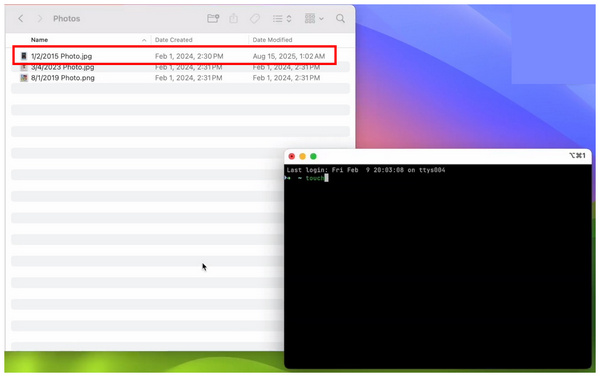
2. Then, type the command -t YYYYMMDDHHMM into the terminal. For example, -t 201603241330, which translates to March 24, 2016, at 13:30 (1:30 PM). Then, click and drag the file you want to edit to your command terminal. Press Return.
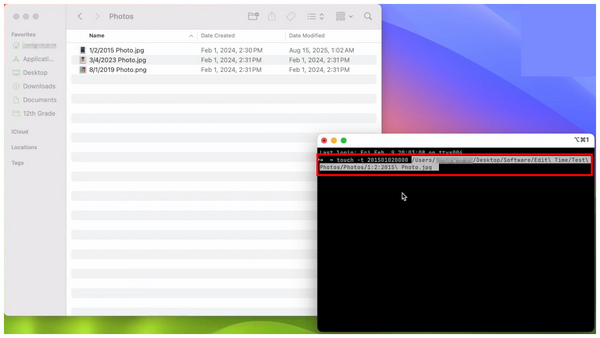
3. After pressing Return, your command line will then be activated in the file you are editing. The file will have its Creation Date edited instantly.
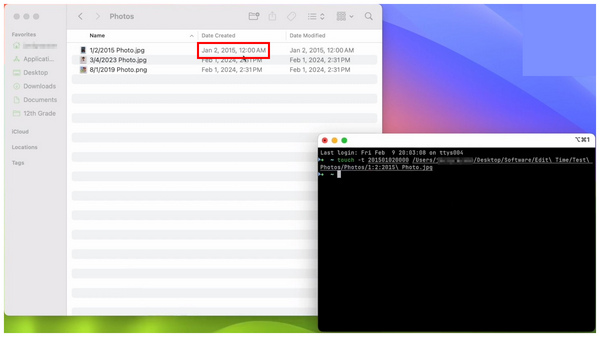
If you are looking to edit just the creation date of your macOS file, our provided guide should be enough for your editing needs. Just keep in mind the date and time format you need to use to easily edit your files' metadata.
Part 3. Change Date Created File with AnyMP4 Video Converter Ultimate for Mac (Easy and Free)
Best Used For: Batch editing the Created, Modified, and Accessed metadata of files on Mac.
Among the three options featured in this article, using AnyMP4 Video Converter Ultimate’s File Date Changer tool is by far the easiest option you can use to change the creation date of your macOS files.
Unlike the other options in this guide, this one is not Terminal-based as it offers a fully-functional UI which is easy to navigate and use. This alone made the tool highly accessible, especially since metadata is an advanced file management technique already.
This ease of use was also supported by practicality, as the program can be used to batch process files, as well as change their creation, last modified, and last accessed dates. To learn how to use the tool, make sure to read our guide below.
Do not forget to download it as well for an easier time following our tutorial.
1. Open AnyMP4 Video Converter Ultimate and move to the Toolbox tab. Then scroll down to find the File Date Changer tool, select it. Then, import the files you want to edit to the pop-up menu that will appear.
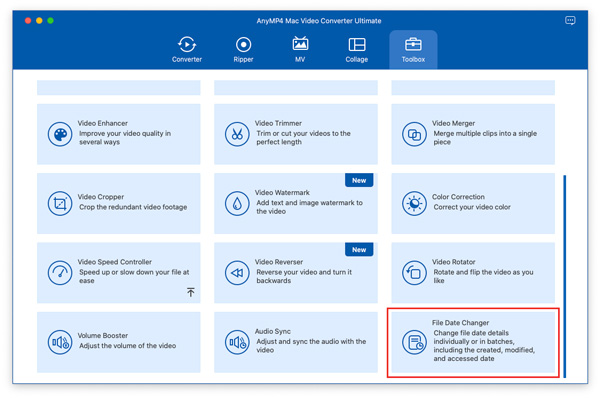
2. With the file you want to edit now imported to the software, click on the date and time values under Created. Then change their texts to the new date and time you want to apply.
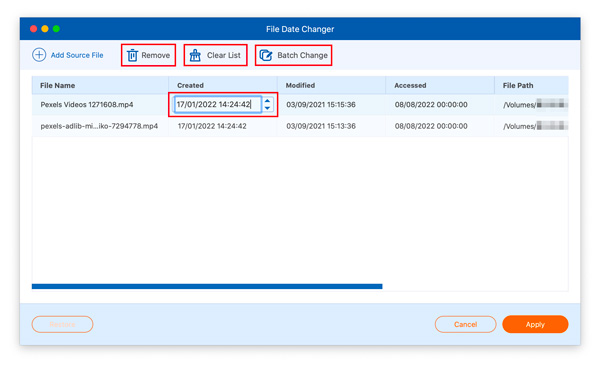
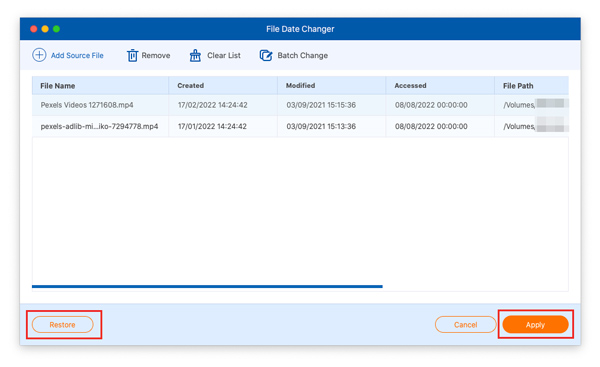
3. If you want to reset the date and time adjustments you applied, you may click on the Restore button to undo them. Otherwise, click Apply to save the adjustment to the created date metadata.
Part 4. Change Date Created File with ExifTool (For Media Files)
Best Used For: More advanced metadata editing and adjustments.
If you have significant experience when it comes to coding and more advanced computer-related work, ExifTool could be a good option for you. Although similar to the Terminal of macOS, this third-party app supports more advanced commands, such as batch processing and more advanced metadata editing.
However, it is way harder to use and requires highly advanced technical skills.
Although our guide below uses the Windows Command Prompt, the command lines that we will use are all applicable to the macOS Terminal.
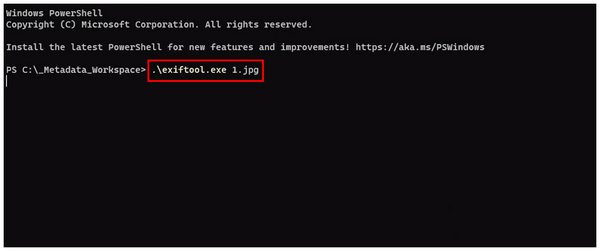
1. Open macOS Terminal, then copy and paste exiftool.exe file.ext. You have to change the file.ext text to the file name and extension of the media file you want to have its created file edited.
2. Next, copy and paste the command line, .\exiftool.exe -CreateDate="2024:02:15 10:00:00" *.ext to the Terminal. Then change the creation date and time to the one you want to use. Make sure to edit the file.ext text as well to the file name and format you want your file to be saved.
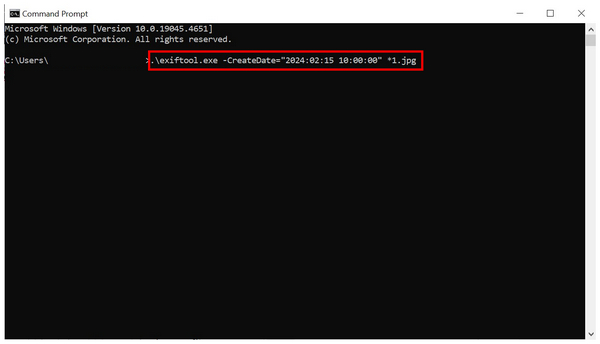
Since ExifTool is too advanced, the command-line we have provided below is only advisable for regular creation date editing. However, the program can do so much more as long as you have prior knowledge of more advanced commands.
Part 5. FAQs About Changing Created Date Files on Mac
Can I change file dates without Terminal or third-party apps on a Mac?
No, you cannot. Only the terminal is the built-in option to change metadata. However, there are third-party apps that are very easy to use.
What tools are available to batch edit file timestamps on Mac?
You can use the macOS Terminal to batch edit file metadata. However, it requires advanced command knowledge to use. Fortunately, you may use AnyMP4 Video Converter Ultimate for easier metadata batch processing.
Can I change the creation date of photos or videos on a Mac?
Yes, you can. Changing metadata is possible on Mac computers. However, you need basic command-line knowledge, or you have to use third-party apps like AnyMP4 Video Converter Ultimate for an easier option.
Is it legal to edit metadata?
Yes, it is. Especially if it is only your private file. Changing metadata does not interfere with any digital laws.
Can metadata editing improve privacy?
Yes, it can. Changing the three timestamps on metadata can drastically improve privacy. This is because your file origin will be harder to track.
Conclusion
Now that we have provided our readers with three of the most reliable and easiest metadata editing tools, we hope that this guide has provided you with the practical skills to change the date of your created files on Mac. For maximum accessibility, make sure to use AnyMP4 Video Converter Ultimate as it does not involve any command-line work. You can download it with the link below.





 Add your comments to join the discussion here