How to Change File Modified Date on Windows PC (2026 Guide)
Metadata editing is starting to gain traction as a more unique way of file management and privacy enhancement measures. However, the benefit of this option for security-related upgrades is by far the best reason to learn it. In this article, we will provide a detailed guide about learning how to change the file modified date in Windows 10/11, as the last modified date metadata holds so much information about the digital file that it is attached to. We will explore two metadata editing options using the built-in tool and a third-party alternative that is much more accessible.
Part 1. What Is the File Modified Date
When it comes to file metadata, digital files have written information about three different timestamps throughout the lifespan of the file. These are the file creation date, last accessed date, and the modified date. As their name suggests, these records show when the file was created, last opened, and when it was last edited.
In this article, we will focus on highlighting how to change the modified date for a Windows file to remove or adjust the information pertaining to when it was last edited. This adjustment is very useful if you want to maintain your privacy for files that are meant to be saved on online servers as backups. It also hides the information that your file has already been edited or tampered with.
Part 2. Change File Modified Date on Windows with AnyMP4 Video Converter Ultimate (Batch Editing)
Best Used For: Batch editing the modified date and other metadata of multiple files.
When it comes to metadata editing, third-party apps are by far the best option for beginners since these tools are designed to be as simple as possible and usually offer a functional UI. In this case, AnyMP4 Video Converter Ultimate is a good option.
Since most tools to modify file dates in Windows 10/11 are console and command-based, AnyMP4 Video Converter Ultimate’s File Date Changer Tool makes it one of the best metadata editors in the market, as it provides both batch processing and an easy custom date editing process.
This design principle made the program the best choice for complete beginners since learning how to use it can be done within three simple steps. To learn how, please refer to our guide below.
Make sure to download the software as well for an easier time following our tutorial.
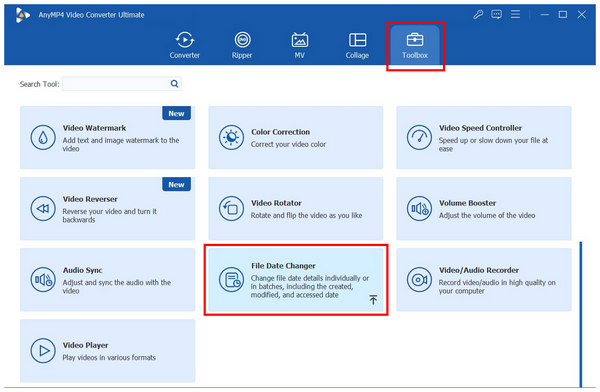
1. Open AnyMP4 Video Converter Ultimate, then proceed to the Toolbox tab. Scroll all the way down to find File Date Changer and then select it. In the add file menu pop-up, browse your File Manager to select the file or files that you want to edit.
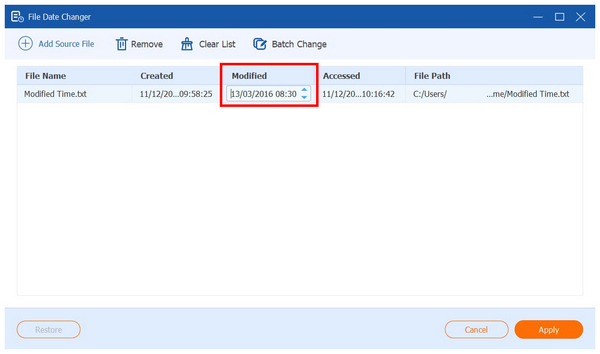
2. With the file imported to the metadata editing tool, click on the text under the Modified tab. Then, write your desired custom modified date. To confirm your adjustment, press Enter on your keyboard.
3. Once your custom date has been applied, you can click on Restore to reset it to the original time. Otherwise, click on Apply to save the custom modified date to your file’s metadata.
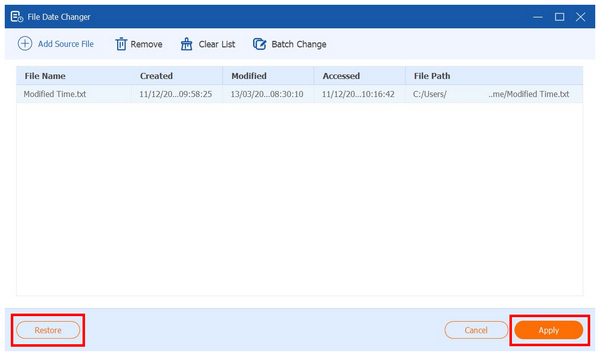
Aside from regular text files, the program also supports all forms of media, from videos, audios, Docs, Excel files, and more. As shown in our guide, it also supports editing both the Creation Date and Last Accessed Date of your file’s metadata.
Part 3. Change File Modified Date on Windows via Command Line (PowerShell)
Best Used For: Built-in file information editing for individual files.
If you want a built-in option to change the attributes of a Windows file, you can do so as well using the advanced command-line program of Windows PCs with Windows PowerShell. This might be the best option if you are already used to command lines.
Unfortunately, its learning curve is very steep, and it has a demanding technical requirement of learning basic command lines for file date changer work. To learn the command you need to write for customizing modified dates, please read our guide below.
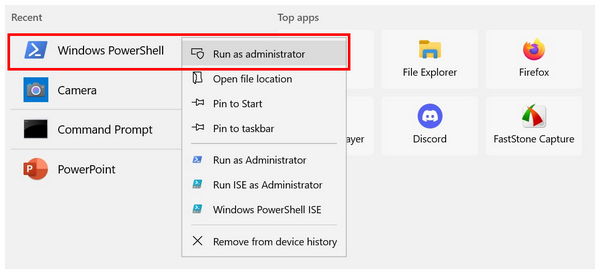
1. Go to the location of the Windows file you want to have its modified date edited. Then, run Windows PowerShell in administration mode.
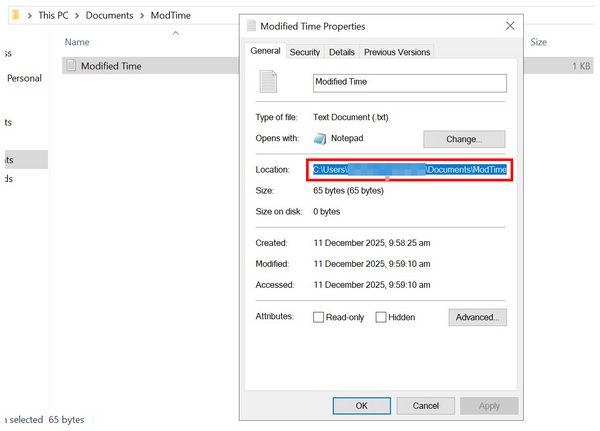
2. Open the File Properties of the file you want to edit, and then copy its Location to your clipboard.
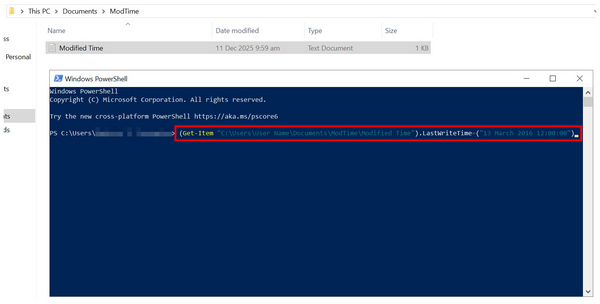
3. With the location now copied, go back to Windows PowerShell and then write this command line (Get-Item "C:\location\file.txt").LastWriteTime=("12 August 2021 15:00:00"). Write the command line and then paste the location of your file after the Get-Item command. In this tutorial, the command line will look like this: (Get-Item "C:\Users\User Name\Documents\ModTime\Modified Time").LastWriteTime=("13 March 2016 12:00:00").
Among most command-line tools, Windows PowerShell may even be considered a more complex option. This makes the program even more intimidating and not suitable for beginners. However, it remains the better choice if you already have the skills to use it properly.
Part 4. Tips for Windows About Changing the File Modified Date
Back up Before Editing
Before editing your file’s metadata, it is important to create a backup copy first. This is very important as command-line editing could cause side effects as severe as file corruption or accidental deletion.
Be Transparent in Professional Settings
When using modified files in professional settings, you have to ensure that this information is disclosed to the people you are talking to. Hiding vital information, such as the creation and editing date, could be misleading.
Avoid Altering System Files
When modifying files, make sure that you avoid tinkering with your computer’s vital system files. Changing their metadata could bring numerous issues to your hardware itself. Do not touch your computer’s system files.
Check the File Properties First
To ensure that the file data modification is applied, make sure to check it in the file properties. This is the easiest option to check if your timestamp modifications are applied.
Part 5. FAQs About Changing a File's Modified Date
What are the best free tools to edit file timestamps?
For Windows, you have three good options. You can use the default command-line apps, AnyMP4 Video Converter Ultimate, or BulkFileChanger. Among these tools, AnyMP4 Video Converter Ultimate is the easiest.
Can I batch edit modified dates for multiple files?
Yes, you can. There are editing tools that support easy batch editing. One of them is even featured in this article with AnyMP4 Video Converter Ultimate.
Is it possible to change file dates in File Explorer directly?
No, it is not. There are no direct File Explorer editing tools for metadata adjustments. You have to use command lines for built-in file date editing.
How to change the file modified date using PowerShell?
You have to use the right command lines to apply these adjustments. This is very important as a wrong command may harm your file. Unfortunately, command-line knowledge is a steep prerequisite.
Is it hard to change timestamp metadata?
It depends on the program you will use. If you only rely on built-in command-line tools, it could be very hard. However, there are easier alternatives, such as AnyMP4 Video Converter Ultimate.
Conclusion
We hope that this article has provided you with the right information for those aspiring to edit the modified date information of their media files. Fortunately, we have provided enough variety for our readers as we highlighted both built-in and third-party tools. To learn how to use the very practical AnyMP4 Video Converter Ultimate option, make sure to download it with the link provided below.




 Add your comments to join the discussion here