
Quick Answer:
When you tried sending an iPhone video clip to your friend's Windows laptop, but they yelled back that their media player won't open it, that is really annoyed. Apple makes shooting high-quality 4K footage completely effortless, but figuring out what is actually happening behind the scenes with your iPhone video format can feel like decoding a riddle. In this guide, we will explain exactly what file extensions and codecs your iPhone relies on, how to change your camera settings so you never hit a playback headache again, and how to convert or fix stubborn video clips step-by-step.
To understand what format your camera shoots, we need to split media files into two things: containers (the wrapper/file extension) and codecs (the compression engine inside).
By default, when you pull clips straight off your camera roll onto a computer, the iPhone video file extension is almost always .MOV. However, the compression tech inside that file changes based on your iOS settings and iPhone model.
| Recording Mode | Container (.Extension) | Video Codec | File Size | Best For |
|---|---|---|---|---|
| High Efficiency (Default) | .MOV | HEVC (H.265) | 50% Smaller | Saving space on iPhone 8 to iPhone 16/17 |
| Most Compatible | .MOV / .MP4 | H.264 (AVC) | Standard | Sharing to Windows, older Smart TVs & web |
| Apple ProRes (Pro Models) | .MOV | ProRes 422 HQ | Extremely Large (GBs/min) | Professional video color grading & editing |
When it comes to playing back videos you downloaded or transferred onto your device, iOS supported video formats are surprisingly flexible, provided you stick to Apple-approved codecs:
If you want your iPhone to record clips in a format that works out of the box with almost any device on the planet, you can force iOS to use the H.264 video codec for iPhone instead of HEVC. Here is how we do it in detail:
1. Open Settings
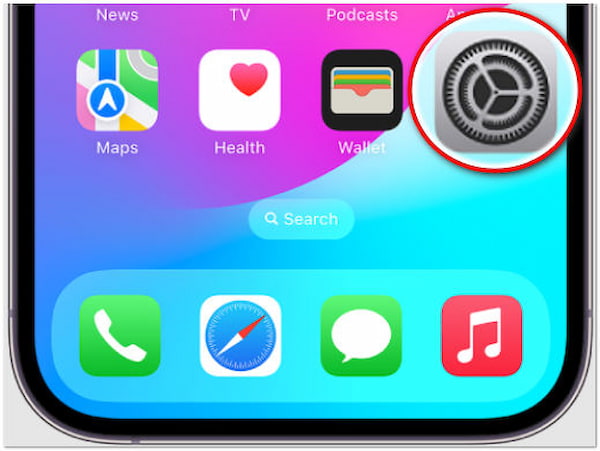
Unlock your iPhone and tap the grey gear icon to open the Settings app.
2. Navigate to Camera
Scroll down until you find Camera (it sits in the section alongside Photos, Music, and TV). Tap it.
3. Select Formats
Right at the top of the Camera settings screen, tap on Formats.
4. Pick Your Mode
Apple gives you two recording formats to choose from, each with its own advantages:
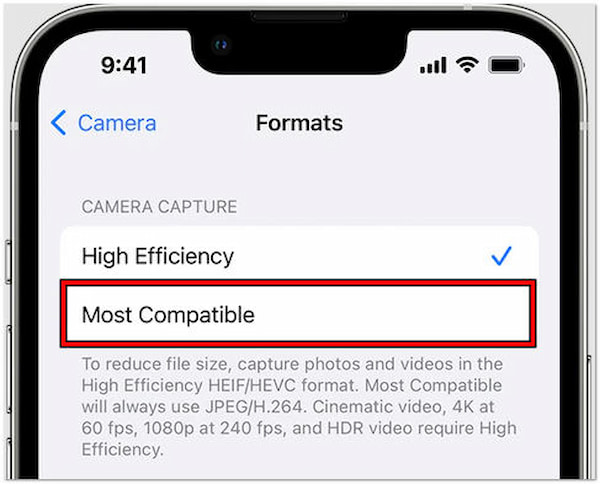
Switching to Most Compatible will lock you out of shooting 4K at 60fps or 1080p at 240fps slow-motion! Apple enforces HEVC for high-framerate 4K recording to prevent your phone storage from filling up in five minutes. If you need super smooth playback, you might want to slow down video on iPhone directly during post-editing instead of relying solely on camera high-fps modes.
If you keep your camera on High Efficiency to save space, iOS can automatically convert videos to H.264 when transferring to a Mac or PC. Go to Settings > Photos, scroll to the bottom under Transfer to Mac or PC, and select Automatic.
What if you downloaded a movie or received a video file (like MKV, AVI, or WMV) that your iPhone refuses to play? Or what if you have a recorded .mov clip that you need in universal .mp4 format?
When we run into non-playable files on our computers, we rely on AnyMP4 Video Converter Ultimate. It has dedicated iPhone hardware presets so you don't need to guess bitrates or codec profiles.
1. Import Video File
Free download the software for Windows or Mac, launch the setup file, and open the application.
Secure Download
Secure Download
Click the large + (Add Files) button in the center, or drag your stubborn video file right into the conversion queue.

2. Select iPhone Preset
Click the Output Format dropdown on the bottom-left side. Switch to the Device tab, select Apple from the left sidebar, and pick your specific model (e.g., iPhone 15/16/17 Pro Max).
Or you can choose MP4 under the Video tab with H.264 encoder.
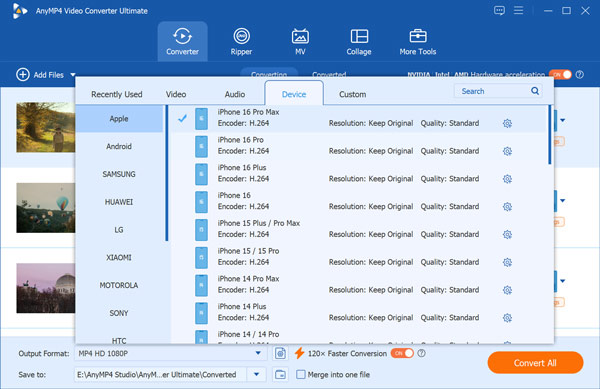
Optional: Click the custom gear icon next to your profile. Here, make sure Video Encoder is set to H.264 and Audio Encoder is set to AAC.
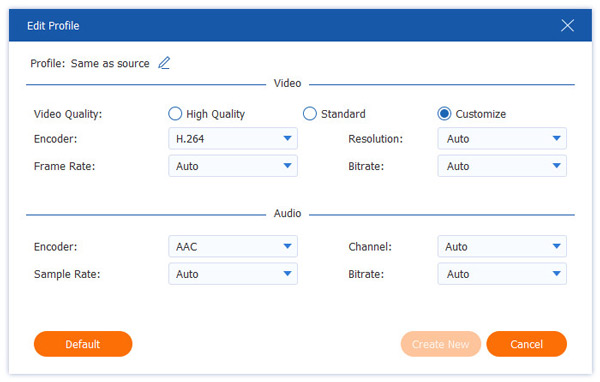
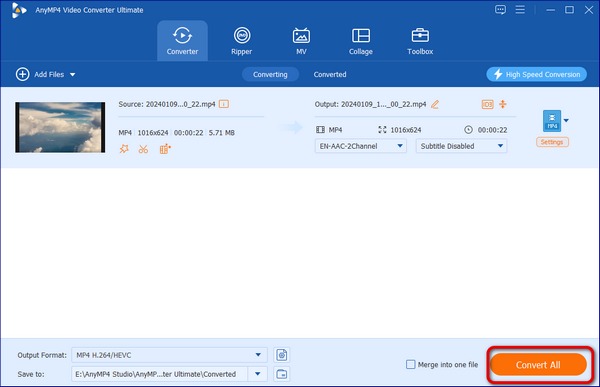
3. Batch Convert to iPhone Video Format
Choose your output destination folder at the bottom left, then hit Convert All. The software utilizes GPU acceleration to finish the job in seconds.
Don’t have access to a computer? You can still convert MOV to MP4 on your iPhone using the built-in Shortcuts app or a third-party video converter designed for mobile devices.
Even when your iPhone video is saved in a standard format like .mov or .mp4, you may still run into playback issues, such as a ‘Cannot Play Video’ message or a black screen with audio playing in the background. This often happens when a video file is damaged during transfer, interrupted by an unexpected system crash, or affected by a sudden shutdown caused by low battery. Changing the file extension or simply renaming the video usually won’t solve the problem because the issue is often related to the internal file structure. In this case, AnyMP4 Video Repair can help restore the video by using a healthy sample clip as a reference to repair the damaged file.
Secure Download
Secure Download
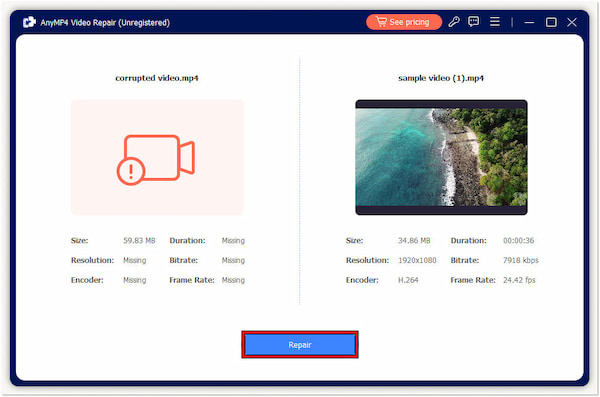
1. Upload Broken File
Launch AnyMP4 Video Repair and click the orange + button on the left to import the corrupted iPhone video you want to fix.
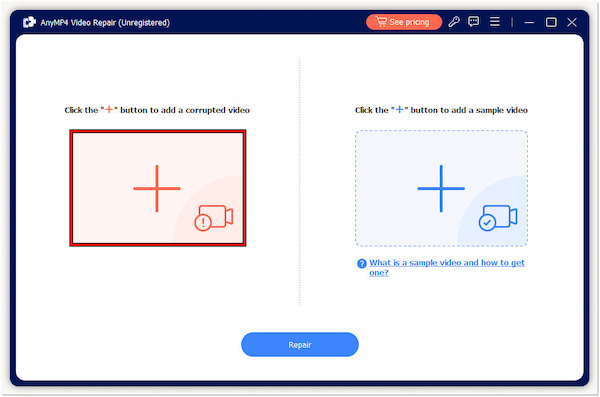
2. Provide Sample Video
Next, click the blue + button on the right to upload a healthy sample video. For the repair process to work properly, the sample video should be recorded with the same iPhone model and use the same resolution settings as the damaged clip.
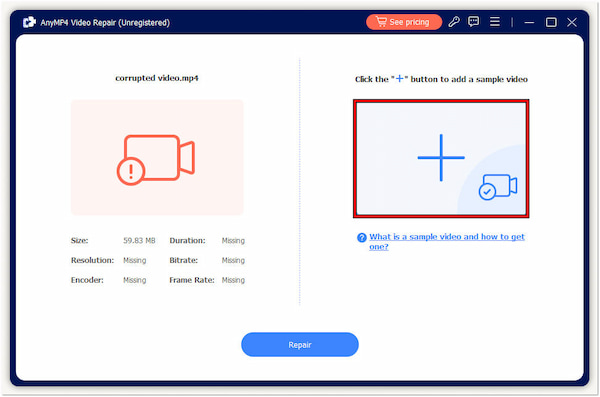
3. Start Repairing
Click Repair to start the process. The software uses the sample video as a reference to rebuild the damaged file structure and fix playback issues.
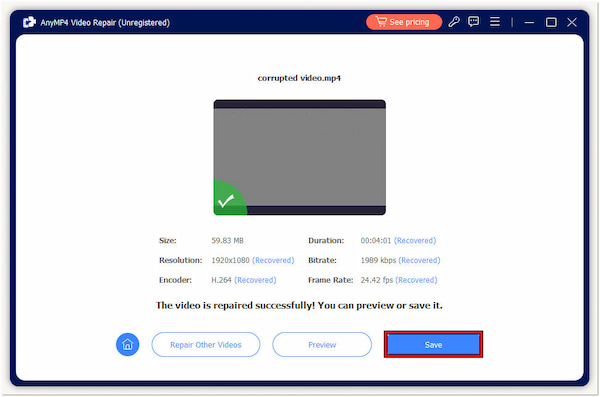
4. Preview & Export
Once the repair is complete, click Preview to check whether the video plays correctly. If everything looks good, click Save to export the restored video to your device.
If your file is perfectly healthy but simply too large to email or text, check out our walkthrough on how to use an iPhone video compressor to reduce file size without ruining video quality.
Can iPhone play FLAC audio files inside videos?
While iOS natively supports playing standalone FLAC audio files in the Files app, standard iPhone video containers generally prefer AAC or ALAC audio streams. If you want to dive deeper into audio file compatibility, read our analysis on can iPhone play FLAC audio seamlessly.
What is the iPhone video file extension?
By default, iPhone videos are saved with the .mov extension. When opened on non-Apple devices, they can often be renamed to .mp4 if recorded in H.264 codec mode, but natively iOS uses QuickTime .mov wrappers.
Why can't my Windows PC play my iPhone videos?
Windows 10 and 11 do not come with HEVC (H.265) playback support out of the box. You either need to purchase the $0.99 HEVC Video Extensions from the Microsoft Store, convert the file to H.264, or use a free media player like VLC.
How do I convert video to iPhone format for old iOS devices?
If you are trying to sync videos onto an older iPad or legacy iPhone model, you should transcode your source footage to 720p or 1080p MP4 (H.264 + AAC). Feel free to check our detailed guide on how to convert video to iPhone format step-by-step.
iPhone video format settings can seem complicated at first, but the choice becomes much clearer when you know how Apple handles file size and compatibility. To wrap things up, let's summarize from two distinct dimensions:
 Updated by Alice Thorne to Convert Video
More readings
 (2026) 2 Best Methods to Flip Video on iPhone with Ease
Wondering how to flip videos on iPhone? Today, we will introduce two of the best methods, along with detailed steps. If you are interested in it, read on.
 Reverse Video on iPhone | Free Hacks You Didn’t Know About
Make your videos go backward with these fun iPhone hacks! Learn how to reverse video on iPhone easily and create amazing rewind effects in just a few seconds.
 3 Ways to Slow Down a Video on iPhone: A Step-by-Step Guide
Are you looking for a detailed guide to the best ways to slow down videos on iPhone? Read this article to discover three options on your iOS device.
 3 Ways to Edit Audio on iPhone: From Built-In to Pro AI Apps
Learn how to edit audio on iPhone to trim voice memos, split GarageBand tracks, and use AI noise removal. Compare the best apps for professional sound in 2026.
 Add your comments to join the discussion here