
Free Download100% Clear & Secure
Free Download100% Clear & Secure

Quick Verdict: Which iPhone App Should You Use?
With the rise of podcasts, voice notes, and mobile content creation, the demand for editing audio directly on an iPhone has grown rapidly. Users want the ability to trim mistakes, improve sound quality, add music, and make quick adjustments without needing a complicated app. Fortunately, the iPhone offers several built-in and free apps that make audio editing easy and accessible. Apple provides multiple ways to edit audio on iPhone, tailored to your skill level and editing needs. This post will show you various ways to edit sounds on iPhone, covering different apps and methods. Our aim is to help you choose the right audio editing tool on iPhone, understand what each app can do, and confidently edit your audio for professional results.
Can you edit an audio file on iPhone? The Voice Memos app is often overlooked, but it comes with fully functional editing features. You can trim audio clips or even replace sections without re-recording the entire file. iPhone voice memo editing is perfect for quick audio edits.
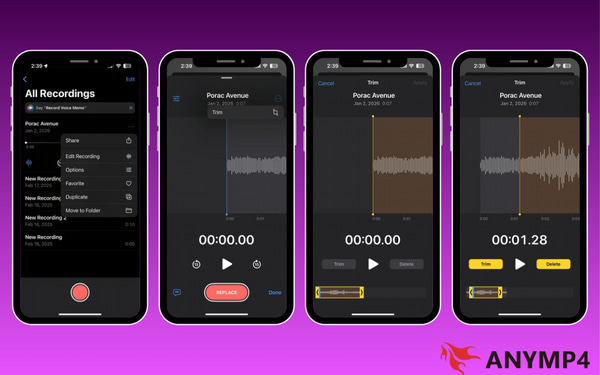
1. In the Voice Memos app, browse and select the recording you want to edit. Tap the More button and select Edit Recording from the menu.
2. Tap the Trim button to start editing the clip. Then, tap the Trim button to start editing the clip. Pinch open on the waveform to zoom in for more precise trimming.
Important Note: The waveform displays your audio visually, with the yellow handles indicating the selected area. Below the waveform, you’ll see a Play button and a recording timer.
3. On either side of the Play button, tap Trim to keep only the area inside the yellow handles. To remove the area inside the handles instead, tap Delete.
The Voice Memos app is surprisingly powerful for an app that comes pre-installed on every iPhone. Best of all, you can quickly edit voice memos on iPhone without needing an extra app. But here’s the deal: You cannot enhance your audio beyond trimming or re-recording.
In the latest iOS update, Voice Memos integrates with Apple Intelligence.
Voice Isolation: When editing, tap Magic Wand. The on-device neural engine now removes background chatter while keeping your voice sounding natural, not robotic.
Auto-Transcription: You can now edit audio by editing text. Tap Transcript, highlight a sentence you misspoke, and tap Delete from Audio to remove the sound segment instantly.
GarageBand is one of the best audio editing apps for iPhone, transforming your device into a mobile audio workstation. This app lets you trim, add effects, adjust the sound, and even remix your audio tracks. It is an excellent app for full control over your audio.
Here’s how to edit an audio file on iPhone with GarageBand:
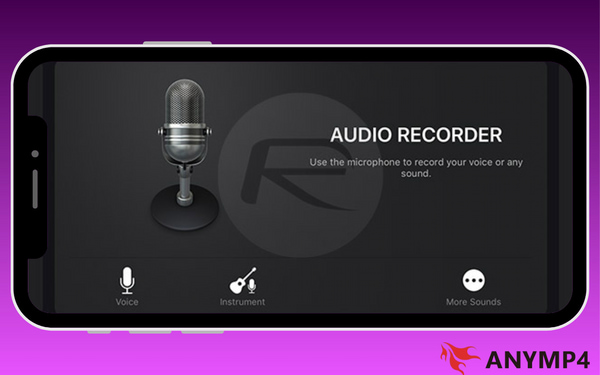
1. Select Audio Recorder to create a new project. Tap the Tracks View option to see all tracks and perform precise edits. Tap the Loop Browser button, choose your audio file from:
• Music: Browse by album, artist, genre, or playlist.
Note: Copyright-protected tracks may not be editable.
• Files: Tap Browse items from the Files app to locate and import downloaded audio.
2. Tap and hold the audio file, then drag it into Tracks View and place it on the first track. Align the audio's start with the track's beginning for precise trimming.
3. Tap and drag the bars on either side of the track to trim unwanted beginnings or endings. Then, tap the Play button to preview your changes.
4. Tap the FX button to access DJ-style tools for remixing. Then, tap the Edit button to adjust echo, reverb, compressor, treble, and bass. Double-tap the track header to open additional options like:
GarageBand audio editing on iPhone lets you produce high-quality, polished audio directly from your device. It is a powerful and versatile tool for anyone looking to perform advanced audio editing. However, you must save projects in GarageBand format before exporting.
iMovie Video Editor is a video and audio editing app available on iDevices. Its audio editing features are robust, perfect for adjusting clips, trimming sections, or editing background music. It provides an intuitive, timeline-based interface for efficiently handling your audio edits.
Here’s how to edit audio files on iPhone with iMovie:
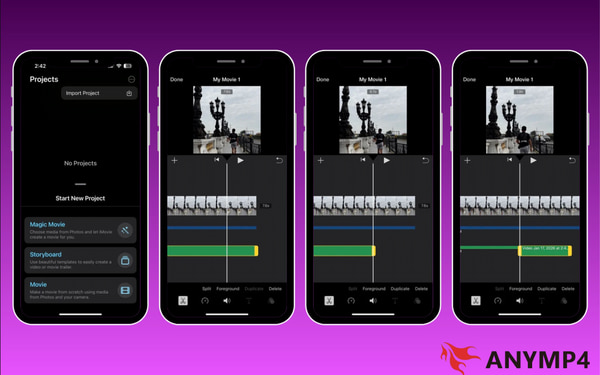
1. In iMovie, tap Import Project to create a new one or open an existing movie project. The timeline will display video clips along with their associated audio tracks. If the audio is not displayed, use the Detach option to isolate the audio from video.
2. Tap the audio clip you want to edit. Yellow trim handles appear at either end of the clip. Drag the handles to adjust the start and end points of the audio. Tap outside the clip to remove the trim handles once you’re done.
Important Note: If a handle won’t move, it means there’s no extra audio available on that end.
3. To split the audio clip, position the playhead where you want to split the clip. Tap the audio clip to reveal the inspector, tap the Actions button, then tap Split.
iMovie is a free option for audio editing on iPhone, especially for projects that also include video. Its timeline-based interface makes trimming, splitting, and arranging audio clips easy to understand. Now, a small heads-up: It is designed for video, so advanced audio tools are limited.
| Feature | Voice Memos | GarageBand | iMovie | AnyMP4 Video Converter Ultimate |
|---|---|---|---|---|
| Noise Removal | Basic | Manual | Limited | Professional |
| Multi-Track | No | Yes | Yes | Yes |
| File Formats | .m4a only | .m4a, .wav, .aif | Video formats | 500+ formats |
| Difficulty | Very Easy | High | Moderate | Very Easy |
While you can edit audio on iPhone, editing sound on a computer offers greater precision, flexibility, and sound control. For this purpose, AnyMP4 Video Converter Ultimate becomes the best solution. It is a full-featured media software bundle compatible with both Windows and Mac. In addition to file format conversion, it also features professional audio editing tools. It offers Volume Booster, Audio Sync, Noise Remover, Audio Compressor, and more. Not to mention, it supports MP3, AAC, AC3, and 500+ other formats, making it perfect for editing iPhone audio clips.
While mobile editing is convenient, iOS apps typically use Lossy Compression to save space. Every time you save a project in GarageBand, the audio quality slightly degrades. moving your files to AnyMP4 Video Converter Ultimate, you can avoid the tinny sound caused by iPhone's aggressive file shrinking. It also adjusts your audio to -16 LUFS to ensure your volume matches professional creators.
Why Choose AnyMP4 Video Converter Ultimate:
1. Start by downloading AnyMP4 Video Converter Ultimate for free. Install the audio clip editor, then allow the installation to finish. Once the setup process is completed, launch the software to access its main dashboard.
Secure Download
Secure Download
2. As soon as it opens, you will be taken to the Converter tab by default. Navigate to the More Tools tab to access more than 20+ editing tools, including multiple Audio tools. From there, here’s what you can do:
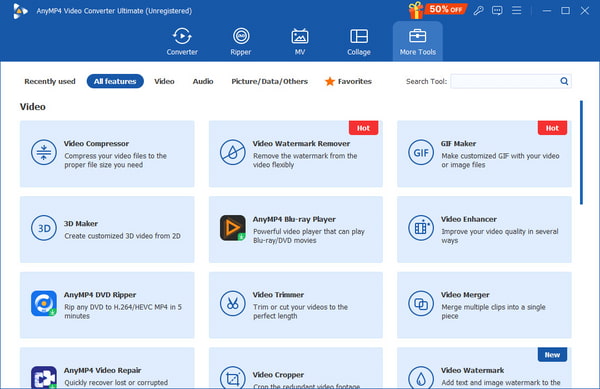
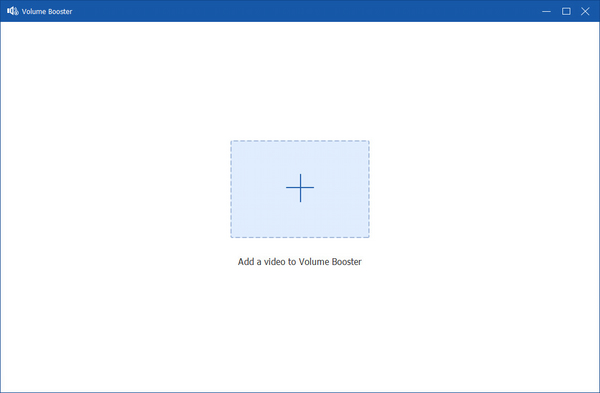
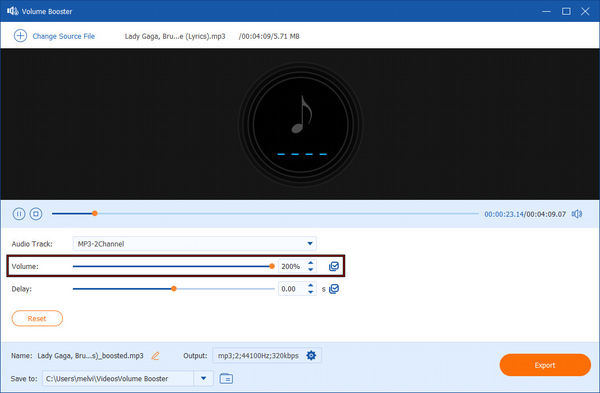
1. Select Volume Booster and click Plus (+) to add your audio file. Increase the Volume slider gradually until the sound is clear.
2. Preview the changes to avoid distortion or clipping. Balanced audio volume improves listener experience and keeps your content sounding professional.
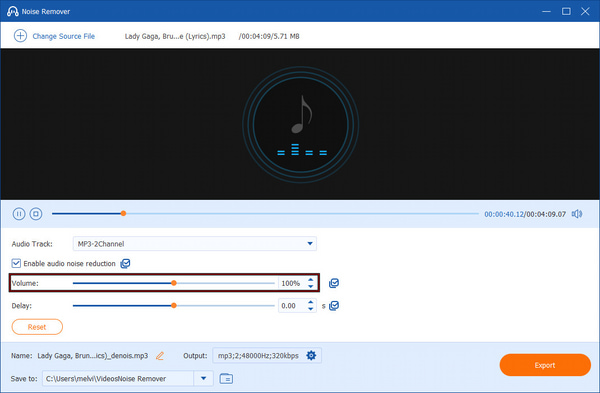
1. Click Noise Remover and load your noisy audio file. Check the box labeled Enable Audio Noise Reduction to activate the feature and reduce background noise.
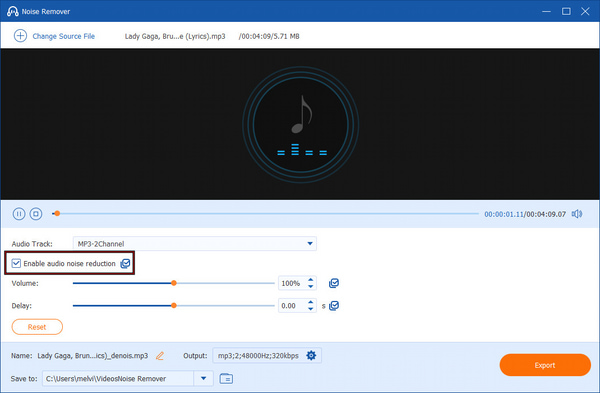
2. If the audio becomes too soft, increase the Volume slider to 200%. You can also adjust the Delay slider to correct audio-video sync issues.
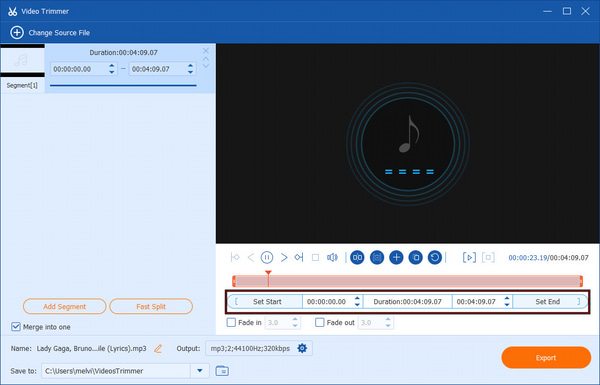
1. Choose Video Trimmer from the More Tools tab and click Plus (+) to import your audio. Use the progress bar to select the section you want to keep.
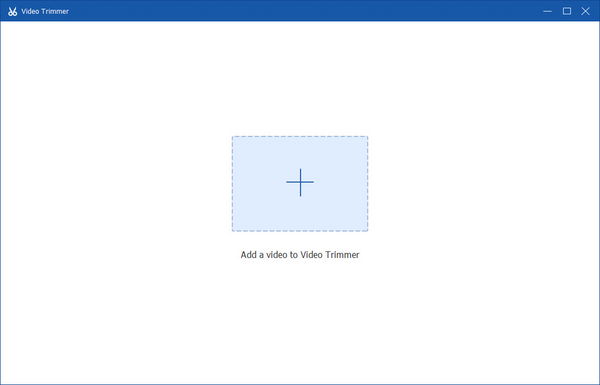
2. Enter the Start Time and End Time manually for precise trimming. If needed, use Fast Split to divide the audio into multiple clips.
AnyMP4 Video Converter Ultimate delivers far more control than mobile or in-app editors. It is an excellent choice for users who want professional audio results on a computer. You can also add custom sound, like background music, to your audio clip. Use the MV Maker as a music audio editor to add your best-loved music or sound effects to your audio.
Q: Can I edit voice memos on iPhone?
A: Yes, you can edit voice memos on your iPhone using the Voice Memos app. It allows you to trim audio, re-record over specific parts, skip silences, and adjust playback speed. However, it doesn’t offer advanced effects.
Q: Can I add effects or music to audio clips?
A: Yes, you can add effects to audio on iPhone using GarageBand. Also, you can use AnyMP4 Video Converter Ultimate to add background music to audio clips on a computer.
Q: Can I edit MP3 files directly on iPhone?
A: Yes, you can edit MP3 files on iPhone using GarageBand. It is Apple’s free and powerful audio editing app that lets you trim, split, adjust volume, and apply effects to MP3 files.
Q: How do I fix out-of-sync audio on iPhone?
A: This usually happens due to Variable Frame Rate (VFR) recording. Use the Audio Sync tool in AnyMP4 on a computer to lock the audio to a Constant Frame Rate.
Q: Can I remove wind noise on iPhone?
A: Voice Memos' Enhance Recording can help, but for heavy wind, you need a High-Pass Filter. This is found in GarageBand's Visual EQ or more easily via the Noise Remover in AnyMP4.
You’re now equipped with several ways to edit audio on iPhone. Editing audio on an iPhone has never been easier, thanks to the various apps Apple provides. Voice Memos, GarageBand, and iMovie offer reliable solutions for different editing needs and skill levels. These apps let you handle audio tasks directly on your iPhone. While iPhone apps are convenient, they do come with limitations. They cannot perform advanced audio editing, noise removal, precise volume control, and more. For more powerful and flexible audio editing, AnyMP4 Video Converter Ultimate is the ideal upgrade. It offers multiple audio editing tools and supports over 500 formats. If you want to move beyond basic iPhone editing and achieve cleaner, clearer, and more professional audio, download AnyMP4 Video Converter Ultimate today.
Secure Download
Secure Download
 Updated by Mark Cristobal to Edit Audio
More readings
 How to Edit Videos on iPhone: 8 Easy Ways [2026 Updated]
In addition to edit videos on iPhone with Photos for iOS, this article tells you more video editing apps to crop, trim, rotate, or adjust videos on iPhone.
 How to Make a Video Collage on iPhone with Music 2026
How to make a video collage with music? How to create a video collage on iPhone free? This post shares 3 video collage makers to put videos together on iPhone.
 How to Optimize Audio for the Web While Maintaining Quality
Suppose you are having a hard time optimizing web-audio content. Then this article is for you. See the three exceptional methods in practicing compression.
 Concrete Guide to Help You Adjust Audio Delay on Windows/Mac
The first thing you can do to resolve the audio out of sync is to read our guide and adjust audio delay in VLC or other software easily and quickly.
 Add your comments to join the discussion here