
Have you encountered the Format Not Supported issue when transferring videos to your iPhone 18/17/16 Pro or any iOS device? You are not alone; iOS compatibility issues are a common occurrence when sharing videos with unsupported codecs or formats. With that in mind, this article will discuss how to convert videos to iPhone format. We will feature the best tools optimized for quality retention since iPhone screens are made to handle such videos. Whether it's an old AVI file or a high-res MKV, getting the right iPhone video format or codec shouldn't mean sacrificing quality.
| Video Converter Tools | Conversion Speed | Batch Conversion Feature | Ease of Use | Privacy |
|---|---|---|---|---|
| AnyMP4 Video Converter Ultimate | 70X faster than standard format converters due to the GPU acceleration system. |  |
Beginner-friendly. | High. Only accesses local files and storage. |
| HandBrake | Moderate to fast, depending on settings. Equipped with hardware acceleration. | |
Intermediate to Difficult | High. Operates on your computer alone as an open-source software. |
| Online Video Converters | Slower and very dependent on the internet connection quality. |  |
Beginner-friendly. | Low. Uses cloud servers to store original files for conversion. |
If you are facing issues with your videos not being saved in iPhone video format, causing them to not play, the most common problem why playback failures occur is commonly due to the format or codec used on your video.
A codec is a procedure used to compress a file's data to improve efficiency when storing or transmitting it. Codecs are important since they decide exactly what format you can use, since certain file types are only available if you use a particular codec.
With that in mind, if you are facing video playback issues on your iPhone, ensure you are using the correct codec and that the container format is supported by the device. Otherwise, you may also convert videos to iPhone format.
When it comes to speed and video quality, desktop-based solutions are the best tools you can use for video conversion to iPhone format. In this case, we highly recommend using AnyMP4 Video Converter Ultimate to ensure that your iPhone video’s codec and format are well-optimized.
If you want to convert video files into a format supported by iPhone devices, you can use the built-in output profiles in the tool with set conversion settings for iPhone. These profiles use iPhone-supported codecs and formats to ensure that your processed video will be played in iOS with no problem.
Moreover, it can handle format conversion 70X faster than the standard speed of most video converter software. This was made possible by its hardware acceleration system, optimized and supported for AMD, NVIDIA, and Intel hardware.
To ensure that your converted video will retain its original quality, high-resolution footage in the program will be converted losslessly even if your file is saved in standard 720p to 8K UHD quality.
Finally, you can also apply basic video editing adjustments to your files since the built-in editor of AnyMP4 Video Converter Ultimate is equipped with essential tools such as trim, crop, subtitles, and other tools.
To learn how to use the most stable desktop-based method, make sure to read our three-step guide below. Do not forget to download it as well to easily follow our guide.
Secure Download
Secure Download
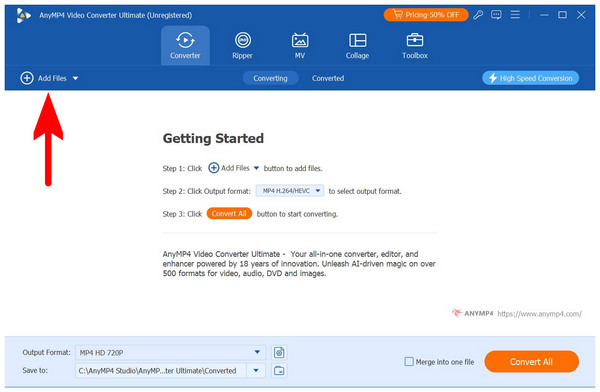
1.Open AnyMP4 Video Converter Ultimate and then select the Add Files button in the Converter tab.
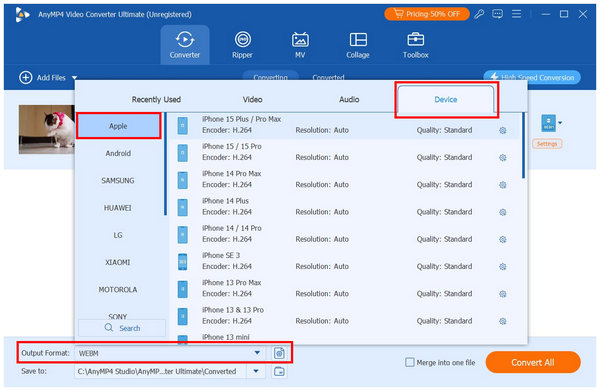
2.Select Output Format once the video file has been uploaded to the converter. Then, click on Device. Choose the Conversion Profile among the available iPhone model options. In the latest version of AnyMP4 Video Converter Ultimate, you can select up to iPhone 18 Pro Max.
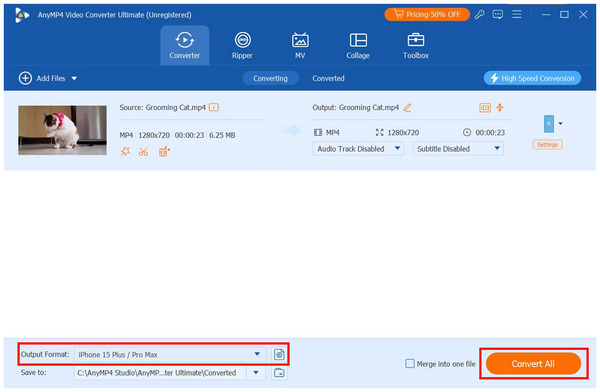
3.With the Output Format now set, the codecs and video format used on it are optimized for iPhone devices. Back in the converter tab, simply click on Convert All to begin the conversion process.
Among the options on this list, AnyMP4 Video Converter Ultimate is by far the most beginner-friendly option. To ensure that your video will be optimized for iPhone devices. This was made possible by its output profiles designed exclusively to support converting videos for iOS.
On to the next option, we will now discuss HandBrake video encoder software, which can also be alternatively used as a file format converter tool. Although conversion is just a bonus feature of the program, it gets the job done if you plan on basic format conversion to MP4, MKV, or WebM.
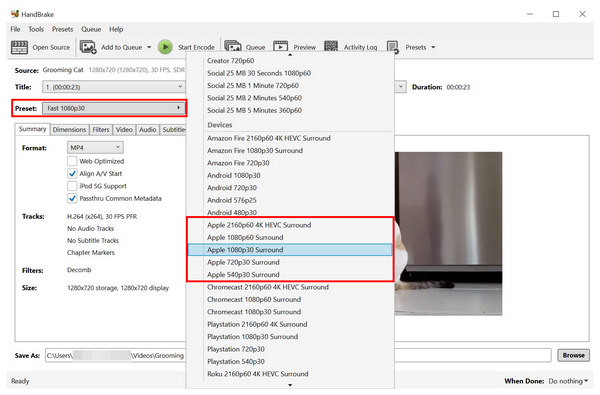
Moreover, it also has practical conversion presets, which include options developed for converting videos for Apple devices such as iPhones and other iOS software. The presets available in HandBrake range from multiple qualities from 540p to 4K UHD. When selecting any of these presets, you can now ensure that errors involving the iPhone won’t play videos will be fixed.
To learn how to use the program, please read our three-step guide below on file conversion.
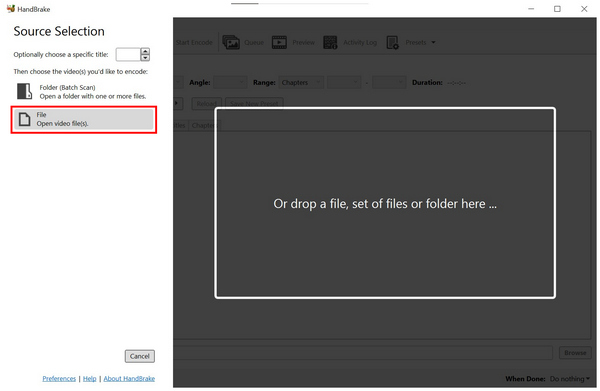
1.Open HandBrake and then select File to open the video file you want to convert.
2.With the video now added, select Preset in HandBrake’s main menu and then select the conversion preset you want to use.
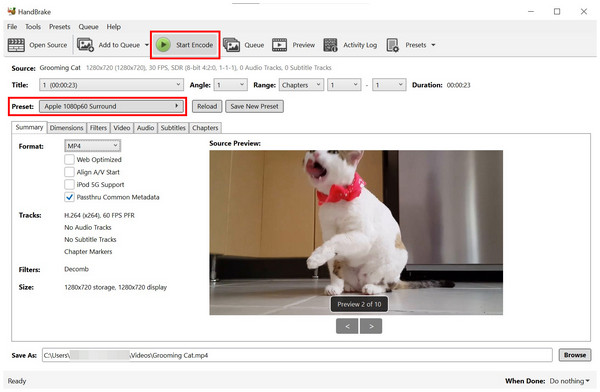
3.Once you have selected the preset you want to use, select Start Encode to begin format conversion.
For a program designed to encode videos, HandBrake is impressively easy to use. This is a major factor if you plan on using open-source software, which usually sacrifices ease of use for more advanced features.
Finally, the third option we will suggest is through using an online converter program such as 123Apps Video Converter. Although this option is not as stable as the previous desktop-based tools, it has its own niche since it is the most accessible and does not require any installation option.
Unfortunately, the superior accessibility of the program has a severe downside since it is not the most reliable when it comes to conversion results. It is common for the software to face failed conversion errors.
Despite that, it can still get the job done if your video was processed by the software. Although it is not the best in reliability, it makes up for it with convenience.
Learn how to use it by following our tutorial below:
1.Go to the online tool of your choice, then select Choose File or Upload to import the video you want to convert.
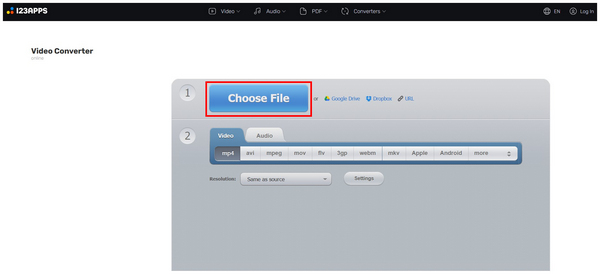
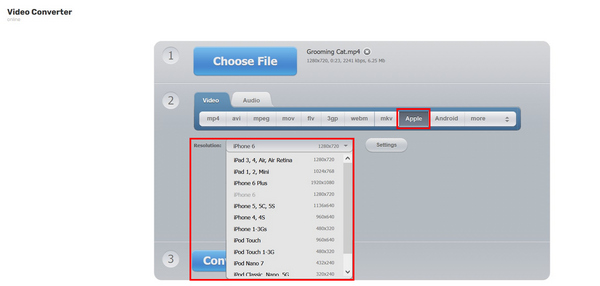
2.Once the video has been uploaded, select Apple and then choose the Resolution Profile you want to convert your video into.
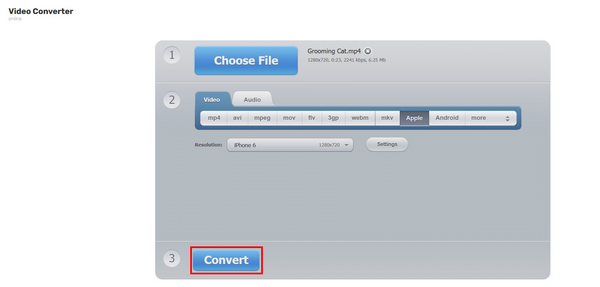
3.With the Format and Resolution now set, click on Convert to begin the video conversion process.
If you plan on converting one-off videos quickly or compressing videos for iPhone, online tools may be a good option for you. However, keep in mind that the nature of these programs sacrifices their reliability.
What is the best video format for iPhone?
The best format for iPhones is MOV or MP4. MOV is the native video format of Apple devices, making its support the best. Meanwhile, converting videos to MP4 is highly recommended due to its support on different platforms.
Can I convert video on my iPhone directly?
Yes, you can. However, you need to use third-party apps from it. There are no built-in converters on an iPhone.
Why is my converted video blurry?
Quality decline is common when converting video formats. However, this can be minimized if you select the right converter option. One good example is AnyMP4 Video Converter Ultimate, which can even upscale these videos.
Does converting video reduce quality?
Yes, it will. Quality reduction is common when converting formats. The severity may even vary depending on the program you are using for conversion.
How do I transfer the converted video to my iPhone?
You can use Apple’s wireless file transfer with AirDrop. Alternatively, you may also use cloud storage such as Google Drive or iCloud. For smaller videos, you can use messaging apps such as Facebook Messenger or Telegram.
Now that the best methods for learning how to convert videos to iPhone-supported formats have been discussed, we hope that the programs we have provided will be able to suit your file management needs. If you are looking for a reliable software that is also easy to use, we highly recommend using AnyMP4 Video Converter Ultimate as your primary format converter. To learn more, make sure to download it using the link below.
Secure Download
Secure Download
 Updated by Alice Thorne to Convert Video
More readings
 3 Ways to Slow Down a Video on iPhone: A Step-by-Step Guide
Are you looking for a detailed guide to the best ways to slow down videos on iPhone? Read this article to discover three options on your iOS device.
 3 Ways to Edit Audio on iPhone: From Built-In to Pro AI Apps
Learn how to edit audio on iPhone to trim voice memos, split GarageBand tracks, and use AI noise removal. Compare the best apps for professional sound in 2026.
 How to Play Videos from iPhone to TV with/without Apple TV
If you want a to listen to or use a song on your iPhone, learn how to put MP3 to iPhone with iTunes manually or automatically achieve it without iTunes.
 How to Play Videos from iPhone to TV with/without Apple TV
Are you trying to figure out how to play videos from your iPhone on your TV? This guide will show you how to do it with or without an Apple TV.
 Add your comments to join the discussion here