4 Best Ways to Convert an MOV to MP4 on iPhone (2026 Guide)
Quick Summary:
Need to convert an iPhone MOV file to MP4 quickly? Here is the short answer:
- Best for batch/high quality: Use desktop software like AnyMP4 Video Converter Ultimate.
- Best for free online conversion: Use AnyMP4 Free Online Video Converter or CloudConvert via Safari.
- Best native iOS method: Export via the built-in iMovie app.
Read on for step-by-step tutorials and my hands-on performance tests for each.
You just recorded a great video on your iPhone, sent it to a friend on an Android or Windows PC, and it won't play. Frustrating, right? This common issue happens because iPhones use HEVC/H.265 inside MOV files, which can cause compatibility issues. If you want universal playback, seamless sharing, and minimal quality loss, converting to MP4 is the best solution. I tested several tools and methods to find the most efficient ways to convert MOV to MP4 on iPhone, focusing on speed, output quality, and ease of use. Below are step-by-step methods that actually work.
Why Do iPhones Save Videos as MOV? (And Why MP4 is Better)
Apple uses the MOV file with HEVC (H.265) because it delivers high-quality video with smaller file sizes. However, not all devices and platforms support it well. MP4, using H.264, is the global standard for cross-platform compatibility. It ensures smooth playback on Windows, Android, and most media players. In short, MOV has better compression with limited compatibility. Meanwhile, MP4 is slightly larger, but it works everywhere.
Method 1: The Best Desktop Solution for High-Quality & Batch Conversion
When you need the most reliable way to convert MOV to MP4 on iPhone without sacrificing quality, AnyMP4 Video Converter Ultimate is the best choice. This software efficiently handles HEVC/H.265 files on Macs and Windows. It ensures smoother processing and better control over output settings. It uses hardware acceleration, delivering super-fast conversion speeds with zero quality loss, even for 4K or 8K videos. It also supports batch conversion of iPhone videos, allowing you to process multiple clips simultaneously. Plus, the built-in editor lets you trim, crop, or enhance videos before exporting.
Here's how to change a video to the MP4 format in AnyMP4 Video Converter Ultimate:
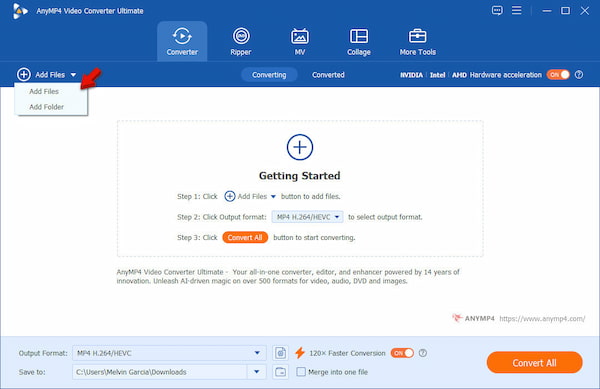
1. Open AnyMP4 Video Converter Ultimate to access its main dashboard. In the Converter tab, click +Add Files to upload your iPhone video format or HEVC (H.265) videos. If you have multiple clips, use Add Folder to enable batch processing and save time.
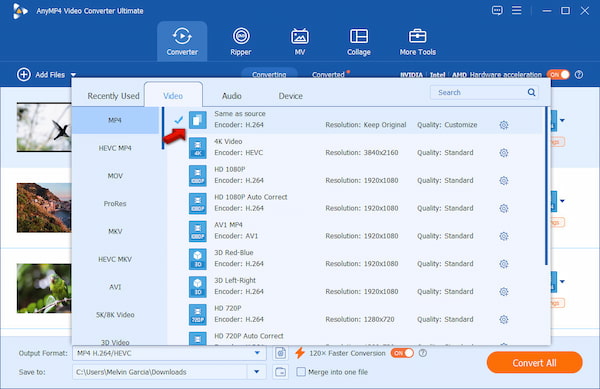
2. Click the Output Format selector and proceed to the Video category. Choose MP4 H.264/HEVC as your output format for maximum compatibility. You can choose presets like Same as Source as your quality or adjust settings manually.
3. Select your destination folder in the Save To selector. Next, enable 120× Faster Conversion to take advantage of GPU acceleration. Finally, click Convert All to process your HEVC to MP4 files quickly and efficiently.
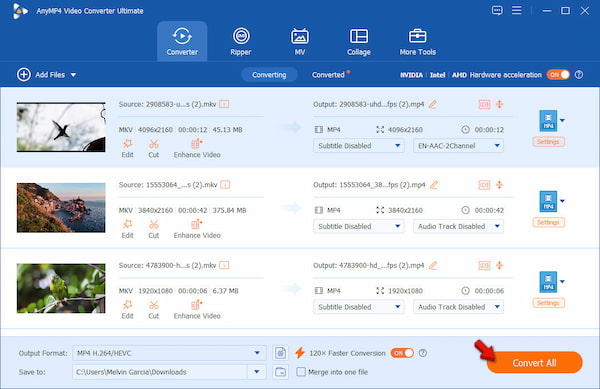
In my testing, converting a 1GB 4K MOV took less than a minute with hardware acceleration enabled. The output MP4 preserved sharpness, color accuracy, and audio sync perfectly. Its batch conversion also worked flawlessly, making this method ideal for handling multiple iPhone videos regularly.
Method 2: The Best Free Web Tools (No Installation Required)
CloudConvert offers a quick way to change MOV to MP4 format on an iPhone. It has a clean interface and supports a wide range of formats, letting you convert iPhone videos directly in your browser. It is ideal for occasional use, especially if you need to play MOV on a PC.
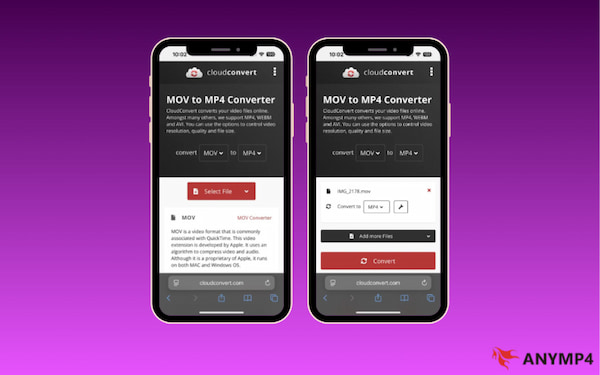
1. Navigate to the CloudConvert homepage and click Select File to add your MOV file. You can also import files directly from Google Drive or Dropbox for faster access.
2. After uploading, click the Convert to dropdown menu and select MP4 as your desired format. Then, click Convert to begin processing your file.
During testing, CloudConvert handled small to medium files well, producing good-quality MP4 outputs. However, compared to desktop tools like AnyMP4, free users may encounter daily conversion limits and slower speeds for large files.
Method 3: Native iOS Workarounds (Free & Built-in)
iMovie is Apple's native app to convert MOV to MP4 on iPhone. It is completely free and works offline, making it a convenient option for quick conversions. While iMovie doesn't explicitly let you choose MP4 as an output format, it exports videos in a highly compatible format (H.264 in MP4 container) that works seamlessly across most devices.
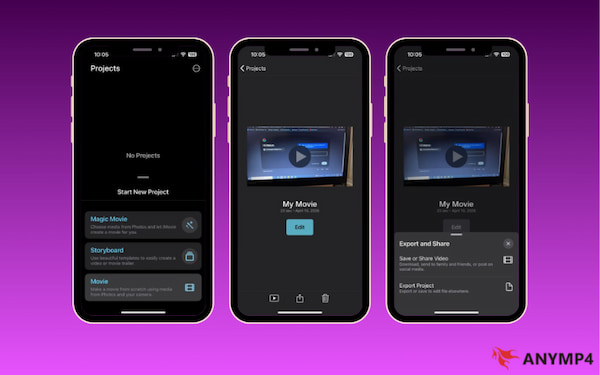
1. In iMovie, choose Movie, then select your MOV video from the Photos library. Tap Create Movie to import it into the timeline.
2. Tap the Share option and select Save or Share Video or Export Project. iMovie will export the file in a widely supported format, effectively changing the iPhone video format.
In my testing, iMovie was the easiest method to use. The export process was smooth, and the resulting file played perfectly on Windows and Android devices. However, it offers less control over codec, bitrate, and compression settings.
Method 4: Third-Party iOS Apps
CapCut is an iPhone app to convert MOV to MP4. It combines video editing and conversion features, allowing you to change video format, compress files, and prepare clips for social media. Unlike built-in tools, these apps provide more creative control, including export settings.
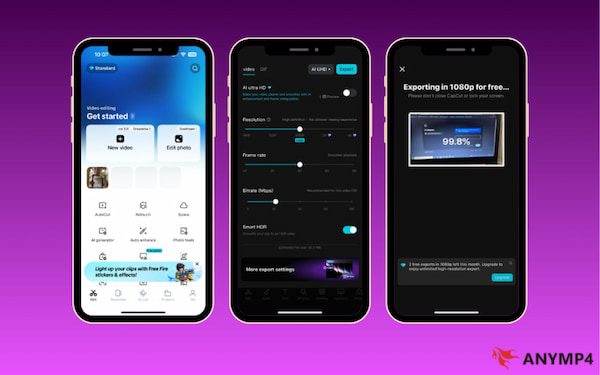
1. In CapCut, tap New Video, then select your MOV video from the Photos app. Then, add the uploaded MOV file to the timeline.
2. Tap the Export option and choose your desired resolution and other video parameters. CapCut will automatically export the file in MP4 format for better compatibility.
In real-world use, CapCut was one of the easiest apps to use. Importing and exporting videos felt smooth, and the output quality remained sharp. However, exporting longer videos took more time and consumed noticeable storage space.
Tool Comparison: Which Should You Choose?
How I Test:
- To ensure this guide is based on real-world performance, not just feature lists, I personally tested each method using a 1GB 4K 60fps MOV file recorded on an iPhone 15 Pro. This type of file represents a common scenario for users dealing with high-resolution iPhone videos encoded in HEVC/H.265. My testing focused on four key criteria:
- Conversion Speed: I measured how fast each tool processed the same file. Desktop software with hardware acceleration was the fastest, while online tools were slower due to upload and download times.
- Noticeable Quality Degradation: I compared the original MOV and converted MP4 for sharpness, color, and audio sync. High-quality tools preserved near-original quality, while some mobile and web tools showed slight compression.
- UI/UX Ease of Use: I assessed how easy each method was, from import to export. Tools with simple interfaces and fewer steps were more user-friendly.
- Hidden Costs & Limitations: I checked for file size limits, watermarks, daily caps, and locked features. Some free tools restrict usage, while certain apps add branding unless upgraded.
|
Platform |
Price |
Best For |
Speed |
| AnyMP4 Video Converter Ultimate |
Windows and Mac |
Free and Paid |
Batch and high-quality conversion |
Super fast (up to 70×) |
| CloudConvert |
Web |
Freemium |
Quick, no-install conversion |
Moderate (depends on the internet connection) |
| iMovie |
iOS |
Free |
Built-in simple export |
Fast |
| CapCut |
iOS |
Free and Paid |
Mobile editing and conversion |
Moderate |
FAQs about Converting MOV to MP4 on iPhone
Can I change my iPhone camera settings to shoot in MP4 directly?
A: Yes, you can switch your iPhone to record in a more compatible format, which is essentially MP4. Go to Settings, look for Camera, and tap Formats. Choose Most Compatible instead of High Efficiency. This setting uses the H.264 codec, which is widely supported across devices.
Does converting MOV to MP4 reduce video quality?
A: Not necessarily. Quality loss depends on the converter and settings used. High-quality tools can maintain near-original quality by using proper bitrate and codec settings. However, if the file is heavily compressed or has been converted multiple times, you may notice a slight loss in quality.
Is it safe to use online video converters?
A: Yes, as long as you use trusted platforms. Reputable tools use secure connections and often delete uploaded files after processing. However, avoid unknown websites, especially when uploading sensitive or private videos.
Why is there no audio after I convert my iPhone video?
A: It usually happens because of codec incompatibility. Some converters may not properly handle the original audio format from iPhone recordings. To fix this, ensure the output uses a standard audio codec, such as AAC, and check that audio is enabled in the settings.
How do I convert large MOV files over 2GB on an iPhone?
A: Large files are difficult to process directly on mobile due to storage and performance limits. The best solution is to transfer the video to a computer and use AnyMP4 Video Converter Ultimate. If you prefer mobile, use advanced apps with fewer size restrictions, but expect longer processing times and higher storage usage.
Conclusion
To wrap up, choosing the best method to convert MOV to MP4 on iPhone depends on your needs. For professional control and batch processing, AnyMP4 Video Converter Ultimate is the best fit for your workflow. For quick fixes, web tools like CloudCovert are convenient. Built-in apps like iMovie and mobile apps such as CapCut offer easy, on-the-go solutions. No matter your choice, converting to MP4 ensures smooth playback, lets you share effortlessly, and guarantees cross-platform compatibility.
Try one of these methods today and see which works best for you. Then, share your experience or let others know what worked!


 Add your comments to join the discussion here