Effortless WFP to MP4 Conversion: Say Goodbye to Watermarks

Can You Convert WFP to MP4?
No, a .wfp file is a project file created by Wondershare Filmora, not a real video format. It contains editing data but no actual video pixels.
- • The Official Way: Open the file in Filmora and click Export to save it as MP4.
- • The Alternative: If you cannot access Filmora or want to avoid the watermark, the only effective method is to use a screen recorder to capture the playback.
- • Warning: Online "WFP to MP4 converters" do not work because they cannot access your local source media.
Converting WFP to MP4 format is a common need for those who wish to share and play video projects across different platforms. However, when working with Filmora, users will encounter the challenge of watermarking their exported videos, especially in the free trial version of the software. To overcome this hurdle and produce watermark-free MP4 videos, one valuable tool to consider is AnyMP4 Video Converter Ultimate. In this discussion, we explore how this versatile software can assist in seamlessly converting project files to MP4 formats while effectively removing Filmora watermarks. So, without further ado. Let’s begin!

Part 1. What is the WFP File
What is the WFP File
Let’s begin by determining the WFP meaning. A Wondershare Filmora Project file, bearing the extension .wfp, serves as a project file in video editing. These project files are specifically designed for use with Filmora, a video editing software developed by Wondershare. They play a crucial role in encapsulating several elements of a video editing project, encompassing settings related to timeline sequence, editing configurations, applied effects, incorporated music, and more.
Moreover, these project files do not contain video or audio content; they function as pointers or references to the media files, utilizing file names and storage locations to establish links. The source videos, audio tracks, and images are not stored within the file. If WFP files are moved, renamed, or its source files are deleted, Filmora might encounter difficulties locating or recognizing these project files.
Why Online WFP to MP4 Converters Always Fail
- • Pointer system: It only stores the "paths" of your videos (e.g., C:/Users/Videos/Clip1.mp4) and editing instructions (cuts, transitions).
- • No media data: It doesn't contain the actual video or audio.
- • Privacy & logic: Since an online converter can't access your computer's hard drive to find those original clips, it's impossible for it to "render" a video.
Part 2. How to Export WFP to MP4 in Filmora With a Watermark
Within this section, we will delve into the process of converting WFP to MP4. Please remember that Filmora is the exclusive software that handles the conversion of Wondershare Filmora Project files.
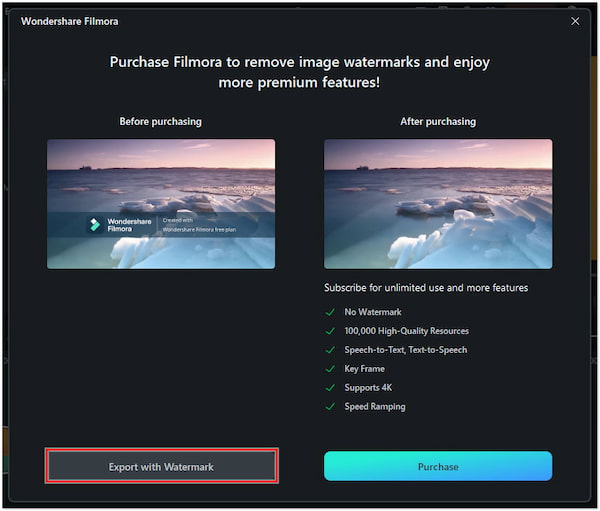
To initiate the conversion, you’ll first need to download and install Filmora directly from the official website of Wondershare Filmora. Importantly, the conversion process doesn’t come with associated costs. However, it is worth noting that the resulting exported videos will be stamped with a watermark attributed to Filmora. This watermark serves as an identifier indicating the utilization of Filmora during the conversion and export procedure.
Here’s how to convert WFP to MP4 in Filmora:
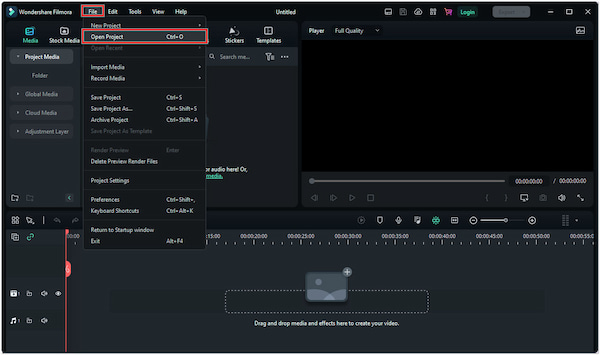
1To begin with, launch Filmora on your computer. Navigate to the File and choose Open Project to load the project file into FilmForth.
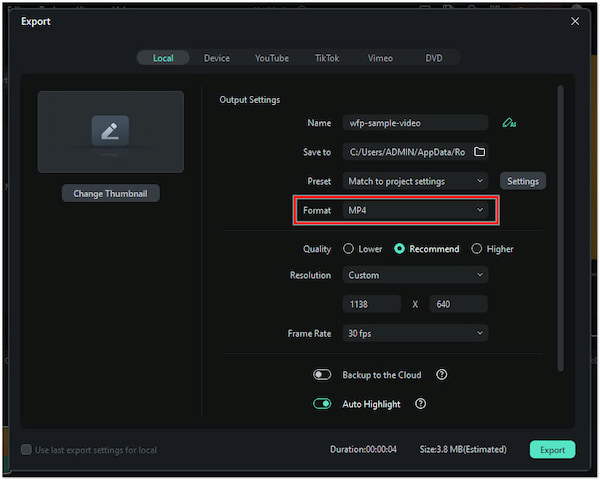
2Within the Export interface, navigate to the Local tab and opt for the MP4 format. If necessary, you can customize the video parameters to your specific requirements.
3Click the cyan-colored Export button. Within the pop-up dialog, select the option labeled Export With Watermark.
Filmora offers editing flexibility and professional results when converting WFP to other formats. However, it comes with the cost of a paid subscription and a watermark in the free version. Consider your requirements and budget when deciding whether Filmora is the right tool for video conversion and editing tasks.
Part 3. How to Save WFP as MP4 in Filmora Without Watermark
Save WFP as MP4 in Filmora Without Watermark by Subscription
While Filmora provides a beginner-friendly, high-end video conversion experience and practical features, it is worth noting that the watermarks on exports in the free trial version can be discouraging for users. It often leads to the common question: Can you export WFP to MP4 without watermarks for free?
Unfortunately, the answer is NO! There is no viable method to export these project files from Filmora without including watermarks unless you opt for a premium version. Filmora offers various plans, which include monthly, perpetual, and annual plans. These subscriptions grant you the privilege of exporting your projects without the intrusive watermarks.
Here’s a comparison of the three subscription plans of Filmora:
- Plan
- Price
- No watermark on the exported files
- Duration of access
- Stock media
- Filmora cloud storage
- Speech-to-Text
- Text-to-Speech
- Technical support
| Monthly |
Perpetual |
Annual |
| $19.99 |
$79.99 |
$49.99 |
|
|
|
| One month of Filmora updates. |
Get access to Filmora for life. |
Twelve months of Filmora updates. |
|
|
|
| 10GB |
10GB |
10GB |
| 30 Minutes |
30 Minutes |
30 Minutes |
| 5000 characters |
5000 characters |
5000 characters |
|
|
|
Save WFP as MP4 Without Filmora Watermark by Recording
If you don’t want to pay for a Filmora subscription or if you’ve lost access to the software but can still play the project preview, the most effective workaround is using a professional screen recorder. This method allows you to "convert" WFP to MP4 by capturing the footage in real-time, effectively bypassing the giant official watermark.
AnyMP4 Screen Recorder is the best-in-class tool for this task. Unlike basic recorders, it can capture high-quality video (up to 4K) with system sound directly, ensuring your project's audio remains crisp. It’s the perfect solution for users who want to:
- • Remove the Filmora Watermark without a premium account.
- • Save WFP files even when the "Export" function is locked.
- • Export to multiple formats like MP4, MOV, or MKV instantly.
Follow these steps to get a clean, watermark-free MP4 file from your Filmora project:
1. Prepare your WFP project
Open your project in Wondershare Filmora. Ensure all media files are linked correctly. Expand the Preview window to full screen or as large as possible to ensure the highest recording resolution.
2. Launch AnyMP4 Screen Recorder
Download and install AnyMP4 Screen Recorder.
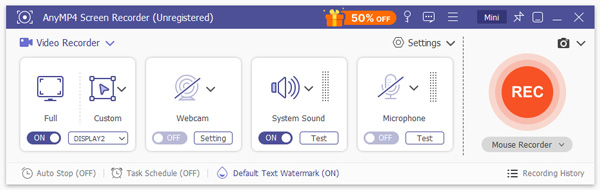
Select "Video Recorder" from the main interface. Generally speaking, Video Recorder is selected by default.
3. Set the recording area
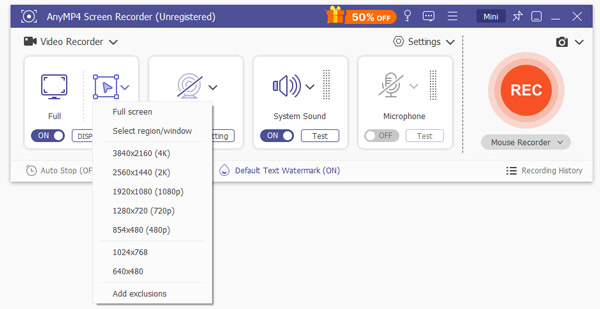
- • Select region: Click "Custom" and drag the frame to fit the Filmora preview window exactly.
- • Audio settings: Turn on "System Sound" to capture the project's music and voiceovers. Make sure "Microphone" is turned off to avoid external noise.
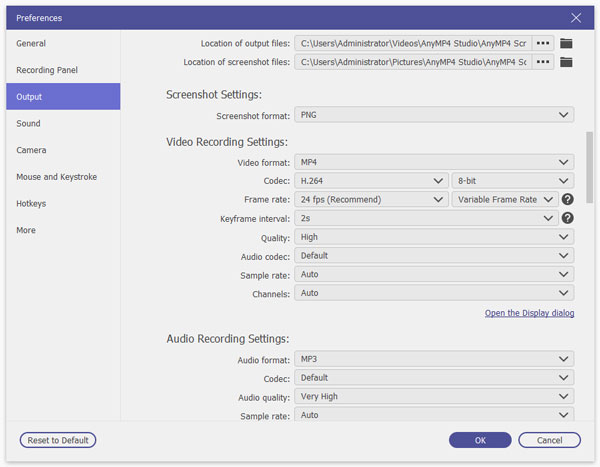
Click the "Settings" (gear icon), go to the "Output" tab, and set the Video Format to MP4. You can also set the quality to "High" or "Lossless" and the frame rate to 60fps for smooth playback.
4. Start recording
Click the red "REC" button on AnyMP4, then immediately hit the "Play" button in Filmora.
5. Preview and save
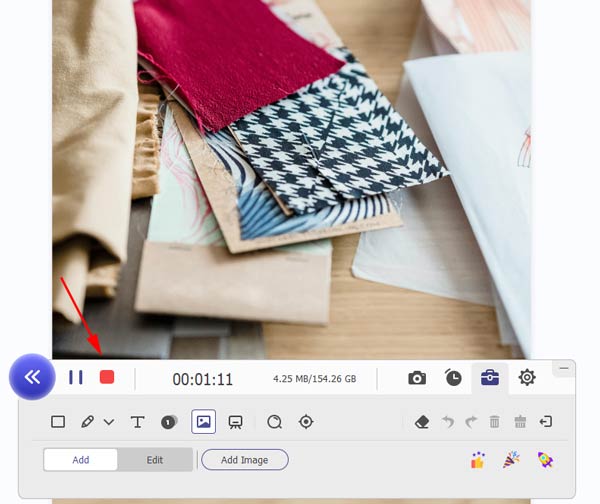
Once the project finishes playing, click the "Stop" button. A preview window will pop up, allowing you to trim any unnecessary parts at the beginning or end. Finally, click "Save" to export your WFP project as a clean MP4 file.
Tips
- • Disable notifications: Before recording, turn on "Focus Mode" or "Do Not Disturb" on your computer to prevent pop-ups from ruining the video.
- • Hide the cursor: In AnyMP4 settings, you can choose to hide the mouse cursor so it doesn't appear in your final video.
- • Hardware acceleration: Enable hardware acceleration in AnyMP4 to ensure the recording process doesn't lag, even if your project is heavy on effects.
| Filmora Export (Free Version) |
VS |
AnyMP4 Screen Recorder |
| Large branded watermark in center |
Watermark |
No Watermark |
| Original high resolution |
Output Quality |
Up to 4K (depending on recorder) |
| Free (with watermark) |
Cost |
Low cost/One-time purchase |
| Must have Filmora installed |
Requirements |
Only needs the project to be playable |
| Quick drafts for personal use |
Best For |
Clean videos for YouTube/Social Media |
Part 4. Remove the Filmora Watermark from the Video File
Find the Filmora as a great solution to convert WFP to MP4, but with an unreasonable price to remove the watermark. For that reason, you can turn to a cost-effective solution like AnyMP4 Video Converter Ultimate!
AnyMP4 Video Converter Ultimate is a flexible multimedia conversion solution that provides numerous video editing tools. One of the notable features it offers is the Video Watermark Remover function, which allows you to flexibly remove watermarks and unwanted elements from videos, including the Filmora watermark. It can be valuable for users who need to clean up videos for personal and professional use.
Recommendation
- Allows precise area selection to retain video quality.
- Provides flexibility in choosing output format and quality.
- Offers a preview feature for result assessment before saving.
- Removes watermarks, logos, and overlapping elements from videos.
- Supports various formats, including MP4, MKV, MOV, AVI, and 500+ more.
Here’s how to remove the Filmora watermark from a video using AnyMP4 Video Converter Ultimate:
1Ensure you have AnyMP4 Video Converter Ultimate installed. If you haven’t already, click the Free Download button below to acquire the program. Afterward, install and run it on your computer.
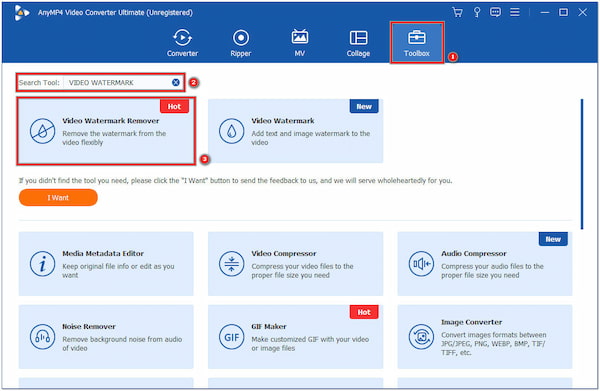
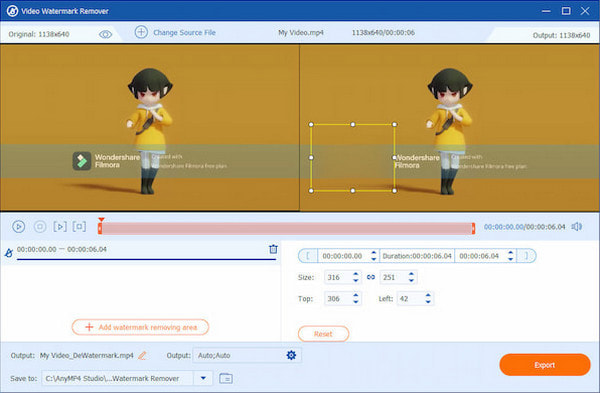
2Navigate to the Toolbox tab and look for the Video Watermark Remover feature. You can use the Search field to locate the tool easily.
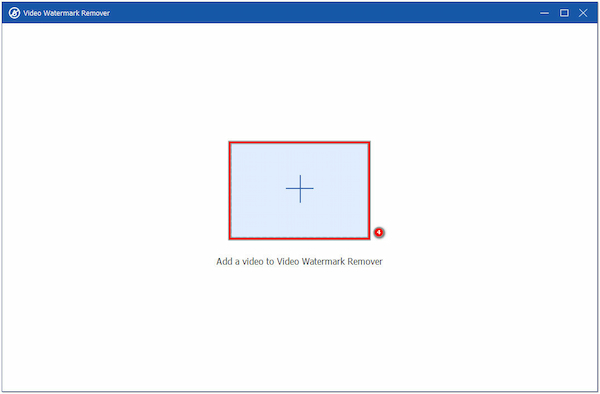
3In the Video Watermark Remover window, click + to import the video with the Filmora watermark you want to remove.
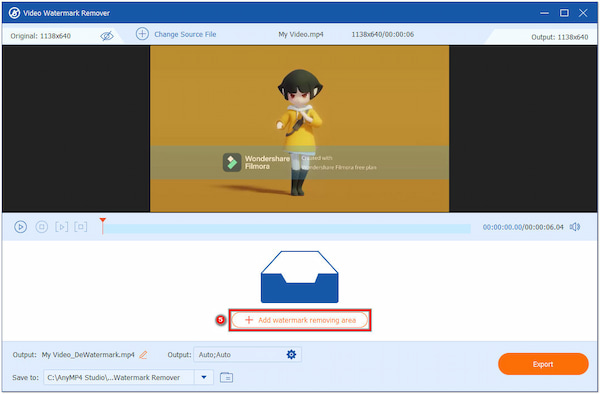
4Click + Add Watermark Removing Area in the editing window. Adjust the region box’s pointers to an appropriate size and place it in the video where the Filmora watermark is located.
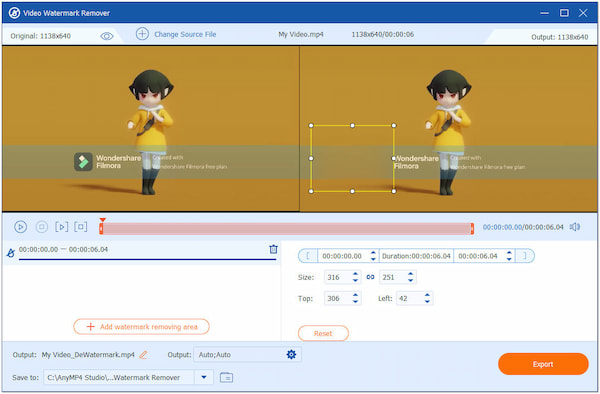
5After placing the region box in the watermarked area, compare it to the Preview window to ensure the watermark has been successfully covered.
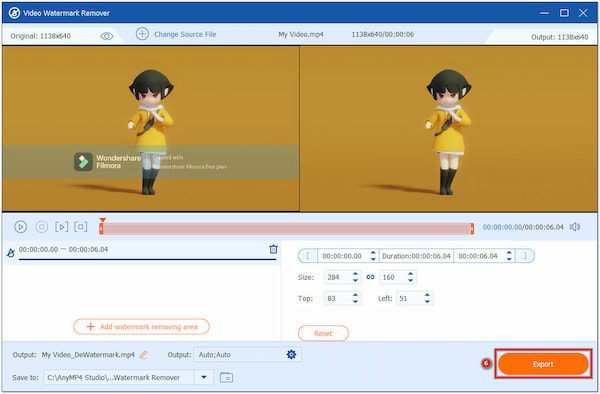
6Once satisfied with the outcome, save the video without the Filmora watermark by clicking the Export button.
In addition to the Video Watermark Remover feature, you will find that AnyMP4 Video Converter Ultimate also offers a suite of video editing features, such as Video Cropper, Enhancer, Compressor, Trimmer, Merger, and more, allowing for further customization of videos.
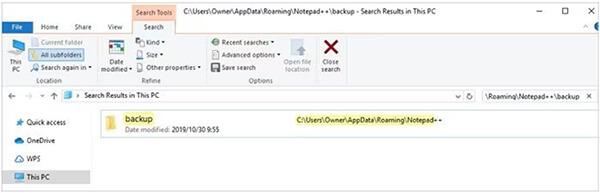
Part 5. How to Find Missing Source Files from a .wfp File
If you have WFP file, but when you try to load it in Filmora, or other tools, you may get the notification, the file is lost. To find back the WFP file, you can try the following steps:
1. Right-click your .wfp file and select Open with > Notepad.
2. Press Ctrl + F and search for the keyword "Path".
3. You will see the exact directory where the original video was saved (e.g., D:\Projects\RawFootage\DSC001.mp4).
4. Relink these files in Filmora to successfully export your video to MP4.
Part 6. FAQs about Converting WFP to MP4
How do I open a WFP file?
To open a WFP file, you must use Wondershare Filmora, the video editing software that created the project. Here’s a simple guide:
• Launch Wondershare Filmora.
• Go to File and select Open Project to locate and open your file.
• Otherwise, drag and drop the file directly into the program.
Can I export a video from Filmora for free?
YES! You can export a video from Filmora for free, but there are limitations. The free trial version of Filmora often allows you to export videos, but they have a watermark. To export videos from Filmora without watermarks, you’ll need to purchase a paid subscription.
Why can’t I export a video from Filmora?
There could be several reasons why you’re unable to export video from Filmora:
• There might be issues with your project settings or the software.
• You might be using the free trial version with watermarked exports.
• Ensure you have enough free storage space on your computer for the export.
• Verify that you’ve selected the appropriate export settings and destination folder.
How do I export from Filmora to Premiere Pro?
Exporting from Filmora to Adobe Premiere Pro involves saving your Filmora project in a format that Premiere Pro can import. Here’s a basic process:
• In Filmora, export your project in a compatible format.
• Launch Adobe Premiere Pro.
• Create a new project in Premiere Pro.
• Import the exported video file from Filmora into your Premiere Pro project using the Import function.
• You can now edit, enhance, or further work on your video in Premiere Pro.
What is the best watermark Remover for Filmora?
AnyMP4 Video Converter Ultimate is a reliable option for removing watermarks, including those created by Filmora. It offers various benefits like customizable area selection and additional video editing tools.
Can VLC convert WFP to MP4?
No. VLC is a media player that handles encoded video data. Since WFP is a project script for Filmora, VLC cannot read or convert it.
Can I change .wfp to .mp4 extension manually?
Absolutely not. Renaming the file extension will only make the file unreadable. It doesn't change the internal data structure from a script to a video.
How to export Filmora video to MP4 without watermark for free?
The only way to remove the watermark for free within Filmora is by using their reward points (if available) or a subscription. Alternatively, you can use a high-quality screen recorder like AnyMP4 Screen Recorder to capture the preview window without a watermark.
Conclusion
The need to convert WFP to MP4 format is undeniable in video conversion. However, watermarks, particularly in Filmora, can be a significant concern for users striving for professional and polished video content. AnyMP4 Video Converter Ultimate is a capable solution for addressing this issue, offering the means to remove Filmora watermarks effortlessly. With its precise watermark removal feature, it provides users with the ability to produce watermark-free MP4 videos, enhancing the quality and appeal of their video projects. As a versatile multimedia conversion tool, it is valuable for those seeking a seamless and watermark-free transition from Wondershare Filmora Project file to MP4.






 Add your comments to join the discussion here