
Free Download100% Clear & Secure
Free Download100% Clear & Secure
Audio is the backbone of TikTok content and the biggest driver of engagement, trends, and visibility. TikTok’s algorithm strongly favors content that uses engaging and relevant sounds. A well-edited audio plays a crucial role in capturing attention within the first few seconds of a video. TikTok offers built-in audio editing tools to trim and time sounds, adjust volume levels, add voiceovers, include music and sound effects, and sync audio with video transitions. These tools are designed to be beginner-friendly and efficient for creating trending content without advanced software. It covers most essential audio editing tasks needed for everyday TikTok videos. In this post, you will learn how to edit audio on TikTok, covering its basic tools. In addition to the editing steps, we will also provide practical troubleshooting tips for common TikTok audio problems. These tips will help you fix issues quickly and improve the overall quality of your videos.
People edit audios on TikTok because sound is the primary driver of discovery, engagement, and virality. Because the algorithm prioritizes trending sounds and high-quality production, audio editing has evolved from a creative choice into a critical growth strategy.
The biggest reason why people edit audios is to find, reuse, or customize trending sounds. TikTok trends are often built around a particular audio clip. Creators usually trim music in TikTok, speed it up, slow it down, or isolate a catchy hook. Using a recognizable sound increases the chance of appearing on the FYP because TikTok groups videos by audio.
Many users do audio editing on TikTok to enhance clarity, balance volume, and eliminate distractions. By editing sound on TikTok, creators make their videos more professional and easier to consume. High-quality audio is a key ranking factor in TikTok’s algorithm.
Users often edit audios to hit beats, drops, or lyric cues exactly when a transition, cut, or visual effect appears. Creators sync TikTok audio to create a satisfying viewing experience that feels intentional and polished. These types of videos trigger repeat views.
Another key reason is to differentiate the content from thousands of similar videos using the same sound. By remixing, layering sounds, or adding voiceovers, creators develop a recognizable audio style. Creatively edited audio can spark new trends, leading other users to reuse that sound.
In 2026, TikTok's copyright algorithm is more aggressive. If you have a Business Account, you cannot use most trending pop songs. Editing your audio in a tool like AnyMP4 Video Converter Ultimate allows you to mix Royalty-Free music with your voiceover before uploading, ensuring you don't get your video muted mid-trend.
Audio is one of the most important elements of TikTok videos. A well-mixed sound can make your content more engaging and increase its chances of reaching the FYP. TikTok’s built-in editor gives you basic audio controls like trimming, timing, volume adjustments, voiceovers, and more.
Here’s how to edit audio on TikTok:
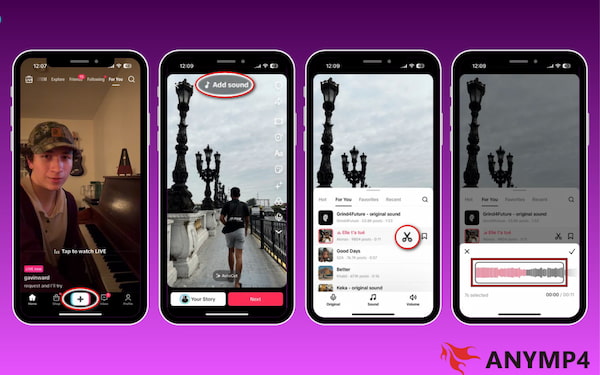
Here’s how to edit TikTok audio timing:
1. Tap the + button to create a new post, then record or upload your video clips. At the editing screen, tap Add Sound and choose a track from the TikTok library.
2. Tap the Scissors option and drag the soundwave left/right to choose the start and end of the audio clip. Preview your selection by playing it back, then tap ✔ to confirm.
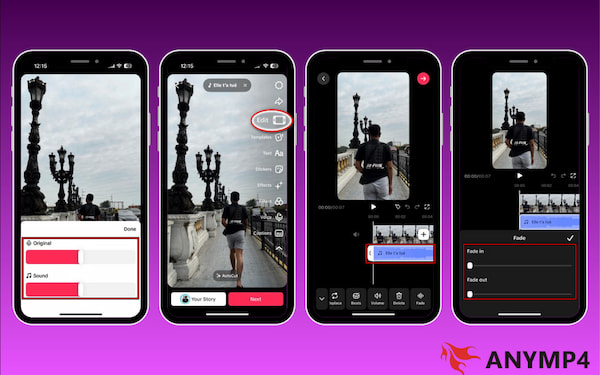
Here’s how to adjust the volume of TikTok sound:
1. After selecting the sound, tap the Volume option. Use the sliders to balance the Original Sound (your recorded audio) and the Added Sound (the music or soundtrack).
Mute the Original Sound to ensure your Added Sound remains crisp and professional.
2. Navigate to the Edit option, select the audio layer, then swipe through the toolbar until you find the Fade tool. Adjust the Fade In and Fade Out sliders to create smooth transitions.
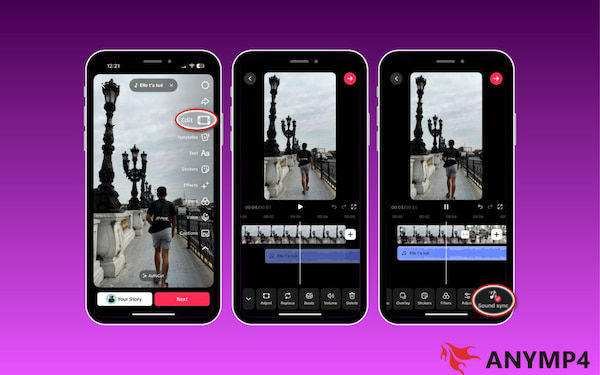
1. To sync audio with video transitions, tap Edit to open the timeline overview. Move video clips and audio bars until the beat matches the action.
2. Alternatively, you can use the Sound Sync feature to automatically align clips. Preview often and make adjustments until visuals and audio align.
TikTok sound not working? Here are the quick fixes you need to hear your audio again.
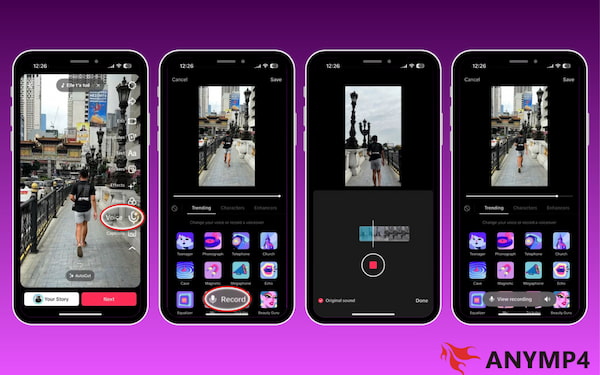
Here’s how to add voiceover on TikTok:
1. While on the main editing screen, select the Voice option and tap Record. Speak clearly into your microphone, then tap Done to save your voiceover.
2. To add a custom sound effect to your voiceover, choose from the Trending, Characters, or Enhancers tabs. These tools allow you to apply filters or enhance your narration.
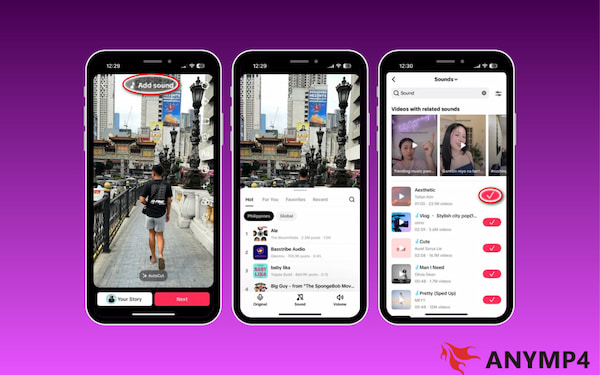
Here’s how do you edit audio on TikTok:
1. From the editing screen, tap Add Sound. You can use the search bar to find specific music or browse curated categories such as Hot, For You, Favorites, or Recent.
2. Tap any track to hear a preview, then tap the red checkmark to apply it. To add Sound Effects, follow the same steps to add them to your video.
These TikTok audio editing for beginners will greatly influence engagement, storytelling, and algorithm visibility. TikTok’s built-in audio editing tools make it easy to edit sounds directly in the app. When used strategically, it will help the videos perform better on the For You Page.
To ensure your audio sounds crisp and avoids the metallic distortion caused by TikTok’s compression, use these export settings before uploading:
| Feature | Recommended Spec | Why it Matters |
|---|---|---|
| File Format | MP3 or AAC | Universal compatibility; minimizes sync drift. |
| Sample Rate | 44,100 Hz | TikTok's native rate; avoids re-sampling glitches. |
| Bitrate | 192 - 320 kbps | Maintains high-fidelity even after app compression. |
| Loudness Level | -14 to -16 LUFS | The Sweet Spot to prevent audio from being too quiet. |
| Channel | Mono (Voice) / Stereo (Music) | Prevents phasing issues on smartphone speakers. |
Audio not syncing with video or delay music on TikTok occurs due to frame rate mismatches or improper trimming of audio tracks. To fix this, manually align the audio and preview it frequently to ensure the beats and transitions match the visual cues. Recording and uploading videos in a consistent frame rate can also prevent sync problems.
If you can’t trim or adjust sound on TikTok, it may be due to app limitations or copyright restrictions. Some licensed sounds only allow limited editing, which prevents users from trimming beyond a set duration. Updating the TikTok app ensures you have access to the latest editing features and bug fixes.
Audio that is too quiet may cause viewers to lose interest, while overly loud sound can feel unprofessional. To fix this, use the volume controls to balance the original sound with the added music. Lower the background music when using voice-overs to keep speech clear and easy to understand.
Clearing the TikTok app cache is an effective way to fix audio glitches, delayed playback, or missing sounds. Cache files can sometimes become corrupted, interfering with audio editing features. Clearing the cache refreshes the app without deleting drafts or published videos.
While TikTok’s built-in editor is convenient, it has limited advanced audio tools. For precise control over fades, layering, noise reduction, or beat syncing, use external editing software before uploading. Going beyond the in-app editor can boost credibility and engagement.
Creating your own original sound is the best way to stand out on TikTok and build long-term visibility. Original sounds allow complete control over trimming, volume, and timing, without copyright restrictions. When your sound is reused by other creators, your profile gains additional exposure, helping you grow organically.
A Note on Generation Loss: Every time you edit a video inside the TikTok app, save it, and re-edit it, the audio quality drops (known as Generation Loss). To maintain professional quality, use Noise Removal and Volume Boosting in AnyMP4 Video Converter Ultimate.
When TikTok audio edits are not enough for advanced needs, AnyMP4 Video Converter Ultimate is the best solution. This software bundle is an all-in-one media solution compatible with both Windows and Mac. Beyond simple format conversion, it works as a professional audio editing software, offering multiple tools. This includes Audio Compressor, Noise Remover, Volume Booster, Audio Sync, and more. With support for MP3, AAC, AC3, and over 500+, it is ideal for editing TikTok soundtracks with precision and ease.
Why Choose AnyMP4 Video Converter Ultimate:
Here’s how to edit podcast audio with AnyMP4 Video Converter Ultimate:
1. Begin by securing the free download of AnyMP4 Video Converter Ultimate. Install the TikTok audio editor and complete the installation process. Once the setup process is finished, run the software to access its main dashboard.
Secure Download
Secure Download
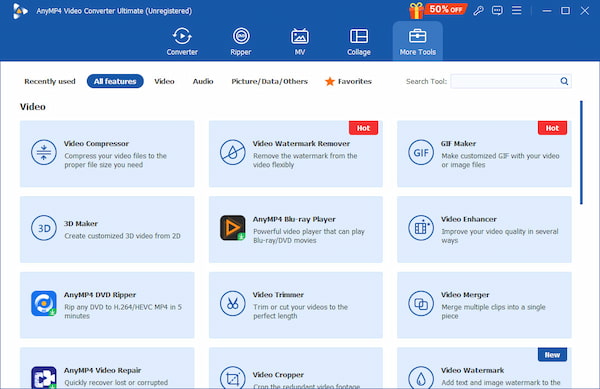
2. When the software opens, you will be taken to the Converter tab by default. Switch to the More Tools tab to access more than 20+ editing tools, including the Audio tools. From there, here’s what you can do:
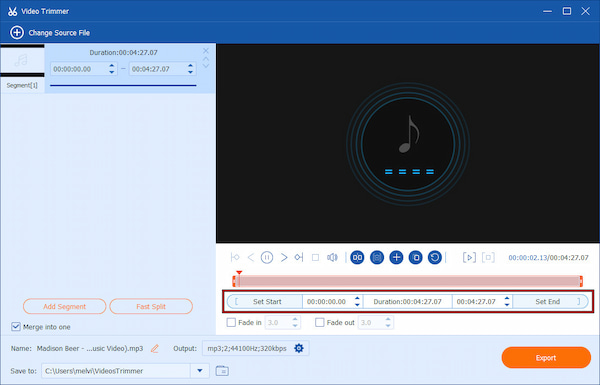
1. Select Video Trimmer from the More Tools menu and click Plus (+) to load your audio. Use the progress bar to drag and select the audio section you want to keep.
2. For precise trimming, manually enter the Start Time and End Time. If you need multiple clips, use Fast Split to divide the audio into separate segments.
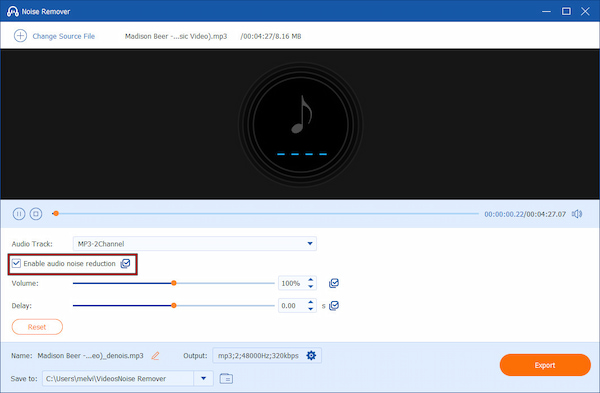
1. Click Noise Remover and click Plus (+) to import the audio with background noise. Check Enable Audio Noise Reduction to activate the feature.
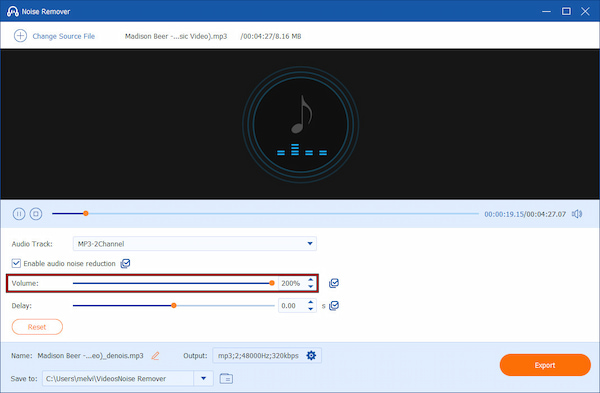
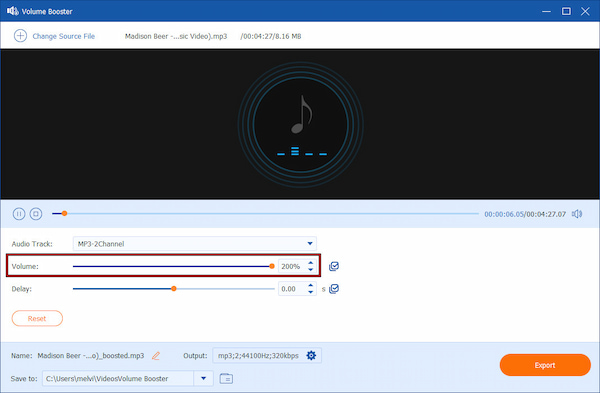
2. If the cleaned audio sounds too soft, increase the Volume slider up to 200%. You can also adjust the Delay slider to fix audio-video sync issues.
1. Open Volume Booster, then click the Plus (+) to add your audio file. Adjust the Volume slider gradually until the audio sounds clear and balanced.
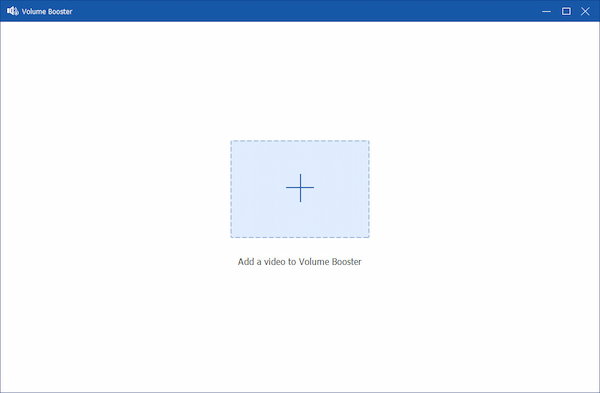
2. Preview the changes to avoid distortion or clipping. This ensures consistent loudness across multiple clips, which improves the listening experience and audience retention.
AnyMP4 Video Converter Ultimate is a professional audio editing tool that gives you far more control than TikTok’s in-app editor. If you want to add a custom sound to a TikTok video, you can use the MC Maker. Here, you can import your TikTok videos and replace their original sounds with new ones. By doing so, you can add a custom sound of your choice.
Q: Can I edit audio directly in the TikTok app?
A: Yes, you can edit audio directly in the TikTok app using its built-in editing tools. TikTok lets you trim sounds, adjust volume, add sound effects, and sync audio. These tools are designed for quick and simple edits, making them ideal for basic content creation.
Q: Can I add my own voice or narration to a TikTok video?
A: Yes, TikTok lets you add your own voice or narration through the Voice feature. You can record a voiceover to explain, tell a story, or add commentary. TikTok also lets you adjust your voice volume separately from background music.
Q: Can I use multiple audio tracks in one TikTok video?
A: Yes, you can use multiple audio elements in a single TikTok video, such as background music, original sound, and voiceovers. TikTok automatically layers these audio tracks and provides volume controls so you can balance them properly.
Q: Why does my TikTok audio sound tinny or distorted after I upload?
A: This is usually caused by a Sample Rate Mismatch. TikTok prefers 44.1kHz. If you upload at 48kHz or 96kHz, the app's auto-converter can create digital artifacts. Downsample your audio to 44.1kHz before uploading to fix this.
Q: Can I fix Audio Out of Sync after the video is already posted?
A: No, TikTok does not allow you to edit audio once a video is live. However, you can use the Audio Sync tool in AnyMP4 Video Converter Ultimate to perfectly align your track before you post. This saves you from having to delete and re-upload.
Mastering TikTok edit audio is essential for creating engaging, professional, and high-performing videos. Remember, effective audio editing helps your content stand out, improves watch time, and increases your chances of reaching the For You Page. TikTok’s built-in audio tools are great for quick edits. However, they can be limiting when you need cleaner sound, precise control, or advanced features. To take your TikTok audio editing workflow to the next level, use AnyMP4 Video Converter Ultimate. With powerful tools such as Noise Remover, Volume Booster, Audio Sync, and Audio Compressor, you can create clear, polished, platform-ready audio with ease.
Secure Download
Secure Download
 Updated by Mark Cristobal to Edit Audio
More readings
 Make A TikTok Video: 3 Easy and Professional Ways in 2026
Hey, do you watch TikTok videos to pass the time? Would you like to share videos on this platform? Read this article to learn 3 easy ways to make TikTok videos.
 Concrete Tutorial to Add and Edit Captions on TikTok Quickly
The easiest way to add captions to TikTok videos is through the app's built-in feature, like auto-caption. You can learn three ways from this post.
 [Windows & Mac] Two Quick Ways to Extract Audio from MKV
Wish to extract the audio from an MKV video? We’ll share with you some easy-to-use audio extractors to remove the audio track from the MKV file.
 Audio Fade Out - How to Use Audio Fade In/Fade Out Effects
How to fade audio online? How do you fade out sound? How does an audio fader work? What is fade out in radio? Learn 3 ways to make audio fade out and fade in.
 Add your comments to join the discussion here