
Free Download100% Clear & Secure
Free Download100% Clear & Secure
Podcasting has grown rapidly in recent years. It has become one of the most popular ways to share stories, knowledge, and opinions. With millions of podcasts available across different platforms, listeners now expect clear, well-produced audio that is easy and enjoyable to listen to. As podcasting continues to grow, audio quality has become a key factor separating professional podcasts from amateur ones. Podcast audio editing is crucial for listener retention and professionalism. Poor audio can quickly cause listeners to lose interest, even if the content itself is valuable. Proper editing makes episodes more engaging and comfortable to listen to from start to finish. In this post, you will learn two effective ways to edit podcast audio. We will also provide practical tips for podcast editing to improve sound quality, manage conversations, and structure episodes more professionally.
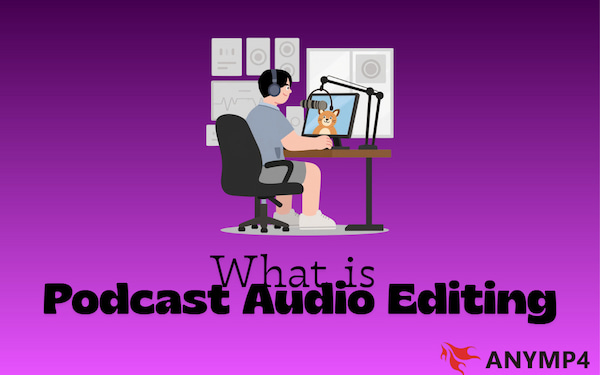
Podcast audio editing is the process of refining and enhancing recorded audio to ensure it’s professional-sounding. It involves manipulating the raw audio files to remove imperfections, improve sound quality, and structure the content in a way that flows naturally for listeners. Effective podcast editing removes distractions and balances the audio so that the host and guests are easily heard. This process is essential because high-quality audio helps retain listeners, conveys professionalism, and makes the content enjoyable.
AnyMP4 Video Converter Ultimate is a multifunctional media software bundle compatible with Windows and Mac. In addition to media conversion, it serves as a podcast editing software to edit podcast audio. It comes with a Toolbox kit featuring multiple audio editing tools. Beyond audio, this software offers a range of video editing features. The MV Maker lets you create engaging slide shows from videos and photos using pre-designed templates. Notably, it supports a wide range of audio formats, including MP3, AAC, AC3, and 500+ others.
Why Choose AnyMP4 Video Converter Ultimate:
Here’s how to edit podcast audio with AnyMP4 Video Converter Ultimate:
1. Get started by obtaining the free download of AnyMP4 Video Converter Ultimate. Install the podcast editing software and complete the setup. Once the installation is finished, open the software to access its main dashboard.
Secure Download
Secure Download
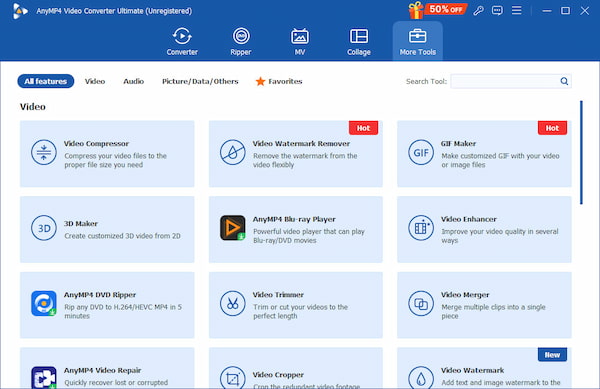
2. As soon as it starts, it will open the Converter tab by default. Proceed to the More Tools tab to access more than 20+ editing tools. From there, here’s what you can do:
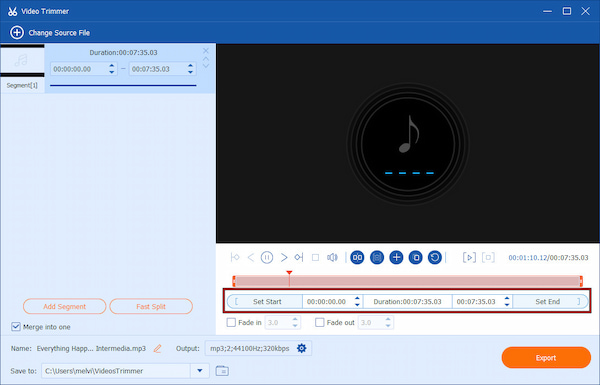
1. Select Video Trimmer and click Plus (+) to import your podcast audio. Use the progress bar to drag and select the portion you want to keep.
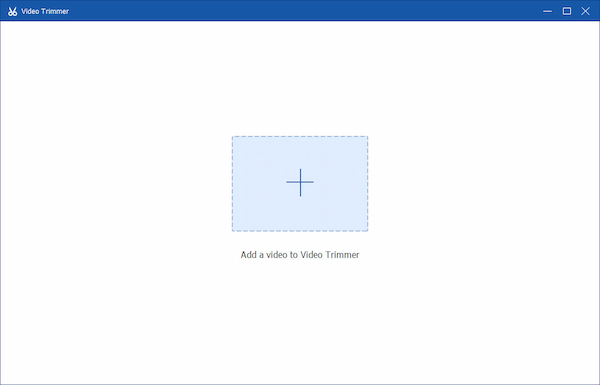
2. For precise trimming, manually enter the Start Time and End Time in the provided fields. If you want to split the audio into multiple parts, use Fast Split to create separate segments.
Here’s how to remove background noise from a podcast:
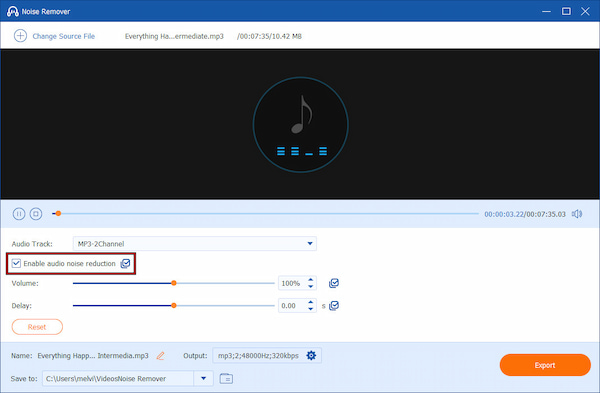
1. Open Noise Remover and click Plus (+) to add the audio with unwanted noise. Check the Enable Audio Noise Reduction box to activate the feature.
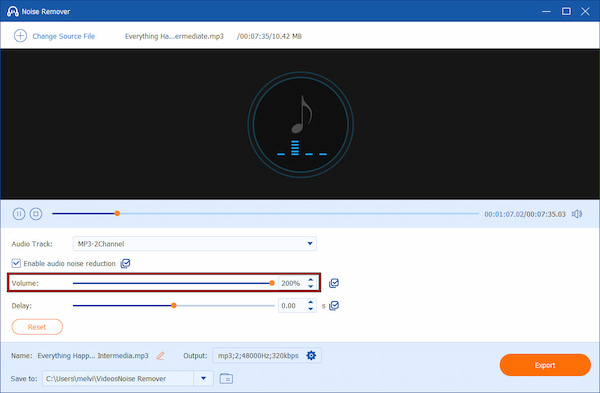
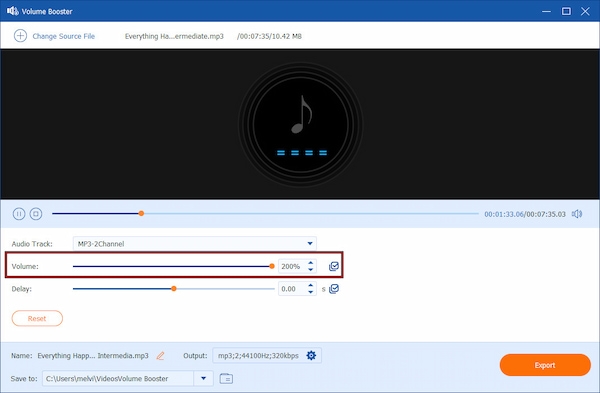
2. If the audio becomes too soft after cleaning, increase the Volume slider up to 200%. Optionally, adjust the Delay slider to fix audio and video out-of-sync issues.
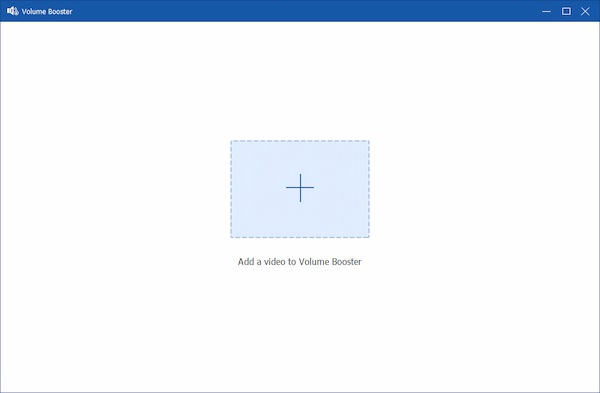
1. Choose Volume Booster and click Plus (+) to load your podcast audio. Locate the Volume slider and gradually increase the volume until the audio sounds clear and strong.
2. Preview the changes to avoid distortion or clipping. Combine volume boosting with noise reduction for the best listening experience.
That’s how to edit audio for a podcast with the best podcast editing tools for beginners. Using AnyMP4 Video Converter Ultimate, you can trim unnecessary parts, remove background noise, boost sound levels, and more. These tools make podcast audio editing fast, beginner-friendly, and effective. Remember to compress audio for faster uploads.
Expert Note on AnyMP4 vs. Professional DAWs:
While AnyMP4 Video Converter Ultimate is an excellent shortcut for beginners, it is not a replacement for a full Digital Audio Workstation (DAW). AnyMP4 focuses on speed and ease of use. However, it lacks Destructive/Non-Destructive multitrack editing and De-Esser plugins.
Audacity is a popular free audio editing software for podcasts. It allows you to clean up recordings, balance audio levels, enhance voice clarity, and arrange episodes professionally. This tool provides everything you need to produce clean and polished podcast audio.
Here’s how to edit podcast audio with Audacity:
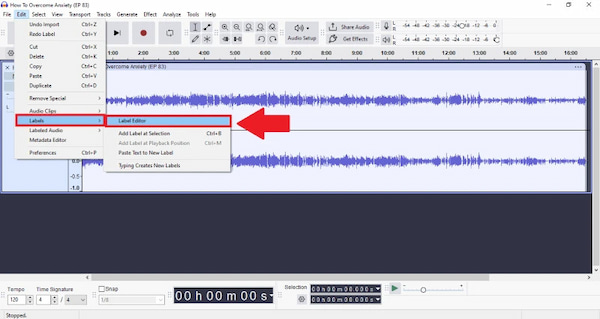
1. In Audacity, drag the audio files into the workspace and label each track. Navigate to Edit, click Labels, and select Label Editor to add labels at key points in the timeline. Use a consistent naming structure across episodes to simplify editing and long-term archiving.
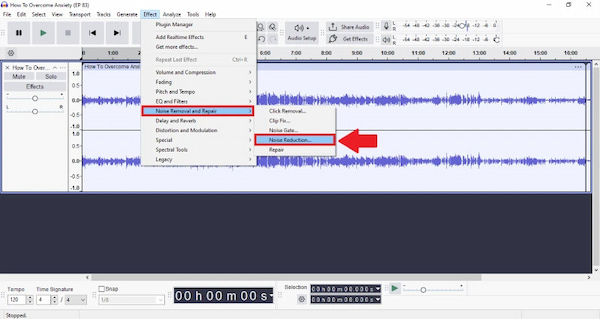
2. Highlight a short section where no one is speaking, then move to Edit, click Noise Removal and Repair, and choose Noise Reduction. Click to analyze the noise profile. In the next window, adjust the sensitivity and frequency settings, then click OK.
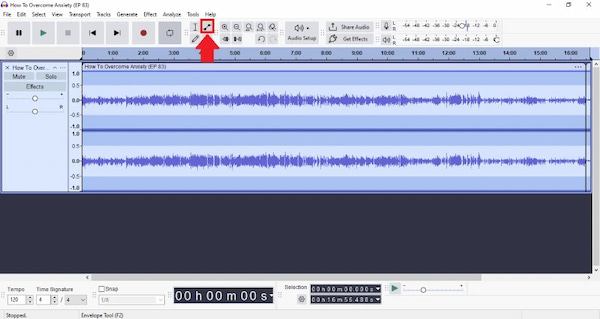
3. Next, select the entire track and reapply Noise Reduction to remove noise throughout the recording. After that, trim long silences, mistakes, or filler words. For small-volume inconsistencies, use the Envelope Tool to gently raise or lower parts of the audio rather than cutting.
4. To create consistent volume, open Effect, select Volume and Compression, and click Compressor. A good starting point is:
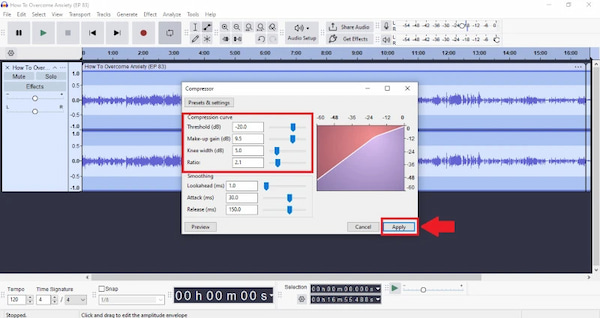
Once applied, follow up with Effect, choose Volume and Compression, and click Limiter. Set the ceiling to -1 dB to prevent sudden loud peaks from clipping and protect the listener's ears.
5. To enhance vocal clarity, go to Effect, click EQ and Filter, and choose Filter Curve EQ. Use EQ adjustments carefully to cut low frequencies below 80-120 Hz to remove rumble. Boost 3-5 kHz to improve speech clarity and slightly reduce 250-400 Hz if the voice sounds boomy.
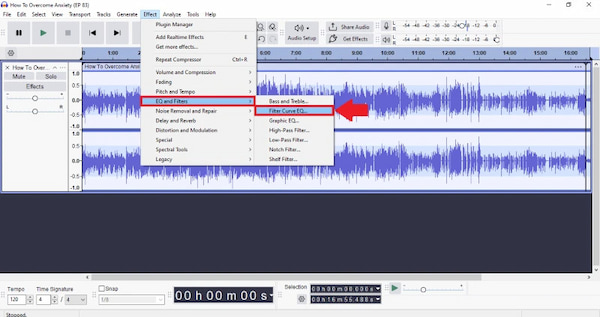
Before exporting, click Edit Metadata to fill in Title, Artist, Album, Episode Number, and Year. Click OK to finish exporting the audio file. Lastly, save your .aup3 project file so you can easily revisit or re-edit the episode later.
Clean Up and Remove Unwanted Audio
Cleaning up unwanted audio is one of the most important steps in podcast editing. This includes removing filler words, long pauses, mouth clicks, and repeated sentences. A good approach is to remove fillers only when they interrupt clarity or pacing. You can also add background music using a music editor during long pauses.
Managing Multi-Track Conversation
In our testing, the biggest mistake beginners make is editing in a single-track format. Always use a Double-Ender recording method. This means each person records their audio locally. When you bring these into your editor, you can apply Noise Gates to the guest's track so that their background noise is silent while the host is speaking. This interlocking silence is the secret to a high-end, studio-quality feel.
Balance and Enhance Audio
Balancing and enhancing audio ensures consistent volume and clear sound throughout the episode. This involves leveling voices so no one sounds too loud or too quiet, applying compression to smooth out volume spikes, and using equalization (EQ) to improve vocal clarity.
Arrange and Sequence the Episode
Arranging and sequencing your podcast helps shape the episode's overall storytelling and structure. This includes placing the intro, main discussion, ads, music, and outro in the correct order, and trimming sections to maintain a natural pace.
Want cleaner, better podcast audio? Check the top podcast editing software here.
Q: What software is best for editing podcast audio?
A: For advanced users, Audacity is an excellent choice because it offers detailed control over editing. For a beginner-friendly podcast editing workflow, AnyMP4 Video Converter Ultimate is a better option. It provides easy-to-use editing tools.
Q: Can I edit my podcast on a phone or tablet?
A: Yes, you can edit a podcast on a phone or tablet. However, Podcast editing on mobile devices comes with limitations. Advanced features such as precise noise reduction, multi-track management, compression, and professional-level sound control are unavailable on mobile devices.
Q: What’s the difference between editing and mastering a podcast?
A: Podcast editing is about making the conversation clean, clear, and engaging. Mastering, on the other hand, is the final polishing stage that ensures the podcast meets loudness standards, has consistent volume across platforms, and sounds balanced on all devices.
Podcast audio editing plays a vital role in delivering a clear, engaging, and professional listening experience. High-quality audio keeps listeners focused on your message, improves retention, and builds credibility with your audience, no matter the podcast’s topic or format. Whether you’re an experienced editor or just starting out, having the right tools makes podcast audio editing faster and more effective. For a simple, beginner-friendly workflow that still delivers professional results, AnyMP4 Video Converter Ultimate is a great choice. It allows you to trim audio, remove noise, boost volume, and export podcast-ready files with ease.
Secure Download
Secure Download
 Updated by Mark Cristobal to Edit Audio
More readings
 How to Record a Phone Call for Podcasts: Easy Guide
Are you seeking a comprehensive solution to directly record podcasts from phone calls? Read this article to learn how to directly record a podcast on mobile.
 How to Record Yourself on Zoom for Podcast Production
Read this article to learn how to use Zoom as a podcast recorder, see if you can record yourself on Zoom without a meeting, and learn tips for Zoom recording.
 3 ways to Make Low-Quality Audio Online and Offline
If having high-quality audio becomes a problem for you, then you need this article. We will show the best 3 ways to reduce audio quality online and offline.
 How to Fade Audio in Premiere [Easy & Advanced Techniques]
Unsure how to fade audio in Premiere? Don't worry! This guide will cover both beginner-friendly and advanced techniques for smooth audio transitions.
 Add your comments to join the discussion here