
Short-form content has taken over social media as one of the top options for quick entertainment and information. However, before the rise of Tiktok, IG Reels, and YouTube Shorts, Snapchat was the social media site that popularized the use of short-form videos. In this article, we will explore how long a Snapchat video is to determine if the social media app still adheres to its roots as one of the pioneers of modern bite-sized content. We will also explore other video requirements you should follow when posting on Snapchat, along with a tutorial for sharing long videos, the best software for trimming videos, and useful tips for creating appealing Snapchat content.

Initially introduced as a multimedia messaging app, Snapchat quickly evolved into a social media platform, famously known as the pioneer of 24-hour expiring posts called Snapchat stories. It also contributed to the rapid popularity of short-form videos.
Due to its role in social media, postings on Snapchat vary widely between Snaps, Stories, Video Chats, and Ads. However, all of these posting types follow the same concept of being bite-sized and highly impactful within the first seconds. This is because Snapchat content has a default duration limit of only 60 seconds.
If you plan on posting content longer than the mentioned limit, the Snapchat Stories video length will be segmented into multiple stories, each lasting 60 seconds. To learn more about the specifics of video requirements in Snapchat on PC or mobile, make sure to read the next section of the article.
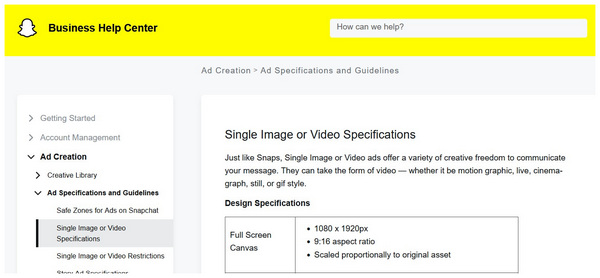
With the general overview and background of Snapchat now discussed, let us now proceed to other significant video requirements you should meet when using Snapchat. To start, the social media app has a commendable 1 GB size limitation. This makes HD videos perfectly suitable for Snapchat since its supported file size is big.
Moving forward to resolution and aspect ratio, Snapchat highly recommends its users to use 1080x1920 resolution and an aspect ratio of 9:16. These dimensions are perfectly optimized for vertical videos, which is the main platform where Snapchat is used.
With the video requirements of Snapchat now discussed, let us now proceed to the video editing options that you can use to meet these conditions. We will first discuss the built-in Snapchat video editor in the next part of the article. Then, we will move forward to the best third-party multimedia editor tool, perfectly capable of editing videos for Snapchat posting.
If you are having trouble with long videos in Snapchat, don't worry; the app has built-in video editing tools you can use. This will be ideal for users who want to learn how to change Snapchat video length. Among the available tools, a simple video trimming is included.
To learn how to edit long videos and send clips past the duration limit, make sure to read our quick guide below.
1. Open Snapchat and then press and hold the capture button in the camera. Holding the button will make it capture a video; if you only tap the icon, it will only take a photo.
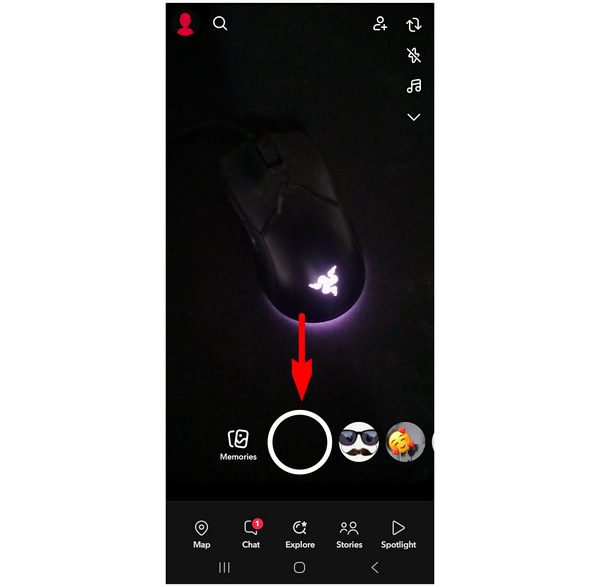
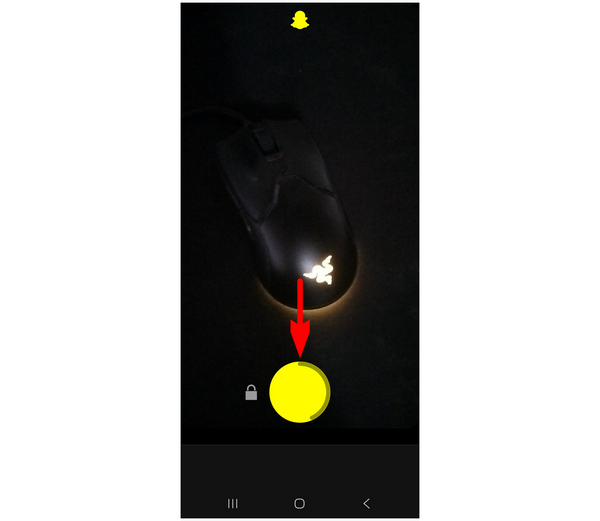
2. Continue holding the camera button to prolong the video capture based on your preference. The video capture has a limit of 60 seconds. You may track it by viewing the loading animation surrounding the camera button.
3. Once you are done taking the video, select the footage you have captured. To split the video, use the Trimming Sliders on the start and end portions of the video clip. Adjust it based on how long you want your video to be.
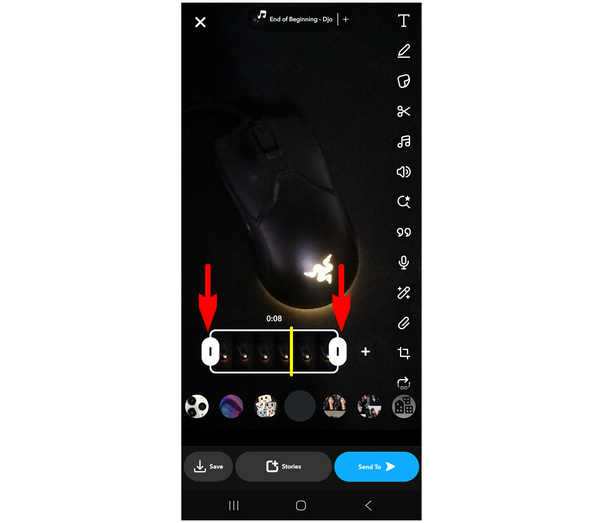
Although video editing is available in Snapchat, its basic tools make it unsuitable for advanced work. If this appears to be a problem, make sure to use third-party editors designed especially for more advanced but beginner-friendly editing. Proceed to the next section of the video to learn more.
With the video requirements of Snapchat and the limitations of its video editor now discussed, we have confirmed that relying on third-party video editors is a better solution to ensure your videos meet Snapchat's standards. In this case, multimedia editors such as AnyMP4 Video Converter Ultimate work perfectly for producing Snapchat-optimized content.
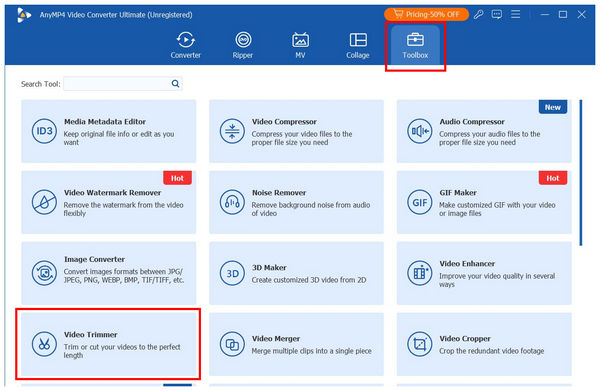
Available to both Windows and Mac computers, AnyMP4 Video Converter Ultimate is a cross-platform multimedia tool equipped with beginner-friendly video editors, including an exclusive Video Trimmer tool available in its versatile Toolbox tab.
Using the professional-grade video trimmer feature, you can quickly split long videos into several segments with just a few clicks. It can be used to delete specific portions of a video and add fade-in and fade-out effects for seamless cut transitions.
Additionally, it can also be used to edit advanced output parameters such as formats, video encoder, and audio channel. These editing options may all be used to over 500+ formats, including common video files like MP4, MOV, WMV, AVI, MKV, and GIFs.
Alongside the Video Trimmer tool, AnyMP4 Video Converter Ultimate offers additional editing options through its MV Maker and Collage Editor features, which are ideal for creating video collages and music videos. To meet Snapchat’s file size limit, you may use the Video Compressor tool in the Toolbox of the software, which can reduce file size while maintaining the quality of the video.
On top of the mentioned video editing tools of the program, AnyMP4 Video Converter Ultimate takes the crown as a versatile multimedia software with other notable editing tools, including Video Cropper, Video Rotator, Video Reverser, Format Converter, Video Watermark Remover, 3D Maker, Video Enhancer, Video Reverser, Video Speed Controller, and more.
For a more detailed overview of the software, make sure to read its pros and cons below. Then, proceed to our three-step guide on how to use the video trimmer tool of AnyMP4 Video Converter Ultimate.
Before that, make sure to download the software first for an easier time following the tutorial.
Secure Download
Secure Download
PROS
CONS
1. Open AnyMP4 Video Converter Ultimate, then proceed to the Toolbox menu. Then, find the Video Trimmer tool and select it. In the add file pop-up, select the Add button to import the Snapchat video you want to edit.
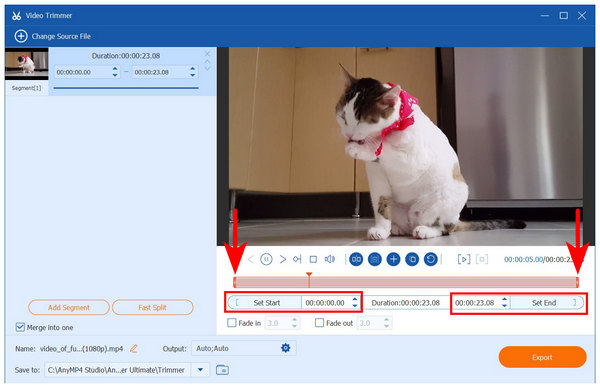
2. With your video imported to the Video Trimmer tool, you now have two options to trim it. Users who prefer quick trimming should use the Trimming Sliders bar for the start and end parts of the video. On the other hand, users who want precise video cuts should use the Set Start and Set End options to accurately set where the video cut will start and end. For seamless trim quality, you may add Fade In and Fade Out effects to the video.
3. Now that your video’s duration has been trimmed to meet Snapchat standards, click on the Export button to produce the trimmed video. With your video now trimmed, you will be able to upload the video without relying on Snapchat’s default editor.
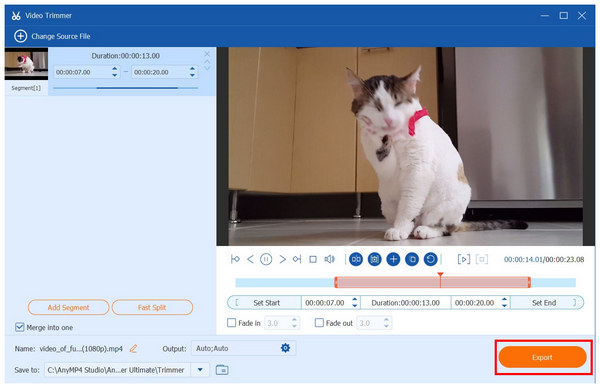
With the help of the Video Trimmer tool of AnyMP4 Video Converter Ultimate, cutting your video’s length may be done within a few seconds. Additionally, all the video limitations of the software may be met using the other video editing tools available in it.
Get to the Point Quickly
Since Snapchat has a short video duration, you have to ensure that your video delivers its point within the first few seconds. If you managed to deliver the message in under 5 seconds, it benefits the app's algorithm. Fortunately, this is easy to do if you know how to edit a Snapchat video's length.
Leverage On-Screen Text and Visuals
Aside from disappearing messages and postings, Snapchat is also known for its visual and text-based designs. With that in mind, it is recommended to edit your videos in Snapchat to ensure your post can share its message more quickly and clearly.
Think in Clips, Not a Single Video
Due to Snapchat's time limits, it is better to portion your message into 10-second segments if you plan on posting a long video. This is because Snapchat automatically portions long videos into 60-second clips. Make sure to deliver important points of your message in each segment.
Optimize for Mobile Users
To ensure that your Snapchat video will be well-received by mobile users, make sure to use proper dimensions for smartphones. Fortunately, these smart devices follow the standard 1080x1920 resolution and a 9:16 aspect ratio.
Now that we have discussed the limitations of Snapchat video length, we hope this article has provided our readers with important information to optimize their video content for the Snapchat app, especially for mobile users. To make optimizing videos easier, use the beginner-friendly tools in AnyMP4 Video Converter Ultimate to ensure that your media file will meet Snapchat's limits. You may download the multimedia editor using the link provided below.
Secure Download
Secure Download
 Updated by Mark Cristobal to Edit Video
More readings
 How to Play a Video in Reverse on Snapchat
This article is a complete guide to teaching how do you reverse a video on Snapchat. We will explore two options, using snapchat and without using it.
 3 Ways to Screenshot on Snapchat Without Them Knowing
Learn how to screenshot on Snapchat without them knowing. Discover various methods and tips for discreetly capturing snaps while preserving privacy.
 How Long are TikTok Videos? Ultimate Guide on TikTok Video Size
How long are TikTok videos? Can you upload 3-minute videos on TikTok? Click here to know the all the size requirements of TikTok videos to create great videos.
 How Long Can a Video Be on an Instagram Post, Reel, or Story
Do you want to learn the limits on how long a video can you post on Instagram? Read this article to learn the duration limits on Reels, Stories, and Posts.
 Add your comments to join the discussion here