
Are you having trouble accessing AVCHD (Advanced Video Coding High Definition) recordings saved as MTS files on your computer? If so, this article will guide you in accessing this video format to watch high-definition captures from classic camcorder footage. We will provide everything you need to learn, including the best media player tools and the best option for converting MTS files to MPEG-4 video saved in the AVC/H.264 codec. These file conversion options will allow you to play MTS files on any device without using advanced media player software.

Before proceeding with our opening and conversion guide, let us first discuss what an MTS file is and how it differs from other video formats. Simply put, MTS is the default file extension for video recordings captured by AVCHD.
Although MTS videos are playable on advanced media players, they are not the most compatible. These files can only be played with third-party media players equipped with advanced codecs. This makes MTS clips a non-consumer-friendly format, warranting file conversion.
With the fundamentals of MTS files now discussed, let us move on to the next section of the article, where we will clarify the difference between MTS and M2TS. Although they are very similar, these file types differ in the post-processing capabilities of each program.
Moving forward, let us now review the common ground and differences between the MTS video format and the similarly named M2TS. Essentially, these formats are the same. They are both high-definition recordings used for saving AVCHD captures.
The only difference between the two file types is that MTS files are used for camcorder recordings, and M2TS files are saved for videos intended for Blu-ray discs. M2TS is better for post-processing, and MTS is good for raw footage.
Now that we have discussed the differences between MTS and M2TS, let us move on to the multimedia programs you can use to play MTS files without any problems.
Now that we have discussed what MTS videos are, we can move forward to the MTS and M2TS media player tools you can use to open this uncommon video format. The multimedia programs we will highlight in this section include the built-in players on Windows and Mac, as well as the best third-party video player that supports MTS.

Based on our testing, the default video players on Windows, such as Photos App, Windows Media Player, and Movies & TV, can play MTS files without issue. However, Windows Media Player will not play the video at full resolution, making the screen way too small.
On the other hand, QuickTime Player on Mac computers cannot play MTS files by default. The built-in multimedia software on Apple computers can only play modern video formats such as MP4, M4V, MOV, and other modern file types.

To avoid playback issues when watching MTS files on computers, we highly recommend using a third-party media player that supports more advanced codecs. In this case, VLC Media Player, which is available for both Windows and Mac, is the best choice.
This software was selected because it can play more than 100 formats, including popular ones such as MP4, MOV, MKV, AVI, and others. Moreover, it supports niche video formats, such as our Guide topic, in MTS and even DVD ISOs.
With the limitations of MTS files now discussed, we can conclude that file conversion is an excellent solution for improving video accessibility. In this case, AnyMP4 Video Converter Ultimate should be your number one choice.
Designed as an exclusive format converter, this software can provide lossless conversion of MTS videos thanks to its deinterlacing feature, ensuring the converted output remains smooth on modern screens.
It also allows batch processing, easily converting dozens of small MTS clips into MP4s at once. This feature is supported by the program’s hardware acceleration, which uses its GPU to finish format conversion 70x faster than the standard speed.
Finally, the program also includes a built-in editor to handle basic video adjustments, such as trimming, adding effects, cropping, and other editing tasks.
To learn how to use the software, read our three-step guide below and download the software for an easier time following our tutorial.
Secure Download
Secure Download
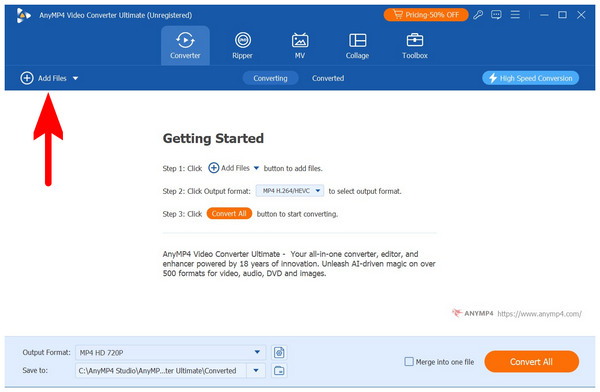
1. Open AnyMP4 Video Converter Ultimate. You will be in the Converter tab by default. Then, select the Add Files button to import the MTS video you want to convert.
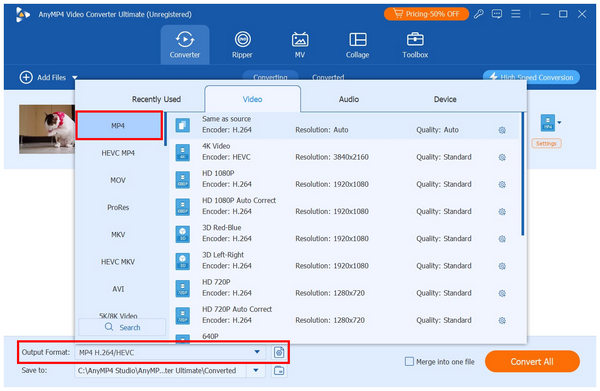
2. With the MTS video now added, select Output Format. In the menu that will open, select MP4. Choose the Conversion Profile you want to use from among the available options.
3. Now that you have selected an output profile for MP4 conversion, you will return to the Converter tab. To begin changing your file’s format from MTS to MP4, click on Convert All.
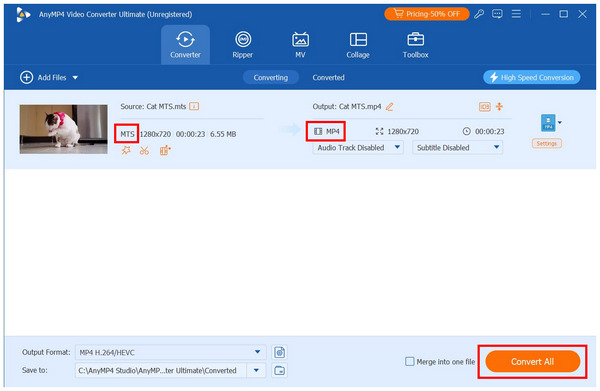
By following three simple steps, you can now easily convert your MTS video into the widely compatible MP4 format. This will make playing your AVCHD files easier on Windows, Mac, and mobile devices.
To fix basic problems when converting MTS files, let us now proceed to solutions for common MTS format issues. This section will propose basic troubleshooting steps for severe quality degradation, muted video clips, and choppy playback.
Since MTS videos are captured from AVCHD camcorders, quality degradation is natural when they are imported into a digital video format. However, this can be solved by using a lossless conversion tool such as AnyMP4 Video Converter Ultimate. Fortunately, using the right converter tool completely resolves quality degradation issues.
Improper settings on your camcorder usually cause MTS recordings to be muted. However, this issue may also be caused by improper digital conversion. To avoid such problems, double-check your camera’s setup and only use reliable converter tools. Once the audio error is resolved, you can even convert MTS videos to MP3.
Laggy playback will always be a common issue regardless of the format. However, MTS files are more prone to these problems since they will be transferred digitally or converted. As such, you have to ensure that your file will undergo these processes smoothly. Failing to do so may cause playback errors, such as choppy video, audio being muted, or low resolution.
Can I play MTS files on my iPhone?
No, you cannot. MTS is not supported by default by the iPhone’s Photos app. You can only play MTS by downloading third-party media players such as VLC for iOS. Fortunately, installing a new app on mobile devices is easy. However, conversion is still the better choice, since MTS files are significantly larger than standard MP4 or MOV files.
What is the difference between MTS and MP4?
MTS is the default video of AVCHD camcorders. Meanwhile, MP4 is the most common digital format among computers and mobile devices. MTS is a niche video format, and MP4 is the modern standard.
Is MTS the same as M2TS?
They are similar. Both formats are used for AVCHD recordings. However, they are used differently: MTS is the standard, and M2TS is designed for post-processing. This makes M2TS a better choice if you want to edit the video.
Does converting MTS to MP4 lose quality?
It depends on which converter tool you will use. When using the right program, the quality reduction will be minimal, or it may even be lossless. An example of a lossless converter is AnyMP4 Video Converter Ultimate.
How do I edit MTS files in Premiere Pro?
Simply import the MTS file into Adobe Premiere Pro. The program natively supports MTS videos, and editing them will be the same as any other format. Additionally, you can also save the imported MTS video into a different format, essentially making Premiere Pro an unconventional format converter on top of an MTS and M2TS video editor.
Now that we have provided all you need to learn about MTS video files, we hope that playing these unconventional videos will now become easier on your end. This will be made possible by choosing the right media player and converting the media file’s format. If you plan to play the video on a single device, a third-party multimedia tool is a good solution. However, format conversion works great for better compatibility. AnyMP4 Video Converter Ultimate is our most recommended software in this case.
Secure Download
Secure Download
 Updated by Alice Thorne to Glossary
More readings
 What Is An MKV File and How to Play It without Quality Loss
Do you have a video in MKV file and want to learn more information about it? You are at the right place since this concrete guide will tell you everything.
 MOV File - How to Open and Convert a MOV File
What is a MOV file? How to open MOV file? Is MOV better than MP4 and carry a better quality? How to convert MOV to MP4? All the answers about MOV are here.
 Comparisons of MOV vs MP4 and M4V vs MP4
MOV, M4V, or MP4, which file format you should choose? Here you will learn about what is MOV/M4V/MP4, and the difference between MOV and MP4, and M4V vs MP4.
 What Is an MP4 File? Ultimate Guide to the MP4 Format (2026)
Wondering what the MP4 format is? Learn what MP4 stands for, how it differs from MP3, and how to safely open or convert the world's most popular video file.
 Add your comments to join the discussion here