
Quick Summary:
ALAC vs FLAC: Which lossless audio format is best for your library? Compare sound quality, file sizes, and learn how to easily convert FLAC to ALAC without data loss.
When you want to preserve every single detail of a song without losing any data, you turn to lossless compression. Unlike standard MP3s, which discard background sounds to save space, lossless formats act like zip files for audio. They compress the data to save storage space but restore it to its original state when you press play, delivering a bit-perfect copy of the studio recording. But here’s where the ALAC vs FLAC debate gets interesting. While both formats deliver incredible audio fidelity and support the highest sample rates for high-resolution audio, their approaches are totally different. We are looking at a classic battle of open-source vs. proprietary ecosystems. Add in the complexities of managing metadata tags (so your album art shows up!), and making the right choice becomes crucial for your digital collection. This guide will break down the ALAC format vs FLAC dilemma simply and clearly. Let's dive in!

Before we pit them against each other, we need to understand what these two acronyms actually stand for and where they came from. At their core, both are designed to do the exact same thing: compress audio files down to about half the size of a standard uncompressed WAV or AIFF file without sacrificing a single drop of quality. They both handle high bit-depth and high kHz sample rates, making them perfect for your audiophile needs.
ALAC stands for Apple Lossless Audio Codec. As you can probably guess from the name, it was developed by Apple back in 2004. Initially, it was a strictly proprietary format, meaning only Apple had the keys to the castle. However, in 2011, Apple graciously made it open-source and royalty-free.
Despite being open source now, ALAC remains the undisputed king of the Apple ecosystem. If you use Apple Music, an iPhone, an iPad, or a Mac, ALAC is the native language your devices speak. These files typically live inside an M4A container (which you might recognize if you've ever bought a song from the iTunes Store).
If your life revolves around the Apple ecosystem—meaning you sync your music via Finder or iTunes and listen exclusively on Apple devices—ALAC is your path of least resistance.
FLAC stands for Free Lossless Audio Codec. Created by the Xiph.Org Foundation, FLAC was born in 2001 to be a completely free, open-source alternative to proprietary formats. Because nobody has to pay licensing fees to use FLAC, it was rapidly adopted by virtually the entire tech industry—except, famously, Apple.
FLAC is universally recognized. Whether you are using a dedicated digital audio player (DAP), an Android phone, a Windows PC, or even a smart TV or home theater receiver, it will almost certainly play FLAC files natively. FLAC occasionally uses the Ogg container, though most people just recognize it by the standard .flac extension. Because of its universal nature, FLAC is widely considered the gold standard for archival-quality music storage.
So, how do these two stack up when placed side by side? Let's break down the Apple ALAC vs. FLAC comparison so you can see exactly where they differ.
| ALAC (Apple Lossless) | VS | FLAC |
| Apple | Developer | Xiph.Org Foundation |
| Yes (Perfect for iOS, macOS) | Native Apple Support | No (Requires third-party apps) |
| Good (Supported by most modern apps) | Native Android/Windows Support | Excellent (Native standard) |
| Bit-perfect (Identical to source) | Sound Quality | Bit-perfect (Identical to source) |
| ~40-50% smaller than WAV | Compression Efficiency | ~50-60% smaller than WAV |
| .m4a, .alac | File Extension | .flac |
| Basic | Error Correction | Advanced |
This is the biggest dividing line in the ALAC vs FLAC debate. Let me share a personal struggle: I used to have an Android phone and kept all my music in FLAC. It was glorious. But when I got an iPhone for my birthday, I plugged it into my computer, opened iTunes, tried to drag and drop my FLAC files, and... nothing. iTunes completely ignored them.
Looking for a device to play your FLAC files? Read our review: Best FLAC Music Players.
When you're dealing with hundreds of gigabytes of music, the ALAC vs FLAC file size question is super important. High school me quickly ran out of hard drive space when I was ripping CDs, so every megabyte counted!
Both formats are incredibly efficient, but FLAC has a slight edge. Because FLAC's algorithm is slightly more optimized for audio compression, a FLAC file might be about 5% to 10% smaller than its ALAC equivalent. For a single three-minute song, you might not notice a difference. But if you have a library of 10,000 songs, that 5% can save you a massive amount of hard drive space.
That is why FLAC files are so large.
Have you ever imported a song only to find the album artwork is missing, and the artist is listed as Unknown? It is incredibly frustrating! This brings us to metadata tags.
Keeping your music library organized with proper metadata is a lifesaver. No matter which format you choose, make sure to use a good tag editor to keep your track numbers, artists, and album covers looking clean!
Let me be completely clear to settle the ALAC vs FLAC sound quality debate once and for all: They sound exactly the same. Because both use lossless compression, they reconstruct the exact audio waveform of the original recording when played back. It’s mathematical perfection. There is no warmth, brightness, or coloration added by either codec. If someone tells you FLAC sounds better than ALAC (or vice versa), they are experiencing a placebo effect. The true defining factor of your sound quality will be your headphones, your Digital-to-Analog Converter (DAC), and the original source recording itself.
What happens if you, like me, switch from Android to an iPhone, or from a Mac to a Windows PC? Are you stuck? Do you have to re-rip all your CDs?
Absolutely not! Because both formats are lossless, you can convert FLAC to ALAC (or ALAC to FLAC) over and over again without losing a single microscopic drop of audio quality. This is called lossless transcoding. It’s like pouring water from a round glass into a square glass—the container changes, but you don't lose any water.
However, the tricky part is finding software that does this conversion efficiently, handles large batches of files at once, and doesn't mess up your carefully organized album art and track numbers in the process.
If you want to convert FLAC to ALAC quickly and safely, I highly recommend using AnyMP4 Video Converter Ultimate. Don't let the word Video in the name fool you—this software is an absolute powerhouse for audio processing, and it’s the tool I personally use when I need to jump between ecosystems.
Here is exactly why AnyMP4 Video Converter Ultimate stands out as my go-to recommendation:
Secure Download
Secure Download
How to Convert FLAC to ALAC Using AnyMP4 (Step-by-Step):
1. Import Your FLAC Files
Open AnyMP4 Video Converter Ultimate. Click the big Add Files button in the center of the screen, or simply drag and drop your FLAC audio files (or entire folders) directly into the interface.

2. Set the Output Format to ALAC
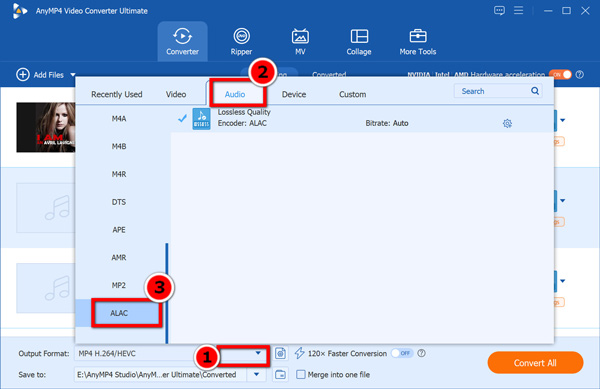
Click the Convert All to drop-down menu in the bottom-right corner. Navigate to the Audio tab, scroll down to find ALAC (often labeled under Apple Lossless or M4A), and select it.
3. Start the Conversion
At the bottom of the screen, click the Save to bar to choose exactly where you want your new ALAC files to go.
Once everything looks good, click the giant Convert All button in the bottom right corner. The software will rapidly process your tracks, and you'll have a perfectly organized, Apple-friendly library in no time!
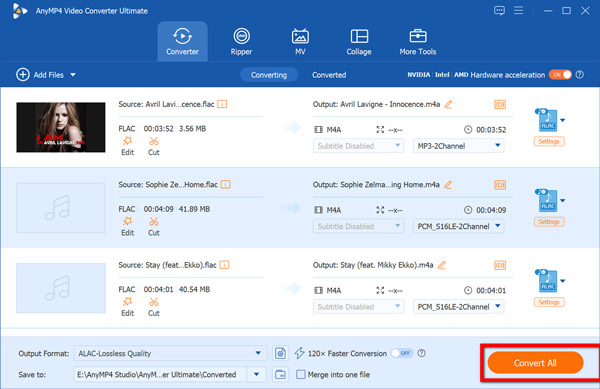
Always double-check your output settings before hitting the convert button! When you select your output format in Step 2, click the little gear icon next to the profile and ensure you have selected the Same as Source option for sample rate and bitrate. This is the secret to guaranteeing zero quality loss during the transfer.
So, after all this technical talk, which format takes the crown? The answer is incredibly simple: Look at the devices sitting on your desk right now.
If you ever change your mind or buy a new device, just remember that converting between them is incredibly easy and entirely lossless.
Does ALAC sound better than FLAC?
No. Both are lossless audio formats. This means they both perfectly recreate the original uncompressed audio file. The alac vs flac sound quality is mathematically identical. Any perceived difference is due to the playback device or software, not the file format.
Can iTunes play FLAC files?
No, natively, iTunes and the modern Apple Music app for Mac do not support FLAC files. You will need to convert your FLAC files to ALAC to add them to your Apple library. (Get more details here to get iTunes to play FLAC files.)
Which format has smaller file sizes?
When comparing ALAC vs FLAC file sizes, FLAC typically wins by a very small margin. FLAC's compression algorithm is slightly more efficient, making files about 5% to 10% smaller than ALAC, though both will roughly cut an original WAV file's size in half.
Is FLAC better for long-term archiving?
Yes. Because FLAC is a heavily supported, universally recognized open-source format with excellent error correction built-in, it is widely considered the safest bet for long-term, archival-quality music storage.
Can I convert ALAC to FLAC without losing quality?
Absolutely! Because both are lossless formats, transcoding from one to the other is completely harmless. You will not lose any audio fidelity, provided you use a reliable tool like AnyMP4 Video Converter Ultimate.
Building a digital music library is a labor of love. High-school me spent hours getting every track perfectly labeled, and if you're reading this, you probably care about your music just as much. When deciding between FLAC and ALAC, the most important takeaway is to match your format to your ecosystem. If you have an iPhone in your pocket and a MacBook in your backpack, ALAC will make your life infinitely easier. On the other hand, FLAC is the most future-proof for non-Apple users, offering universal playback, slightly smaller file sizes, and robust metadata handling.
Secure Download
Secure Download
 Updated by Alice Thorne to Glossary
More readings
 Top 3 FLAC CUE Splitters to Split FLAC with CUE (Lossless & Fast)
This guide shows how to use the 3 free FLAC CUE splitter to split FLAC up into individual tracks and convert FLAC tracks to MP3/M4A/AIFF, etc.
 Top 6 Ways to Add FLAC to iTunes for Playback on Windows/Mac
What should you do to play high quality FLAC audio on your iTunes? Follow the top 6 solutions to convert FLAC to iTunes in this article.
 How to Use MP3 to Lossless Audio Converter: A Full Guide
Do you want to learn the difference between lossless audio vs MP3 files? This guide will provide answers about the basics of MP3 quality and lossless audio.
 Comparisons of MOV vs MP4 and M4V vs MP4
MOV, M4V, or MP4, which file format you should choose? Here you will learn about what is MOV/M4V/MP4, and the difference between MOV and MP4, and M4V vs MP4.
 Add your comments to join the discussion here