Top 5 GIF Maker Tools from Video for PC, Mac, and Online
When it comes to sharing media files, GIFs are excellent options since this format is essentially the in-between of videos and images. If you want to share only a few frames of video, GIFs are a better option since they are easier to send in messaging apps. With the practicality of GIFs versus videos now discussed, this article will provide a solution for this problem, as we will provide a detailed review of five of the best GIF makers from video files across different platforms. We will review each program based on its best uses, pros, and cons.
Part 1. How We Tested Each GIF Maker Software
Before proceeding to our software reviews, let us first discuss the measurements of how we tested each video with the GIF maker tool. Listed below are five important testing parameters that will dictate whether a GIF will be high or low quality. Additionally, we also provided a table below, which will give a quick overview of the program’s most notable features when used as GIF maker options.
The Quality Check
The first testing measure that we used to assess the performance of the GIF creators was to check whether the quality of the GIF was acceptable enough. Although GIFs are not designed to have premium resolution, they have to be at least clear-looking and not too grainy.
The Trimming Test
During format conversion, selecting the portion of the video that will be converted into a GIF must also be accurate. This is very important, as setting the start and end points of your GIF should be highly accurate to ensure that only the portion you selected will be converted.
The Clarity Test
To work hand-in-hand with GIF quality, your converted video to GIF converters should also be free from heavy pixelation and low frame rate. This works well with the GIF quality since a high-resolution GIF with a poor frame rate will still look bad.
The File Size Test
When it comes to file size, GIFs should be compact as well. Since these files are commonly used as a reaction for online messaging, your converter GIF should still be smaller than regular videos to make sharing them easier.
The Loop Test
Although not as important as the previous measurements, using GIF editors that can make one that perfectly loops from start to finish will always look better than one that does not. However, the importance of this factor leaps when the video you want to convert into a GIF works well when looped.
| GIF Maker from Videos |
Supported Platform |
Best Uses |
Key Features |
Output Quality |
Editing Features |
Max File Size |
Max GIF Length |
Label GIFs with a Watermark |
| AnyMP4 Video Converter Ultimate |
Windows
Mac |
Converting videos to GIF for social media use. |
Customizable resolution, frame rate, and easy-to-use quality presets. |
SD Quality (480p)
HD Quality (720p) |
●Precision Trimming.
●Batch Conversion.
●High-quality output.
●Wide output format options.
|
50 - 100MB |
No length limit. |
No |
| Ezgif |
Browsers |
Quick GIF creation via online browsers. |
Basic GIF and video editing tools. |
SD Quality (480p) |
●GIF cropper
●Resolutio resizer
●Speed control
●Text tool |
200MB |
30 - 60 seconds. |
No |
| Clideo |
Browsers |
Creating GIFs from video and images without manual editing. |
Basic GIF editing adjustments and cloud storage option. |
SD Quality (480p) |
●Timeline trimming.
●Text overlay.
●Speed control. |
50MB |
30 seconds |
Yes |
| Imgflip |
Browsers
Windows
Android |
Adding effects and simple animation to converted GIFs. |
Supports uploaded videos, images, or copy-pasted links. |
Low Quality
(360p) |
●Text tool.
●Effects tool.
●Draw tool.
●Frame rate control. |
50MB |
24 seconds (Free)
4 minutes (Pro) |
Yes |
| HeyGen AI GIF Creator |
Browsers |
Generating GIFs via text-to-GIF AI prompts. |
Producing AI-generated GIFs. |
SD Quality (480p)
HD Quality (720p) |
●Text prompt production.
●No traditional editing tools. |
50 - 100MB |
5 seconds |
Yes |
Part 2. AnyMP4 Video Converter Ultimate: Pro-Level GIF Converter
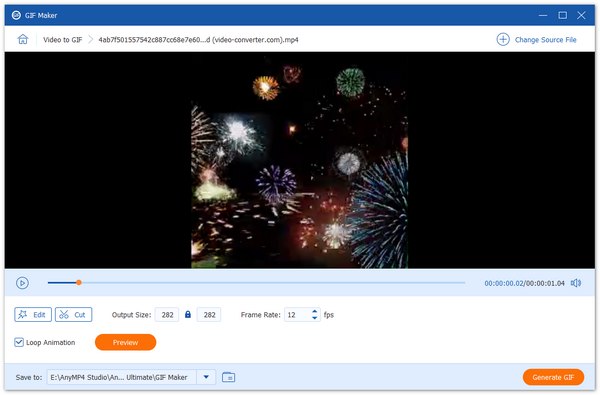
Best Used For: Converting videos to GIFs for social media use.
We will start this review by featuring the best tool for professional-quality video-to-GIF conversion: AnyMP4 Video Converter Ultimate for Windows and Mac. As its name suggests, this program was specifically designed to convert video files to any file type you may need, including GIFs.
To ensure it works precisely as a GIF production tool, this desktop-based software is equipped with practical editing tools, most notably the Precision Trimming option, which allows millisecond-level clipping of videos imported into the program. This feature enables the program to create perfectly looped GIFs.
For greater practicality, batch conversion is also available in the program, allowing it to convert multiple videos into GIFs simultaneously. Additionally, GIFs created in the program have high-quality output thanks to its fully customizable resolution, frame rate, and color palette, and a balanced quality-to-file-size ratio for web use.
Finally, you can also ensure that any videos you import into the program can be converted to GIFs without any problems, as it supports commonly used video formats such as MP4, MOV, AVI, MKV, and 500+ other media formats.
To learn more about AnyMP4 Video Converter, make sure to download it using the link below. Then, read the program’s pros and cons for a quick overview of its strengths and limitations.
PROS
- Beginner-friendly and very easy to use.
- Supports a wide range of video formats, from MP4, MOV, AVI, and more.
- Converts videos into GIFs with optimized resolution and frame rate.
- Offers batch conversion for multiple videos.
- Equipped with essential video editing tools.
CONS
- Its GIF editing tools are only meant for basic adjustments.
- The free version has a lower file size limit.
Based on our experience when reviewing the tool, AnyMP4 Video Converter’s precision trimming is its most useful feature. This allows the program to easily produce looping GIFs since you can pinpoint exact frames in the video where your GIF will start and end. As such, this program is heavily recommended for users who want to create looping animated GIFs.
Part 3. Ezgif: Quick & Easy Online GIF Maker
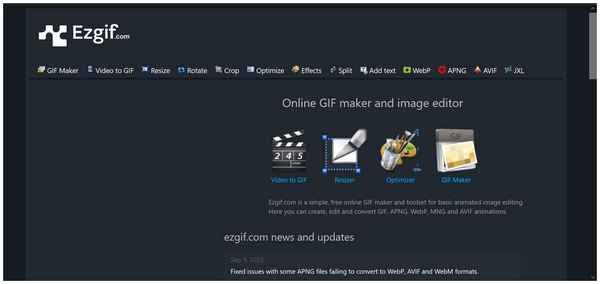
Best Used For: Quick GIF creation via online browsers.
If you want to avoid installation, there are reliable enough online tools that can handle GIF making from video files. Among these tools, Ezgif may be considered one of the best free video-to-GIF converter options.
To start, the program is completely free to use, which is remarkable for a browser-based option. It also offers practical editing toolkits and produces GIFs by the software that are all watermark-free.
Unfortunately, its website design may be considered dated, and it lacks any cloud storage options, which is a common feature among online tools.
PROS
- Free to use and fully functional online.
- Practical editing toolkit for videos and GIFs.
- Produced GIFs are watermark-free.
CONS
- Outdated website design.
- The website has an ad presence.
- Lacks cloud storage for an online tool.
During our review, Ezgif performed well. Unfortunately, its dated interface design feels challenging to use, as most of its editing tools, such as the trimmer, GIF speed changer, text tool, and more, have small buttons, and using them properly could be impossible for users with poor eyesight.
Part 4. Clideo: Social-Ready GIF Editor
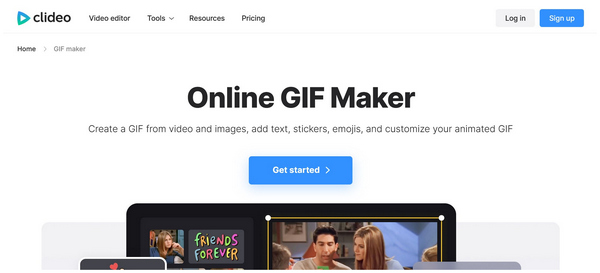
Best Used For: Creating GIFs from video and images without manual editing.
If you want to avoid manual editing, but you are still looking to produce an animated GIF from a video, Clideo could be the option for you. This social media-ready GIF editor is a program that was designed to provide GIF-making services as simply as possible. This was made possible by its support to create GIFs from videos and image frames and the software being completely browser-based.
Despite these strengths, the software’s limited editing options made it impractical for users looking to apply manual adjustments. It also suffers from a slow processing speed when handling larger files. For free users, most of the premium tools available in it are locked for paying consumers.
PROS
- Beginner-friendly interface design.
- Supports GIF creation from videos and image frames.
- Completely browser-based.
CONS
- Limited advanced editing options.
- May produce GIFs way slower when handling larger files.
- Most advanced features are locked behind a paywall.
Clideo’s free GIF production could be considered surprising even for beginners. Although its practicality is hard to deny, the complete absence of basic editing tools gives it a major disadvantage.
Part 5. Imgflip: Meme-Friendly GIF Creator
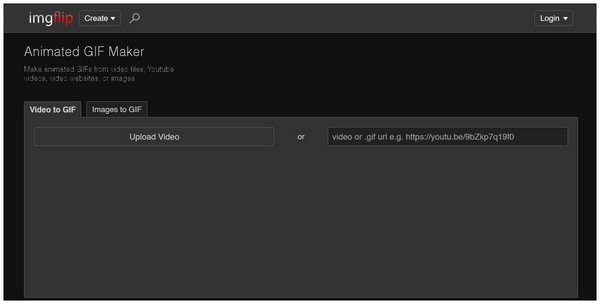
Best Used For: Adding effects and simple animation to converted GIFs.
Among social media sites and messaging apps, GIFs are often used as meme formats or messaging tools to give a dynamic reaction during conversation. If these two purposes are your main reasons to produce GIFs, Imgflip should be your pick.
However, be mindful of the tool's limitations, as the produced GIFs in it have watermarks. The program also has limited editing tools.
PROS
- Quick and simple video-to-GIF conversion.
- Often used for producing GIF reaction memes.
- It can read and process video URLs.
CONS
- GIFs produced using the free version have watermarks.
- Limited video and GIF editing tools.
- It has community moderation issues leading to GIFs with hateful messages.
For its main purpose, Imgflip is a good option. Unfortunately, it is quite one-dimensional, as its features and editing tools are limited in more advanced options.
Part 6. HeyGen AI GIF Creator: AI-Powered GIF Generator
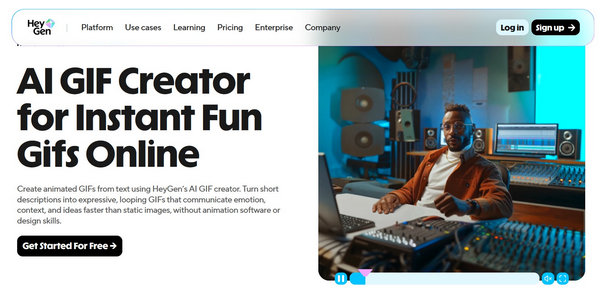
Best Used For: Generating GIFs via text-to-GIF AI prompts.
For modern users who are used to AI-generated content, HeyGen AI GIF Creator should be your option, as the program uses an advanced AI system to create AI-generated GIFs.
However, this program has modern requirements to use since you need to learn how to write effective AI prompts to produce the GIF you want.
PROS
- It can be used as a GIF generator using AI prompts.
- Works well for users experienced with writing AI generation prompts.
- The AI nature of the program eliminates the need for editing work.
CONS
- The lack of editing tools may be limiting for experienced users.
- Produced GIFs look and feel AI-generated.
- Complicated pricing and credit system.
When testing HeyGen AI GIF Creator, producing good-quality GIFs is challenging if you have no prior experience with AI prompts. This made the software surprisingly challenging to use. As such, we only recommend it for users with prior AI generation experience.
Part 7. Which GIF Maker Is Right for You
For Speed and Quality: AnyMP4 Video Converter
For consistent GIF-making performance in terms of production speed and GIF quality, AnyMP4 Video Converter should be your go-to pick. The program’s desktop-based background makes it the most consistent tool in this article. This was made possible by the reliable processing speed of the tool since it uses your computer’s resources.
For Quick Online Edits: Ezgif or Clideo
When it comes to online editing or one-off GIF production, the online tools EZGIF and Clideo are good picks. They work by converting both local files and internet-linked media into GIFs. These programs make for a good option for quick GIF creation but are not reliable all the time due to internet connection requirements.
For AI-Driven Content: HeyGen
Finally, AI-technology practitioners should use HeyGen, as the AI tool works via AI prompts. If you have prior experience with AI tools, you will be able to use HeyGen AI GIF Maker to its fullest potential.
Part 8. FAQs About GIF Makers from Video
Can I make a GIF from any video format?
It depends on which GIF maker tool you will use. This is because most of these options only have specific formats they support. To be sure, make sure to use MP4 videos, as it is a heavily supported format.
What’s the best frame rate for smooth GIFs?
The frame rate of GIFs will look good if it is between 12 and 30 FPS. This is because the standard is at 24 FPS, similar to videos. To choose the best FPS you will like, make sure to preview your file using a GIF player tool.
Do GIF makers reduce video quality?
Yes, they usually do. However, it is due to the nature of GIFs being smaller in resolution. Despite that, low-quality GIFs still get the job done, as they are not meant to be watched for a long time like regular videos.
Why is my GIF so blurry/large?
It may be rooted in your GIF maker or the video you chose to convert. As such, make sure to use GIF makers equipped with basic editing tools. These manual adjustments may prevent unwanted quality decline, like blurs.
Can you create GIFs in Photoshop?
If you're wondering if you can make GIFs in Photoshop, the answer is yes. Although unconventional, Photoshop can produce dynamic GIFs using its Timeline panel. However, it is not the easiest to use, and using video editors is more beginner-friendly.
What is the ideal length for a GIF?
A GIF has a sweet spot of around 1-5 seconds. This is true for messaging use, social media reactions, and meme formats. GIFs should be considered as a bite-sized version of a video but should be more digestible than short-form content.
Conclusion
Now that we have provided a detailed review of the best GIF makers to create GIFs from videos, we hope that this article has given you useful information that makes producing animated GIFs simpler to do. If you are looking for a desktop option for GIF production consistency, be sure to consider AnyMP4 Video Converter to enjoy precise trimming for perfectly looped videos. You may download the tool using the link below.


 Add your comments to join the discussion here