
Summary
TS to MP4 conversion is easy. You can use Convertio for small files that need quick online conversion, or use offline tools such as AnyMP4 and HandBrake for offline, batch, or high-quality conversions.
You recorded HDTV programs in TS format, but now they won't play on your iPhone or upload to YouTube? That's because TS (Transport Stream) is for digital broadcasting and recording, not for regular viewing or distribution. By converting TS to MP4, you can make the video playable on your iPhone or upload it to YouTube. In this post, we will teach you how to convert TS to MP4 using the best converters. We will also present the results of our tests and suggest how to choose a good converter. If you are in a hurry, check out the Quick Comparison table right away.

Before choosing a converter, it's best to understand the differences between these formats. TS vs MP4, which is better? A TS (Transport Stream) file is a video container used to transmit and store a video signal over broadcast networks. It is mostly used for broadcasting, HD TV recording, Blu-ray discs, IPTV, and digital TV receivers. On the other hand, MP4 is the most widely used multimedia container format today. It contains video, audio, subtitles, and metadata without compromising the file's quality. This format is suitable for Windows, macOS, Android, iPhone, Smart TVs, web browsers, and nearly all video editing software.
| TS | VS | MP4 |
| MPEG-2 | Codec | H.264/AVC and H.265/HEVC |
| TS file playback is incompatible with native apps. | Compatibility | 100% playback on all devices and OS. |
| 500 MB to 800 MB for a 4-minute 1080p video | File Size | 320 MB to 600 MB for a 4-minute 1080p video |
| Editing | ||
| Broadcasting and live TV streaming | Streaming | Video-on-Demand (VoD) and web-based streaming |
| Minimal structure | Metadata | Structured |
| Live TV captures, set-top box recordings, and physical DVD/Blu-ray archiving. | Use Cases | Content sharing, archiving, web streaming, and viewing. |
You should convert the Transport Stream file to MP4 for better compatibility with devices and editing applications. It is also the one you need if your goal is to reduce file size, upload videos online, stream them, or organize your own media library.
There are also some situations where you need to keep the original TS file. For instance, when you preserve broadcast files, have more than one audio or subtitle track, or archive the files in their transport stream format.
For every TS-to-MP4 converter we tested, the evaluation was performed on Windows 10 using the same samples. These include a 1080p TS recording (1.2 GB) and a 4K TS video (5.6 GB). We run all the tools with the same default MP4 (H.264) output format. We also measure the time required to convert single and multiple files.
| Operating System | Price | Transcode Speed | Quality Score | Batch Conversion | |
|---|---|---|---|---|---|
| AnyMP4 Video Converter Ultimate | Windows and Mac | Starts at $18.75 with a 30-day free tier available | Up to 120× | 4.8 out of 5 stars | Unlimited |
| HandBrake | Windows, Mac, and Linux | Free | Normal speed | 4.5 out of 5 stars | Queue |
| Convertio | Web browser | Starts at $6 .99 with a free 25 conversion per day | Depends on the server/internet | 4 out of 5 stars | 10 only |
Important Note: The Quality Score is based on our visual inspection, output file quality, and consistency after the conversion using H.264 settings.
Recommendation by User Profile
AnyMP4 Video Converter Ultimate is the fastest TS-to-MP4 converter with batch video conversion support. You can import up to 100 Transport Stream files and convert them simultaneously. It uses the most advanced hardware-accelerated media processing to achieve lossless video conversion of up to 120×. Also, it can keep the original quality of the source even after converting TS to MP4 H.264 codec.
Beyond converting video files, you can also edit videos before finalizing them. It features an AI-powered video enhancement tool that can upscale, denoise, stabilize, and optimize videos. Better yet, you can explore the 20+ editing tools in the More Tools tab. Here, you can find the video compressor, watermark remover, GIF maker, 3D maker, trimmer, merger, and more.
Key Features
PROS
CONS
Here’s how to convert TS to MP4 without losing quality
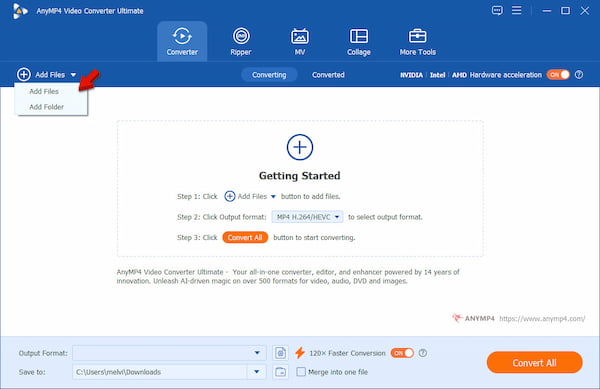
1. Download AnyMP4 Video Converter Ultimate and complete the installation. After setup, the software launches automatically. Click +Add Files to load your TS source file from your computer. If you have multiple files saved in a single folder, use Add Folder instead.
Secure Download
Secure Download
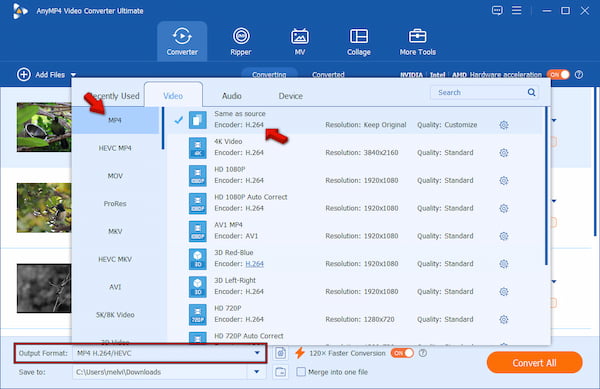
2. Click the Output Format picker and choose MP4 under the Video Category. Next, choose a profile preset that corresponds to the quality of your source. For example, if your source video is 1080p, then select the HD 1080p preset.
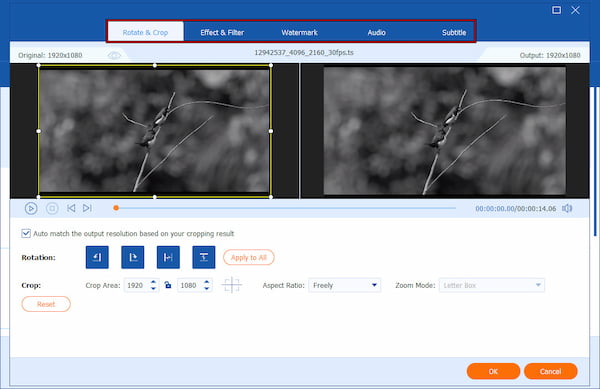
Before conversion, click Edit to access the crop, rotation, filters, effects, and watermark tools. If you want to shorten the video length, use the Cut tool. For resolution upscaling, effects optimization, stabilization, and denoising, use the Enhance Video tool.
3. Switch back to the main interface, then toggle on Hardware Acceleration and the 120× Faster Conversion button to accelerate the video conversion. Finally, click Convert All to convert TS files to MP4.
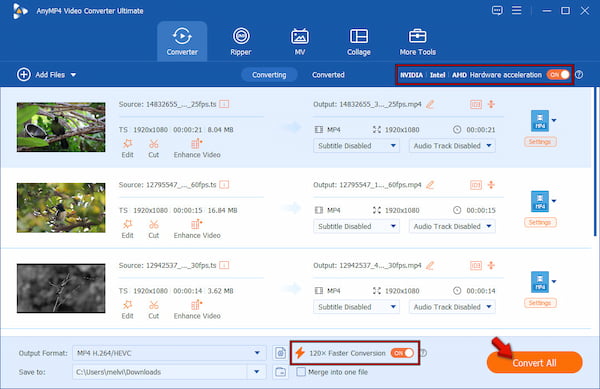
We execute hands-on testing to evaluate AnyMP4's speed, quality, and batch-processing capabilities. In our test, we use Windows 10 to convert a 2.96 GB file, resulting in exactly 100 TS videos, totaling 37 hours. It took only 3 minutes and 34 seconds to output an H.264/HEVC MP4. To ensure fast conversion, we enable Hardware Acceleration and 120× Faster Conversion.
If you want a free TS-to-MP4 converter with no watermark, HandBrake is an excellent option. It can transcode MPEG-2 TS video container format to MP4. You can encode your videos in AV1, H.264, H.265, VP9, and MPEG-4. It also includes presets for common devices and supports batch processing through a conversion queue.
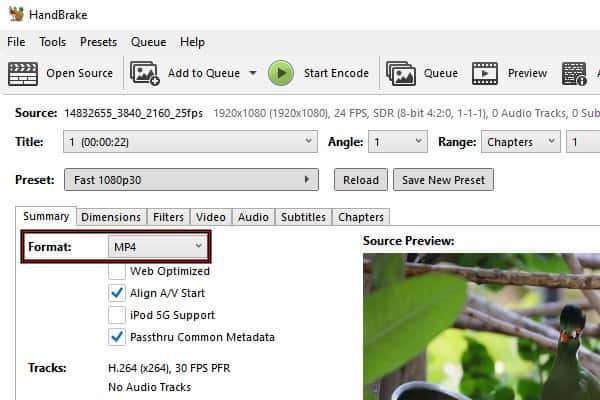
1. In HandBrake, drag the source file or a set of TS videos directly into the uploading section. After adding them, HandBrake will scan the videos and display their information. Under the Summary tab, click Format picker and select MP4.
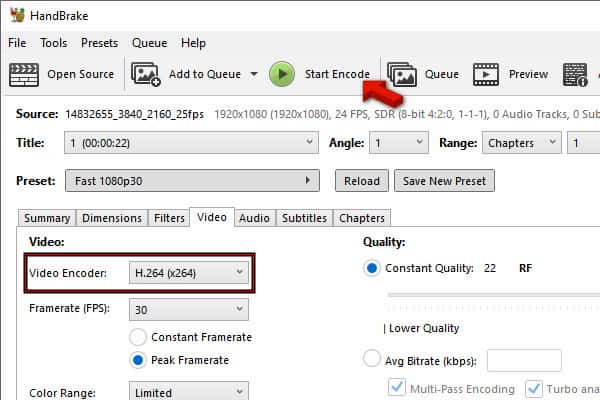
2. The best HandBrake settings to convert TS to MP4 are H.264. Go to the Video tab and select H.264 (×264) for optimal video quality and high compression. Click Start Encode to begin the conversion using your selected settings.
Not gonna lie, HandBrake is a powerful tool for media transcoding. It has a lot to offer when it comes to advanced video settings. However, these settings favor power users. If you’re unfamiliar with it, you might find the encoding options and technical settings overwhelming. So you'd better switch to more straightforward tools like AnyMP4.
Don't want to install anything? No problem. Convertio lets you convert TS to MP4 through the browser. It is lightweight and supports uploading files from a computer or cloud storage services. So if you only convert files occasionally, this is certainly the tool you need. But be aware of its imitations, such as 25 conversions a day and a 100 MB file size cap.
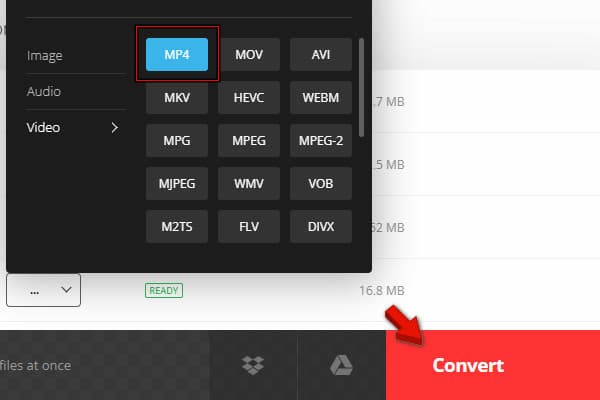
To convert: The process is slightly different from desktop tools. Firstly, click Choose Files to upload the TS files from your computer. If your video files are saved in cloud storage, click the dropdown menu and select From Dropbox or From Google Drive. Select MP4 inside the Video category by clicking the Format picker. And to complete the process, click Convert.
To be fair, Convertio is an outstanding free TS converter for transforming TS to MP4 online. You can also convert TS to WMV and other formats with it. However, we found out that the conversion speed depends on your internet stability. Even processing small files can take time if your connection is unstable. Also, the batch conversion is limited. We were only able to have a maximum of 10 concurrent conversions.
What is the TS video format?
TS (Transport Stream) is a video stream file format used to store video on DVDs. TS files can also store audio and data information. TS files are used in MPEG-2 Part 1 systems to compress video data. TS files hold multiple pieces of data in a container format.
How do I open a TS file on my computer?
Launch a .ts file on your computer by double-clicking it. If your file associations are set correctly, the application intended to open your .ts file will open it. If you don’t have the correct application to open it, you can freely download Blu-ray Master Free Blu-ray Player to your computer, and then select this free player to open your TS files.
Can VLC convert TS to MP4?
Yes. You can use VLC media player to convert your TS files to MP4. VLC is a free and open-source multimedia player, and you can download it from VLC’s official website.
Can HandBrake convert TS to MP4?
Yes. Video TS files, along with audio TS files, are the two main folders in a DVD's contents. HandBrake, a free and open-source program, specializes in ripping and converting DVD content. Just download and install it on your computer, and start converting TS files to MP4.
Will converting TS to MP4 reduce video quality?
No, it will only reduce video quality if the video is re-encoded. If you copy the source directly into a new MP4 container, there will be zero quality loss. To ensure the video quality remains, use AnyMP4 Video Converter Ultimate.
Converting TS to MP4 is the simplest way to make HD TV recordings, Blu-ray captures, and digital video recordings compatible with new technologies and devices. When you need fast batch conversion with editing features, AnyMP4 Video Converter Ultimate is your best bet. On the other hand, when you want something free but have all the required encoding features, you can opt for HandBrake. When you do not wish to download any application, you can use Convertio.
 Updated by Alice Thorne to Convert Video
More readings
 Top 2 Methods to Trim TS Video File on Your Desktop and Online
Want to trim TS video files and remove unneeded frames? This tutorial shares two easy methods to do it on computer quickly.
 3 Best Ways to Convert MTS to MOV in 2026 - Lossless & Fast
Struggling with Sony/Panasonic MTS files not playing on Mac? We tested the top 3 MTS-to-MOV converters in 2026. Get lossless quality videos for video editing.
 How to Convert AVHCD MTS/M2TS Videos to MOV from A Camcorder
What is the best method to convert AVCHD M2TS or MTS to MOV files for further editing? Just learn more details about the process on your MacBook with ease.
 10 Best MOV to MP4 Converters in 2026 (Fast & Lossless)
MOV files are unplayable? Read our honest, hands-on review of the top 10 MOV to MP4 converters, including desktop, online, and mobile tools to get the best one.
 Add your comments to join the discussion here