
Ever found a file ending in .ts and wondered why your default player won’t open it? Whether it’s a high-definition video or a piece of code, here is everything you need to know. Since these videos are encoded in MPEG-2, they are no longer supported on most modern video players. As such, video playback issues persist today, especially when playing TS files on modern computers. In this article, we will provide everything you need to learn about the TS video format, including video player tools such as VLC that can play these videos, and the best conversion software for it: AnyMP4 Video Converter Ultimate.


To get started with TS files, let us first discuss what the TS file format is and why it is used for broadcasting and DVD content. We will also explore the best movie player options for playing such uncommon video files.
TS videos are designed to play directly on websites, so users can watch them without downloading the file first. This makes these files more optimized for HDTV transmission or broadcasting, since these platforms rely on signal and internet stability rather than on downloading the TS file first.
However, you can still play TS files on modern computers as long as you use the right media player, since most built-in options like Windows Media Player and QuickTime do not support TS files by default. Fortunately, third-party players like VLC Media Player can play TS files, and the program is also free.
Now that we have provided the information on what makes TS video files different from other video formats, the next section of this article will help you learn more about the similarly named TS format in TypeScript. The section below will aim to clarify for our readers how each file type works.

Besides videos, there are also TS files for coding with TypeScript; although they are saved in .ts format, they are entirely different. Unlike TS videos, TypeScript files contain the programming language used by Microsoft.
Among coding languages, TypeScript is safer than standard JavaScript, and its enhanced security is its most notable feature. As such, developers widely prefer TypeScript over traditional JavaScript because it directly improves file quality by increasing script safety.
Since TypeScript files are code-related, make sure to open only such formats if you intend to download one. Since coding itself is complex and overwhelming for beginners, it is quite common for viruses to be saved in the .ts extension, and your video player might read it as a video format.
With the confusion of the same file extension now out of the way, let us now proceed to our guide on how to access TS video files on Windows and Mac computers.
Since the TS file’s advanced codecs make it incompatible with built-in media players, you have to rely on third-party options to watch these clips on modern computers. With that in mind, this section will provide a step-by-step guide to playing TS videos in VLC Media Player, our recommended multimedia player for TS files.
VLC Media Player was selected as our proposed program in this section because it has a wide range of codecs, enabling it to play various video files, including those saved in TS format. However, do not expect the program to fully extract the practicality of TS files, since they are better suited for online playback.
Fortunately, VLC Media Player is available on Windows, Mac, Android, and iOS devices. However, our tutorial below will feature the Windows version of the program.
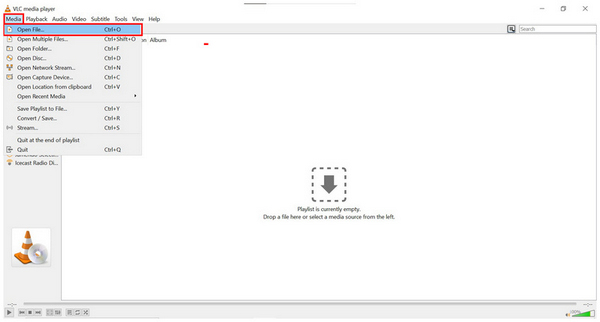
1. Open VLC Media Player, select the Media tab, then click Open File.
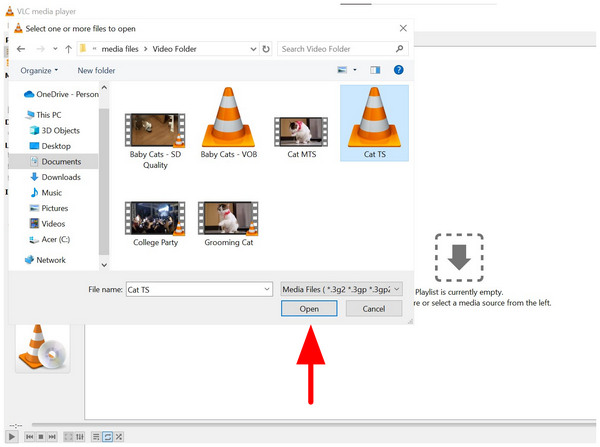
2. In the File Manager pop-up that opens, navigate your files to find the TS video you want to play. Once located, click it, then select Open.
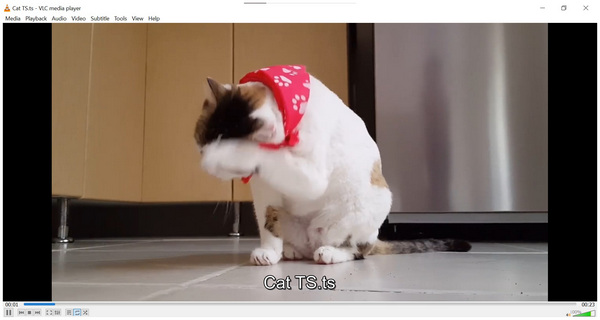
3. Your TS video will now play in VLC Media Player without any problems.
Although playing TS files with third-party video players resolves playback issues, converting these videos to a much more friendly format like MP4 or MKV is still a better option. Additionally, TS videos are way bigger than regular video files, making them not the best solution if you want to save the video on your main storage. When converted to modern format, these files will become easier to play and more compact, making them much more suitable for offline use on your computer.
Due to the TS files’ design for web-based videos, their use is limited. AnyMP4 Video Converter Ultimate is a perfect solution, as it can convert your TS video to modern formats like MP4 or MKV.
Although there are numerous multimedia options for file conversion, AnyMP4’s format converter software takes the cake for efficiency, performing 70x faster than the standard speed thanks to its hardware acceleration system for NVIDIA, AMD, and Intel chips.
Additionally, it offers lossless conversion for processed videos, whether you want single-file conversion or batch processing. These files for format conversion may also use the tools available in the program’s built-in editor, such as the video trimmer, cropper, and broadcast tools, before changing their file type.
Finally, the Toolbox feature of the program will also provide additional tools for increasing file management and utility. Some notable options include Video Enhancer, Video Compressor, Watermark Remover, Volume Booster, and more.
With the features of AnyMP4 Video Converter Ultimate now out of the way, let us now proceed to the steps you need to learn how to convert your TS files to MP4.
Make sure to download the program to make following the tutorial easier.
Secure Download
Secure Download
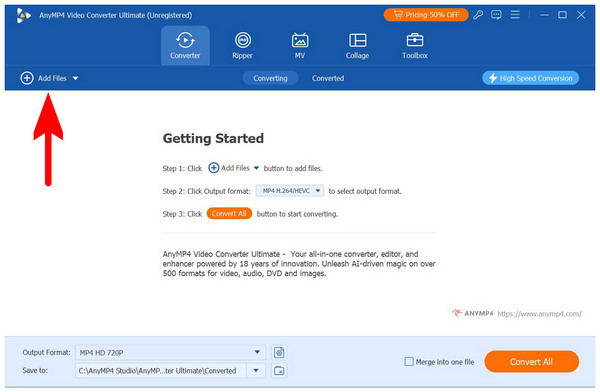
1. Open AnyMP4 Video Converter Ultimate and select the Add Files button on the Converter tab.
2. With your TS video now imported to the Converter tab, select the Output Format option to choose the file type you want to save your TS video into. In this case, select MP4. Then choose which Conversion Profile you want to use.
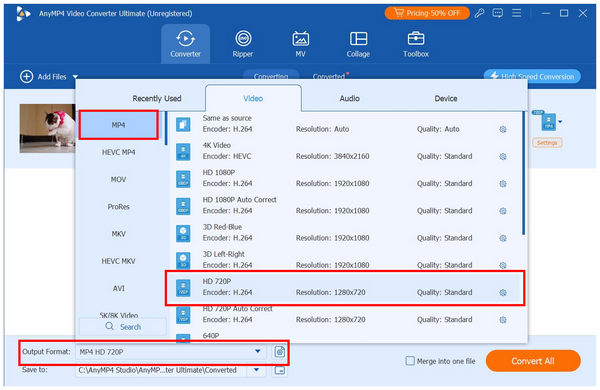
3. Once you have selected how you want to convert your TS video to MP4, click Convert All to begin the conversion.
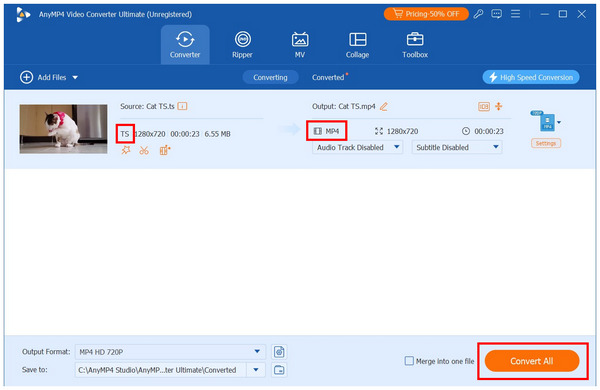
After the conversion process, you can now enjoy watching your TS video regardless of the media player, device, or operating system you use, since you have converted the TS file to MP4. You will also save a lot of digital storage space since MP4s are more compressed than TS videos, while keeping their original quality, thanks to AnyMP4 Video Converter Ultimate's lossless conversion feature.
Is a .ts file the same as an MP4?.
No, it is not. TS files are completely different from MP4 files. Although they are both video formats, TS is designed to work more efficiently with web-based players, while MP4 is a widely supported, all-around video format.
Can I rename .ts to .mp4?
Yes, you can. However, simply renaming the video will not convert it to MP4. You have to use a format converter because the codecs, bitrates, and other advanced media elements are completely different from those in MP4 and TS.
Why do .ts files take up so much space?
TS files are large because they are meant for web-based streaming. This makes the program designed to function more for broadcasting and streaming. It was designed to improve its encoding and error resistance, with file size compression prioritized less.
Is a .ts file a virus?
It could be. There are two types of TS files, and they might be viruses if you did not intend to download them. There are web-based TS videos optimized for streaming. The other TS file is TypeScript code, similar to JavaScript, with added security.
How do I edit a .ts file?
Based on the video editor that you will use, you can simply edit and trim TS files like a normal video if your editor supports it. Otherwise, you have to convert it to a more compatible format, such as MP4, MKV, or MOV.
Now that we have provided everything you need to know about TS video files, we hope you can access them without any problems, whether you watch them in a third-party media player or convert them to another format. If you choose the latter solution, make sure to use a widely compatible video format to save your file, such as MP4, for safety. Fortunately, there are easy multimedia tools you can use, such as AnyMP4 Video Converter Ultimate, for beginner-friendly format conversion.
Secure Download
Secure Download
 Updated by Alice Thorne to Glossary
More readings
 WMV File - What Is a WMV File and How to Open/Convert WMV Format
What is a WMV file? What will play a WMV file on Mac? Is WMV better than MP4? How to convert WMV to MP4? All the answers about WMV format are here.
 What is WebM and How Can You Watch This File Format
Want to learn what WebM is and what is the best WebM player? Please read this article to learn how to play and convert WebM easily and conveniently.
 What Is 3GP and How Does it Impact Mobile Multimedia
You might be wondering and once asked yourself, What is 3GP? If you’re looking for the answer, you’ve landed on the right spot. Uncover more details here!
 What is MPG and How to Play/Convert MPG with Ease
If you want to learn what is MPG, you’re certainly in the perfect spot. As a bonus, we will present two dedicated tools that can handle this file format.
 Add your comments to join the discussion here