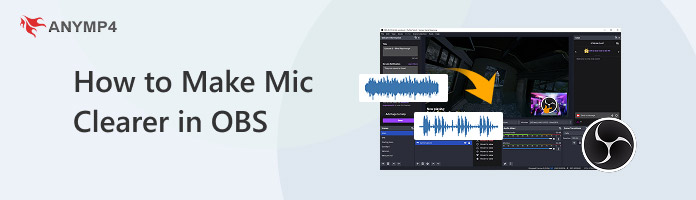
4 Fixes to Make Mic Clearer in OBS for Noisy & Quiet Audio
SUMMARY:
To make mic clearer, use Noise Suppression (RNNoise) > Noise Gate > Gain. Then, set Sample Rate to 48 kHz under Settings > Audio. Keep the original mic signal strong before adding Gain. For RTX users, try the NVIDIA Noise Removal. When you only need a simple mic (already clean) recording, AnyMP4 Screen Recorder is a great alternative.
I recorded for an hour and played it back right after. My voice sounds muffled, so I turned the volume up just to hear myself. And the weirdest part is that the mic sounded good in Discord 5 minutes ago. What did OBS change?
If the OBS mic sounds bad, the microphone may not be the problem. To make mic clearer in OBS, you need the right fix for the actual symptom. OBS noise suppression can handle background noise, while an OBS mic muffled problem may come from placement or over-processing. For this guide, the full setup was tested on Windows 11 with a USB condenser headset mic and the RTX AI filter to build a clean mic setup in OBS.
Fix 1 (Recommended): Build the 3-Filter Chain - Noise Suppression → Noise Gate → Gain
If OBS mic sounds bad, start with the built-in filters. OBS provides Noise Suppression, Noise Gate, and Gain to clean up and control audio sources.
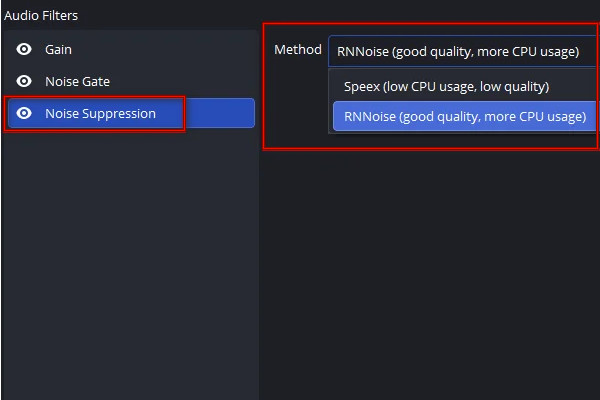
1. Click Gear next to your mic in the Audio Mixer and select Filters. Then, click + and select Noise Suppression.
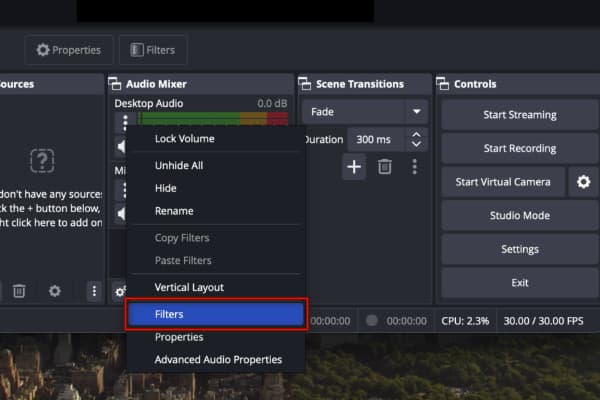
2. Click Method to access RNNoise, Speex, and NVIDIA Noise Removal (if NVIDIA Broadcast SDK is installed).
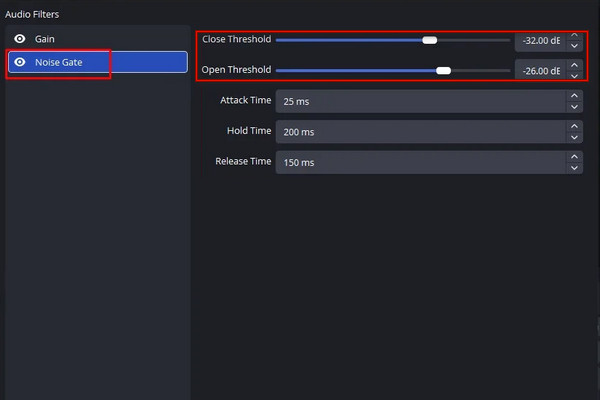
3. Open Filters again, click +, and select Noise Gate. Lower the Close Threshold to -50 dB and set the Open Threshold to -35 dB.
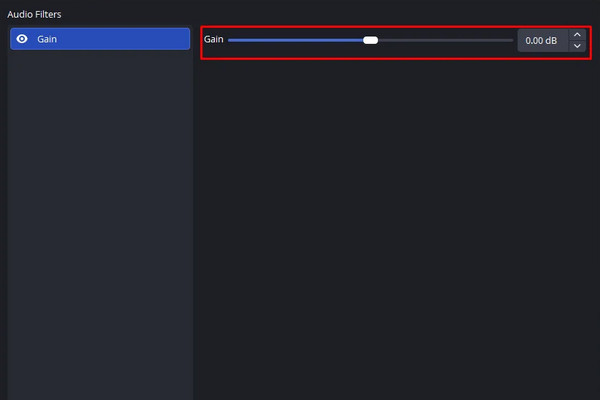
4. If the OBS mic is still muffled, add Gain and target a +5 to +10 dB.
Note:
Clean the noise in advance, close the mic when not in use, and make volume adjustment. It is better to get started with this simple three-filter chain than to try and fix the recording afterward.
Fix 2: Fix Muffled, Robotic & Quiet Audio - Sample Rate, Windows Mic Levels & Physical Setup
After the filter chain is in place and the mic still sounds wrong, don’t add another filter. The only fix you need is to match the sample rate inside OBS and on your OS audio device settings.
Here’s how to make mic clearer in OBS:
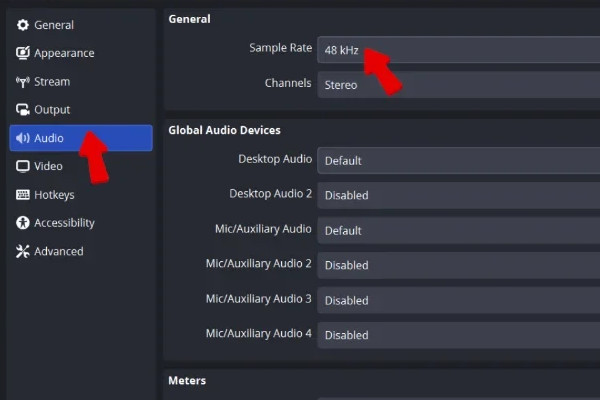
1. Go to Settings, select Audio, and set the Sample Rate to 48 kHz.
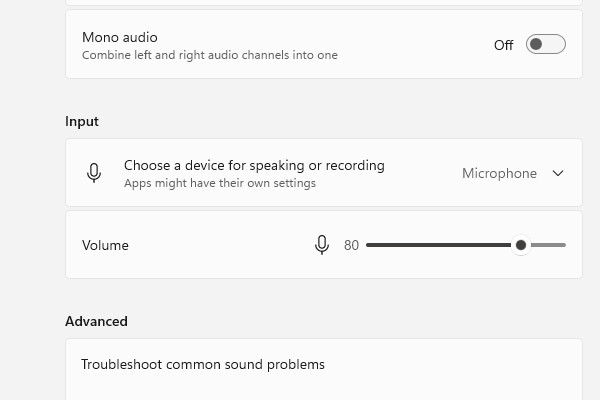
2. On your OS, head to Sound Settings and raise the mic volume to 80-100.
3. Click More sound settings, right-click the output device, and select Properties. Switch to the Advanced tab and set the Default Format to 24-bit, 48000 Hz (Studio Quality).
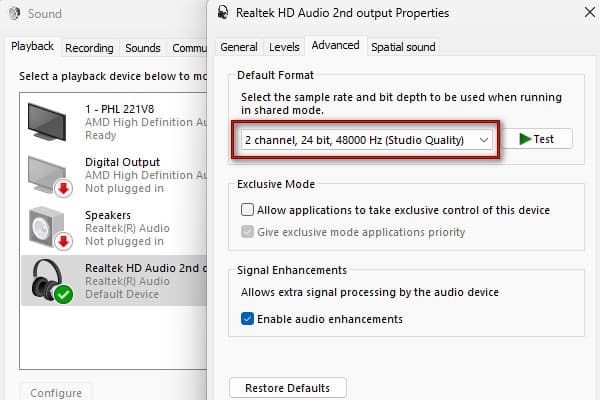
Sample rate mismatch and weak input levels can make the voice recording sound bad. Fix the source and reduce excessive suppression when voices become muffled.
Fix 3: AI Denoising - NVIDIA Noise Removal in OBS 30.1+, Broadcast & Krisp
Krisp is a separate app that users without an RTX GPU can use. It can create a virtual microphone, remove background noise from audio, and feed a clean signal as your mic.
To fix OBS mic clipping: Download Krisp, set it up, and install it on your computer. Right after, go to OBS, open the audio settings, and set the Mic/Auxiliary Audio device to Krisp Microphone. Start recording, and OBS will receive the audio that Krisp has already cleaned.
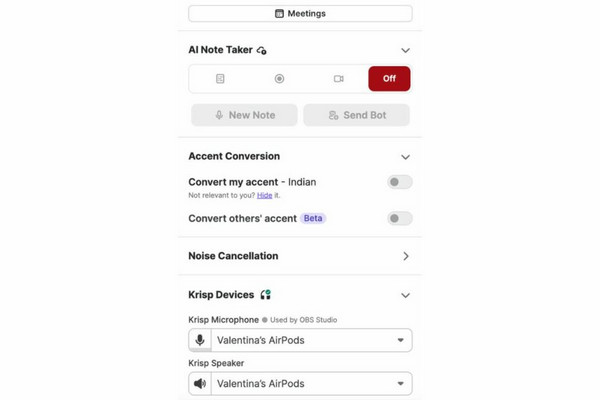
Krisp does not depend on an RTX GPU, and you can use it on Windows or Mac. The free plan lets you test the setup before committing to the premium version.
Fix 4: Record a Clean Mic + Screen in One Click with AnyMP4 Screen Recorder
OBS filters only exist inside OBS, including Compressor, Expander, Limiter, Noise Gate, and OBS Noise Suppression. When you need to record a screen or a voiceover with your mic (already clean), AnyMP4 Screen Recorder offers a much simpler approach. It includes an Audio Recorder mode that captures both mic and system audio simultaneously. It can save a voice recording as an MP3, M4A, WMA, AAC, Opus, FLAC, or WAV file.
1. Download AnyMP4 Screen Recorder and complete the installation.
After setup, select Audio Recorder for audio-only recording.
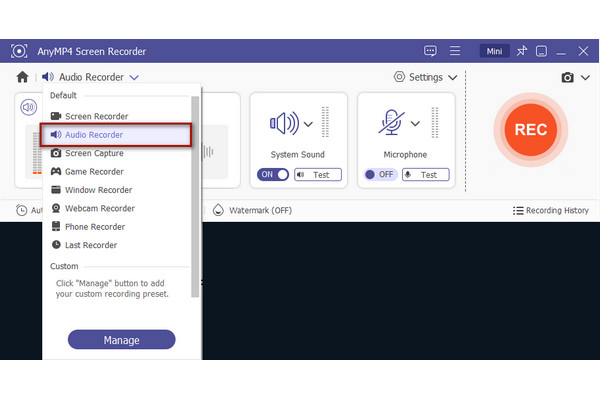
2. In the Audio Recorder window, click Test to adjust your recording preferences. Maximize the recording volume to prevent audio from sounding muffled.
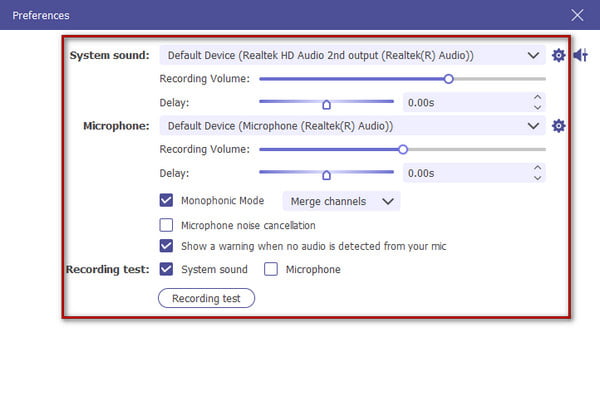
Tip:
Tick the Microphone noise cancellation option to block out unwanted background sounds so your voice sounds clear and professional.
3. Click REC to start recording system sound and your mic input. When you’re done recording, click the Red Square button to end and review it.
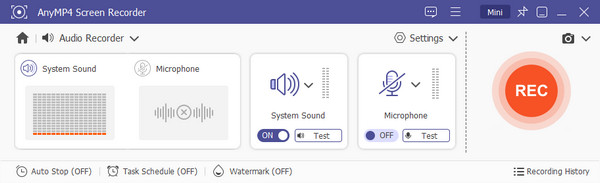
AnyMP4 Screen Recorder has a built-in microphone noise-cancellation feature, allowing you to record clean mic audio. It is a good replacement when you don’t need OBS filters.
Why Does My Mic Sound Worse in OBS Than in Discord? (4 Real Reasons)
Your mic sounds good in Discord but bad in OBS because Discord applies automatic software processing and noise suppression by default. Meanwhile, OBS takes a raw audio feed that requires manual configuration.
- • Discord turns on Krisp noise cancellation and automatic gain control.
- • Windows and Discord automatically lock to a 48kHz or 44.1kHz sample rate.
- • OBS defaults to a low audio bitrate for recordings or streaming tracks.
- • OBS might be defaulting to your monitor, a webcam mic, or the wrong device.
Muffled, Noisy, or Quiet? Diagnose Your Mic Problem Before You Filter It
Before changing settings, identify first what you actually hear.
| Problem |
Cause |
First thing to try |
| Muffled |
Poor placement and excessive processing |
Check mic position and disable filters |
| Robotic voice |
Heavy AI/suppression |
Reduce or disable processing |
| Distorted voice |
Clipping or excessive Gain |
Reduce input/Gain |
| Quiet |
Low input level |
Raise Windows or device input level |
| Cuts out between words |
Gate too aggressive |
Lower Open Threshold |
FAQs About Making Your Mic Clearer in OBS
My OBS mic is very quiet. How can I fix this?
The mic is very quiet due to Windows input levels or OBS slider limits. On Windows, set the volume to 100 in Sound settings. For OBS, drag the Mic/Aux volume slider to 100%.
What are the best OBS mic settings for any mic?
To make any mic sound professional, set the raw input gain so the voice peaks in the yellow range (-15 to -10 dB). Then, apply filters in the correct order.
Why does OBS distort my audio?
OBS audio may sounds weird because of sample rate mismatch between OBS and your OS. When OBS expects 48kHz audio and your computer sends 44.1kHz, resampling can cause distorted audio.
CONCLUSION
The fixes to make mic clearer in OBS doesn’t have to be complicated. There are several workarounds you can try to achieve a clean audio. Start by fixing the Noise Suppression, Noise Gate, and Gain. If it didn't work, check sample rate, input levels, and mic placement. You can also try NVIDIA or Krisp AI denoising if background noise persists. However, if you only need to capture a clean voice without a complicated OBS setup, AnyMP4 Screen Recorder offers a simpler approach.