
Free Download100% Clear & Secure
Free Download100% Clear & Secure
Quick Verdict:
If you need the most reliable and affordable tool, AnyMP4 iPhone Unlocker ranks #1 for its ease of use and high success rate on the latest iPhone 18. For advanced users needing deep MDM bypass, AnyUnlock and TunesKit are strong alternatives, though they may require more complex technical steps like DFU mode.
Dealing with an unresponsive screen on your iPhone can be frustrating. Fortunately, there are several methods available to bypass this issue. This post will explore various techniques and solutions on how to unlock an iPhone with unresponsive screen. If you’re dealing with a broken screen or other issues causing the screen to become unresponsive, worry not! This guidepost will provide practical solutions to help you regain access to your device.

Editor’s Test Note:
| Category | Data Safety | Success Rate | Best For | |
|---|---|---|---|---|
| Siri / VoiceOver | Software | ✅ No Loss | Low | Older iOS (10.3 or below) |
| AnyMP4 iPhone Unlocker | Software | ⚠️ Data Erased | Extremely High | Forgotten Passcodes / All iOS |
| External Keyboard | Hardware | ✅ No Loss | Medium | Broken Home Button / Passcode Entry |
| iTunes / Finder | Remote Erase | ⚠️ Data Erased | High | Synced PC/Mac users |
| iCloud / Find My | Remote Erase | ⚠️ Data Erased | High | Remote unlocking via another device |
| USB Mouse via OTG | Hardware | ✅ No Loss | High | Broken Touch / Working Display |
Before we begin, let us first answer: Can you unlock iPhone with a broken screen? Well, the straightforward answer is YES! You can unlock an iPhone without the screen working. This can be achieved using various methods, which involve connecting the iPhone to a computer. Also, you can use software to access and interact with the device’s data and settings. These methods rely on the iPhone being recognized by the computer despite the screen not functioning properly. It might seem tricky, but there are simple ways to do it that anyone can try. So, if you’re stuck with a broken screen, worry not! There are ways to get back into your iPhone.
This method exploits a legacy accessibility feature to navigate the screen without touch.
Compatibility: Limited to older devices (iOS 8.0 to iOS 10.3).
Requirement: Siri must be previously enabled.
Unlocking an iPhone with an unresponsive screen can be a daunting task. But, with the help of Siri, it becomes achievable. Siri is Apple’s virtual assistant. It allows users to bypass the need for touchscreen interaction to unlock their devices.
Here’s how to unlock iPhone with an unresponsive screen with Siri:
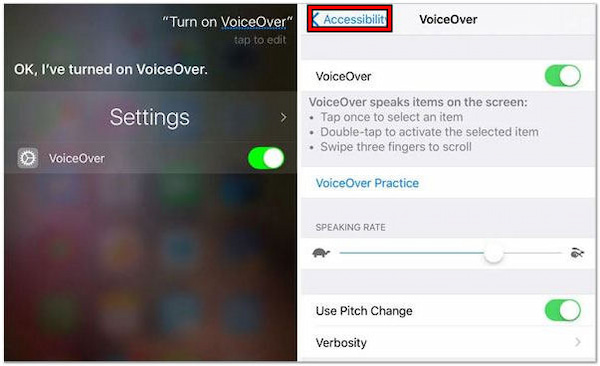
1. Press the Home button to wake Siri, then command Siri to Turn on VoiceOver.
2. Again, press the Home button to return to the unlock screen.
3. Swipe the screen until the Slide to Unlock option is selected.
4. Double-click to navigate to the passcode entry screen.
5. Continue swiping to highlight the correct keys and double-tap to select each one.
6. Swipe to highlight the Done or Enter button. Then, double-click to submit the passcode.
Siri is a valuable tool for unlocking an iPhone with an unresponsive screen, or when iPhone Face ID is not working. Although Siri can activate certain accessibility features like VoiceOver, it cannot directly input the passcode itself.
If Siri fails and you need a high-success alternative, a dedicated tool is the most reliable way to bypass a locked, non-responsive screen.
[!IMPORTANT] DATA LOSS WARNING Using professional unlocking software will factory reset your device. All data will be erased. Ensure you have an iCloud or iTunes backup before proceeding.
When accessibility features like Siri or hardware workarounds (like a mouse) fail, a professional-grade software solution is often the only way to regain access. AnyMP4 iPhone Unlocker is a versatile iOS toolkit specifically designed to handle "disabled" or "unresponsive" iPhones.
Whether your screen is physically shattered, ghost-touching, or the digitizer has failed entirely, this tool bypasses the lock screen without requiring any touch input on the device.
Features
Follow these 4 professional steps to bypass your unresponsive screen:
Pro Tip: Ensure your computer is connected to a stable high-speed internet for a faster firmware download later.
1. Select "Wipe Passcode" Mode
Download and Initialize Download the official version of AnyMP4 iPhone Unlocker on your Windows or Mac. Once installed, launch the program.
Secure Download
Secure Download
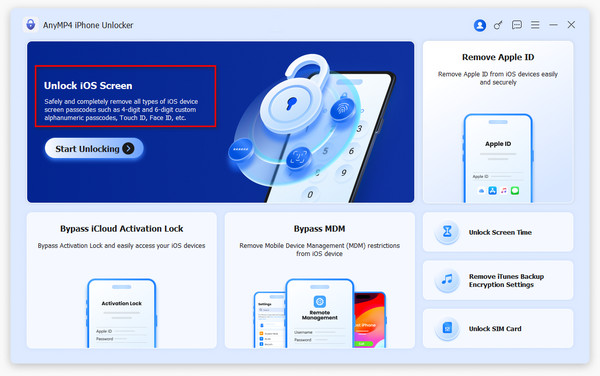
On the main interface, you will see three modes. Click the Unlock iOS Screen mode.
2. Establish a Secure Connection
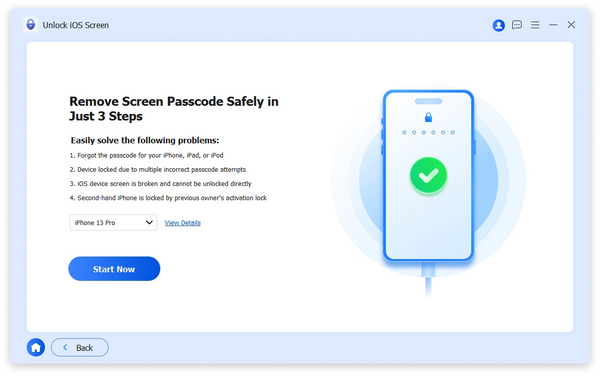
The software will automatically detect your iPhone's model and iOS version. Carefully review the displayed info to ensure it matches your device. If everything looks correct, click the Start Now button to proceed. The tool will begin downloading the specific firmware package required to unlock your device.
If your screen is so damaged that the computer doesn't recognize it, the software will provide on-screen instructions to put your device into Recovery Mode or DFU Mode.
3. Finalize the Unlocking Process
Once the firmware is ready, confirm it again carefully, and click Confirm Again to start the screen unlocking process.
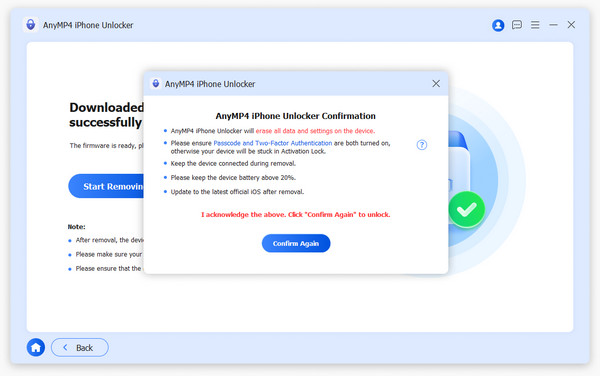
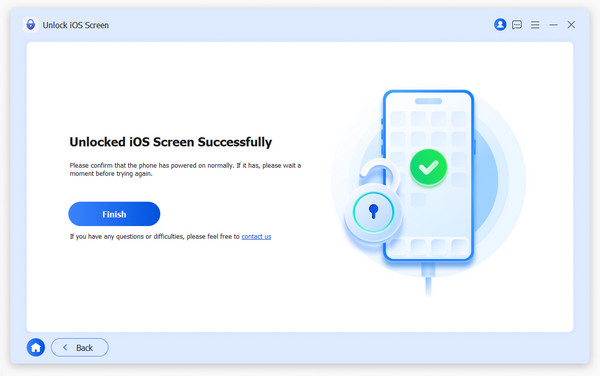
Once the process is done, you can see a pop-up window appear that shows your iOS device passcode has been removed successfully.
Unlike DIY methods that might only work on specific iOS versions, AnyMP4 iPhone Unlocker provides a universal fix. It’s particularly useful if you’ve forgotten your passcode and the screen is broken—a situation where Apple's standard "Touch to Trust" prompts are impossible to navigate.
Additionally, if your device is stuck on an "Apple ID Verification" loop due to the broken screen, you can utilize the Remove Apple ID feature within the same toolkit once the screen lock is cleared.
If your iPhone screen display is visible but the touch digitizer is completely dead, an external keyboard can act as your input device. This is a no-data-loss solution.
Compatibility: iPhone 8 or older: Helps bypass a broken Home button to trigger the passcode screen.
All Models: Allows typing the passcode when the screen doesn't register touch.
Required Tools:
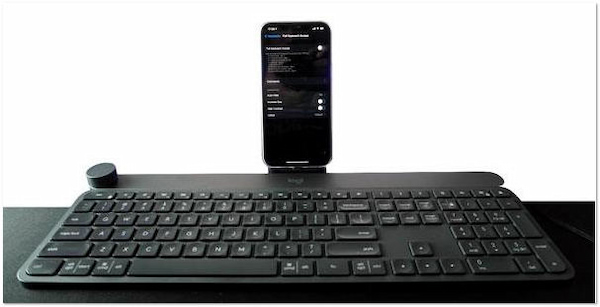
1. Plug your keyboard into the OTG adapter, then connect the adapter to your iPhone’s charging port.
2. Press any key (like the Spacebar or Enter) to wake the screen.
3. Type your lock screen passcode directly on the keyboard.
4. Once unlocked, the iPhone remains accessible. Use this opportunity to immediately start an iCloud backup or transfer photos to a computer.
Tip: While this gets you past the lock screen, it’s a temporary workaround. You still cannot "swipe" to open apps. For full navigation without touch, we recommend using the USB Mouse method after.
Use this if you have previously "Trusted" a computer.
[!IMPORTANT] DATA LOSS WARNING This process will wipe your iPhone to its factory settings.
Unlocking an iPhone with a broken screen using iTunes offers a viable solution. iTunes is Apple’s multimedia management software. It provides a method to restore the iPhone and bypass the screen lock, granting access to the device’s functions and data.
Here’s how to unlock iPhone if the screen is broken with iTunes:
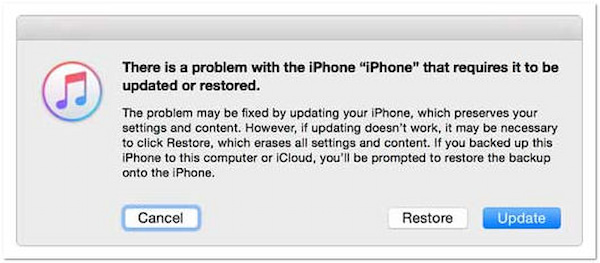
1. Connect your iPhone to a PC with iTunes installed using a wired cable.
2. Once the iPhone is detected, click the Device icon to access its summary page.
3. Select Restore iPhone and allow the restoration process to complete.
4. Set up your iPhone as a new device or restore it from a backup if available.
5. Once the setup is done, your iPhone will be unlocked.
Using iTunes to unlock an iPhone with a broken screen offers a straightforward solution. Now, a small heads-up. Restoring the iPhone through iTunes will result in the loss of all data. This includes photos, contacts, and app data.
Use this if you don't have access to a computer but have another mobile device.
Unlocking a broken iPhone screen using iCloud offers a practical solution. iCloud is Apple’s cloud-based service that provides a feature called Find My iPhone. This feature allows users to remotely erase and unlock their devices.
Here’s how to unlock a broken iPhone screen with iCloud:
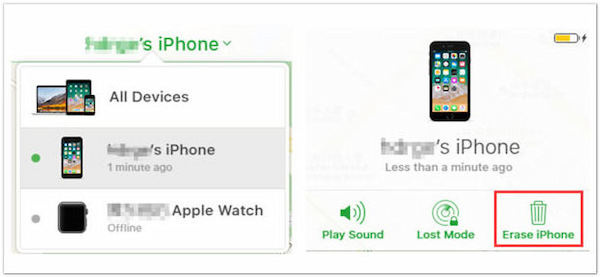
1. Navigate to the iCloud website and sign in with your Apple ID and password.
2. Click Find iPhone, select All Devices, and choose the iPhone that you want to unlock.
3. Click Erase iPhone to remotely wipe the device.
4. Confirm the action by clicking the Erase option.
5. After the setup is complete, your iPhone will be unlocked.
Using iCloud to unlock a broken iPhone screen provides an accessible solution to deal with broken iPhone screens. However, there’s a catch. Remote erasing the iPhone through iCloud will result in data loss.
If your screen is visible but doesn't respond to touch, you can use a mouse as a virtual finger.
What you need:
If your iPhone’s display still shows your wallpaper and notifications but simply refuses to respond to your touch, this is the most effective "life hack." By connecting a standard computer mouse, you can bypass the broken touch digitizer entirely and interact with the UI using a cursor.
1. Plug the adapter into your iPhone and connect the mouse.
2. Once connected, a cursor will appear on the screen.
3. Use the mouse to click on the numbers of your passcode.
4. Once unlocked, immediately back up your data to iCloud or a computer.
How much does it cost to fix an unresponsive touchscreen on an iPhone?
The cost of fixing an unresponsive touchscreen on an iPhone depends on various factors. This includes the model of the iPhone and the extent of the damage. Repairing an unresponsive touchscreen can range from $50 to $300 for old and newer models. If the iPhone is covered by AppleCare+ OR still under warranty, the repair may be free or subject to a lower service fee.
What causes an unresponsive touch screen?
Several factors can cause an iPhone’s touch screen to become unresponsive. Common causes include software glitches or bugs, malfunctioning or damaged touch screen digitizer, moisture or water damage, and physical damage to the iPhone’s internal components.
Can a cracked screen cause unresponsive touch?
YES! A cracked screen can cause an iPhone’s touch screen to become unresponsive. Cracks in the screen can damage the touch screen digitizer. It is responsible for detecting touch inputs and translating them into commands for the device.
Regaining access to an iPhone with an unresponsive screen doesn't have to be a nightmare. The right solution depends entirely on why your screen is failing:
Secure Download
Secure Download
 Updated by John Malcolm to Unlock iOS
More readings
 iPhone Touch ID Not Working? 5 Solutions Here
Is your iPhone Touch ID not working? Wondering how to fix it? If yes, you’ve landed in the right place. Check the easy-to-follow solutions we have listed here.
 What You Can Do When You Forgot You iPhone Screen Time Passcode
What you should do when you forgot your iPhone Screen Time passcode? Read this troubleshooting carefully and follow the solutions to get rid of the issue.
 4 Proven Methods to Factory Reset a Locked iPhone
Looking for a quick solution on how to factory reset a locked iPhone? This is the right place that you are looking for. Check our complete guides here.
 How to Unlock iPhone: 4 Ways to Get Into a Locked iPhone
Having a problem when unlocking your iPhone? Wondering how to unlock iPhone or iPad easily? If yes, check the complete guide in this informative post.
 Add your comments to join the discussion here