
Free Download100% Clear & Secure
Free Download100% Clear & Secure
Quick Answer:
Convert BDMV to MP4 to play high-quality Blu-ray movies on any smartphone, tablet, or media player without compatibility issues. The best methods are AnyMP4 Blu-ray Ripper for encrypted discs with lossless quality and 30x hardware acceleration, HandBrake for a complete free option on unprotected folders, and VLC Media Player for a quick, no-install playback conversion.
Many users find that BDMV (Blu-ray Disc Movie), the standard folder structure for Blu-ray movie discs, provides unparalleled high-quality images and sound. However, as a complex directory rather than a single video file, BDMV often presents significant challenges, such as poor device compatibility and massive storage consumption.
So, what’s the best way to enjoy your Blu-ray content without a dedicated player? The most effective solution is to convert BDMV to MP4 (using universal codecs like H.264 or H.265/HEVC). This transformation ensures your movies are compatible with almost all devices-including smartphones, tablets, and smart TVs-while significantly reducing file size for a smoother, more enjoyable viewing experience.
If you are wondering how to convert BDMV to MP4 on Windows 11 or Mac, the process is straightforward with the right utility. This article will explain what a BDMV file is, the key reasons for this conversion, and the best tools with step-by-step instructions to provide a reliable solution for you.
| Conversion Speed | Output Quality | Decryption (AACS/BD+) | Price | |
|---|---|---|---|---|
| AnyMP4 Blu-ray Ripper | Super Fast (GPU Accelerated) | 1:1 Lossless | Yes (Auto Bypass) | Free Trial / Premium |
| HandBrake | Moderate (CPU Dependent) | High | No (Unencrypted only) | 100% Free |
| VLC Media Player | Slow (Standard Decoding) | Standard | No (Requires libaacs) | 100% Free |
BDMV, short for Blu-ray Disc Movie, is a directory format specially designed for Blu-ray discs. It is used to store and play Blu-ray disc movies, offering high-definition picture quality, high-fidelity sound effects, and rich interactive functions. A BDMV file is not a single video; it is a complex folder structure that contains video and audio data (usually stored in the STREAM folder as .m2ts files), along with subtitles, menus, and chapter information. This structure is specifically organized so that it can be read and played correctly by dedicated Blu-ray players or compatible software.
While BDMV is the standard for high-quality physical discs, it is not well-compatible with common media players. MP4, as a popular digital video format, is widely used for its excellent compatibility and efficient compression performance. The main reasons for converting BDMV files to MP4 format are as follows:
1. Improve compatibility: The MP4 format can be played on almost all devices and platforms, including computers, cell phones, tablets, and Smart TVs. In contrast, playing a BDMV folder properly requires specific Blu-ray players. Converting BDMV to MP4 instantly makes your movies playable on any screen.
2. Easy to store and share: The MP4 format utilizes advanced video compression technology to reduce file size significantly while maintaining excellent video quality. This makes single MP4 files much easier to store on a standard hard drive or share online compared to massive BDMV folders.
3. Reduce playback restrictions: Commercial BDMV folders may be copyrighted, encrypted (like AACS), or regionally restricted, making them unplayable in certain regions or without authorized drives. Converted MP4 files, in contrast, do not have these technical barriers and can be played freely.
| Features | BDMV (Blu-ray Disc Movie) | MP4 (MPEG-4 Part 14) |
|---|---|---|
| File Structure | Complex folder directory | Single digital file |
| File Size | Massive (Usually 30GB to 50GB+) | Compressed (Usually 2GB to 5GB) |
| Compatibility | Low (Requires Blu-ray players/software) | Universal (Phones, tablets, TVs, Web) |
| Quality/Audio | Original Lossless (Multi-channel HD audio) | High Quality (Compressed for efficiency) |
| Restrictions | Often contains region codes & DRM | DRM-free (after conversion) |
Best for: Users who need a fast, 1:1 lossless way to convert encrypted BDMV folders into MP4 at up to 30x speed.
AnyMP4 Blu-ray Ripper is a powerful Blu-ray ripper for Windows and Mac that can rip Blu-ray to more than 500 digital formats, including MP4, the most common and popular format. Unlike standard transcoders, our top pick allows you to convert BDMV folder to MP4 lossless by preserving the original multi-channel audio tracks. Compared with HandBrake, this BDMV to MP4 converter is capable of removing region Blu-ray restrictions and ripping encrypted Blu-ray folders from any region.
Features:
The following are detailed steps to convert BDMV to MP4 with it:
1. Download AnyMP4 Blu-ray Ripper via the Free Download button below. After installation, launch it on your computer.
Secure Download
Secure Download
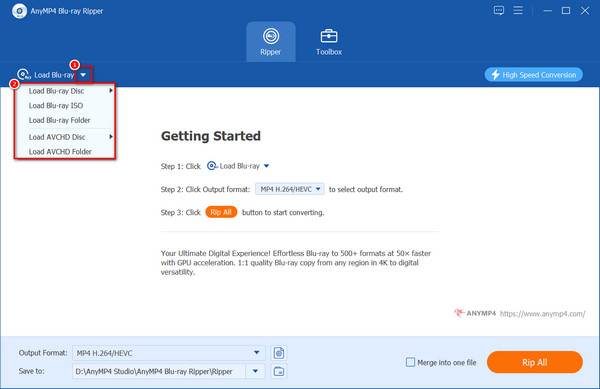
2. Click the down arrow of the Load Blu-ray button in the upper left corner and select the Load Blu-ray Folder from the drop-down list to upload the BDMV folder.
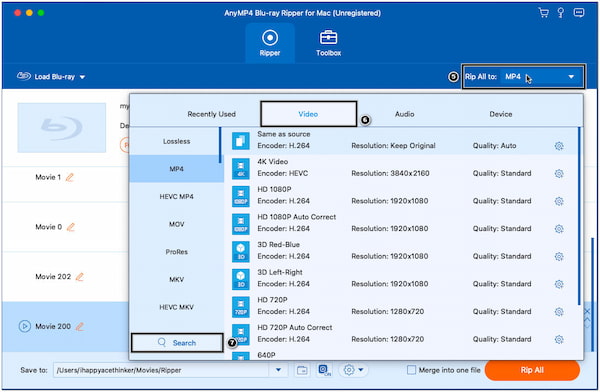
3. Click the Output Format option and select one of the MP4 formats with different resolutions and encoders from the Video tab > MP4. You can also choose the default option of Same as source.
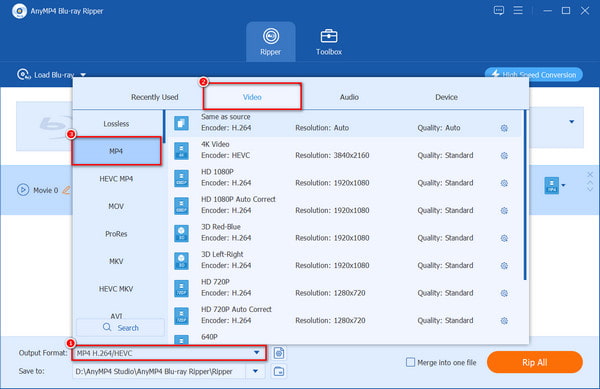
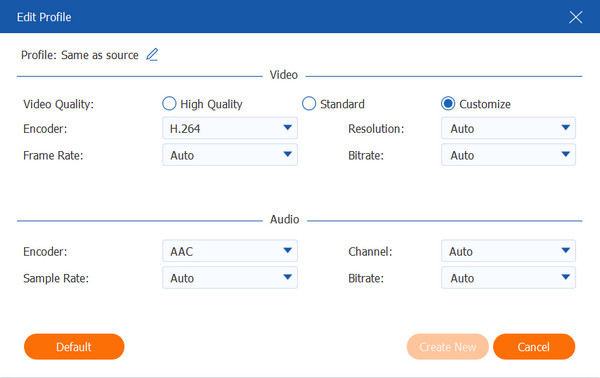
Tip: After setting the output format, you can also click on the gear-shaped button next to the output format option to set some other detailed parameters for video and audio, including quality, frame rate and bit rate, sample rate, etc.
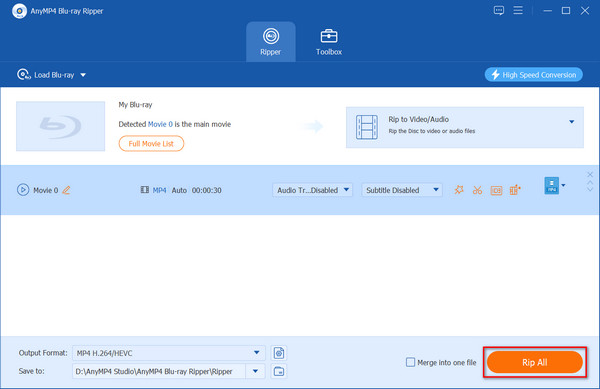
4. Click the Open output folder button to choose where the converted BDMV files are stored, and then click Rip All in the lower right corner to convert BDMV to MP4 format.
Best for: Converting unencrypted (unprotected) BDMV folders or home-made Blu-ray backups.
HandBrake is a free, open-source, and cross-platform digital video converter supported on Windows, Mac, and Linux. It can convert almost any video format, including Blu-ray files like BDMV, to digital formats like MP4 for playback on various media players.
Here are the steps for you to convert BDMV to MP4 using HandBrake:
1. Download and install HandBrake from its official website, and then launch it. Click the Folder or File buttons on the left, or drag and drop directly to upload the BDMV file you want to convert to MP4.
Note: Since BDMV is a folder structure, you should locate the video files in the STREAM folder (usually the largest .m2ts file) or simply drag the entire BDMV folder into HandBrake to let it scan the titles.
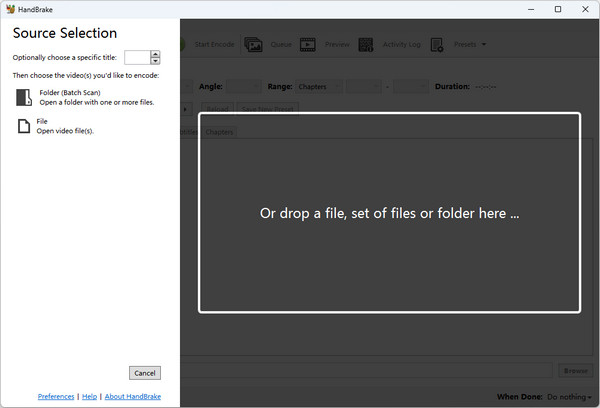
2. Click the Summary tab > the Format option to select MP4 as the output format. Then, click the Browse button to select the folder where you want to place the BDMV files converted to MP4 format.
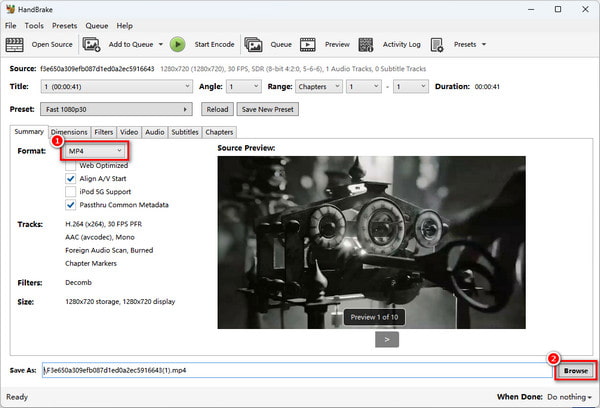
Tip: Besides the output format, you can also adjust the size, resolution, frame rate, etc., of the BDMV video files under several other tabs.
Recommended settings for HandBrake:
Best for: Users who want a quick solution without downloading new tools.
VLC is more than just a player; it’s a "Swiss Army Knife" for media. Its biggest selling point is that it requires no extra software installation, making it perfect for a quick, one-time conversion. However, please note that VLC conversion is relatively slow and may occasionally crash when handling massive 40GB+ BDMV folders.
Here are the steps to convert BDMV to MP4 via VLC:
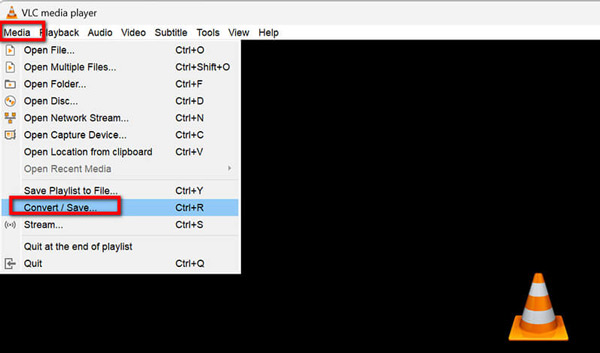
1. Launch VLC and navigate to the Media menu, then select Convert / Save (or press Ctrl + R).
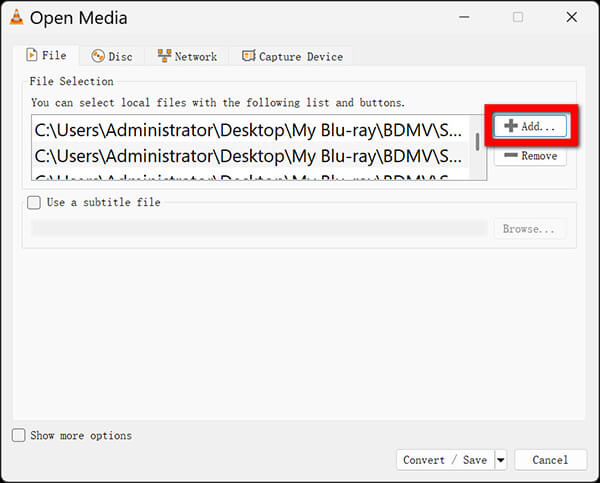
2. Click the + Add button. You must navigate into your BDMV folder, then to the STREAM sub-folder. Select the largest .m2ts file (this is usually the main movie).
Note: In the BDMV > STREAM folder, you might see dozens of files. Sort by size, and the file that is significantly larger than the others (often 15GB–40GB) is the main movie title you need to convert.
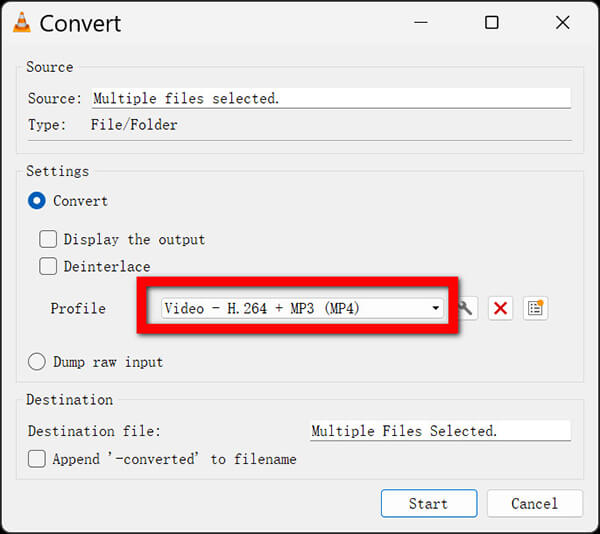
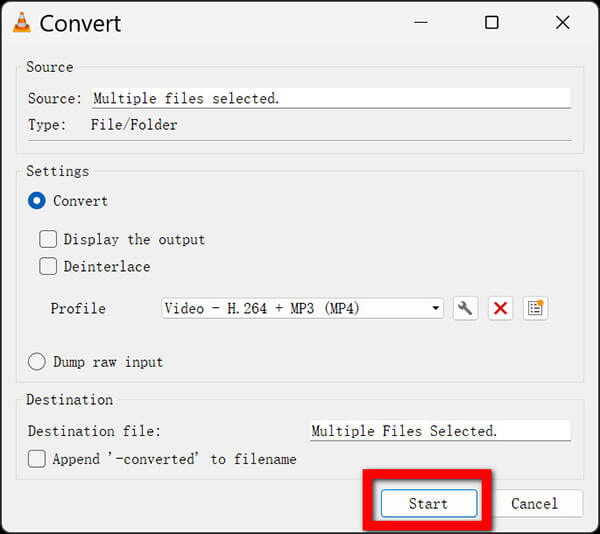
3. Click Convert / Save. In the Profile dropdown, select Video - H.264 + MP4 (MP3).
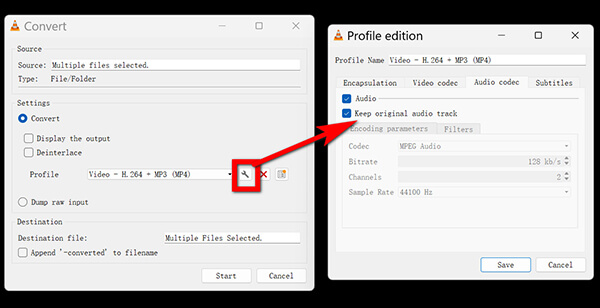
Note: Sometimes VLC conversions result in audio being out of sync. To prevent this, click the Wrench icon (Edit Selected Profile) next to the MP4 profile, go to the Audio codec tab, and ensure "Keep original audio track" is checked if you want to avoid re-encoding the audio.
4. Click Browse to choose where to save your new MP4 file and give it a name.
Click Start and keep an eye on the blue progress bar at the bottom of the VLC player.
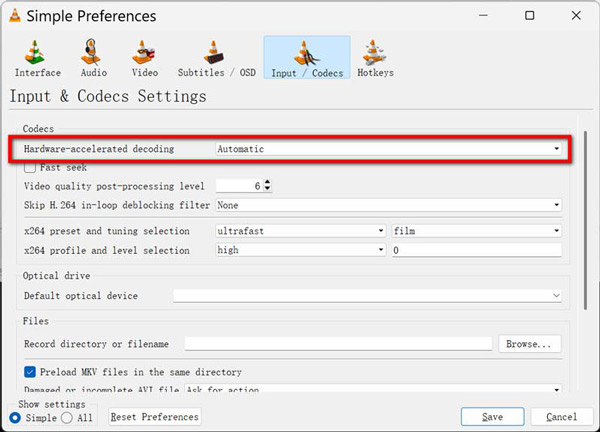
If VLC stops responding immediately after you click Start, try disabling Hardware-accelerated decoding in Tools > Preferences > Input / Codecs before starting the conversion.
Can HandBrake convert BDMV to MP4?
Yes, HandBrake can convert unencrypted BDMV folders. To do this, simply point HandBrake to the BDMV folder or select the specific .m2ts file found in the STREAM sub-folder. However, please note that HandBrake cannot handle copy-protected or region-locked commercial Blu-ray folders.
How to convert BDMV to MP4 without quality loss?
To ensure lossless conversion, you should use a converter that supports "Auto Copy" or high-bitrate encoding. Set the video codec to H.265 (HEVC) or H.264 and select "Same as Source" for resolution and frame rate. This ensures the output MP4 maintains the original 4K/1080p clarity of the Blu-ray source.
Is BDMV the same as ISO?
Not exactly. BDMV is a folder structure (directory) that contains the decrypted Blu-ray files, while ISO is a single disk image file that acts as a virtual copy of the entire disc. While their structures differ, professional tools like AnyMP4 Blu-ray Ripper can easily convert both BDMV and ISO to MP4.
Can I play BDMV files without converting?
Yes, you can play BDMV files directly using VLC Media Player or professional Blu-ray player software (like AnyMP4 Blu-ray Player). In VLC, simply go to Media > Open Folder and select the BDMV directory. However, converting to MP4 is recommended for better compatibility with smartphones, tablets, and Smart TVs.
Why are there multiple titles in a BDMV folder, and how do I find the main movie?
A BDMV folder often contains the main movie along with trailers, behind-the-scenes footage, and menus. To identify the main movie, look for the largest .m2ts file in the STREAM folder (usually several GBs) or use a professional ripper that automatically detects the longest title as the main feature.
Can I convert BDMV to MP4 with subtitles?
Yes. Professional tools like AnyMP4 Blu-ray Ripper allow you to select, keep, or even add external subtitles (.srt, .ass) during the conversion process, ensuring your MP4 file displays subtitles perfectly.
Does converting BDMV to MP4 reduce file size?
Significantly. A standard BDMV folder can take up 30GB to 50GB of storage. Converting it to MP4 using efficient codecs like H.265 (HEVC) can shrink the file size to 2GB–5GB while maintaining near-lossless visual quality.
What is the difference between BDMV and AVCHD?
While both formats are used for high-definition video, BDMV is designed for commercial Blu-ray disc movie releases with complex menus and multiple audio tracks. AVCHD is a simpler format primarily used by digital camcorders for recording HD video.
How to convert BDMV to MP4 on Mac for free?
Mac users can use HandBrake for free. Simply download the Mac version, drop your unprotected BDMV folder into the software, choose the "Fast 1080p30" preset, select MP4 as the format, and click "Start".
To provide you with the most accurate and trustworthy recommendations, our multimedia testing laboratory conducted hands-on, real-world performance evaluations on each tool.
Test Environment & File Specs:
To eliminate external variables and ensure hardware acceleration consistency, all tests were executed under the following standard laboratory environment:
Our Scoring Criteria:
We rated each BDMV to MP4 converter based on three critical performance pillars:
1. Conversion Speed (40%): The utilization efficiency of multi-core CPUs and modern GPU hardware acceleration.
2. Output Quality (30%): Retaining original video bitrates and avoiding audio compression artifacts.
3. Ease of Use & Features (30%): Main movie detection accuracy within the BDMV folder and decryption capabilities.
Real-World Test Results (35GB BDMV → MP4):
The following data reflects the actual processing time and average conversion speed when converting the heavy 35GB directory into a standard H.264 MP4 file:
| AnyMP4 Blu-ray Ripper | HandBrake | VLC Media Player | |
|---|---|---|---|
| Hardware Acceleration | Full GPU (NVIDIA/AMD/Intel) | Limited (CPU-dependent) | No (Standard decoding) |
| Conversion Time | Approx. 15-20 Minutes | 50 Minutes | 58 Minutes |
| Efficiency | 30x–50x Faster | 1x (Standard Speed) | 1x (Standard Speed) |
In summary, because BDMV folders are essentially complex directory structures rather than single files, they are largely incompatible with common media players and mobile devices. Converting BDMV to MP4 is the most effective way to unlock your Blu-ray collection for seamless playback on any device.
While free tools like HandBrake and VLC are functional for basic, unprotected files, they often struggle with slow speeds and fail to process commercial, encrypted Blu-rays. AnyMP4 Blu-ray Ripper bridges this gap, offering a modern, user-friendly interface combined with powerful decryption technology and 30x hardware acceleration.
In summary, because BDMV folders are essentially complex directory structures rather than single files, they are largely incompatible with common media players and mobile devices. Converting BDMV to MP4 is the most effective way to unlock your Blu-ray collection for seamless playback on any device.
While free tools like HandBrake and VLC are functional for basic, unprotected files, they often struggle with slow speeds and fail to process commercial, encrypted Blu-rays. AnyMP4 Blu-ray Ripper bridges this gap, offering a modern, user-friendly interface combined with powerful decryption technology and 30x hardware acceleration.
 Updated by Ted Klarso to Rip Blu-ray
More readings
 How to Rip Blu-ray Using HandBrake Effectively
If you have a large collection of Blu-ray discs, you may be wondering if HandBrake can rip your Blu-ray discs and convert them into digital files.
 3 Methods to Convert Blu-ray to MP4 Effortlessly
Tired of looking for the best software to convert Blu-ray to MP4? Come and find out the three Blu-ray ripping software and the best way to rip Blu-ray to MP4.
 Convert Blu-ray to Digital: 3 Easy Ways
Follow the 3 easy ways in the article to convert Blu-ray files to digital formats to play them on multiple devices and platforms.
 How to Convert BDMV to MKV [Effortless & Lossless]
Do you want to convert BDMV to MKV? This post will provide an ultimate guide with comprehensive and detailed steps that can be followed easily.
 Add your comments to join the discussion here