
Free Download100% Clear & Secure
Free Download100% Clear & Secure
When it comes to video editing, focusing only on the visual elements of your work will give you a subpar result. To make your videos effective, you have to learn how to apply proper audio settings as well. In this article, we will provide a detailed guide featuring one of the best open-source editors on PC with Shotcut. We will help our readers learn how to adjust volume on Shotcut using the most effective steps to edit volume level for video editing projects. Finally, we will also provide the best alternative tool that offers the simplest steps to edit audio volume.
The audio filter selection of Shotcut Video Editor is designed to cater to different video editors. Some of the most notable categories of audio filters in the program are those designed for volume control, equalization, audio clean-up, and creative use.
Audio Gain and Volume are two different auditory elements. Gain refers to the input level of a media file to the editor. It will define the level of audio that the media file will produce. On the other hand, volume is the adjustable loudness of your audio file.
Audio Normalizing refers to setting an audio to a set loudness to make the volume of the track consistent. Among the Audio Filters of Shotcut, the One-Pass and Two-Pass options are both audio normalizing modes.
The first option that we will provide is the most basic solution to lower the audio volume of the video files you are editing in Shotcut. This music audio editor adjusts the entire audio of your video.
Without further ado, let us now proceed to the three-step guide on using the Gain / Volume filter and learn how to change audio volume on Shotcut.
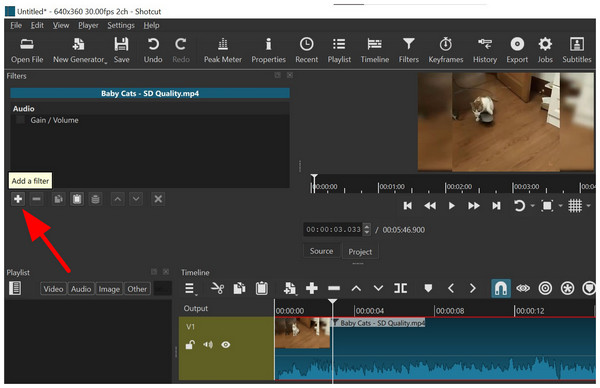
1. Open Shotcut and then select the Add Filter button on the left side of the video editor.
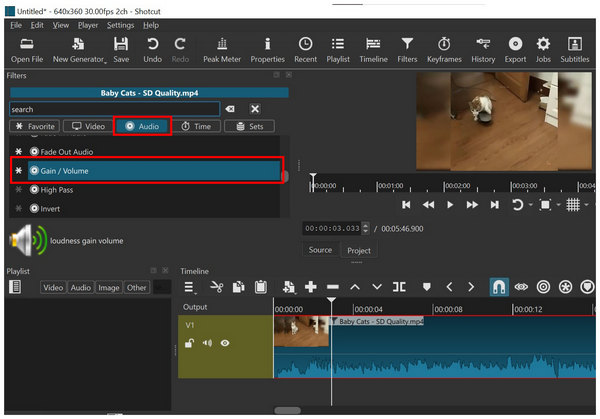
2. Once the filter menu is open, go to Audio, and scroll down to find the Gain/Volume filter.
3. Using the slider of the audio filter, adjust the Slider to the left to reduce the audio volume of your Shotcut media. To ensure that the volume is lowered, the decibel value should be negative.
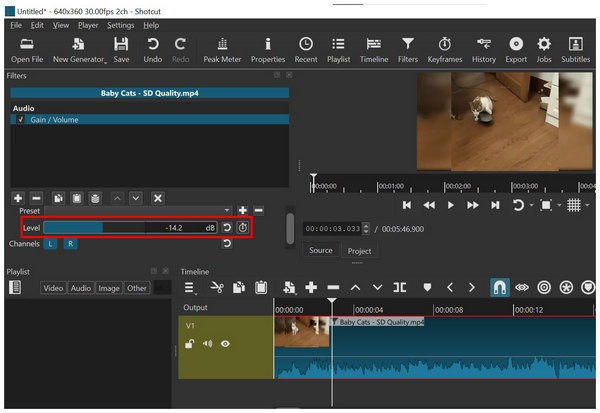
Keep in mind that this method edits the entire volume of your video. To learn how to adjust the audio only in specific points, learn how to use keyframes by referring to the second guide below.
User Reviews:
Although unconventional, Shotcut’s use of audio filters to edit volume level has its own advantages. This made most reviews of the software inclined towards new users who find it simple, and for experienced audio editors who find it different.
If you are looking for a more accurate way to learn how to adjust volume on audio of Shotcut editing projects, you have to learn the intermediate skill of using keyframes. Unlike the previous method, this allows more accurate audio volume control for set portions of the video.
Although keyframes are slightly advanced in nature, we hope that the information provided below will be enough as a quick overview and introduction to using keyframes for audio mixing.
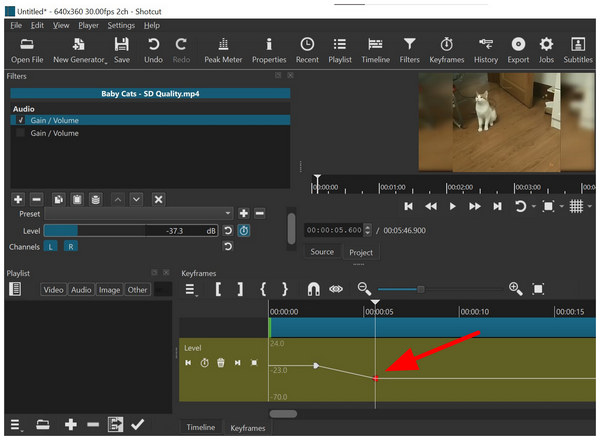
1. Add the Gain/Volume or any audio filter to the filters tab of Shotcut. Then, select the Stopwatch Icon to add a keyframe to the timeline where the playhead is located.
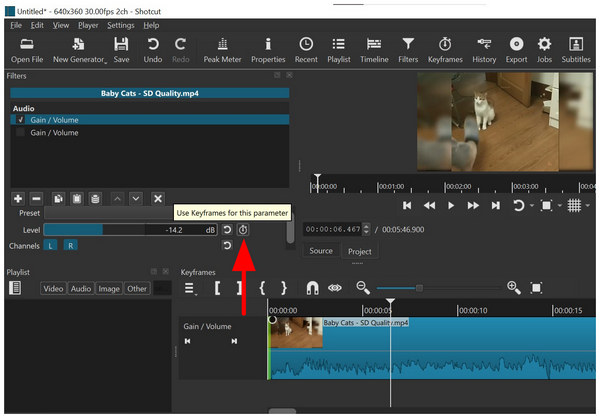
2. Once the added keyframe is set in the timeline, move your playhead to the video point where you want to add another keyframe. Then, select the Stopwatch Icon on the keyframe timeline.
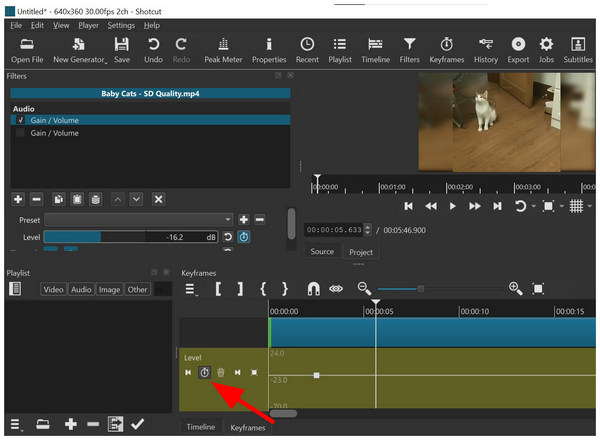
Next, click on the second Keyframe you have added to the timeline. With the keyframe selected, adjust its volume level on the filter tab.
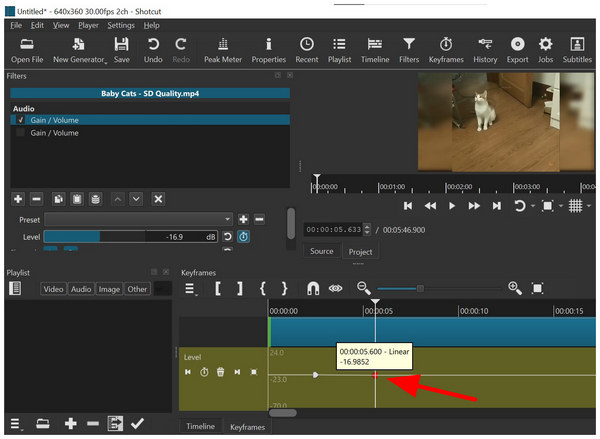
3. After editing the volume of the second Keyframe you have added, the audio will smoothly transition between the two keyframes. In this example, the volume transition will lower from the first to the second keyframe.
User Reviews:
Although harder to use, the sheer accuracy and smooth transition effects that keyframes provide make it worth learning. These are the common reviews of Shotcut users who decided to learn the basics of keyframe adjustments.
Unlike other freeware video editors, Shotcut is not a beginner-friendly option. As such, using an easier alternative to lower the volume of your video is more advisable since direct volume lowering should be simple and easy to apply. In this case, AnyMP4 Video Converter Ultimate should be the top selection.
Compared to Shotcut, the Volume Booster tool of AnyMP4 Video Converter Ultimate is a much more beginner-friendly option if you are only planning on reducing the volume of your video clips and nothing more.
The software uses a very simple volume slider tool that directly edits your video and exports a new file with the volume adjustment now saved. To learn how to use this practical alternative, make sure to read our guide below.
Do not forget to download it as well to make following our guide much smoother.
Secure Download
Secure Download
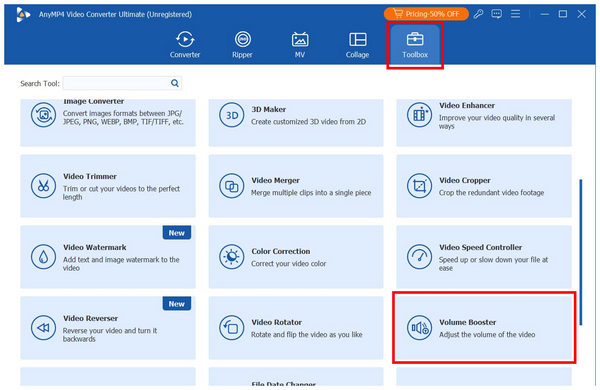
1. Open AnyMP4 Video Converter Ultimate, and proceed to the Toolbox section. Then, scroll down and select the Volume Booster tool.
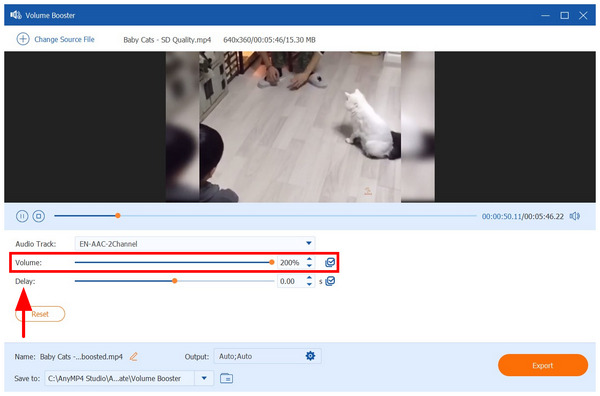
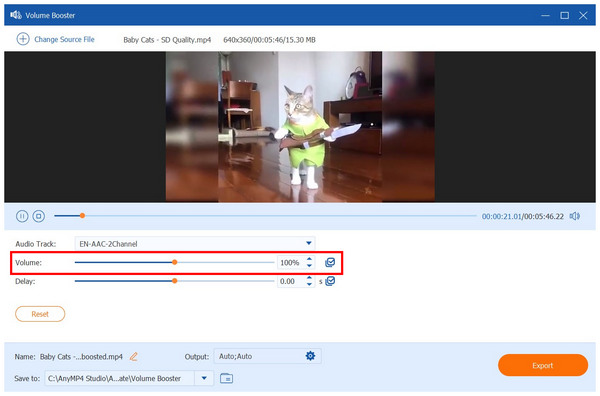
2. Next, with the video now added to the Volume Booster tool, select the Point in Volume Slider menu. Then, slide it to the left to reduce the volume of your video. The volume was lowered if the value is less than 100%.
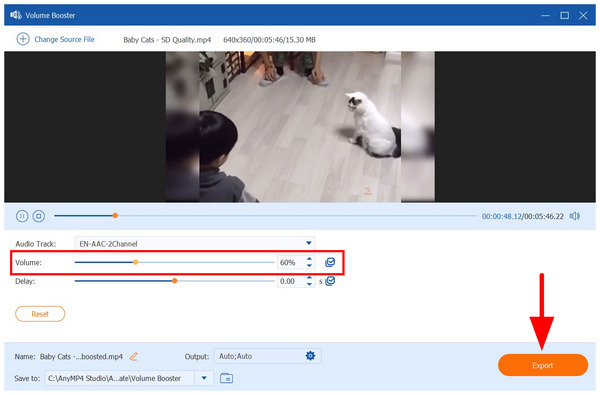
3. With the volume lowered, you can now click on Export to save the edited version of your video. Now with a much lower volume.
Aside from being simpler and easier to use, AnyMP4 Video Converter Ultimate also tops Shotcut when it comes to sheer practicality. It is also equipped with numerous multimedia tools that you can apply to your files, including a format converter, video editor, video compressor, and more.
Can I lower the background music without affecting dialogue?
Yes, you can. You have to use the volume mixer of your editing tool. Unfortunately, this involves an intermediate mixing level, and you have to rely on numerous adjustments to find the balance.
Does Shotcut support audio keyframes?
Yes, it does. Shotcut can add keyframes from the volume filters of the software. These are highly useful for creative and general editing needs.
What’s the best audio level for YouTube videos in Shotcut?
When producing YouTube videos on Shotcut, make sure to normalize the volume at -1dB. This is very important to avoid the automatic audio optimization of YouTube. Keep this in mind when editing online content.
Is it hard to edit the volume of media files at specific points?
Yes, it may. Editing volume on specific points involves using keyframes. Unfortunately, understanding and using keyframes might be challenging for beginners.
Should I make the volume of my videos consistent?
Yes, you should. This is very important for content consistency. If you want to edit audio for creative needs, make sure to set a normalized upper volume limit.
Now that we have provided the best options for audio volume editing on Shotcut, we hope that the three guides we have provided will help you choose how you want your media file’s volume to be optimized. For complete beginners, make sure to use the proposed easier alternative in AnyMP4 Video Converter Ultimate first for simplicity. You may download the program using the link below.
Secure Download
Secure Download
 Updated by Mark Cristobal to Edit Audio
More readings
 How to Slow Down A Video on Snapchat Easily [2 Solutions]
Click here to learn 2 ways to slow down a video on Snapchat. In this way, you can create dramatic Snapchat videos or play Snapchat videos in slow-motion.
 Speed Up Audio (Without Pitch Change): 4 Quick Methods
Speed up audio files instantly using Audacity, VLC, and dedicated tools like AnyMP4. Learn how to change audio speed without changing pitch in 4 simple steps.
 Best 4 Ways to Reverse Audio [With Easy Steps and Bonus]
Have you ever tried to play audio backward? If not, you can learn the process of performing it here and discover if it creates a new interesting sound.
 How to Reverse a Clip in Premiere | Rewind Clips in 2 Ways
Check this and learn how to reverse a clip in Premiere. This way, you can add a unique touch to your video projects. Plus, explore alternatives for beginners.
 Add your comments to join the discussion here