
Secure Download
Secure Download
Zoom is one of the most trusted software for organizations who want to conduct online meetings. In fact, this software was among the most popular when educational institutions were forced to conduct online classes during the height of the pandemic. However, this tool still faces smaller issues, no matter how effective it is. One of the most common problems is Zoom audio not working, which could become bothersome when it acts out during a meeting. With that in mind, this article will serve as a complete guide to learning how to fix muted mic errors on the Zoom tool.
In this section, we will address multiple issues that can potentially prevent the microphone from working on Zoom. To facilitate a clearer understanding of this problem, we identify three common errors that may be the root cause of audio issues.
Microphone issue is perhaps the most common cause of undetected Zoom audio. This is because the mic itself is the equipment that picks up audio for a Zoom meeting. However, mic issues may be rooted in the hardware itself or in the setting. This variance could present a challenge in detecting the root cause of microphones with no audio.
Another potential tool is the settings applied on the computer itself, such as permissions and security. Audio settings can also influence the absence of audio errors since mic input falls under audio settings.
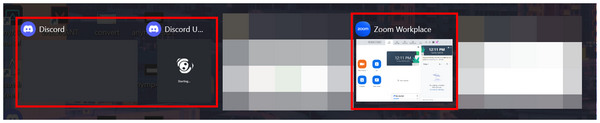
Software conflict is potentially the easiest to avoid. Clearing any tabs other than Zoom can easily fix this problem. However, there are several cases where background apps can interfere with audio, which can then turn into a problem.
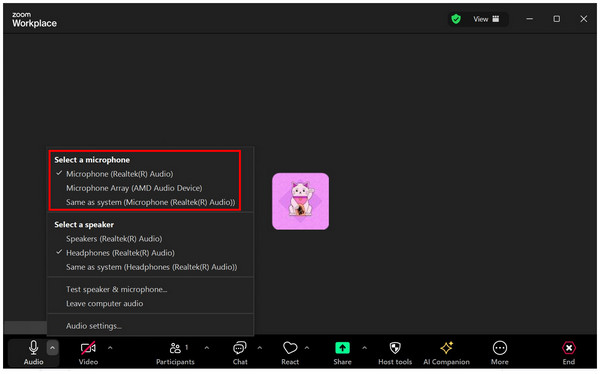
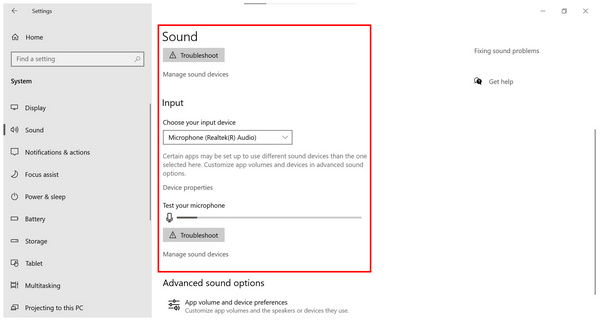
When using Zoom for PC, make sure that you select the right microphone for the audio input to avoid issues such as Zoom not detecting microphone. If you are using Zoom’s webclient, make sure that your browser has permission for your microphone. This would allow the software to detect the audio captured by your earphone with a mic connected to it, ensuring that your mic will work on Zoom meetings.
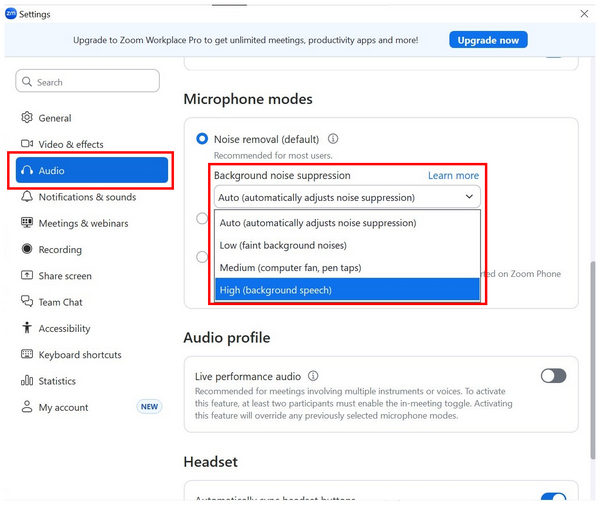
If your audio capture works properly but the problem lies in excessive audio input, ensure you use Zoom’s built-in suppress background noise settings. This feature automatically filters the audio captured by your microphone, and its intensity can be adjusted. Based on your settings, it can block faint background noise, computer fans, and even background speech. There is also an option to put the setting to auto, which is the default setting.
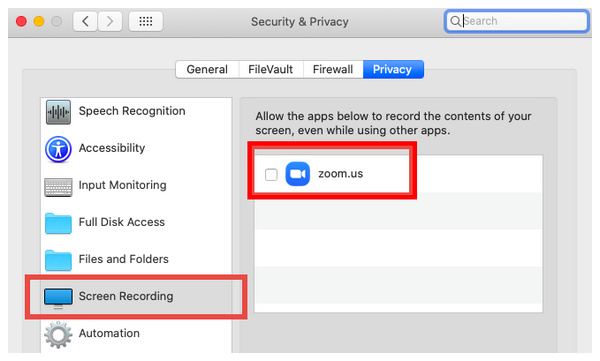
If you are using a macOS device and are certain that your Zoom settings are properly configured, along with your microphone hardware, the first setting to check is the Privacy & Security settings on your device. Ensure that the setting allows your computer’s Zoom application.
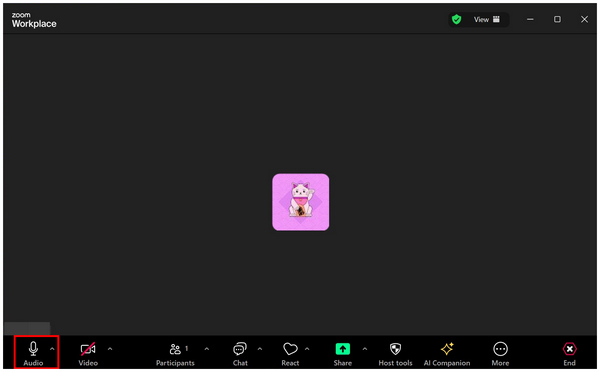
Before looking for problems, make sure that your audio is not muted. This is a common mistake for online meetings, especially since mute is the default mode for listening to a meeting speaker.
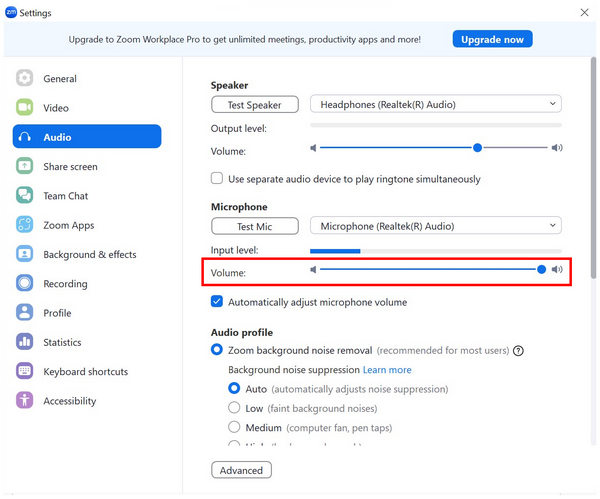
Ensure that your microphone volume or audio level is set to maximum volume. This is especially important for users with poor-quality microphones. Making your device more sensitive to audio will ensure that you are heard while speaking in the Zoom meeting. For a more automated way to adjust audio levels and improve quality, you may follow our tip regarding Zoom’s Suppress Background Noise setting.
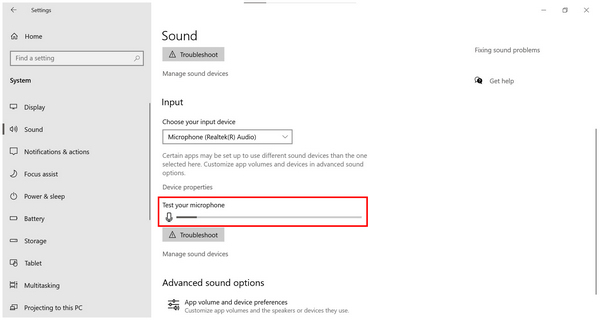
Before joining a Zoom meeting, it would help if you double check if your system can detect the microphone that you are using first. Fortunately, this can be easily checked on your computer’s audio setting. It even provides a volume bar to ensure that your voice is being detected.
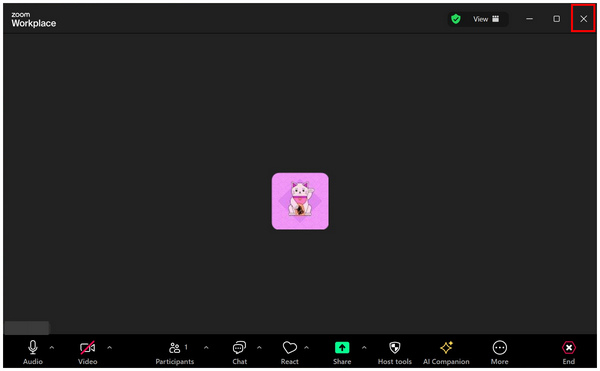
If you have done all the previous solutions but your microphone is still muted in the meeting, it may be time to restart Zoom or your computer itself. This reset would allow the software or device to start recording in Zoom again completely using their standard settings.
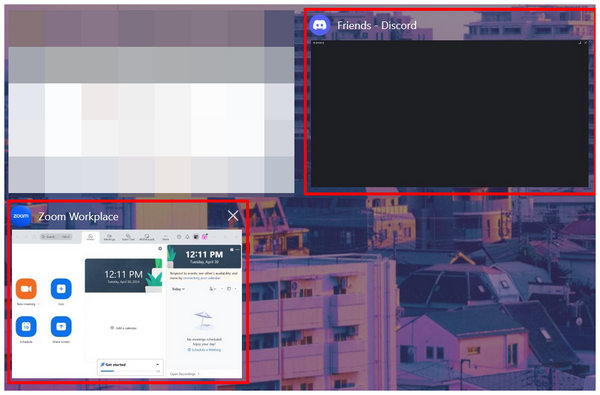
Ensure that no other software is using your microphone while you are connected to a Zoom meeting. This includes Discord, Google Meet, video communication on video games, and similar software that has access to your microphone. Checking your taskbar’s hidden icons is a good starting point for checking background software. According to most Zoom users online, XBox Game Bar for Windows and QuickTime Player for macOS are two of the most common conflicting software that affect Zoom audio.
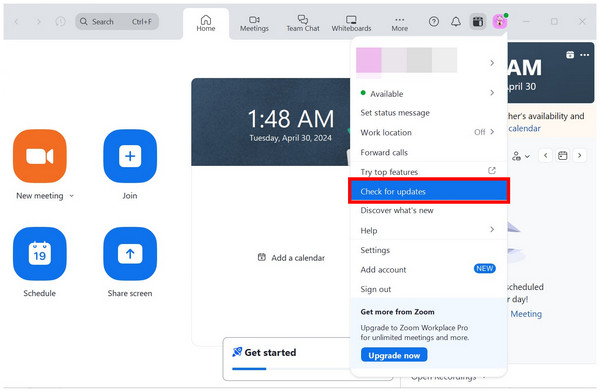
Since outdated apps often cause minor issues, it's always a good idea to ensure that your Zoom software is up to date. Fortunately, this can be easily checked by clicking on your profile picture on Zoom’s main interface.
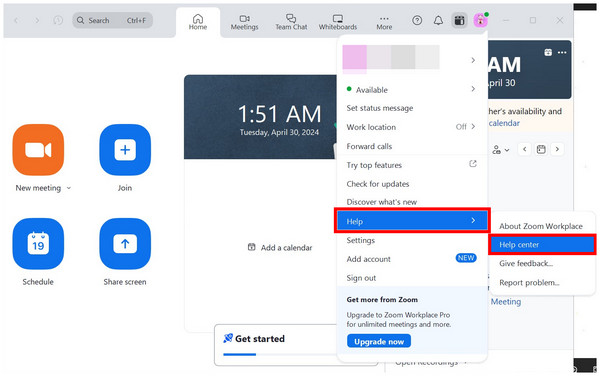
If all the solutions fail, the last option that might resolve your problem is to rely on Zoom’s customer support. Thankfully, this can also be accessed in their main interface by selecting the Help setting and Help Center option.
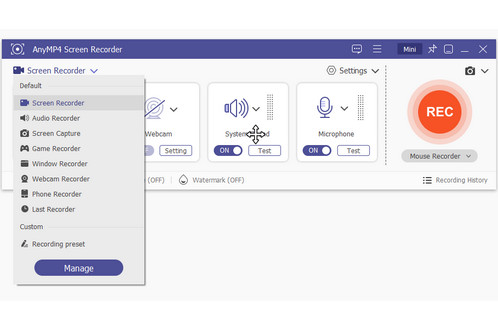
Although Zoom has an effective recording function, this feature is susceptible to minor errors such as loss of audio or microphone problems. Because of that, users who want to capture seamless audio recordings often choose third-party recording software. With that in mind, this section will feature the best tool for this function, which is none other than AnyMP4 Screen Recorder. This software is an excellent choice for recording system audio, even clearer than Zoom’s built-in option.
Although the program is an excellent choice for capturing Zoom recordings, please note that recording conversations without explicit permission or consent is generally illegal in most regions. If your area does not consider it as such, it is still a major breach of personal privacy and trust.
In addition to its high-quality audio recording capabilities, this software also offers practical recording modes suitable for various needs. Other recording options available in this tool include:
Features
To help you understand how to use this Zoom audio recording alternative, it would help if you read our detailed guide below:
Ensure you download the software first to follow each step easily.
Secure Download
Secure Download
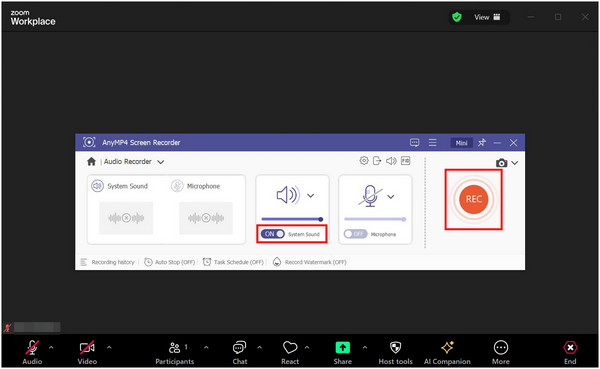
1. First, open AnyMP4 Screen Recorder, and then join the Zoom meeting from which you want to record audio. In the recorder’s interface, select the Audio Recorder option.
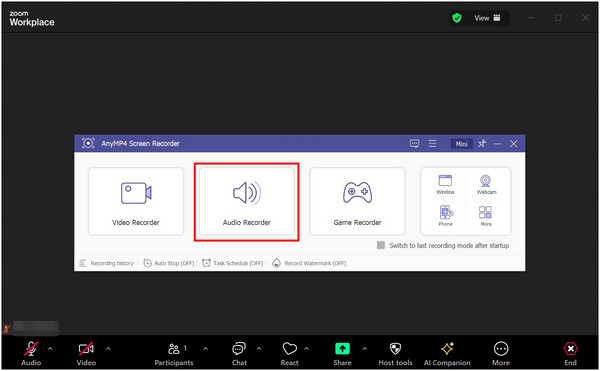
2. Inside the Audio Recorder window, turn System Sound on before starting the recording by pressing the REC button. Enabling the system sound will allow the software to capture the audio of the meeting.
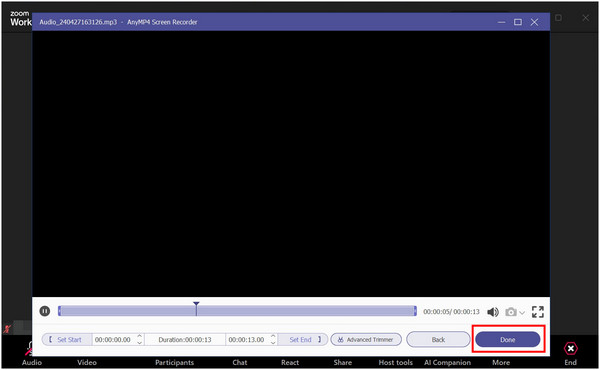
3. After the recording process, you can now trim the audio to change its length. Otherwise, click on Done to save the recorded audio.
With the help of the audio recorder mode in AnyMP4 Screen Recorder, you can now rely on this more reliable option for recording Zoom meetings with audio. It also helps that it can be used to record meetings without the host's permission. This tool is a solid option to avoid issues such as audio not working on Zoom recordings.
Why can’t I hear shared audio on Zoom?
Check first if your computer is connected to Zoom audio. The software seeks permission for this when entering a meeting. This issue can also involve the user hosting the audio. These are some common reasons why is my Zoom audio not working.
Why can’t I hear my Zoom meeting on my Mac?
When entering a Zoom meeting, make sure to join the computer audio. If this is not approved, your Zoom meeting will be muted. It would also help to check the audio output inside the software.
Where are Zoom audio settings?
It can be found on their main interface. Click on your profile picture and then select settings. Inside the setting, select the Audio section. This is where you can fix Zoom volume not working.
What causes audio not to work on Zoom recording?
This might be rooted in the audio settings. Make sure that the speaker's output level is working as intended. Also, check that your microphone’s input level works well.
How to Fix Zoom Not Detecting the Microphone?
Disconnect your microphone and then reconnect it. If it doesn't work, check the audio settings within the meeting. Ensure that you select the microphone you are using from the list under 'Select a microphone.'
How to grant microphone permission to Zoom on macOS?
During the initial setup, Zoom will request permission to access your microphone and camera. Make sure to allow this pop-up menu. Otherwise, go to your Privacy & Security settings to manually allow Zoom.
Why is my Zoom recording echoing?
It means your audio capture is of poor quality. To fix this, you may use Zoom’s built-in suppress background audio settings. This can drastically fix echoes.
What is the ultimate checklist for troubleshooting Zoom audio issues?
Ensure that you are not muted. Then, perform a microphone test to measure the quality of your audio. Finally, conduct a dry run to record a sample.
Is it illegal to record a Zoom meeting without the permission of all participants?
Yes, it is. This act is generally illegal in most regions. If your area does not consider it a breach of personal privacy, it is still morally wrong and could upset your Zoom participants.
Multiple solutions have been presented for users who want to learn how to resolve issues with Zoom audio not working. We hope that you can now solve any microphone issues with your Zoom software. If you want to record a meeting with high-quality audio, consider trying AnyMP4 Screen Recorder.
Please share this article online to help other users learn how to fix the audio issue of Zoom.
 Posted by Alice Thorne to Record Video
More readings
 Livestorm V.S. Zoom: Which One Is Better to Use - Comparison
When you don't know whether to choose Livestorm or Zoom to have a meeting, you can learn more details about the differences between them in this article.
 How to Improve Zoom Video Quality in 2 Ways
Do you want to upscale the quality of your video on Zoom? Find out and learn the best ways to increase Zoom video quality with AI-powered software.
 How to Efficiently Zoom Videos with Best Video Zoom Editors
Want to zoom in or out video on sections of interest after it's been recorded? Here shows you the best video zoom editing software to get what you want simply.
 A Concise Procedure on How To Record Audio with Bandicam
This article focuses on how to add audio, sound, music to Bandicam, and more. Please see the steps below.
 Add your comments to join the discussion here