
How to Open a DAT file?
A DAT file is a generic data container that does not have a specific associated program. It could be an email attachment, a video, a document, or system data. How to open it?
You receive an important email attachment or dig up an old backup, only to find a file labeled winmail.dat or data.dat. You double-click it, expecting a document, and... nothing. Your computer gives you that annoying pop-up: "How do you want to open this file?" Back in high school, I missed out on a crucial study guide because my PC had absolutely no idea what to do with a DAT file. But here is the secret I’ve learned after years of tech troubleshooting: a DAT file isn't a specific format—it’s a generic container. Think of a DAT file extension like a blank cardboard box stamped "DATA." Inside could be a hidden video, a lost email, or a critical system registry file. If you are wondering how to open .dat file attachments without pulling your hair out, you are in the right place. We're going to put on our detective hats and crack the code! Take a deep breath! Receiving a DAT file doesn't mean your computer has a virus. It just means the file got lost in translation. Let's fix it together!
If you want to know how do I open a DAT file, the absolute first step is playing detective. Because there is no universal "DAT program," context is everything. Ask yourself where this file originated:
If the origin is completely unknown, we have to look inside the file without actually "opening" it in the traditional sense. We do this by looking for "Magic Bytes" (also known as file headers).
I remember the first time I did this; staring at lines of code made me feel like I was hacking the mainframe in a sci-fi movie! But it’s actually super easy. Every file on your computer has a hidden signature at the very beginning of its code that tells the operating system what it is. You don't need fancy developer software to see it—just your basic Notepad.
Here is exactly how I do it without crashing my PC:
1.Check the File Size First
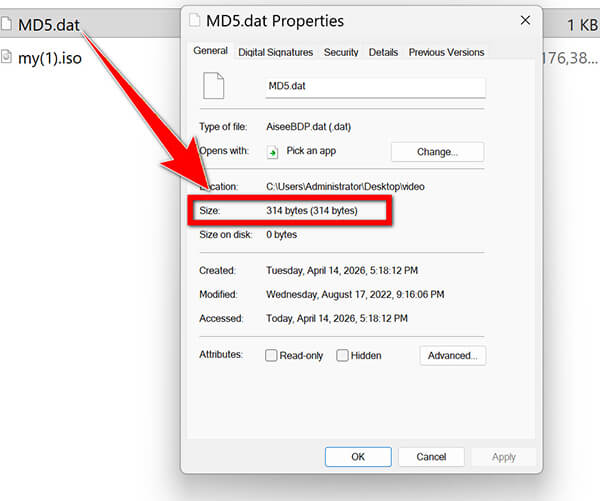
Do not skip this! Right-click your mystery DAT file and select Properties. Look at the size. If it is 2GB (Gigabytes), it is definitely a video. Do not open large files in Notepad, or your computer will freeze as it tries to load millions of characters. If it’s small (like 2KB or a few MBs), proceed to step 2.
2.Open your Text Editor
On Windows, click your Start menu and type Notepad. On Mac, open TextEdit.
3.Drag and Drop
Simply click your mystery DAT file, drag it over to the blank Notepad window, and let go.
4.Examine the First Line
Most of the document will look like absolute alien gibberish (symbols, black squares, random letters). Ignore all of that! Look closely at the very first line or two.
When you open a DAT file in Notepad, immediately go to the top menu, click Format, and uncheck Word Wrap. DAT files have no paragraph breaks, so if Word Wrap is on, Notepad will try to calculate the spacing for thousands of lines at once, which makes the program lag horribly. Keep Word Wrap off for a smooth experience!
Now that we have done our diagnostic check, let's look at the three most common culprits and the specific DAT player tools you need to read DAT file contents effectively.
This is the number one reason people scramble to find a DAT file opener. If you use a Mac, Gmail, Yahoo, or Thunderbird, and your sender uses Microsoft Outlook, you might receive a winmail.dat file.
Why does this happen? Microsoft Outlook sometimes uses a proprietary format called TNEF (Transport Neutral Encapsulation Format) to send rich text emails (like bolding, fonts, or colors) and attachments. When Outlook sends this package to your Gmail, Gmail gets confused, throws its hands up, and just hands you a useless winmail.dat file instead of the actual PDF or document.
How to open it (My Go-To Method): I highly recommend using a free online extractor so you don't have to install random software on your computer.
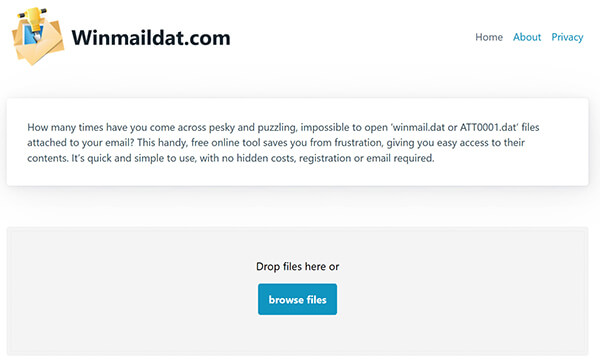
1.Open your web browser on computer, and find a DAT extractor like Winmaildat.com.
2.Click the Choose File button on their homepage.
3.Locate the winmail.dat file you downloaded from your email and select it.
4.Click the Start or Upload button.
5.Wait a few seconds. The website will decrypt the file and show you a list of the actual files hidden inside (like "Assignment.pdf" or "Photo.jpg").
6.Click on those file names to download them directly to your computer.
If you are the one accidentally sending winmail.dat files from your Outlook to your friends, you can fix this permanently! Go into your Outlook settings, navigate to Mail > Compose messages, and change "Compose messages in this format" from Rich Text to HTML. Your friends will thank you!
If you are the one constantly trying to send large files or old home videos to your friends, hitting that dreaded email attachment limit is the worst. Learning how to compress a video for email won't just help you bypass those strict Outlook or Gmail size limits, but it also reduces the chances of your file getting scrambled into a messy winmail.dat error on the receiving end!
If you are exploring an old VCD from the early 2000s, you will likely encounter a file called AVSEQ.DAT or MUSIC01.DAT. These aren't mysterious data files; they are simply MPEG-1 video files cleverly disguised so older VCD players could read them. To watch these, you just need a powerful media player that acts as a reliable DAT Player.
How to play them directly: While VLC is popular, I've found it sometimes struggles with older, obscure legacy formats (it completely fails to support AMV formats, for instance). My personal recommendation is AnyMP4 Blu-ray Player. While it is known for crisp Blu-ray playback, its underlying engine is fantastic as a DAT file viewer.
1.Download and install the AnyMP4 Blu-ray Player on your Windows or Mac computer. Open the software after a successful installation.
Secure Download
Secure Download
2.You don't even need to use the menu buttons—just locate your AVSEQ.DAT file in your folder, click it, and drag it directly into the black window of the player.
The video should instantly bypass the confusing file extension and start playing the MPEG stream inside. Grab some popcorn and enjoy your nostalgic home videos!

Sometimes, software developers use DAT files to store plain text data, like software settings or game scores. If your file size is very small, you can open DAT file contents using advanced text editors. While standard Notepad works, it can sometimes jumble the formatting, making it hard to read. I highly recommend downloading Notepad++ (for Windows).
How to read and edit them:
1.Install Notepad++ (it's totally free and a lifesaver).
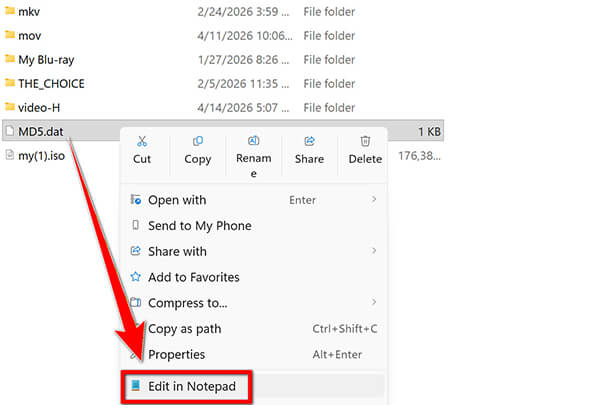
2.Right-click your DAT file and select Edit with Notepad++/Notepad.
3.You will see beautifully color-coded text and properly formatted lines.
4.You might open a game's DAT file and find a line that says PlayerScore=1500. (And yes, you can change that to PlayerScore=9999, hit save, and magically give yourself a high score—a neat little trick I learned in high school!)
Before changing any text inside a system or game DAT file, always create a duplicate copy on your desktop. If you accidentally delete a crucial line of code, the game might crash on startup. Having that untouched backup copy gives you peace of mind to experiment.
Sometimes, the basic tricks don't work. You have checked the size, you have peeked in Notepad, but you still don't know how to open outlook data file components or weird system downloads. It is time to convert them so they behave normally.
If you used the Notepad "Hex Viewer" trick from earlier and discovered that your file is actually just a picture (starting with FFD8) or a ZIP file (starting with PK), you can force Windows to recognize it simply by renaming the extension.
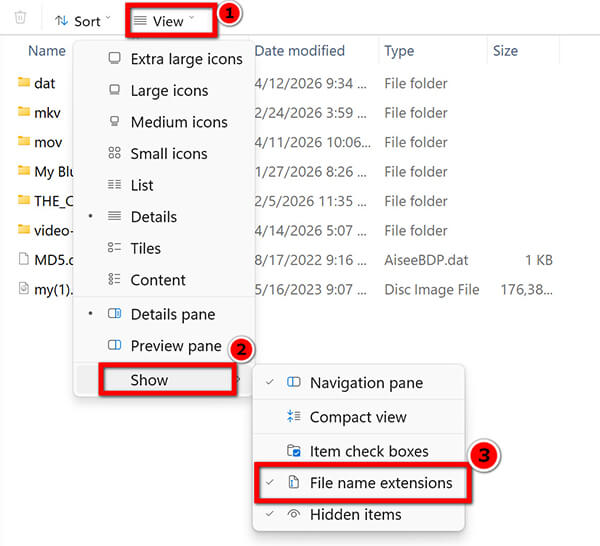
Windows tries to protect us by hiding file extensions by default, so we have to turn them on first. Here is my step-by-step process:
1.Reveal Extensions
On Windows 10: Open any folder, go to the View tab at the very top, and check the option that says File name extensions.
On Windows 11: Click the View dropdown menu at the top, go down to Show, and select File name extensions.
2.Rename the File
Right-click your stubborn DAT file and select Rename.
3.Change the Tag
Highlight the .dat portion of the file name and delete it. Type in the correct extension based on what you found (e.g., .jpg, .zip, or .mp3). Hit Enter.

4.Ignore the Warning
At this point, Windows will probably freak out a bit and throw a scary alert on your screen, warning that altering the extension could break the file. Don't let it intimidate you—just confidently hit Yes. Double-click your freshly renamed file, and it should open in your standard photo viewer or unzip utility!
If you have a large video DAT file from an old VCD, simply renaming it to .mp4 rarely works well. It might play on your PC, but if you try to send it to your iPhone or cast it to a smart TV, it will likely stutter or fail. You need to properly convert DAT file media into a universally accepted, web-friendly format.
I process a massive amount of media for content marketing, and I never rely on flaky online converters for large video files—they take hours to upload and often fail halfway through. (Also, if you are looking for free online alternatives, use FreeConvert instead of others that constantly throttle your speeds or lack format support).
However, for desktop software, using AnyMP4 Video Converter Ultimate to convert DAT to MP4 is by far my most reliable method. It keeps the original video quality intact while repackaging it for modern devices.
Here is my exact workflow for flawless conversion:
1.Download and open AnyMP4 Video Converter Ultimate.
Secure Download
Secure Download
Click the massive + (Add Files) button in the center and select your bulky VCD DAT file.

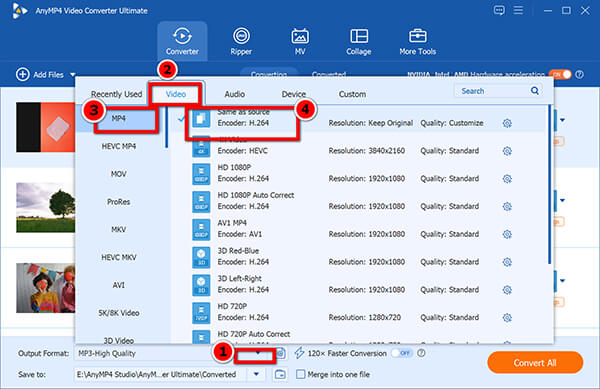
2.On the right side of the video track, click the Output Format dropdown menu.
Select the Video tab, choose MP4 from the left column, and select the Same as Source option. This ensures you don't lose any of that nostalgic video quality!
3.Choose where you want to save the new file at the bottom of the screen (the "Save to" option).
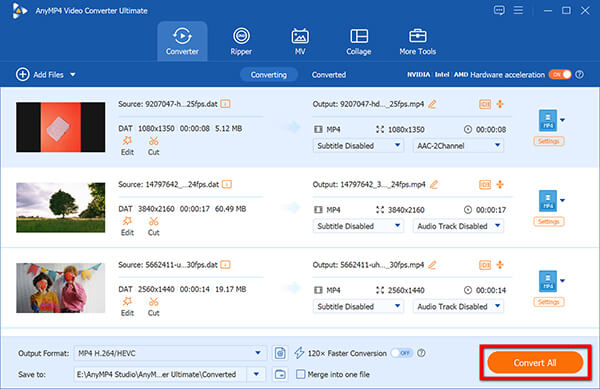
Hit the big orange Convert All button to convert DAT to MP4.
Tip: VCD videos are incredibly low resolution by today's standards (usually 352x240). When converting, do not try to "upscale" it to 4K in the settings. It won't make the video look better; it will just create an unnecessarily massive file size. Stick to "Same as Source" for the best balance of quality and storage space!
Because they are so mysterious, DAT files have gained a bit of an unfair reputation on the internet. Let's bust some high-school tech rumors right now.
Myth 1: "A DAT file is a virus." Truth: A DAT file is usually just a formatting error (like the Outlook issue) or a standard software component. However, because it is a generic container, malware creators can hide bad code inside them. You should always run a quick antivirus scan on any file downloaded from the internet before messing with it.
Myth 2: "One program can open all DAT files." Truth: I see sketchy ads for "Universal DAT Openers" all the time. Don't fall for it! There is no 'universal' player. A text editor cannot play a VCD video, and a media player cannot read an Outlook email configuration. You must diagnose the file first using the steps we covered.
Myth 3: "Deleting DAT files is always safe since I can't open them." Truth: Do NOT go into your C:\Program Files or AppData folders and start deleting DAT files to clear up space! Many software programs use them to store your software licenses, user preferences, or hours of game saves. Deleting them might break the program entirely. Only delete a DAT file if it is an email attachment you don't need or an old video you have already backed up.
Can I convert a DAT file to PDF?
Only if the DAT file was originally a PDF document that got scrambled by an email client (like the winmail.dat issue). If you run it through a Winmail.dat extractor website, you will get your PDF back. However, you cannot magically convert a video DAT file or a system DAT file into a readable PDF document.
Why does my Mac keep creating DAT files?
If you transfer files between a Mac and a Windows USB drive, you might notice weird little files starting with a period, like ._filename.dat. These are called "Resource Forks." Macs use them to store metadata (like custom file icons and search indexing info). Windows doesn't know what to do with them, so it shows them as junk DAT files. You can safely ignore them or delete them if they are cluttering up your Windows PC folder.
How do I open a DAT file in Excel?
Some legacy database programs export data tables as .dat files rather than .csv (Comma-Separated Values). If you suspect your file contains spreadsheet data, open Excel, go to File > Open, and select the DAT file. Excel will automatically launch the Text Import Wizard. You can then tell Excel exactly how the data is separated (by commas, tabs, or spaces), and it will neatly organize the messy text into beautiful rows and columns for you!
DAT files aren't scary; they are just mislabeled or generic containers holding different types of data. Whether it is an email attachment trapped by Microsoft Outlook, a nostalgic VCD movie from your childhood, or a line of configuration code, the process to decode it remains exactly the same. By identifying the source of the file, checking the file size, and peeking at the header with a text editor, you can unlock almost any "unopenable" file. Remember to use the right tool for opening DAT files, whether that is an online extractor for emails, AnyMP4 for videos, or a simple rename trick in your file explorer. Have you ever discovered something wild inside a mystery DAT file? Share your stories with us!
 Updated by Alice Thorne to Convert Video
Related Articles
 How to Open WMV Files with QuickTime (Convert WMV to Play on Mac)
Here're 2 easy ways to convert and open WMV in QuickTime. By changing to a QuickTime format, you can play WMV movies on any Mac computer via QuickTime Player.
 How to Play AVI on Windows Media Player (Windows 11/10 Fix)
Fix File Format Not Supported and play AVI on Windows Media Player easily. Learn how to install K-Lite codecs, convert AVI to MP4, or use a 4K AVI player.
 How to Play Videos from iPhone to TV with/without Apple TV
Are you trying to figure out how to play videos from your iPhone on your TV? This guide will show you how to do it with or without an Apple TV.
 6 Best DAV File Players to Open .dav Videos (Windows & Mac) 2026
Struggling to open .dav surveillance files? Check out the best 6 DAV file players for PC and Mac to open DAV files easily.
 Add your comments to join the discussion here