
Quick Fix
If you've tried opening an AVI file in Windows Media Player only to be met with a file format not supported or video playback error, you're not alone. Many users encounter this issue because AVI is a container format that supports numerous codecs. And sometimes, the required codec is missing. Without the proper DirectShow filters, Windows Media Player cannot decode the video, leaving you with audio-only playback or a blank screen. This guide will show you how to play AVI on Windows Media Player smoothly. We'll break down why these playback errors occur, how to install missing codecs, and when it's best to consider converting from AVI to MP4. We'll provide step-by-step guidance to help you achieve seamless playback of your AVI files without frustration.

Struggling to play AVI files in Windows Media Player is more common than you'd think. AVI is a common format, but it can cause choppy playback if the player lacks the required codecs. If your AVI file will not play in Windows Media Player, identifying the root cause is the first step toward a quick fix and avoiding future playback issues.
As a container format, an AVI file can hold video encoded via DivX, Xvid, or DX50. If Windows Media Player doesn't have the right codec installed, it simply won't know how to decode and display the video. It is true for files using Xvid encoding, which isn't natively supported on many systems. Without the proper AV codec, you may get a playback error or hear audio without video.
Older versions of Windows Media Player lack support for modern video compression standards and file structures. This limitation is particularly evident in the legacy Windows 10 Media Player. If you're having AVI not play in Windows Media Player, updating your software or switching to a dedicated AVI player can improve compatibility and performance.
AVI files depend on internal headers to store critical playback metadata, such as timing and structural formatting. When these headers are damaged, the file often becomes unplayable. Furthermore, aggressive video compression can lead to data corruption or loss. It prevents applications like Windows Media Player from even recognizing the file format.
If you want a reliable, no-hassle fix, converting an AVI file into a Windows Media Player-friendly format is the smartest move. Since AVI files can vary in structure and encoding, direct playback isn't always guaranteed. That's where transcoding comes in. It reshapes the file into a format WMP fully supports, like WMV or MP4 (Learn more about AVI vs MP4 here).
Installing codecs might seem like a quick fix, but it often creates more problems than it solves. Codec packs can conflict with each other, cause system instability, or fail to support specific formats, such as MPEG-4 variants used in AVI files.
On the other hand, converting the file removes the guesswork. You don't need to figure out which codec is missing or compatible. Once converted, the video becomes universally playable on Windows Media Player and other devices.
AnyMP4 Video Converter Ultimate is a complete media software bundle for handling incompatible AVI files. It supports batch conversion, enabling you to process multiple videos simultaneously. It ensures native compatibility by converting AVI files into WMV (Microsoft's default format), MP4, or 500+ other formats.
With built-in hardware acceleration, it delivers up to 70× faster speeds, so even large files won't take long to process. Unlike basic converters, it features a built-in repair tool to fix minor indexing issues in AVI files during conversion. Notably, it preserves high-quality output, maintaining full 1080p or even 4K resolution without noticeable loss.
1. Beforehand, download AnyMP4 Video Converter Ultimate. Install the AVI to MP4 converter and complete the setup process. After you finish the installation process, launch the software to access the main dashboard.
Secure Download
Secure Download
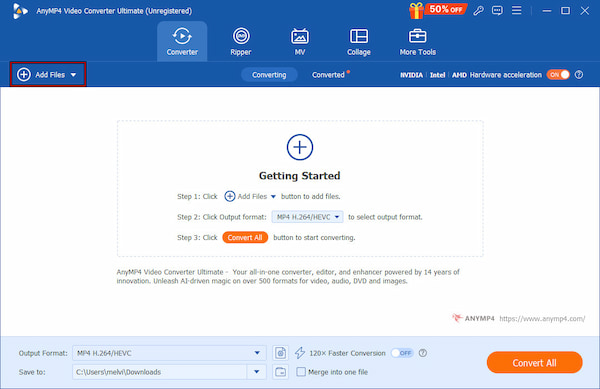
2. Upon opening, it defaults to the Converter tab. Click + Add Files in the upper-left corner, then select the AVI you want to convert. You can also drag and drop multiple AVI directly into the interface for quicker uploading.
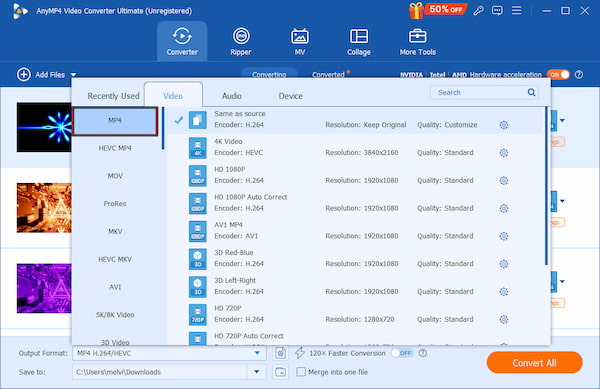
3. Proceed to the Output Format selector and navigate to the Video category. From there, select MP4 as your format and choose a quality/resolution. This format ensures better compatibility if you're having trouble playing AVI files on Windows Media Player.
4. Select the Save To option to specify where you want the converted file saved. Enable the 120× Faster Conversion button to speed up conversions. Once done, click Convert All to process your AVI files and fix any minor issues.
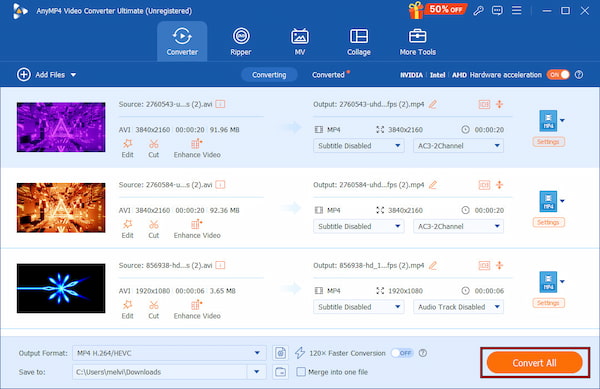
AnyMP4 Video Converter Ultimate delivers a lightning-fast solution for converting AVI to MP4 without the usual playback issues. It eliminates the common playback and compatibility issues associated with older formats. It ensures your videos work seamlessly across all devices and media players, moving you well beyond the limitations of Windows Media Player.
Lab Test Result: During our technical audit, we converted a 1.2GB AVI file (Xvid) to MP4. Using hardware acceleration, the process was completed in 18 seconds with 0% loss in visual fidelity, instantly resolving the Audio Only error in Windows Media Player.
If you prefer to keep your AVI files in their original format, installing a codec pack can solve most playback issues. By adding the appropriate codecs, you ensure your player can handle various file extensions and encoding standards.
The K-Lite Codec Pack is among the most popular solutions for Windows users facing AVI playback issues. It includes all the necessary codecs for major audio and video formats. For anyone looking for a reliable AVI codec for Windows Media Player, K-Lite provides a straightforward, all-in-one solution.
1. Start by downloading the correct version of K-Lite Codec Pack for your system. After installation, leave all options at the default and click Next on each page.

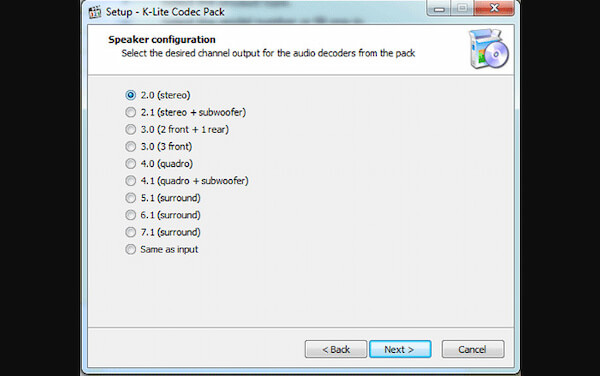
2. Ensure all available Media Players are check-marked, then click Next to continue. Choose your preferred speaker setup if prompted, then proceed.
3. It is recommended to select All Video Extensions for your main or default Media Player. Click Next, then Install to apply all settings. After the installation, click Finish.
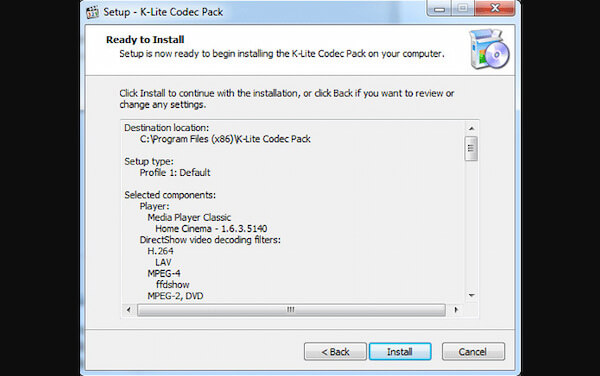
Installing the K-Lite Codec Pack equips Windows Media Player with the necessary codecs to play virtually any AVI file. It immediately resolves playback errors and supports a wide range of video and audio formats.
When installing K-Lite, always select the Standard installation mode. It avoids Codec Merit conflicts, where multiple filters compete to decode the same file, a common cause of Windows Media Player crashes on Windows 11.
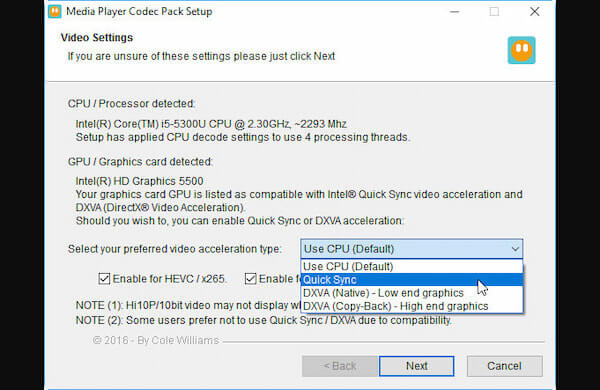
Another option is the Media Player Codec Pack, which offers a lighter, easy-to-install set of codecs designed for Windows Media Player. It ensures compatibility with popular AVI variations while supporting other common video formats. The pack automatically configures your system. It makes it simpler for users who want to play AVI files on Windows Media Player without manually installing individual codecs.
If Windows Media Player fails to render AVI files correctly, switching to a more versatile player with native codec support can solve the problem immediately. AnyMP4 Blu-ray Player is an all-around media player that supports virtually all video formats without requiring additional codecs. Beyond Blu-ray playback, it supports AVI, MP4, MKV, MOV, WMV, and 1000+ other formats. It provides high-quality output and preserves the original resolution up to 4K Ultra HD.
1. First, download the AnyMP4 Blu-ray Player for free. Install the AVI player software and complete the installation process. After you finish the setup process, run the software from your desktop.
Secure Download
Secure Download
2. Click Open File on the main interface, browse your local drive, and select the AVI file you want to play. You can also drag and drop the file directly into the player.
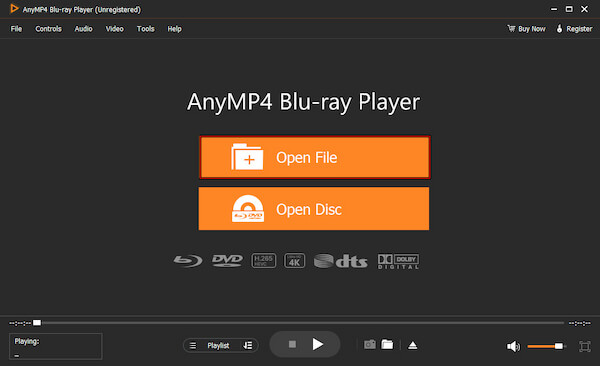
3. As soon as it loads, it will automatically play the AVI file. Use the on-screen controls to adjust volume, pause, resume, or navigate through chapters if the video has them.

AnyMP4 Blu-ray Player provides a seamless way to play AVI files without worrying about missing codecs or compatibility issues. It delivers smooth, high-quality playback and handles a wide range of video formats beyond AVI. This method makes it one of the easiest ways to fix AVI not playing on Windows Media Player.
Q: Does Windows 11 still support AVI?
A: Yes, Windows 11 still supports the AVI format. The system plays most AVI files but excludes some rare codecs by default. In those cases, Windows Media Player or the new Media Player app may fail to display video.
Q: Why does my AVI file have sound but no video?
A: If your AVI file plays audio but no video, the issue is a missing or incompatible video codec. AVI files separate audio and video streams, so audio may play even if the video cannot be decoded. Other causes can include file corruption, incomplete downloads, or outdated graphics drivers.
Q: Are codec packs safe to download?
A: Codec packs can be safe if you stick to well-known, reputable sources. Packs like K-Lite Codec Pack are widely used and generally trustworthy. However, many unofficial packs often bundle malware, adware, or unwanted programs.
Q: Can I play AVI on the new Media Player app?
A: Yes, the Windows 11 Media Player app supports AVI files along with other formats. However, AVI files that rely on older or uncommon codecs, such as MJPEG, may fail to play, potentially displaying error codes such as 0xC00D6D60.
Q: What is the best format to convert AVI into for Windows?
A: The best format to convert AVI files into for Windows is MP4, using the H.264 or H.265 codec. MP4 offers maximum compatibility with Windows Media Player, the Movies & TV app, web browsers, and mobile devices.
Ultimately, learning how to play AVI on Windows Media Player comes down to ensuring your files are compatible and supported. You can convert AVI files into universally playable formats like MP4 using AnyMP4 Video Converter Ultimate. On the other hand, you can bypass compatibility issues entirely by using AnyMP4 Blu-ray Player. Both tools preserve video quality, support high-resolution playback, and simplify the process. These tools ensure you can watch your AVI files smoothly and effortlessly.
Secure Download
Secure Download
 Updated by Alice Thorne to Player
More readings
 Top 8 AVI Converters for Windows and Mac You Should Know
An AVI converter can convert almost all video formats to AVI and AVI to almost all video formats. Here is a top list of 8 best AVI converter to download.
 How to Convert AVI to MP4 with VLC [Detailed Steps]
Want to convert AVI to MP4? Actually, you can convert AVI to MP4 with VLC media player. This post tells detailed steps to convert video to MP4 using VLC.
 5 Best Windows Media Player for Mac to Play WMV in 2026
Check the top 5 Mac’s Windows Media Player alternatives, and discover the best player for your macOS to play WMV files here.
 5 Fixes to Windows Media Player Not Playing Videos
Discover why Windows Media Player is not playing videos and learn essential tricks to resolve the issue swiftly. Get your videos playing again with these tips!
 Add your comments to join the discussion here