
Summary
MPEG (Moving Picture Experts Group) is a popular standard for compressing video and audio data, reducing file size for easier streaming and downloading.
If you’re wondering what MPEG is, you’re dealing with a file based on standards developed by the Moving Picture Experts Group. The MPEG video format has been used for decades to compress video and audio. Yet older MPEG files can still cause playback problems on modern devices. MPEG is not actually one single file format. Instead, it refers to a family of video and audio compression standards. If you’re trying to play, understand, or convert an old MPEG video, knowing this distinction makes it much easier to choose the right player or conversion method.

The Moving Picture Experts Group (MPEG) modernized digital media through ISO/IEC standards. Starting at 1.5 Mbit/s for storage media, they improved from early CDs to online streaming that we used today.
MPEG-1 is the earliest MPEG standard to support the compression and playback of audio and video. It allows SD video and music to fit on a CD and play on home computers. MPEG-1 also included MPEG-1 Audio Layer III, better known as MP3.
MPEG-2 is a defining digital audio and video compression standard to deliver broadcast-quality video. Files using this format are associated with .mpeg, .mpg, and related media structures. It is the standard format for DVDs, over-the-air TV, and digital satellite/cable broadcast.
MPEG-4 is a standard method for compressing and coding digital audio and video data. This efficiency made online streaming, mobile video, and digital broadcasting possible. Its important development was MPEG-4 Part 10, also known as AVC or H.264.
Raw digital video contains an enormous amount of information. Each frame consists of pixels, and recording every pixel independently would result in large files. What is MPEG video compression does is it removes duplicate frames and throws away fine details to save space. It uses three main frame types: I-frames, P-frames, and B-frames.
The answer to the outlined question is NO.
MPEG and MP4 are related, but they aren’t the same. MPEG is a digital video standards, while MP4 is a container format based on those standards. MP4s use lossy compression algorithms and can contain a video codec (H.264/HEVC). Here’s the distinction to better understand the MPEG vs MP4 difference:
Windows 11
Windows 11 can natively open and play MPEG-4 using its default media players. It includes and improves the Media Player app that can handle local video and audio files. Still, you can use the Windows Media Player by downloading it from the Microsoft Store.
To play: Open File Explorer, right-click the video file, and select Open With. Choose Media Player to open and play the MPEG-1, MPEG-2, or MPEG-4 video.
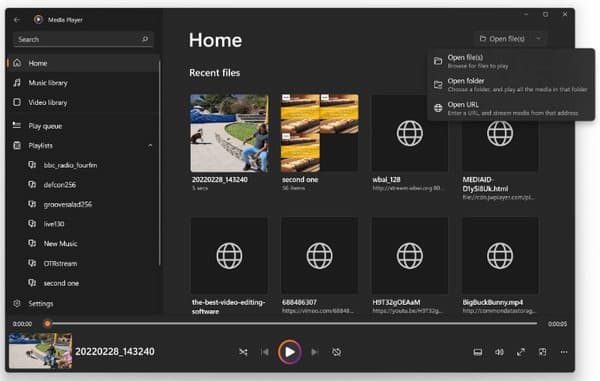
The modern Media Player is the best MPEG file player on Windows 11. However, you need to install the MPEG-2 Video Extension to translate and play older files.
macOS
QuicTime Player supports native playback of standard MPEG-4 as long as they are encoded in H.264 or AAC. Also, QuickTime X can play MPEG-2 streams, but older versions require an extra playback component. Besides video playback, it can also compress MPEG videos.
To open: Launch the QuickTime Player, go to File, and select Open File. Select the MPEG video and click Open to play it automatically.
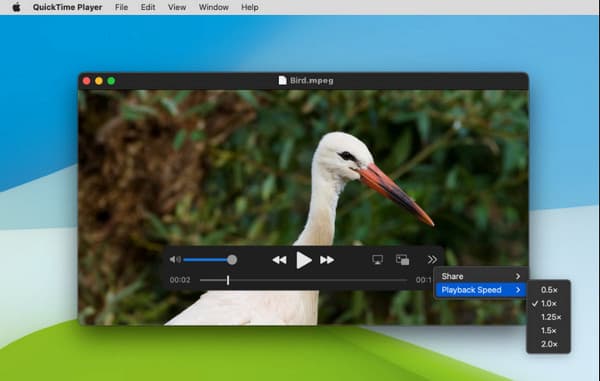
Older MPEG-1 files or non-standard .mpg variants fail to open without conversion. It is because newer versions of macOS have phased out older 32-bit legacy codecs and components.
AnyMP4 Blu-ray Player isn’t just a media player for physical discs like Blu-ray discs. It can also play nearly all digital media files, including MPEG file format, MP4, MOV, MKV, WMV, MPG, and more. It is a good option when a file refuses to play through the operating system's default apps.
Secure Download
Secure Download
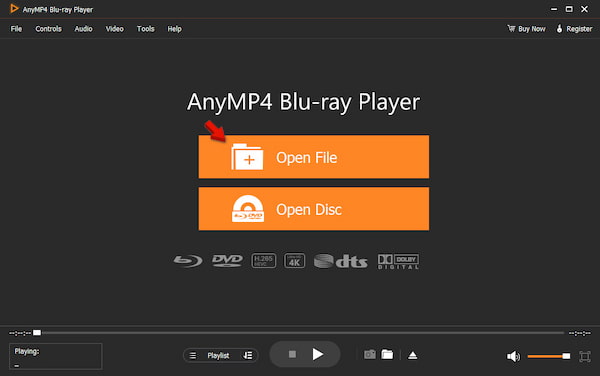
1. Get AnyMP4 Blu-ray Player, install it, and complete the setup. After installation, run the software and click Open File to import the MPEG video from your computer.
2. As soon as it loads, it will automatically play the MPEG file. You can use the built-in playback controls to adjust volume, pause, resume, or stop playback.
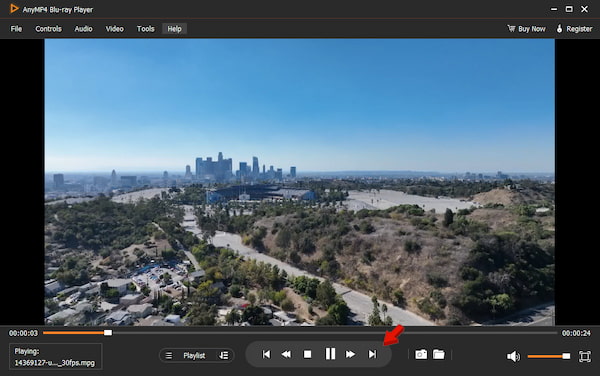
AnyMP4 Blu-ray Player is a general-purpose media player that can play almost all digital files you can name. If no built-in app can open the file, this tool is what you need. It delivers smooth, high-quality playback and handles a wide range of video formats and physical media.
AnyMP4 Video Converter Ultimate is a reliable video-to-video conversion software for Windows and Mac. It can convert MPEG format to more than 500 video files. With it, you can batch-convert multiple files simultaneously, without limit, with no lag or crashes. It uses the most advanced hardware-accelerating media processing to achieve a 120× conversion speed. Better yet, all conversions are processed locally, so your files are secure.
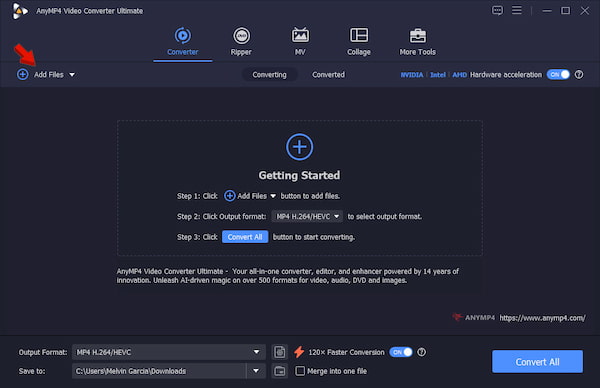
1. Download AnyMP4 Video Converter Ultimate and complete the setup. After installation, it will open to the Converter tab.
Secure Download
Secure Download
Click +Add Files to import the MPEG files from your computer. If you need to upload multiple files organized in a single folder, use the Add Folder instead.
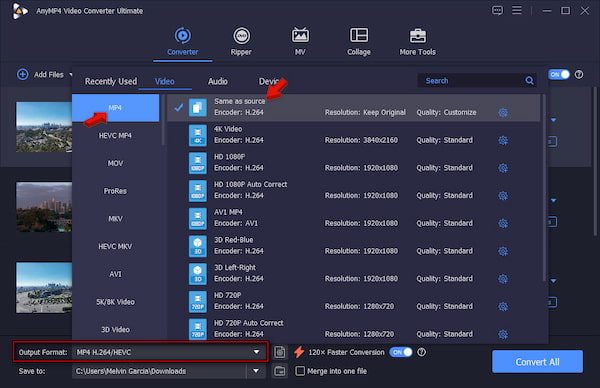
2. Go to the Output Format picker and select MP4 under the Video category. Select Same as Source as your quality preset to match the source resolution and quality.
3. Return to the main interface and enable Hardware Acceleration to speed up the conversion. Set the destination path, then click Convert All to convert the MPEG video to MP4.
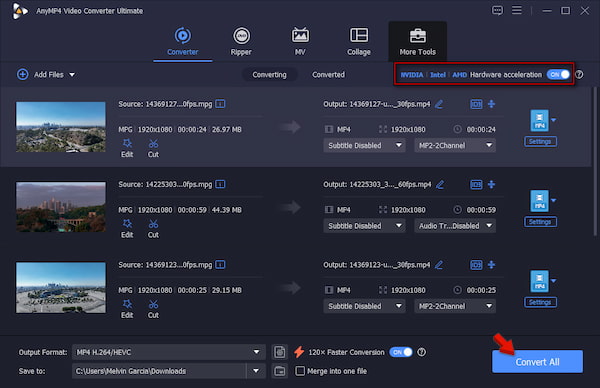
To assess AnyMP4's conversion capabilities, we use 50 MPEG-2 videos as our source files, totaling 1.6 GB. In our test, it took only 2 minutes and 5 seconds to complete the entire batch conversion. Also, we use the Merge into one file feature that merges MPEG videos into a single unified file.
Why is my MPEG video file so large?
MPEG videos are large in size because they use older compression (MPEG-1 or MPEG-2). They require higher bitrates to maintain picture quality, resulting in bloated file sizes.
How do you convert an MPEG file without losing video quality?
To convert MPEG file without losing quality, use AnyMP4 Video Converter Ultimate. Select MP4 as your format and set the encoder to H.264/HEVC. Then, keep the original resolution and frame rate.
Are online video converters safe for private MPEG family videos?
No, online MPEG-to-MP4 converters are not recommended for private MPEG family videos. Uploading personal files means you’re sending them to third-party servers where you have no control over who might access them.
What is MPEG? It is a family of video and audio standards that defines digital media. While newer codecs and formats are now the norm, legacy video collections and archived media still have relevance. For personal videos, use offline conversion tools to prevent personal videos files from being uploaded online. If you still have compatibility issues, AnyMP4 Video Converter Ultimate can convert MPEG files to modern formats safely.
 Posted by Alice Thorne to Glossary
More readings
 4 Best Methods to Convert MP4 to MPEG in 2026
Want to convert MP4 to MPEG for DVD burning or legacy equipment? Here are the 4 best methods for high-speed, high-quality conversion.
 AVI to MPEG/MPEG to AVI – Top 5 Free and Professional Video Converters
Which AVI to MPEG converter does a good job? If you are looking for the best AVI to MPEG or MPEG to AVI file converter, you can check this review.
 AVI File – Everything You Need to Know about Video File Format
AVI is a computer file format that contains audio and video data and plays back the audio and video data simultaneously. Get more info from this post.
 What Is An MKV File and How to Play It without Quality Loss
Do you have a video in MKV file and want to learn more information about it? You are at the right place since this concrete guide will tell you everything.

