How to Convert Old 3GP to MP4 Without Losing Quality (2026 Ultimate Guide)
Quick Summary
- The Problem: Old 3GP videos from early cell phones often trigger File Not Supported or playback errors on modern devices like Windows 11, macOS, and 4K TVs due to outdated audio/video codecs.
- The Solution: You need to convert 3GP to MP4 (MPEG-4 Part 14), the universal standard for modern video playback.
- Best Tool for Quality/Speed: AnyMP4 Video Converter Ultimate (Best for bulk conversions and retaining original creation dates).
- Best Free Tools: VLC Media Player (great for quick, one-off fixes) and HandBrake (best for advanced technical control).
- Best Online Tool: CloudConvert (best for fast conversion without installing software, though watch out for privacy and file size limits).
- Pro Tip: Always choose the H.264 codec during conversion for maximum compatibility across all devices, or HEVC if you want smaller file sizes for 4K storage.
We all have that old Nokia, Motorola, or early Samsung video hidden deep in a dusty backup folder. Maybe it's a grainy recording of your high school graduation or your dog as a puppy. But when you excitedly double-click to open it today, your heart sinks as you get a frustrating File format not supported or a dreaded playback error.
Let's be real: 3GP was absolutely great for early 3G networks when mobile recordings had to be tiny to send over text messages. But today? MP4 is the universal language of modern video. To play your blurry flip-phone memories from 2008 now, you need a reliable 3GP to MP4 converter. In this guide, I'm going to walk you through exactly how to convert 3GP to MP4, from professional lossless conversion software to completely free, open-source tools.

Part 1. Why 3GP Files are Failing You
If you are wondering why you even need to transfer 3GP to MP4 in the first place, it comes down to how technology has evolved over the last two decades. The .3gp file format (officially known as the 3GPP file extension) was designed for a very specific era of mobile phones that no longer exists.
Compatibility Issues: Why 3GP won't play on Windows 11, macOS, or 4K Smart TVs
Modern operating systems and devices are built to handle high-definition, complex video streams. Windows 11, the latest macOS versions, and especially your sleek new 4K Smart TV do not include the legacy decoders required to read 3GP files out of the box. Think of it like trying to play a cassette tape in a modern Tesla; the information is there, but the hardware has completely moved on. Because Apple, Microsoft, and Android universally support MP4 (MPEG-4 Part 14), and every smart TV manufacturer does too, a 3GP to MP4 conversion is the only guaranteed way to ensure your videos are actually playable across all your modern screens.
The Quality Gap: How 3GP’s low bitrate and old AMR audio codecs lead to File Not Supported errors
It's not just the video container that is outdated; it is what's inside it. 3GP files typically use extremely low bitrates and ancient AMR audio codecs to save space. Modern media players encounter these files, get confused by the obsolete AMR audio track, and display a File Not Supported error rather than trying to play them. By converting 3GP to MP4, you are essentially wrapping that old, fragile video data in a modern, sturdy container and translating its audio into a format (like AAC) that your computer actually understands today.
Part 2. Professional Choice: AnyMP4 Video Converter Ultimate (Best for Quality Preservation)
When you are dealing with dozens or hundreds of precious family videos, you need a tool that is fast, reliable, and respects the original quality of your files. AnyMP4 Video Converter Ultimate is a piece of software designed specifically to handle tricky format changes without a hitch. It uses advanced AI algorithms to read legacy formats and upscale or convert them while maintaining the absolute best visual fidelity. The biggest headache with old 3GP files is that when you convert them, the audio often falls out of sync with the video due to the jump from AMR to AAC. AnyMP4 handles this automatically behind the scenes, ensuring perfectly synced playback. Additionally, if you have a massive folder of old videos, its 70x hardware-accelerated batch conversion means you can process an entire decade of mobile memories. At the same time, you grab a cup of coffee.
Step-by-Step Guide: How to convert 3GP to MP4 without losing original metadata
Grab the official AnyMP4 Video Converter Ultimate from the buttons below and install it on your Windows or Mac computer.
1. Add Your 3GP Files
Open the program and click the giant + icon in the center of the screen, or drag and drop your .3gp files directly into the window.

2. Set the MP4 Output Format
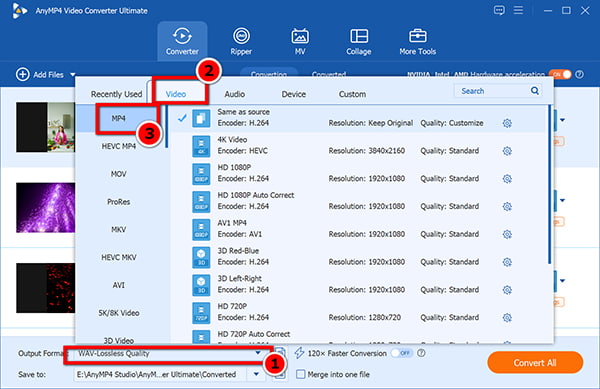
On the bottom-left side of the video listing, click the output format dropdown menu. Navigate to the Video tab, select MP4, and choose Same as Source to avoid unnecessarily altering the original resolution.
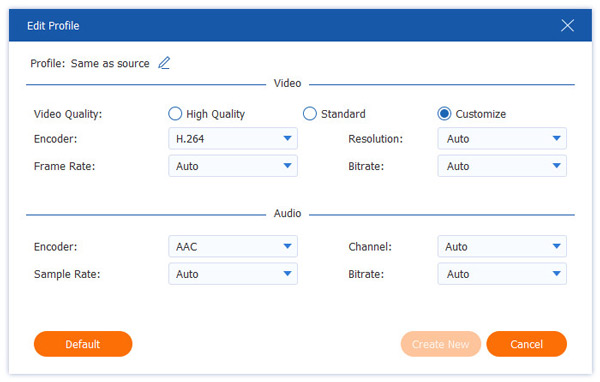
Preserve metadata (crucial step):
Click the small gear icon (Settings) next to the format. Ensure that options to keep original creation dates and metadata are checked. You want your 2007 video to say it was still filmed in 2007!
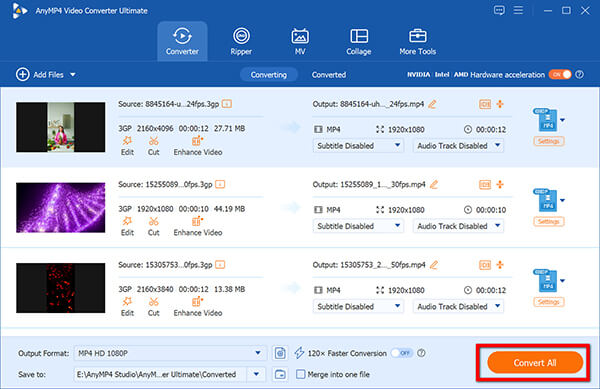
3. Convert 3GP to MP4
Choose your destination folder at the bottom of the screen, then hit the big Convert All button.
My Experience
I personally love AnyMP4 because it completely removes the anxiety of messing up my old videos; the interface is incredibly reassuring, and the batch conversion saved me hours of clicking. I threw a folder of 150 old flip-phone videos at it, and it chewed through them perfectly with zero audio sync issues, keeping the original date stamps intact so my photo library didn't get messed up. The only real limitation is that it is premium software. At the same time, there is a free trial; you'll need to purchase a license to unlock full-length conversions and all the advanced batching features, which might be overkill if you only have one or two videos to fix.
Part 3. Free & Open-Source Alternatives: VLC and HandBrake
If you are on a budget or have a tiny handful of files, you don't necessarily need to pay for premium software. Let's look at two legendary free tools.
VLC Media Player: Use The Hidden Conversion Feature for 3GP Files
Most people know VLC Media Player as the orange traffic cone icon on their desktop that can play literally any video file on earth. However, many people don't realize that VLC also has a powerful, hidden video transcode engine built in. Because it is completely free and open source, it doesn't force watermarks on your videos or limit your file sizes. It is incredibly lightweight, and you likely already have it installed on your computer! For a quick .3gp-to-.mp4 conversion without downloading new software, VLC is an absolute lifesaver. It is the digital equivalent of a Swiss Army knife.
1. Find the Convert Menu
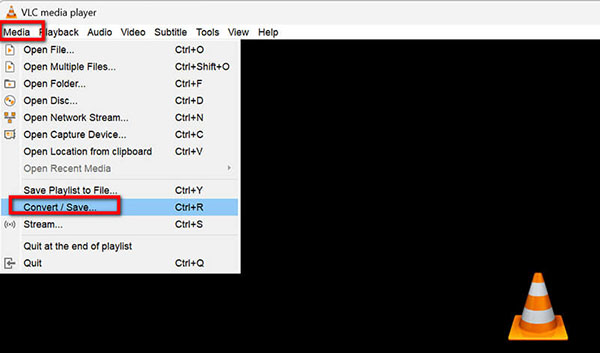
Launch VLC Media Player. Click on Media in the top left corner, then scroll down and select Convert / Save (or press Ctrl+R).
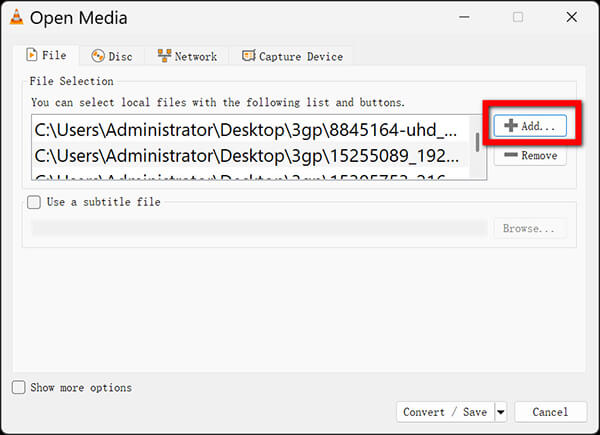
2. Add Your 3GP File
In the Open Media window, click the Add button and select your 3GP file. Then click the Convert / Save button at the bottom.
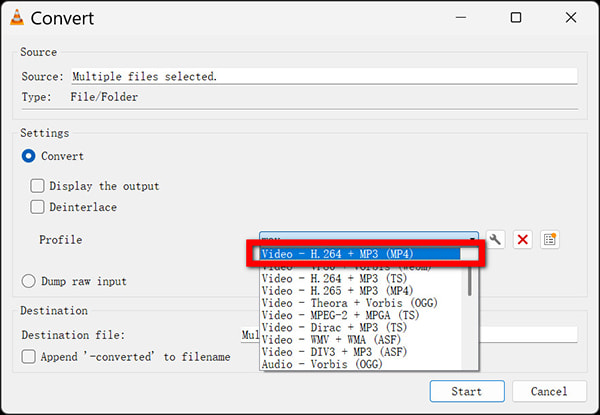
3. Choose MP4 Profile
In the next window, look for the Profile dropdown. Select Video - H.264 + MP3 (MP4).
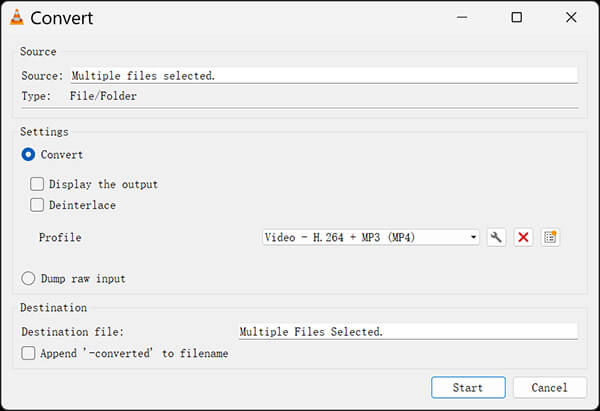
4. Set Destination and Start
Click Browse to choose where to save your new file and give it a name (make sure it ends in .mp4). Finally, click Start.
My Experience
Using VLC to convert 3GP to MP4 is my go-to quick fix when a friend sends me an unplayable video, and I need to view it immediately. I love that it is completely free, universally trusted, and gets the job done without any annoying pop-up ads. However, its biggest limitation is the user interface; the conversion tool is clearly an afterthought tacked onto a media player, making batch conversion incredibly tedious, and it sometimes struggles to maintain perfect audio sync with badly corrupted older files.
HandBrake: Best For Technical Users Who Need Granular Control Over H.264 Profiles
HandBrake is the undisputed king of open-source video conversion for tech enthusiasts. It is an incredibly powerful, free video transcoder that gives you total control over every single aspect of your video output. Whether you need to execute a complex bitrate adjustment, tweak the aspect ratio, or lock in a specific frame rate, HandBrake provides the tools to do it. It looks a bit intimidating when you first open it, like the dashboard of an airplane, but that complexity enables unmatched precision. It is completely free, community-driven, and constantly updated to support the absolute latest codecs.
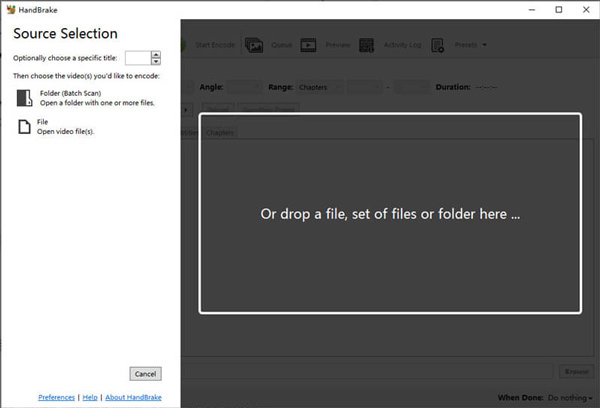
1. Add 3GP to HandBrake
Open the software and drag your 3GP file into the main window.
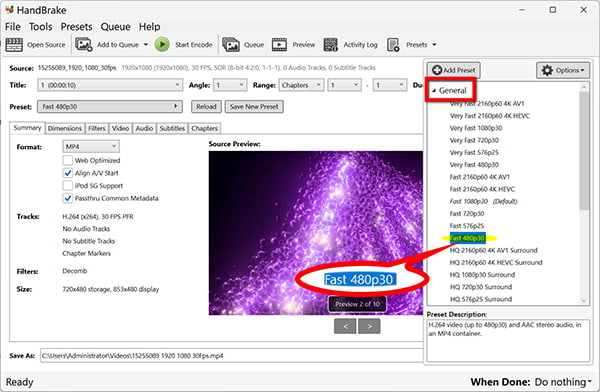
2. Select a Preset
On the right side, open the Presets panel. For 3GP files, navigating to General -> Fast 1080p30 is usually a safe bet.
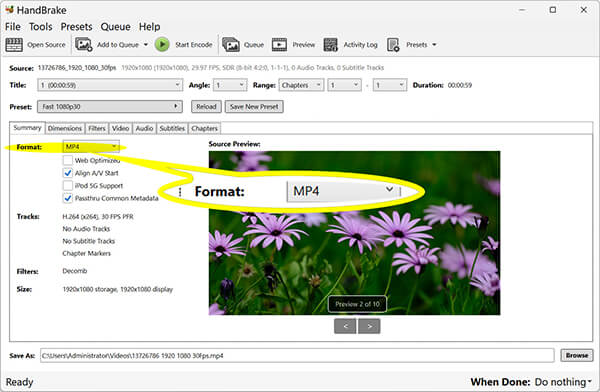
1. Format Selection: In the Summary tab in the middle of the screen, ensure the Format is set to MP4.
2. Video Codec Tweaks: Click on the Video tab. Ensure the Video Codec is set to H.264 (x264). You can adjust the Quality slider here, but leaving it around RF 22 is perfect for old mobile videos.
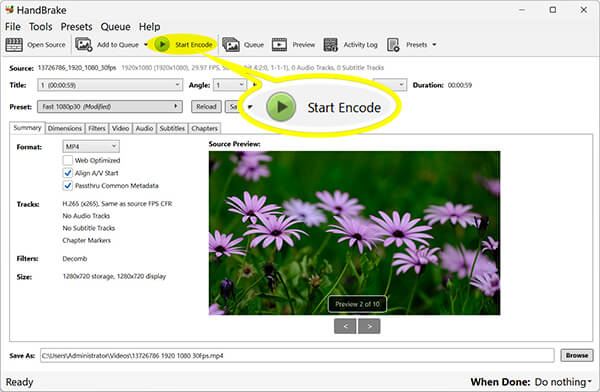
3. Start Encoding
Choose your Save As destination at the bottom, then click the green Start Encode button at the top toolbar.
My Experience
When I have a stubbornly corrupted 3GP file that other programs fail to process, HandBrake is my ultimate problem solver. I absolutely love the granular control it offers, allowing me to carefully tweak the frame rate and codec settings to fix unplayable video files that I thought were lost, essentially. The main limitation is the steep learning curve; the sheer number of tabs, sliders, and technical jargon can easily overwhelm a beginner who wants to click one button and get their MP4.
Part 4. Web-based Option for One-Off Conversions: CloudConvert
Sometimes, you are at work or on a borrowed computer and cannot install the new 3GP to MP4 converter software. That is where web-based tools shine. CloudConvert is arguably the cleanest and most reliable online file converter on the internet today. It operates entirely in your web browser, meaning it works identically whether you are on a Mac, a Windows PC, a Chromebook, or even your smartphone. You upload your file to their secure servers, their powerful cloud computers do the heavy lifting to change 3gp to mp4, and you download the finished product. It features a beautifully simple interface, free of the spammy, fake download buttons that plague other free online converter sites. It is perfect for those moments when you need a fast, painless conversion without any commitment.
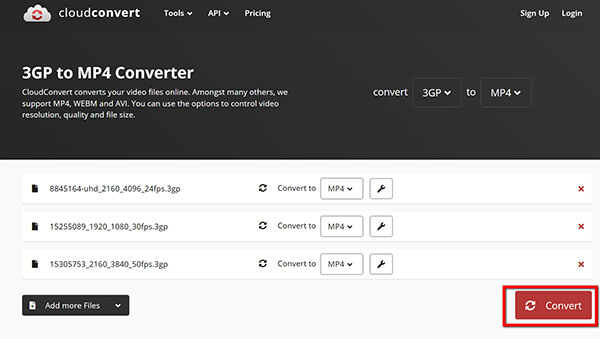
1. Visit the Site
Go to SoundConvert 3GP to MP4 converter (https://cloudconvert.com/3gp-to-mp4) on your browser on a computer or mobile phone.
2. Upload 3GP File
Click the massive red Select File button and choose your 3GP video from your computer or Google Drive.
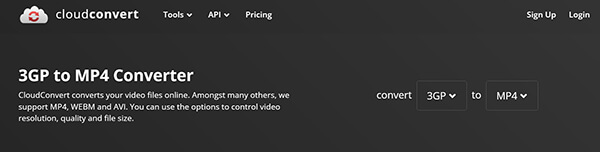
3. Verify MP4 Settings
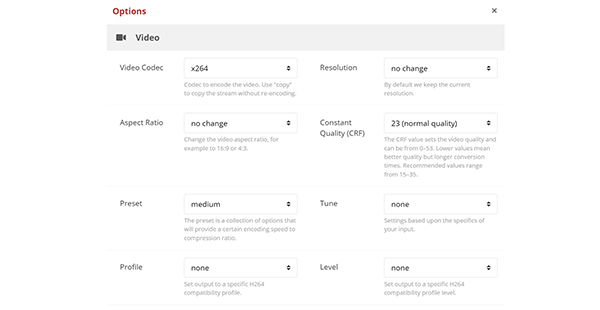
Make sure the output format is clearly set to MP4. You can click the wrench icon to tweak audio settings, but the defaults are usually fine.
4. Convert and Download MP4
Click the red Convert button. Wait a few moments for the upload and processing to finish.
Once the screen updates, click the Download button to save your newly minted MP4.
My Experience
I frequently use CloudConvert when I am working on my laptop at a coffee shop and need to format a video file for a presentation quickly; I love that it requires no installation and is incredibly fast. However, the major limitations revolve around privacy and data caps. Even though CloudConvert has strict data deletion policies, uploading highly personal family videos to a third-party server always carries a tiny inherent privacy risk. Furthermore, free accounts are limited to 25 conversions per day and have file-size restrictions, making them useless if you are trying to convert an entire hard drive of old memories.
Part 5. Which Tool Should You Choose?
Not sure which route to take? Let's break it down so you can choose the right tool for your specific situation.
|
Best For |
Price |
Batch Processing |
Ease of Use |
Internet Required |
| AnyMP4 Video Converter Ultimate |
Massive batch conversions |
Paid (Free Trial) |
Excellent (Hardware Accelerated) |
Very Easy |
No |
| VLC Media Player |
Quick, free single fixes |
100% Free |
Tedious |
Moderate |
No |
| HandBrake |
Advanced technical tweaks |
100% Free |
Good (via Queue) |
Hard |
No |
| CloudConvert (Online) |
Fast conversions anywhere |
Free (with limits) |
Limited (Free tier) |
Very Easy |
Yes |
- • Choose AnyMP4 if: You have more than 10 videos to convert, you want to preserve the original creation dates for your photo library, and you value your time over spending money.
- • Choose VLC if: You only have one or two files, you already have it installed, and you want to get it done in the next three minutes without opening your wallet.
- • Choose HandBrake if: You are a techie who loves tinkering with bitrate adjustments, aspect ratios, and squeezing the maximum possible quality out of a terrible original file.
- • Choose CloudConvert if: You are on a school/work computer where you can't install software, or you are trying to convert 3gp to mp4 directly on a mobile device.
Part 6. FAQs
Is 3GP better than MP4?
No. 3GP is an obsolete legacy format designed to save bandwidth on early 3G cellular networks. It suffers from poor resolution, terrible audio compression, and severe compatibility issues today. MP4 is vastly superior in quality, compression efficiency, and universal device support.
Can I convert 3GP to MP4 on my phone?
Yes! You can use your mobile browser to visit online tools like CloudConvert or Zamzar to convert files directly on your iOS or Android device. Alternatively, there are dedicated converter apps in the App Store and Google Play, though web tools are usually faster for a single file.
Will I lose quality during conversion?
If done correctly, no. Because 3GP files already have very low resolution, converting them to MP4 won't make them look worse as long as you use a lossless or same-as-source setting in your converter. You can't magically make a blurry 2006 video look like a 4K movie, but you won't lose the quality that is already there.
Why is my converted MP4 showing a black screen?
This happens when the original 3GP file has missing frames or corrupted data that confuses the modern MP4 container. Try converting the file again with HandBrake, selecting Constant Framerate rather than Variable, which forces the converter to rebuild the missing visual data.
Can VLC convert 3GP?
Absolutely. VLC has a built-in conversion feature. You can access it by going to Media > Convert / Save, adding your 3GP file, selecting the Video - H.264 + MP3 (MP4) profile, and hitting Start.
Conclusion
Rescuing your old digital memories shouldn't feel like pulling teeth. While running into a file format not supported error on a precious family video is terrifying, you now have the exact blueprint to fix it. Whether you opt for the premium, stress-free batching of AnyMP4, the granular control of HandBrake, or the sheer convenience of CloudConvert, moving away from that legacy format is the best thing you can do for your digital archives.
By taking the time to convert 3GP to MP4 today, you are future-proofing your history, ensuring those beautiful, grainy, nostalgic moments can be shared and enjoyed on whatever new screens the future brings.


 Add your comments to join the discussion here