3 Ways to Remove Background Music from Audio: Full Tutorial
Audio mixing is a critical skill among multimedia practitioners, as the effect of proper sound design highly influences the mood, setting, and overall look of your project. When it comes to sound design, learning how to remove background music from audio with speech is a vital skill, as this technique works best for isolating the subject's speech to make it more audible and distinct. In this article, we will highlight three options that you can use for this function. We will highlight various options, including an easy-to-use multimedia tool, a professional-grade audio mixer, and an online audio editing tool.

Part 1. How Background Music Removal Tool Works
Overview of AI-Based Source Separation
Among modern multimedia editors, AI-based tools are often the go-to option, as the assistance of AI is hard to ignore and significantly improves the editor's work efficiency. With that in mind, learning how to remove background music from audio using AI makes background removal very easy to do in the modern market. However, be sure not to overly rely on these options, as knowing how to manually edit these files will always be beneficial.
Difference Between Noise Reduction and Music Isolation
When it comes to audio editing, noise reduction and music isolation are common concepts heavily associated with background noise removal. However, the two have totally different uses, as noise reduction focuses on editing out unwanted audio. Meanwhile, music isolation usually does the opposite, as it highlights the specific sound or channel you select. Although they function similarly to each other, you still have to learn what to use in different situations.
Part 2. Remove Background Music from Audio with AnyMP4 Video Converter Ultimate
Best Used For: Automated background noise reduction for videos and audio recordings.
We will begin this guide by introducing the most beginner-friendly multimedia editing tool for Windows and Mac, AnyMP4 Video Converter Ultimate. This program works best for reducing background noise, as it features a dedicated Noise Remover tool specifically designed for both audio and video.
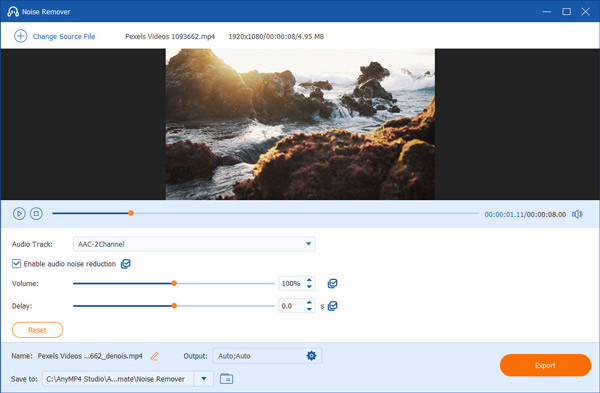
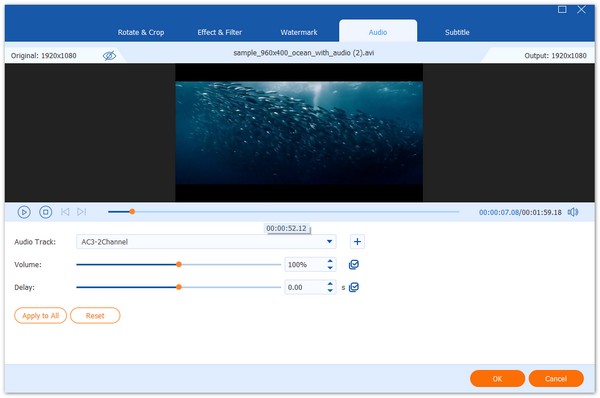
Optimized to remove background music from media files, the software works well if you plan on cleaning audio intended for professional media production. This was made possible by the software since it can select the specific audio track you want to adjust. Additionally, both the volume and delay of the audio may be adjusted as well.
For more experienced users, advanced options such as format, encoder, bitrate, and audio channel may be edited in the program. These options are all applicable for editing various media formats, including MP4, MP3, AAC, MKV, and over 500 other media formats supported by AnyMP4 Video Converter Ultimate.
To learn how to use the software for background music removal, please read our three-step guide below.
Do not forget to download it as well to make following our guide easier.
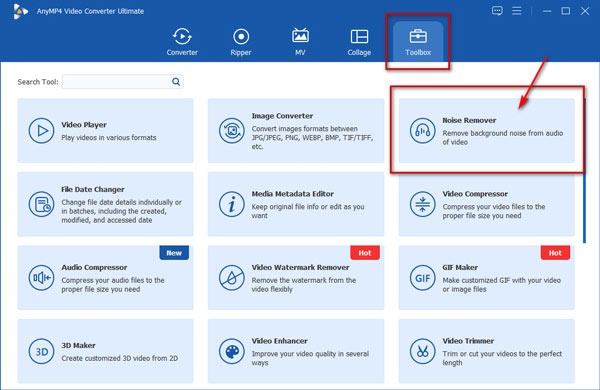
1. Open AnyMP4 Video Converter Ultimate and then proceed to the Toolbox section. Then, select the Noise Remover tool among the available options.
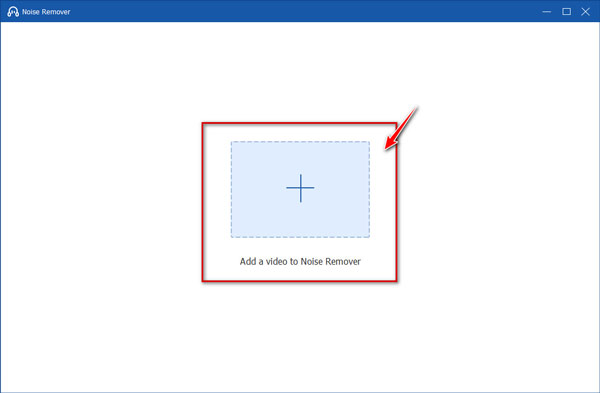
2. In the menu that appears, select the Add Video button to import the video or audio file from which you want to remove the background music.
3. Once the file has been added, simply check the Enable Audio Noise Reduction checkbox option above the Volume slider setting. Once done, preview the audio adjustment by listening to your file. When you are satisfied with the audio balance, click Export to produce the adjusted video.
Since the Noise Remover tool in AnyMP4 Video Converter Ultimate can be enabled with a single checkbox, the software is best suited for users with minimal audio editing experience. This made the software a top option for newbie editors.
User Reviews:
Aside from being an accessible noise reduction tool in AnyMP4 Video Converter Ultimate, the most complimented feature of the software is usually its other media enhancement tools. These include Audio Compressor, Format Converter, MV Editor, Volume Booster, and other media editing tools.
Part 3. Remove Background Music from Audio with Audacity
Best Used For: Technical background noise reduction for experienced practitioners.
Users who are experienced in audio editing and already knowledgeable about the basics of audio mixing may find Audacity to be a suitable choice for background noise removal. This is because learning how to remove background music from audio in Audacity requires prior experience with basic audio mixing.
When using Audacity for background music editing, it is essential to understand the basic concept of noise reduction, with decibels (dB) serving as the unit of measurement. You also need to learn how to adjust audio sensitivity, as well as the technical aspects of frequency smoothing.
For a quick introduction to using Audacity for background music reduction, make sure to read our three-step guide below:
1. Open the audio file you want to edit in Audacity and then use Control + A to select the entire file.
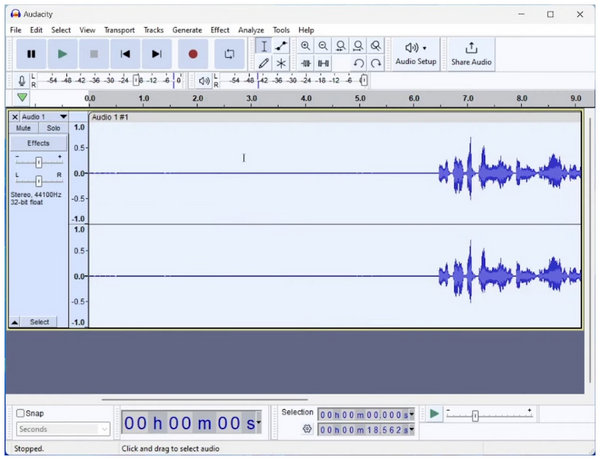
2. Once the entire audio timeline is selected, click on Effect > Noise Removal and Repair > Noise Reduction.
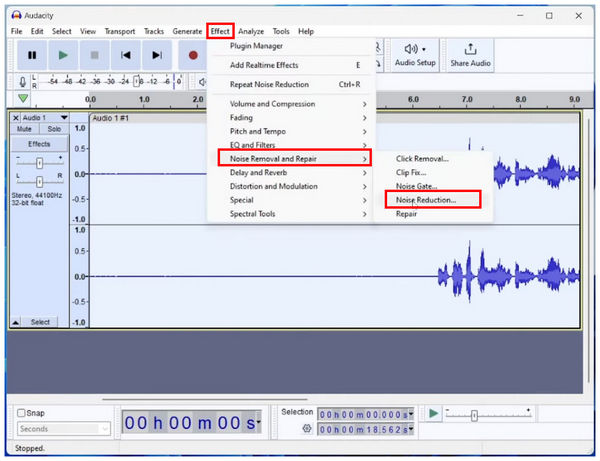
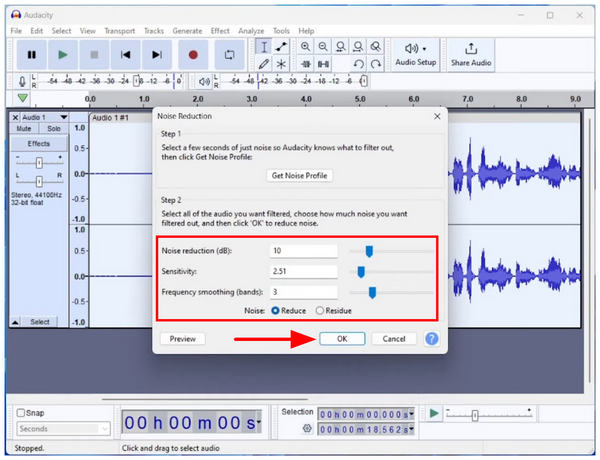
3. In the Noise Reduction menu, you can now mix the background noise removal settings available in Audacity. You can edit the Decibel Level, Sensitivity, and Frequency Smoothing elements of your audio file, as well as whether to select Reduce or Residue for the Noise. Click on OK to confirm your adjustments.
User Reviews:
Audacity receives overwhelmingly positive feedback from experienced audio editors and multimedia practitioners, as the program is a highly reliable music and audio editor. These reviews are mostly rooted in the program’s reliable advanced features, which is a surprising design for a freeware program. However, this same factor made the program overwhelming and difficult for beginners.
Part 4. Remove Background Music from Audio with Vocalremover.org Online
Best Used For: Intermediate audio mixing with no installation.
Finally, the third option we will feature is the use of an online audio editor tool, specifically Vocalremover.org. Highly regarded as one of the most reliable tools for removing background music from audio online for free, Vocal Remover Online utilizes an AI-assisted system that automatically separates the music and vocal channels in audio files uploaded to it. This made the program one of the best options for on-the-go or one-time removal of background music.
To learn how to use the tool, please read our guide below:
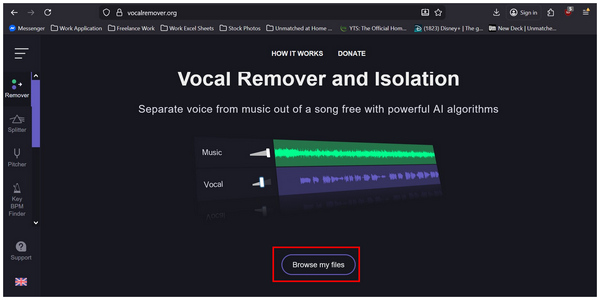
1. Go to Vocal Remover Online’s website, then scroll down and select Browse my files.
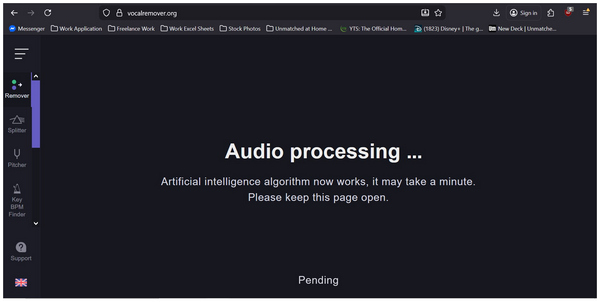
After selecting the audio file you want to edit, wait for the online tool to process your file.
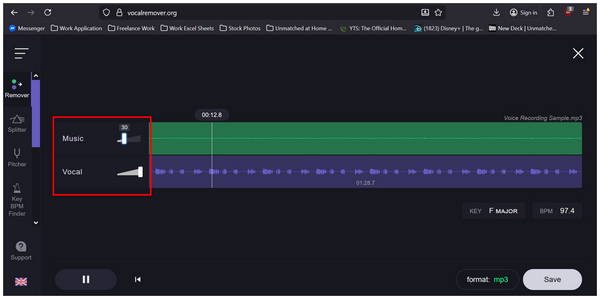
2. With the audio uploaded, you can now edit the volume of the media since the Music and Vocal channels are now separated. Simply slide the volume bar to the left or right of the audio channels. Then, play the audio to distinguish the audio differences.
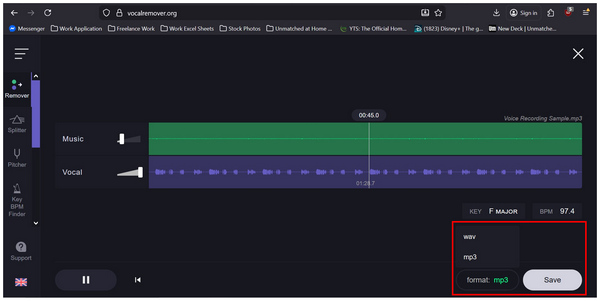
3. Once you are satisfied with your adjustment, click Format to choose how you want the audio file to be saved. Otherwise, click on Save to download the audio with background music removed.
User Reviews:
Since Vocal Remover Online can remove background music from audio online for free, it has several limitations that limit its capabilities compared to paid options. One, it only works best for audio with minimal background noise. This means that audio with heavy background sound cannot be treated by the online tool.
Part 5. Tips for Better Results
Use High-Quality Input Files
To ensure good-quality audio, it is advisable to use a file that already has passable audio clarity or good audio volume control. This is because background music removal tools can only remove unwanted audio and not improve a poor-quality media file.
Avoid Overly Compressed Audio
If you want to save file size, make sure that your compression rate for your files is not too high. Overly compressing an audio file can significantly affect its quality; background audio remover tools may even interpret these adjustments as unwanted audio.
Try Multiple Tools for Comparison
Ultimately, you will achieve the best results if you have access to multiple tools. Unfortunately, this is only available if you have enough time and access to different tools at once.
Part 6. FAQs About Removing Background Music from Audio
Are there free tools to remove background music?
Yes, there are. Among the options on this list, the Vocalremover.org online tool is a good choice. For desktop-based options, you can also use AnyMP4 Video Converter Ultimate for beginners or Audacity for experienced editors.
Will removing background music affect voice quality?
Yes, it may. Although most background removal tools can effectively distinguish audio, it is a common error for these programs to negatively impact voice quality. It is best to check the audio while editing it to avoid this error.
What’s the difference between noise removal and music removal?
Noise removal cleans unwanted audio from the background of your file. Meanwhile, music removal removes the main audio dominant in your audio file. You need to strike a balance between the two for optimal results.
How to remove background music from audio for free?
You can use online tools or desktop-based options. On this list, the programs we have featured offer free-to-use options. However, AnyMP4 Video Converter Ultimate is the easiest to use among them.
Is editing audio files difficult?
Yes, it can be. However, it is heavily based on how you want to edit your file. There are audio editing techniques that are challenging to execute, but there are also easy adjustments available.
Conclusion
Now that we have provided a detailed guide about the best tools to remove background music from audio files, we hope that this article has been useful for your everyday multimedia editing needs. Keep in mind that it is very important to select software based on your skill level, rather than its overall quality. In this case, consider using and downloading AnyMP4 Video Converter Ultimate for maximum accessibility and ease of use.






 Add your comments to join the discussion here