
If you want to enjoy video with your portable devices, you should turn to Video Converter for help. Specializing in converting all popular video formats, this software grants you the fastest and most efficient solution to video converting. AnyMP4 Video Converter is the most universally applicated video converting software since it supports multiple devices, including but not limited to Android devices, Apple devices, Mobile Phone and others.
Android is a software stack for mobile devices including an operating system, middleware and key applications, which was listed as the best-selling Smartphone platform world-wide in 2010. Since it has multiple advantages over other mobile systems, Android is nowadays one of the most popular systems in the world.
Secure Download
Secure Download
You can download the almighty AnyMP4 Video Converter from our website and install it. After the installation, you can check out the interface of the software.
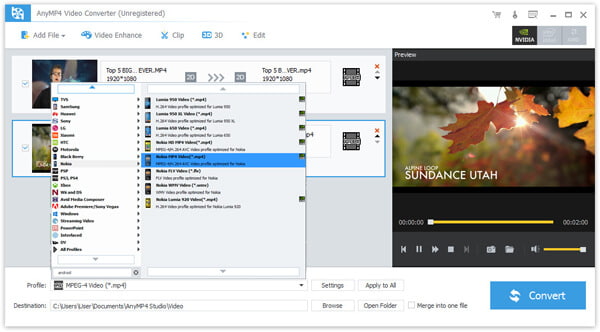
Click the "Add File" button to add your source video to the software for conversion.
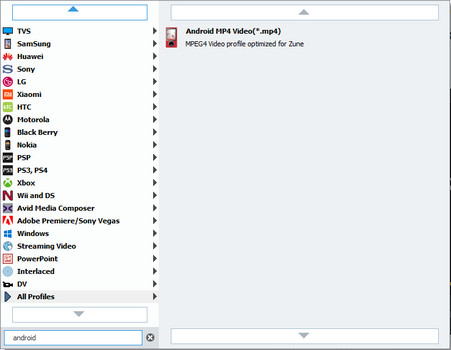
Click the "Profile" drop-down list to select Android profile and then choose the exact profile of your Android device. AnyMP4 Video Converter can also convert video to iPod, iPhone, iPhone 5S/5C, iPad, iPad Aircompatible formats.
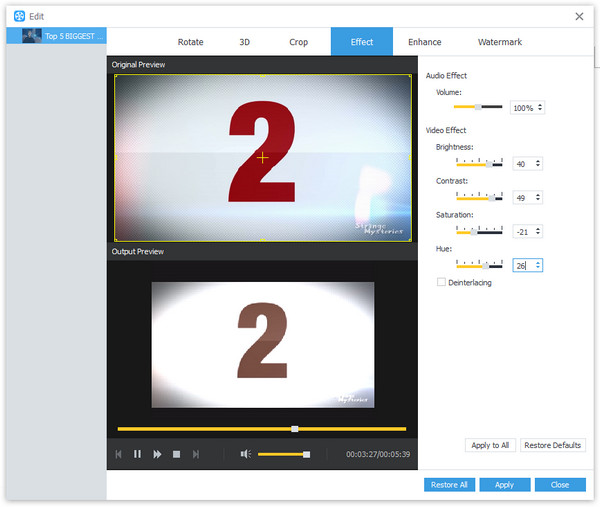
After loading video file, you can use the powerful editing tools to customize video effect. For instance, you can trim video length, crop video frame, merge several video clips together, add text/image watermark and 3D settings. You are also allowed to adjust Video Brightness, Contrast, Hue and Saturation.
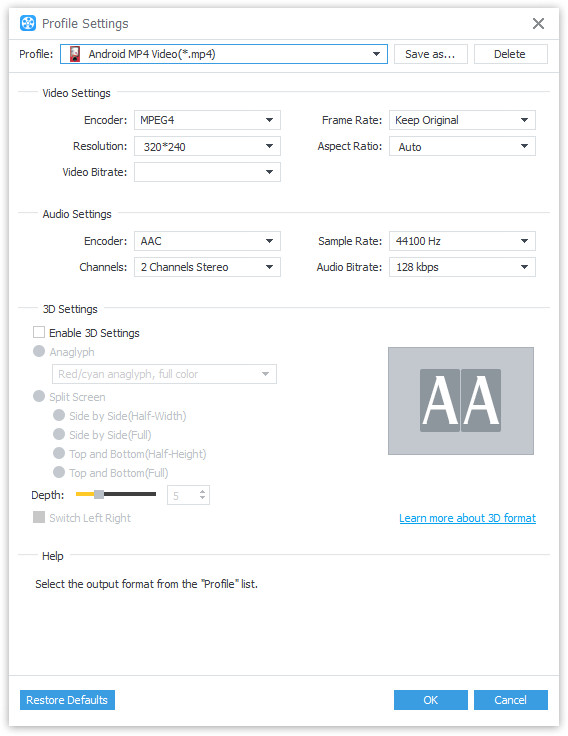
If you are not content with the output effect, you can adjust output parameters as well. Video Encoder, Resolution, Bitrate, Frame Rate, Aspect Ratio as well as Audio Encoder, Channels, Sample Rate and Audio Bitrate are also adjustable.
Not satisfied with the original audio track and subtitle? You are also allowed to choose your preferred audio track and subtitle if they are available.

Click the "Convert" button to start converting the video to your selected Android format. The conversion progress will be completed within a few minutes.
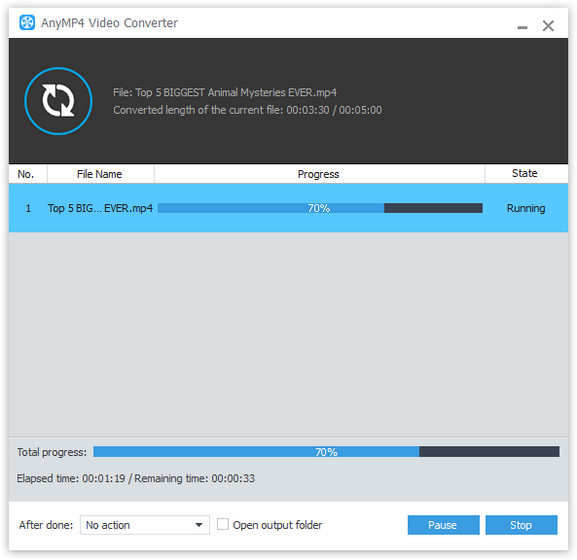
When the progress bar reaches 100%, you can enjoy it with your Android device without limitation.
 Updated by Joan Aimee to Convert Video
Related Articles
 10 Best Methods to Extract Audio from MP4 Video
You can easily extract audio from MP4 with some useful tools and methods.
 How to Turn MP4 into GIF With Top 5 Methods
Ever wonder how to turn your MP4 videos into GIF images? Don't worry. Read on and learn, this article will introduce 5 methods for you to achieve it.
 Top 7 Free MP4 Converters Online and Offline
Learn about the features and guides of Free MP4 Converter on Windows and Mac for free.
 4 Best Ways on How to Export iMovie to MP4
Read on and learn, this article will introduce 4 best methods to export iMovie to MP4.
 Add your comments to join the discussion here
