
AnyMP4 Video Converter is the newest and most promising member of AnyMP4 studio that can conduct any conversion task with high speed and stunning video quality. It specializes in converting video files to any video or audio format such as TS, MP4, ASF, VOB, FLV, MKV and WMV. This article tells you about how to rip AVI video to TS format.

MPEG transport stream (TS) is a standard format for transmission and storage of audio, video, and data, and is used in broadcast systems such as DVB and ATSC.
Secure Download
Secure Download
At first you need to download AnyMP4 Video Converter by clicking the "Free Trial" button. Since it's designed with an intuitive and user-friendly interface, even people without computer skills can use this software without limitation.
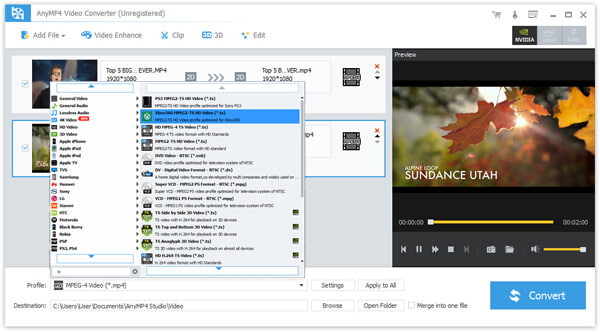
Then you must load your original AVI video to the software by clicking the "Add File" button on the toolbar. You are allowed to remove added video files from the file list.
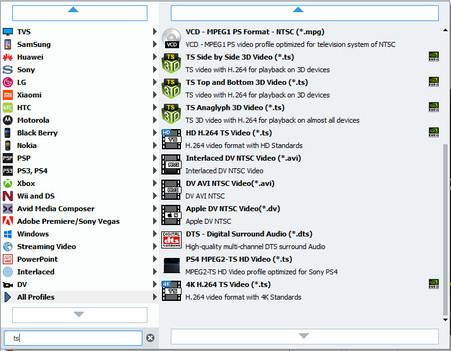
Click the "Profile" drop-down list and select TS profile. If you have problems finding your needed profile, input it in the text area below and the software will automatically find it for you.
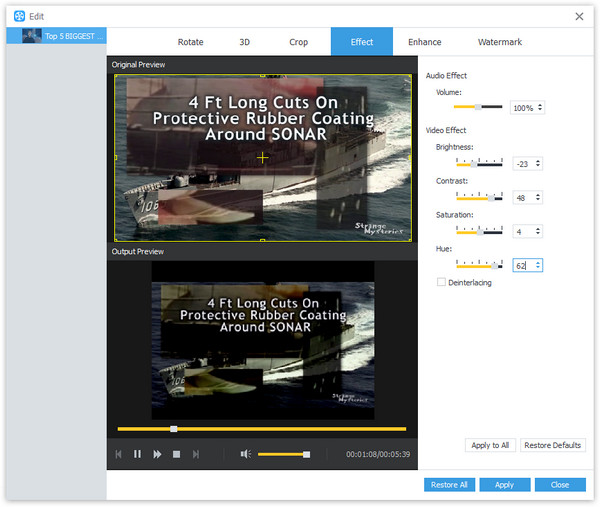
AnyMP4 Video Converter specializes in advanced and precise video effect customization and has a collection of editing tools at your disposal. You can utilize them to trim video for your preferred length, crop video to remove black edges and unwanted parts, merge several video clips into one, add watermark and adjust its position, and adjust Video Brightness, Contrast, Hue, Saturation and Volume.
You can also adjust output parameters such as Video Encoder, Resolution, Bitrate, Frame Rate, Aspect Ratio, as well as Audio parameters such as Encoder, Channels, Sample Rate and Bitrate to bring the video effect one step closer to perfection.
Many video files has more than one audio track. If you are not content with the original audio track and subtitle, you are free to choose your preferred ones if they are optional.
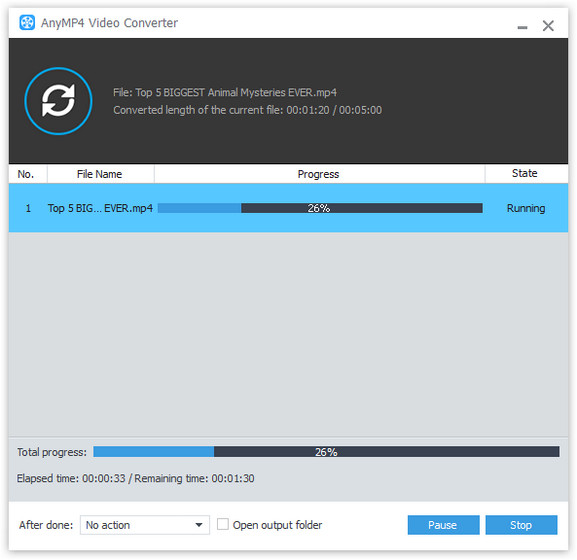
You can start the conversion by clicking the "Convert" button.
 Updated by Joan Aimee to Convert Video
Related Articles
 Convert Video to MP4 Free With Top 10 Methods
Here are the details about video to MP4 Converter. Read and discover favorite tool.
 Easy to Change WMV to MP4 on Windows and Mac
The easiest ways to change your files from WMV to MP4 are all in this post.
 Top 6 Methods to Convert M4V to MP4
Here you can get top 6 methods to convert M4V to MP4 on Mac and PC easily.
 How to Turn MP4 into GIF With Top 5 Methods
Ever wonder how to turn your MP4 videos into GIF images? Don't worry. Read on and learn, this article will introduce 5 methods for you to achieve it.
 Add your comments to join the discussion here
