
Summary
A professional MPG converter must do more than change the extension. It must handle MPEG-1/MPEG-2 codecs without stretching your 4:3 videos into distorted 16:9 widescreen.
Old MPG files often hold family videos from over a decade ago. But playing these videos on modern displays isn't always easy because modern OS and default media players lack built-in support for their older video codecs. An MPG converter can help you convert MPG to MP4 for better compatibility. However, the process does not end in just changing the format. Poor conversion settings can stretch 4:3 footage, resulting in a blurry video. In this post, we'll show you how to convert MPG files properly while preserving the original proportions and quality. This way, your old videos look perfect on modern displays.

| Best For | Aspect Ratio Control | File Size Limit | Hardware Acceleration | Processing Type | |
|---|---|---|---|---|---|
| AnyMP4 Video Converter Ultimate | Quality and batch conversion | Independent and simplified | No limit |  |
Local |
| HandBrake | Advanced free conversion | Technical | No limit | |
Local |
| FreeConvert | Occasional conversion | Basic | 1 GB |  |
Online |
| VLC Media Player | Quick conversions | Technical | No limit | |
Local |
| CloudConvert | Cloud-based conversion | Basic | 1 GB | |
Online |
AnyMP4 Video Converter Ultimate is a safe MPG converter with no file size limit. It features a smart aspect ratio and resolution scaling that intelligently manages the transition from legacy video formats to modern displays. It can decode multiple MPEG-1/MPEG-2 codecs simultaneously and convert them into MP4s H.264/HEVC. Better yet, it uses the most advanced hardware-accelerating media processing to achieve 120× speed.
1. Download the AnyMP4 Video Converter Ultimate and install it on your computer. After setup, the software will open to the Converter tab.
Secure Download
Secure Download
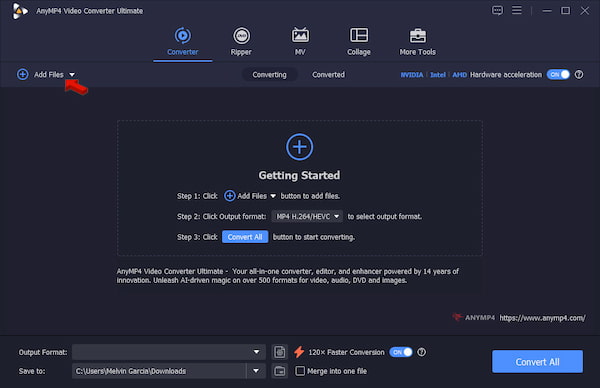
Click +Add Files to import the MPG files from your computer. If you have multiple sources organized in a single folder, use the Add Folder option of the MPG-to-MP4 converter.
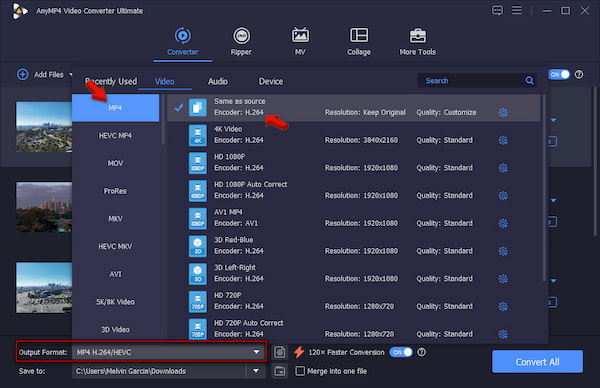
2. Head to the Output Format picker and select MP4 under the Video category. Select Same as Source to use H.264/HEVC encoding and keep the original quality of your source file.
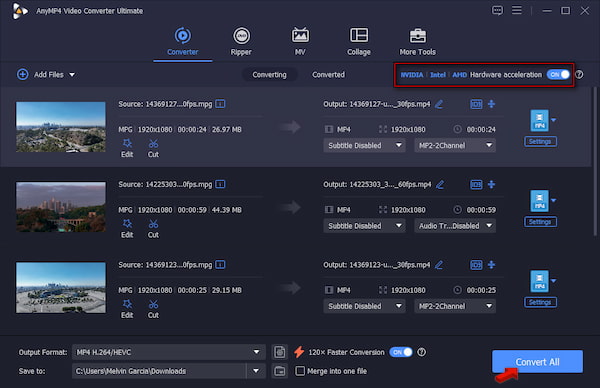
3. Return to the main interface and activate Hardware Acceleration to speed up the conversion. Set the destination path, then click Convert All to start the conversion
In our test, we use 50 MPG videos encoded in MPEG-2, totaling 1.4 GB. It took only 2 minutes and 5 seconds for the software to complete the entire batch conversion. During video quality assessment, the videos keep their original visual detail without blocky pixels or fuzzy spots.
HandBrake is among the best MPG converter for Windows 11/Mac, preferred by advanced users. It can convert MPG files to MP4 using H.264, H.265, and AV1 codecs. It also provides options for filters, frame rate, resolution, cropping, and deinterlacing.
To convert: Drop the MPG sources into the software and proceed to the Summary tab. Select MP4 as your target format, then select a preset that matches your intended use. Click Start Encode to transcode MPEG to MP4 format.
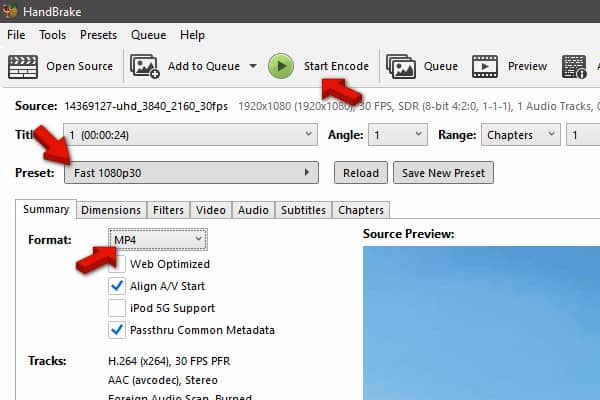
HandBrake offers excellent encoding control with powerful filtering options. However, it is too technical to be handled by beginners, and they may find the encoding settings intimidating.
FreeConvert is a convenient MPG converter online for processing one or two files. This tool supports thousands of media and file-type conversions, including video, audio, images, eBooks, and documents. It can run on Windows, Mac, Linux, and even modern phones.
To convert: Go to the FreeConvert site and click Choose Files to add the MPG file from your computer. Click the Output picker and select MP4 in the Video category. Hit Convert to begin the conversion, and then download each right after.
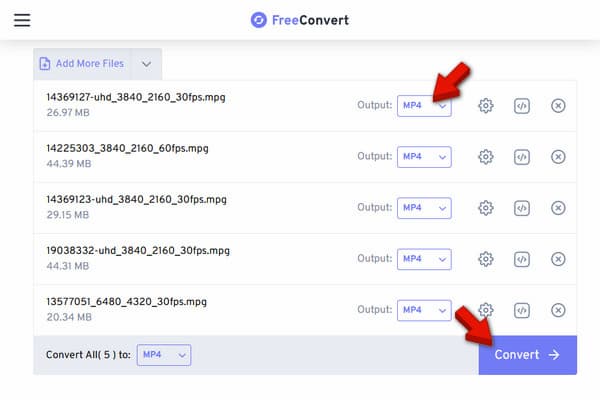
Nothing free is truly without limitations. FreeConvert, though its name implies it lets you convert for free, limits free users to a 1 GB file size and 20 minutes of conversions per day.
VLC Media Player is a time-tested media player; in fact, you can use it as an MPG player. But up to this date, many aren't aware that it has a hidden Convert/Save tool. You can use it as an MPG file converter to convert MPG files to different profiles, including MP4.
To convert: Click Media and select Convert/Save to open the Open Media window. Click +Add to import the MPG files, then click Convert/Save to proceed. In the Convert window, go to Profile and select Video - H.264 + MP3 (MP4), then click Start to convert.
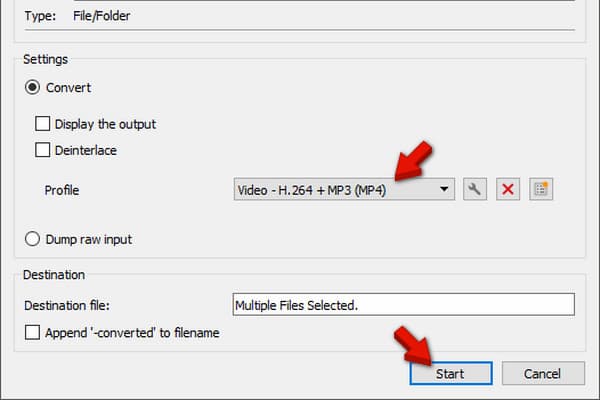
VLC isn't just a software for playing media; it can also convert files to different profiles. Although it supports batch processing, it crashes midway when processing large files.
CloudConvert is an online service that supports more than 200 formats from different categories, including videos. You can use it as an MPG video converter to convert MPGs into another format. It is also integrated with cloud storage, allowing you to import files directly from the cloud.
To convert: Navigate to the CloudConvert site and click Select File to import the MPG file. Click Select Format and choose MP4 in the Video category. Click Convert to start the conversion, then download each afterward.
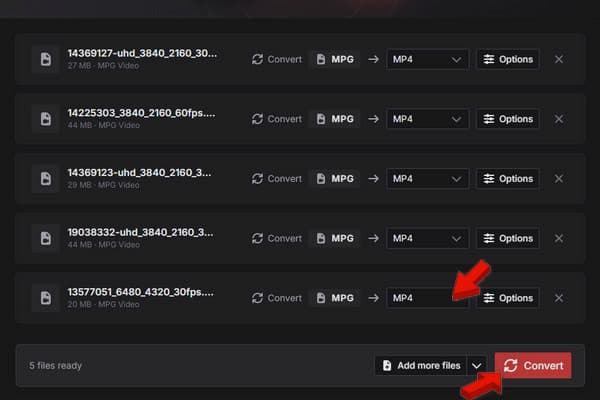
CloudConvert is another convenient option when you don't want to install desktop software. However, free users only have a daily quota of 25 minutes of conversion time.

A common problem when converting MPG files is that they look stretched. Old MPG recordings were produced in a 4:3 aspect ratio, while modern displays use a 16:9 widescreen format. Standard conversion tools rely on automated, modern stretching algorithms, which force the 4:3 grid to stretch horizontally to fill 16:9 screens. This horizontal stretching squashes people, distorts shapes, and causes pixelation.
What is an MPG file, and why won't it play on my Mac?
An MPG file is a container format that compresses audio and video. It fails to play on Mac because the default player, the QuickTime Player, lacks support for older codecs.
How do I stop my MPG video from looking stretched after converting?
Even before conversion, you can fix the aspect ratio or resize the video using AnyMP4. It has a built-in tool that lets you resize from 4:3 to 16:9 widescreen without making content look stretched.
Is MPG the same format as MPEG-2 or MPEG-4?
MPG is a container format that uses MPEG-2 video compression. In other words, it is in the same format family as MPEG-2, but it differs from MPEG-4.
The best MPG converter must go beyond converting files. It should also handle scaling correctly and produce output that fits modern displays perfectly without looking stretched. Our top pick is AnyMP4 Video Converter Ultimate because of its smart aspect ratio and resolution scaling. But if you want a free desktop software, HandBrake and VLC are good options. For small file conversions, FreeConvert and CloudConvert allow converting files under 1 GB.
 Posted by Alice Thorne to Convert Video, Converter
More readings
 2 Reliable Ways to Convert MOV to MPEG/MPG (2026 Updated)
Learn from this article to get 2 methods of converting MOV to MPEG for DVD burning or old hardware in both free online and professional desktop tools.
 2 Ways to Convert MPG/MPEG to WMV on Windows/Mac/Online (Reversely)
Read and get 2 easy ways to convert MPG to WMV or WMV to MPG on your Windows and Mac computer. You can get both online and desktop MPG converters in this post.
 5 Best MKV Converters for PC & Mac (Fast & Lossless)
Can't play or edit your high-res MKV files? This review breaks down the top 5 MKV tools, helping you pick the fastest tool to save your video quality and time.
 3 Best Free WMV File Converters for Mac and Windows PC
How to convert MOV to WMV for free? What is the best WMV converter to change WMV format? Here are the 3 best WMV file converters including online freeware.

