
Quick Answer:
If your Snagit Editor won't open, the app is almost always stuck running invisibly in your Task Manager, or its Tools.xml cache file is broken. You can fix this in under two minutes by ending all background Snagit processes and deleting that single file. If you must deliver marked-up screenshots right now while troubleshooting, grab a free tool like AnyMP4 Screen Recorder to capture and mark up your screen on the fly.
When you use Snagit Editor to hit Print Screen to grab an error box, you expect the editor to pop up so you can add a red arrow. But nothing happens. Even if you click the desktop icon again, your mouse shows a loading wheel for two seconds, and then it vanishes.
Yes, Snagit Editor won't open.
It drives you nuts when a tool crashes right in the middle of a busy workday. The good news? You do not need to wipe your whole computer. Let us look at why this happens and get your Snagit Editor working again fast.
| Symptom | Most Likely Cause | Quick Fix | Estimated Time |
|---|---|---|---|
| Click icon, nothing launches | Stuck background session | End tasks in Task Manager | 1 Minute |
| Editor window crashes immediately | Damaged Tools.xml cache | Delete Tools.xml in %localappdata% | 2 Minutes |
| Fails right after an auto-update | Build 2024.0.3 crash bug | Patch to 2024.0.4 or Snagit 2026 | 5 Minutes |
| Screen freezes during capture | GPU driver rendering clash | Turn on ForceSoftwareRendering | 3 Minutes |
When the Snagit Editor won't open, your computer is not playing tricks on you. In our testing across Windows 10 and Windows 11, six specific bugs cause almost every crash:
1. Stuck Background Processes: You closed the window earlier, but SnagitEditor.exe never let go of your RAM. It sits silently in your memory and blocks new windows from opening.
2. Corrupted Tools.xml Cache: Snagit saves a XML file whenever you change a stamp or arrow. If your PC shuts down suddenly, that file breaks. Then the editor crashes because it cannot read its own notes.
3. The 2024.0.3 Startup-Crash Bug: If you run version 2024.0.3, TechSmith accidentally shipped a broken build. It crashes immediately upon launch until you patch it to 2024.0.4 or newer.
4. DirectX and GPU Acceleration Conflicts: Outdated graphics card drivers clash with hardware acceleration inside the app.
5. Expired license or login checks: Snagit checks your account every 90 days. If your plan ends, the app will not open. The editor also stays shut if your firewall blocks it.
6. Disabled Windows Startup Services: If third-party PC cleaner software turned off SnagPriv.exe to make your PC boot faster, the editor cannot launch captures properly.
Do not waste time reinstalling everything yet. Most of the time, how to fix Snagit Editor won't open comes down to clearing stuck tasks and resetting one broken file.
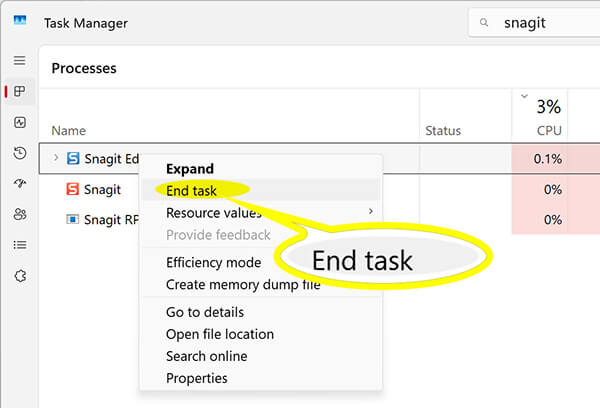
A hidden process is the number one reason behind Snagit Editor stuck in Task Manager issues.
1. Press Ctrl + Shift + Esc on your keyboard to open Task Manager.
2. Click the Processes tab at the top.
3. Scroll down through the list to find SnagitEditor.exe, SnagitCapture.exe, and SnagPriv.exe.
4. Right-click each process and click End task.
5. Close Task Manager, wait five seconds, and double-click your Snagit Editor shortcut.
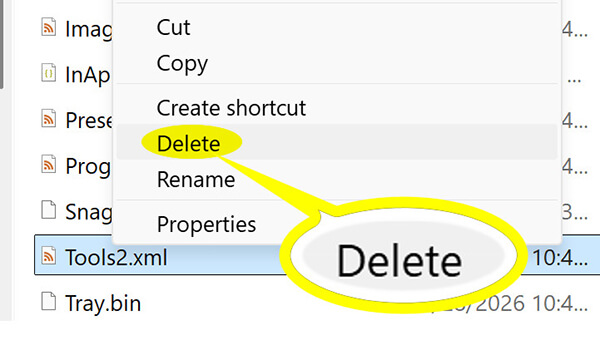
Wondering is it safe to delete Tools.xml to fix Snagit? Yes, 100%. This file only holds your quick-style buttons. It will not touch your saved images or personal library.
1. Hit Windows Key + R to open the Run box.
2. Type %localappdata%\TechSmith\Snagit\ into the box and press Enter.
3. Look for the file named Tools.xml.
4. Right-click Tools.xml and click Delete. (If you see numbered folders like 23 or 24, open them and delete any extra Tools.xml files inside as well).
5. Open your Snagit Editor. The app writes a brand-new, clean copy of the file on startup.
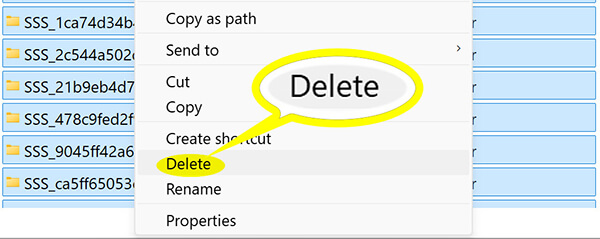
If a ghost process refuses to close:
1. Press the Windows Key + R, type temp, and hit Enter.
2. Press Ctrl + A to highlight everything, and press Delete. (Skip any files that say they are currently in use).
3. Click the Start button, select Power, and click Restart.
If your Snagit Editor not opening trouble continues, try these deeper system fixes.
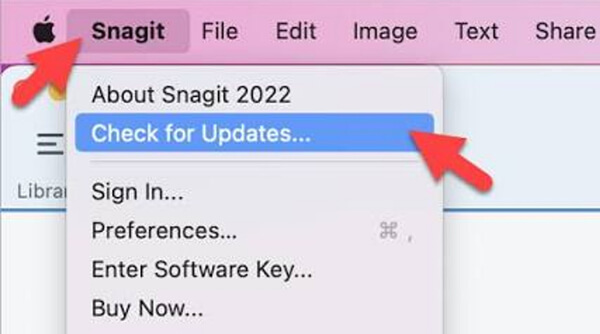
If your Snagit Editor won't open after update, check your version number. TechSmith confirmed a major startup crash bug in build 2024.0.3.
1. Open the small Snagit Capture window (the red widget).
2. Click Help in the top menu and select About Snagit.
3. Check the version line. If it reads 2024.0.3, click Help again and click Check for Updates.
4. Click Download and Install to patch up to 2024.0.4 or upgrade directly to the latest Snagit 2026 release.
Does your screen flicker or freeze when the app opens? You can make your PC draw the app without using your graphics card. Here is how to set it up:
1. Press Windows Key + R, then type regedit, and hit Enter.
2. Navigate to HKEY_LOCAL_MACHINE\SOFTWARE\TechSmith\SnagIt\.
3. Right-click an empty space, click New, and choose DWORD (32-bit) Value.
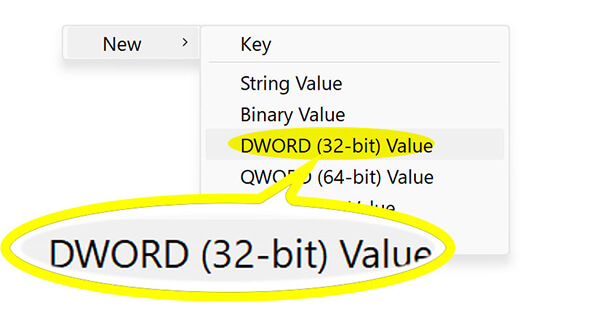
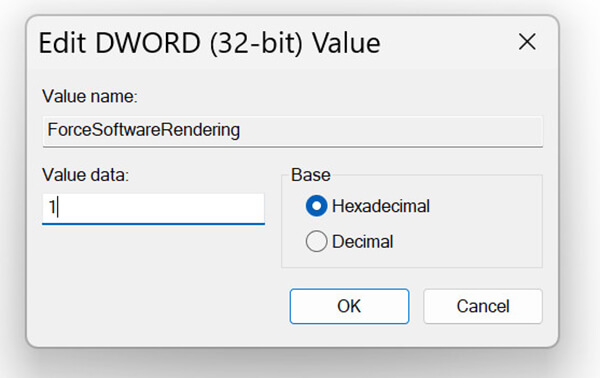
4. Name the new value ForceSoftwareRendering.
5. Double-click it. Change the value number to 1, then click OK.
If you frequently encounter system-level graphics bottlenecks, learning how to screenshot a specific area on Windows using lighter built-in shortcuts can also help you bypass heavy software conflicts.
If you need a complete reset to repair Snagit Editor:
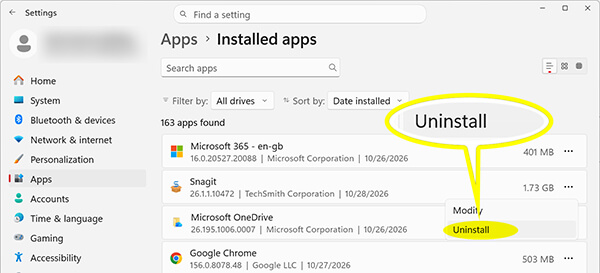
1. Open your Windows Settings and click Apps.
2. Click Installed apps, find Snagit, and click Uninstall.
3. When prompted, make sure you choose the option to Keep files so your capture library stays intact.
4. Download the latest installer from TechSmith and set it up fresh.
Troubleshooting takes time. What if you have a boss or a client waiting for an annotated bug report right this second?
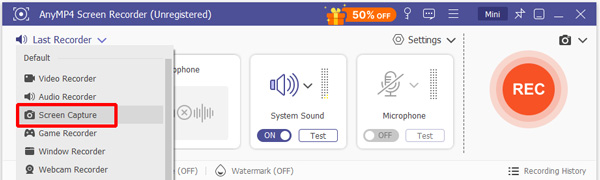
You do not need to wait for a full software reinstall. You can use AnyMP4 Screen Recorder as your immediate fallback. While it records video, it comes with a dedicated, lightweight screen capture tool and an on-the-fly markup toolbar that operates completely free.
1. Grab Any Region with One Click
Free download and open AnyMP4 Screen Recorder on your PC or Mac.
Secure Download
Secure Download
Click the Screen Capture button on the right side of the main bar (or press your set hotkey).
Drag your mouse over any window, dialog box, or custom screen area.
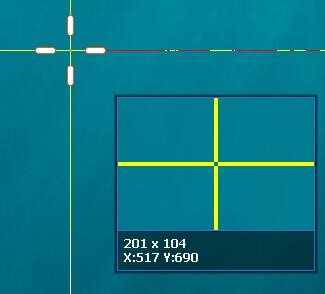
2. Add Arrows, Text, Callouts, and Blur on the Fly
The instant you release your mouse, an annotation toolbar appears right next to your selection. You do not need to wait for a separate heavy editor window to load:

3. Pin Your Shot or Copy It
1.Click Pin to Screen to keep your notes floating while you work.
2.Click the Copy icon to paste your finished, marked-up graphic straight into Slack, Teams, or an email.
3.Click Save to save your screenshot as a PNG, JPG, or BMP file.

As an added bonus, if you ever need to document complex steps that static images cannot explain, you can switch to the video modes to record smooth tutorials.
| Repair the Snagit Editor | Use AnyMP4 Screen Recorder | |
|---|---|---|
| Main Goal | Restores your default Snagit Editor interface | Captures screen and marks it up right now |
| Time Needed | 2 to 15 minutes of troubleshooting | Under 60 seconds |
| Markup Toolbar | Full library, stamps, step tags, arrows, text | On-screen arrows, text, callouts, blur, shapes |
| Risk of Freezing | High if cache is damaged or process hangs | Very low (lightweight floating toolbar) |
| Cost | Free (uses your existing Snagit license) | Free built-in screen capture and markup tools |
| Best For | Organizing long-term libraries and complex catalogs | Fast everyday markups and emergency deadlines |
When to Repair Snagit Editor
Fixing the Snagit Editor makes the most sense when you rely heavily on years of saved captures in your library, use custom brand color palettes, or need specialized TechSmith cloud integrations.
When to Use AnyMP4 Screen Recorder
AnyMP4 is great when Snagit Editor crashes on you. It is also perfect for quick screenshots. You can add arrows, type text, and blur parts fast. You never have to wait for a heavy app to load. Want to see more picks? Check this guide for the best Snagit alternatives.
Why won't my Snagit Editor open after a capture?
This happens when Snagit grabs the shot, but the app freezes in the background. To fix it, open your Task Manager. Close every running Snagit app you see. Then, try taking your screenshot again.
Is it safe to delete Tools.xml to fix Snagit?
Yes. Deleting Tools.xml only resets your quick-style toolbar buttons to factory defaults. Your actual screenshots and saved files in the Datastore library stay completely safe.
How do I fix Snagit Editor not opening on Windows 11?
First, kill all running Snagit tasks in Task Manager. Next, delete Tools.xml from %localappdata%\TechSmith\Snagit\. Finally, make sure Windows 11 has granted Snagit background app permissions under your system Settings.
A broken editor should not halt your work. If your Snagit Editor won't open or launch, start with the quick fixes: open your Task Manager to end hung processes, and wipe the corrupted Tools.xml file. In almost every case, that gets you back on track in under two minutes. If you have a strict deadline and cannot afford to fiddle with system settings, download AnyMP4 Screen Recorder for free. Use its instant screen capture and markup toolbar to get your annotated screenshots out the door right now.
Secure Download
Secure Download
 Updated by Riley Mitchell to Recorder
More readings
 Top 5 Chrome Audio Recorders – How to Record Audio on Websites
Want to save appealing music on Chrome? What you need is just an audio recorder that enables you to capture audio on Chrome.
 11 Best iPhone Screen Recorder Apps for PC, Mac, and iOS
Don't know how to find a suitable iPhone screen recorder app? In this article, we list the 11 best iPhone screen recorder apps for you to refer to.
 Best 10 Video Editors for Chromebook: 2026 Latest Picks
Are you looking for a video editor for Chromebook? You are certainly in the right place! Come and discover the video editor we have listed in this post.
 How to Screenshot on Chrome [Full-page, Area, & Window]
Want to learn how to screenshot on Chrome? If yes, you’re precisely where you need to be. Find the three methods to screenshot in full screen or specified area.
 Add your comments to join the discussion here