How to Record Roblox on OBS | 2026 Setup and Settings
Summary:
When recording Roblox on OBS, use Window Capture, not Game Capture. Click + in the Sources panel, go to Window Capture, select Roblox, and start recording. The standard Roblox client block Game Capture, which causes a black screen preview. However, the Microsoft Store version supports it. For a dedicated gameplay recording, use AnyMP4 Screen Recorder's Game Recorder mode with up to 4K 60fps recording.
I launched Roblox, hit the Start Recording in OBS, and got nothing but a black screen. The Game Capture showed nothing, and changing the settings didn't help.
This Roblox OBS black screen problem is frustrating, especially when you only want to record Roblox on OBS and save it. This post shows how to record Roblox gameplay with OBS using Window Capture and Game Capture. We also cover settings for 1080p60 recording, audio tracks, and no-lag settings. And if the Roblox game capture isn't working, there is also a direct recording option.
Method 1 (Recommended): Window Capture - the Reliable Roblox Path
How to make OBS capture Roblox? The most reliable way to record on Roblox is using the Window Capture. This source tool targets the actual game window without encountering a black screen.
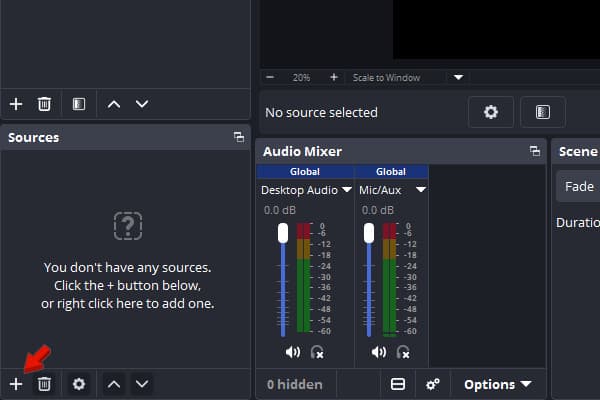
1. Open Roblox to run it in the background, then click + under the Sources panel in OBS.
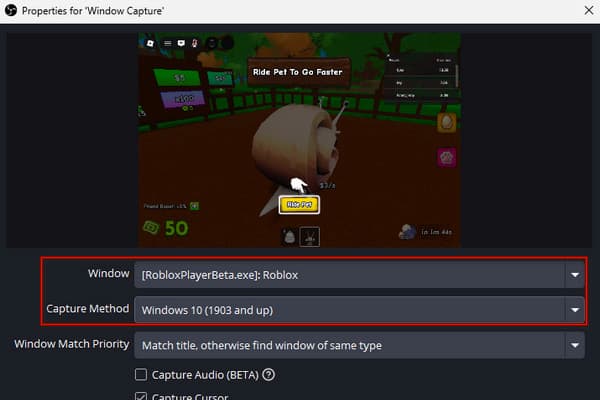
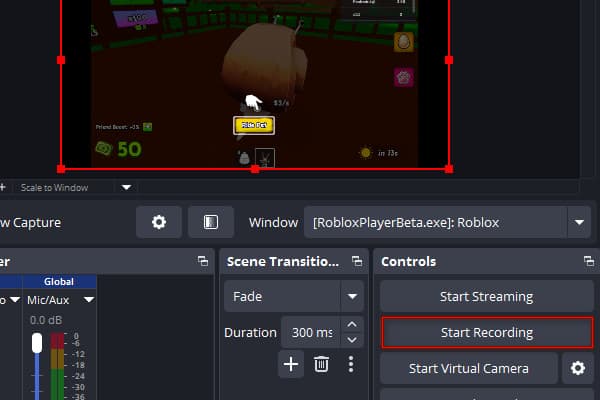
2. Go to the Window Capture, click +Add a new Window Capture, and select Roblox.
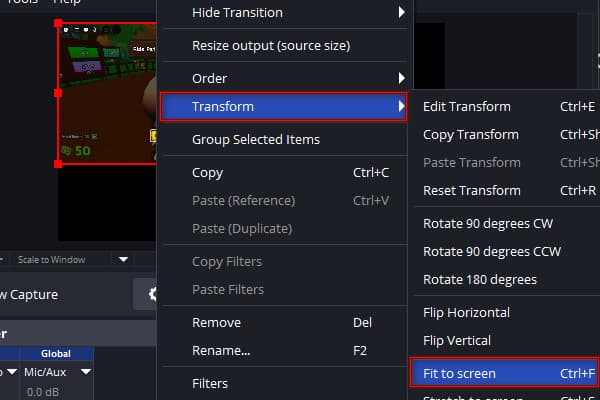
3. Right-click the capture preview, select Transform, and click Fit to Screen to fill the canvas.
4. When you're ready, click Start Recording to record Roblox with Window Capture.
Note:
Roblox may not be capturable using the BitBlt (Windows 7 and up) capture method. It is because Roblox uses advanced rendering that the basic BitBlt pixel-copying method fails to interpret.
Method 2: Game Capture - Works with the Microsoft Store Version
Game Capture in OBS records or streams video games directly into a game's DirectX or OpenGL graphics. However, it only works with the Roblox version downloaded from the Microsoft Store.
1. Launch the Roblox (Microsoft Store version), go to Sources in OBS, and click +.
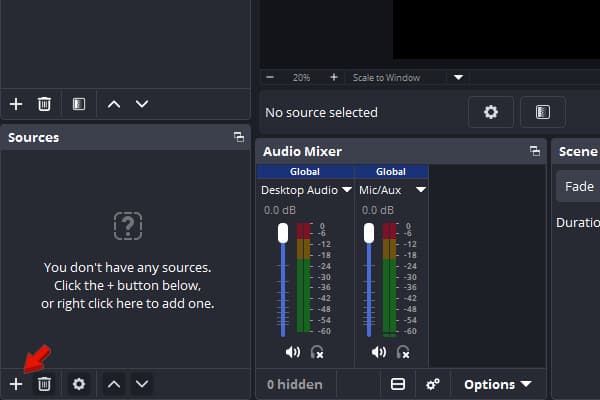
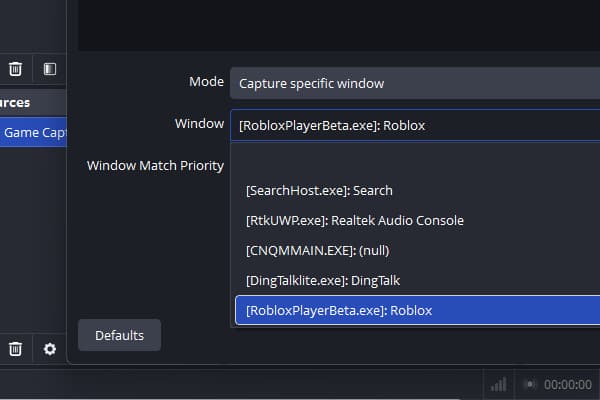
2. Head to the Game Capture, set Mode to Capture specific window, and select Roblox.
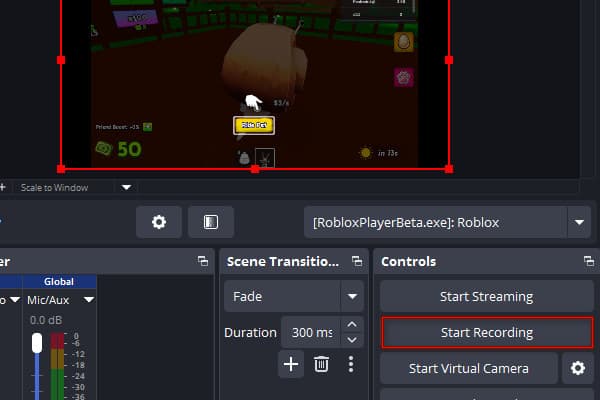
3. If the game appears, click Start Recording to record Roblox gameplay with OBS, then verify the result.
Tip:
If Roblox does not show up in the dropdown, make sure it is running in the background. However, if nothing appears but a black screen, check here on how to fix an OBS black screen.
Method 3: Optimize the Recording - 1080p60, Audio Tracks & No-Lag Settings
When recording Roblox gameplay, you shouldn't stop at selecting the correct source tool. Poor recording settings can cause blurry gameplay, missing audio, or stuttering. To ensure smooth Roblox gameplay recording, optimize the recording settings beforehand.
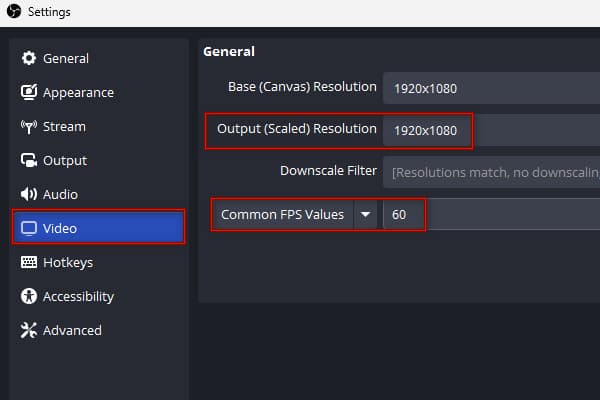
Video Resolution: Click File in OBS, select Settings, and go to the Video section. Set the Output (Scaled) Resolution to 1920×1080 and select 60 as the Common FPS Value.
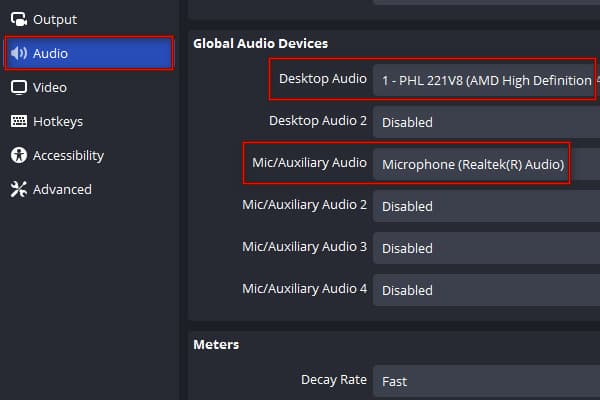
To record Roblox gameplay and voice: Go to File, click settings, and select Audio. Change the Desktop Audio from Default to your speaker, then set the Mic/Auxiliary Audio to your microphone input.
No-Lag Settings: Navigate to Settings, select Output, and change Output Mode to Advanced. Click the Recording tab, then set the recording settings to:
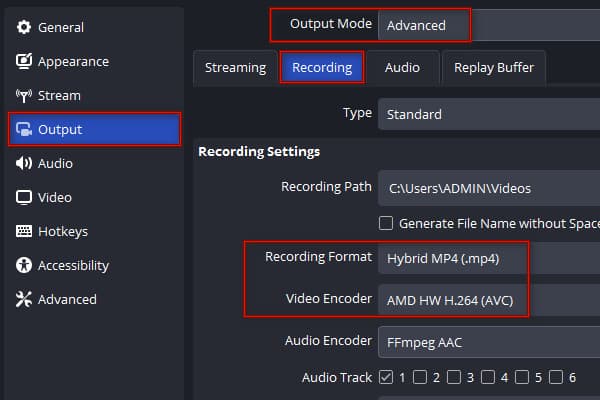
Recording Format: Hybrid MP4 (.mp4) or Matroska Video (.mkv)
Video Encoder: AMD HW H.264 (AVC). Select one depending on your hardware encoding.
Rate Control: CQP
CQ Level: 18-23
Preset: P5 or Quality, depending on the encoder.
Method 4 (Alternative): Record Roblox Directly - AnyMP4 Screen Recorder Game Mode
When you record Roblox on OBS, you may find the scenes, sources, and recording configurations overwhelming. AnyMP4 Screen Recorder comes with a Game Recorder mode that captures Roblox gameplay without a Game Capture hook, so Roblox's anti-cheat has nothing to block. It records up to 4K at 60 fps with GPU acceleration, and supports webcam overlay, adding system audio, and microphone input.
1. Download AnyMP4 Screen Recorder and complete the installation.
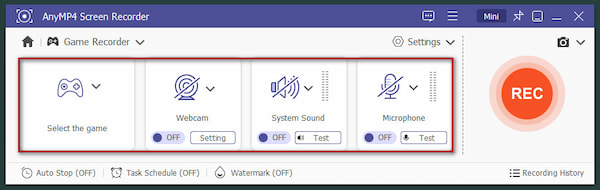
After setup, change the default recording mode to Game Recorder.
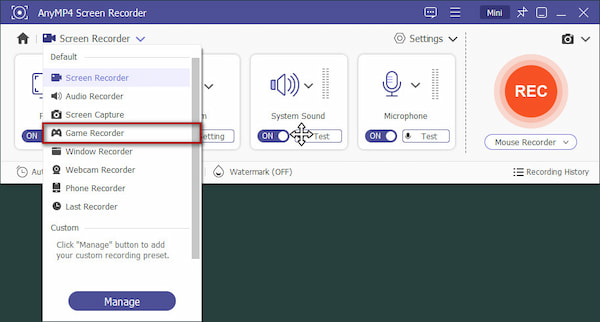
2. Click the Game tab and select Roblox. Turn on the webcam to activate PIP overlay and position it in a corner. Then, toggle on System Sound and Microphone to include audio.
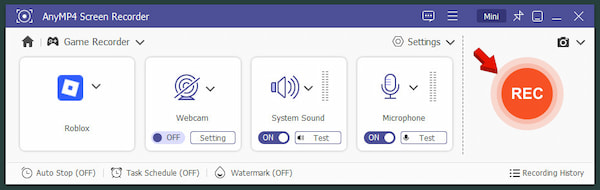
3. Click REC to record Roblox without OBS in AnyMP4. During take, use the live Annotation tool to add arrows, text, and highlights over your screen recording.
4. When finished, click Red Square (Stop). Preview the recorded Roblox gameplay, trim any unwanted sections, and save it to your computer.
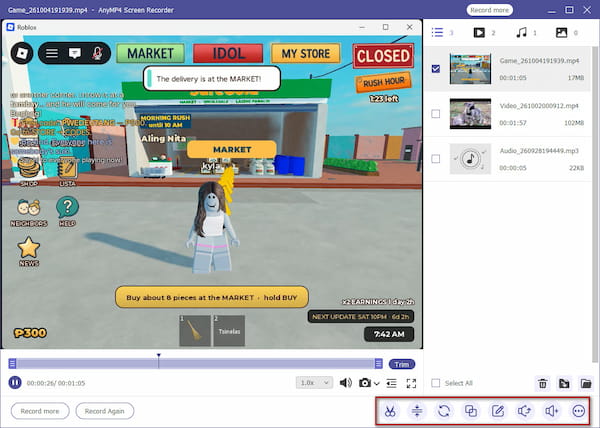
AnyMP4 Screen Recorder does not require creating multiple scenes or setting a specific source tool. It captures any screen activity directly, with options to add a webcam overlay, system audio, and microphone input.
Roblox Black Screen in OBS? The Anti-Cheat Is Why (Game Capture vs Window Capture)
When using the Game Capture source tool, the Roblox OBS black screen appears. This happens because the anti-cheat system blocks external software from injecting hooks into the game process. Instead, use the Window Capture to avoid memory injection entirely. It lets Windows feed the video frames to OBS without triggering Byfron's security blocks.
Roblox Player vs Roblox Studio - Which Window Are You Actually Recording?
Roblox Player and Roblox Studio are separate applications. Roblox Player runs the actual game, while Studio is used to create, edit, and test Roblox experiences. If you are recording a gameplay clip, select the Roblox Player window. However, if you're recording tutorials, Roblox Studio is the correct target source.
FAQs About Recording Roblox in OBS
Why is Roblox showing a black screen in OBS Game Capture?
Roblox OBS black screen shows in Game Capture because Roblox's security and anti-cheat system blocks OBS from injecting its graphics-hook DLL into the game's rendering pipeline.
Should I use Game Capture or Window Capture for Roblox?
Use the Window Capture for Roblox recording in OBS. When you select Game Capture, Roblox's anti-cheat system will only block the hooks used by Game Capture.
Can I record Roblox without OBS?
Yes, you can record Roblox without OBS. You can use AnyMP4 Screen Recorder to capture Roblox gameplay with up to 4K resolution. It also doesn't require setting scenes, adding source, or any other complicated settings.
Conclusion
Before you record Roblox on OBS, don't click Start Recording right away. You must first choose the correct source tool and optimize the recording settings. If getting a black screen, know when to use Window Capture instead of Game Capture. Then, optimize your resolution, encoder, and audio settings. If OBS gives you trouble, use AnyMP4 Screen Recorder. It can record Roblox directly via Game Recorder mode, without having to deal with capture hooks.



 Add your comments to join the discussion here