Kommodo Screen Recorder Review: Is This AI SOP Maker Worth It in 2026?
Quick Answer:
- What it does: You record your screen, and the tool takes screenshots of your clicks and types out a step-by-step SOP guide.
- Free plan limits: You can store up to 15 videos in your account with zero watermarks. You do not have a 5-minute recording timer like Loom.
- Supported platforms: You can run it as a Chrome extension, a web app, or a native desktop app on Windows and Mac.
- The main catch: It relies heavily on cloud servers. If your internet stutters during an upload, you risk losing long recordings. You also cannot record in 4K.
- Bottom-line verdict: Pick Kommodo if you need quick written guides for web apps. Pick a local desktop recorder like AnyMP4 Screen Recorder if you want 4K video, system sound capture, and 100% offline stability.
If you have ever recorded a 20-minute screen tutorial for someone, only to have them ask you how to do it 3 days later. That must be annoying. However, you cannot blame them, because nobody wants to watch a long video to find one button. As for you, you want to write an actual guide, but you always forget it. To solve this problem, you must hear Kommodo. It is a screen recorder that watches your screen, snaps pictures of your clicks, and types out the guide for you. Does it actually deliver on daily tasks? This Kommodo Screen Recorder review breaks down how it performs.
Kommodo Screen Recorder Review: Quick Specs & Hands-On Score
Kommodo started under the name Kommodo Decks before the team shortened it. Khanan and his team built it because they got tired of messy company training docs. Here is a quick look at this Kommodo review fact sheet:
Kommodo Screen Recorder Quick Specs
| Software |
Kommodo (formerly Kommodo Decks) |
| Developer |
Kommodo team (Kommodo.ai; founder Khanan on Product Hunt) |
| Category |
AI screen recorder + SOP guide maker |
| Price |
Free tier (15 videos, no watermark, no time limit) / Pro plan at $9/mo yearly ($15 month-to-month) |
| Platforms |
Desktop app (Windows & Mac), Chrome extension, Web browser, iOS, Android |
| Free Tier Cap |
15 total videos in your account pool |
| Signature Feature |
AI Guides: writes step-by-step SOP guides by tracking your clicks |
| Extras |
Auto transcripts, viewer tracking, team folders, custom domains, Google Calendar recorder |
| Reputation |
4.5★ on Product Hunt (37 reviews);
4.7★ on Apple App Store (110 ratings) |
| Watermark |
None on both free and paid plans |
Kommodo Screen Recorder Hands-On Score
I set up the Kommodo screen recorder myself, and it took under two minutes. You can grab their Chrome extension or download the dedicated desktop installer for Windows and Mac directly from their site. Sign in with your Google account, and you are ready. You do not have to type in a credit card.
Here is my hands-on test score based on everyday office work:
| Review Category |
Score (Out of 5) |
My Honest Take |
| Ease of Use |
(4.5/5 Stars) |
Clean buttons. You open the app, pick your screen, and hit record. |
| AI SOP Creation |
(4/5 Stars) |
The automatic screenshot cropping works very well. It captures around 85% of clicks. |
| Video & Audio Quality |
(3.5/5 Stars) |
Good for 1080p web walkthroughs, but lacks 4K capture and advanced system audio controls. |
| Stability & Support |
(3.5/5 Stars) |
The weakest link. Cloud syncing can stall on long clips, and support takes days to reply. |
| Overall Score |
(4/5 Stars) |
Great documentation helper, but a shaky cloud video recorder. |
Kommodo Screen Recorder Pros and Cons
Pros
- Automatic SOP guides: It watches your mouse and types out step-by-step guides with cropped screenshots while you talk. This saves hours of typing.
- Desktop and browser support: You can record through the Chrome extension or install the native Windows and Mac desktop app.
- No time limit on free videos: Unlike Loom, which cuts you off after five short minutes, Kommodo lets you record as long as you need on the free tier.
- Zero watermarks: Your exported videos and shared links look clean without any tacky logo stamped across your footage.
- Direct MP4 file downloads: You can download the video files straight to your computer instead of keeping them trapped behind an online link.
Cons
- Cloud-dependent: Even with the desktop app installed, processing still runs in the cloud. If your internet drops, saves freeze at 99%.
- 1080p limit: The basic tier cannot record 4K tutorials or high-framerate gameplay.
- Hard 15-video storage limit: Once you hit 15 videos on the free plan, you cannot record anything else until you delete old projects or pay up.
- The AI misses clicks sometimes: It can group two form boxes into one step or skip tricky dropdown menus, so you still have to check the text.
- Weak offline handling: You cannot generate your AI guides or sync files smoothly without an active, stable internet connection.
Real Test of the Kommodo AI Screen Recording Process
This tool does more than grab your screen. It runs your footage through an automated system to save you from typing up guides by hand.
Kommodo Screen and Meeting Video Capture
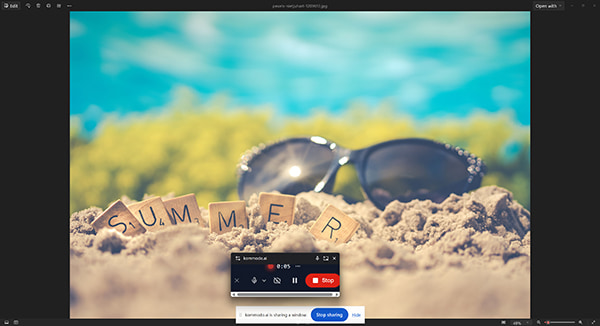
You can run the desktop screen and meeting recorder app or click the browser icon to grab your full desktop, a specific program, or a single browser tab. You can turn your webcam circle on, drag it around your screen, or mute your mic. You can also link your Google Calendar so it joins your scheduled video meetings and takes notes for you.
Kommodo Built-in Automatic Voice Transcripts
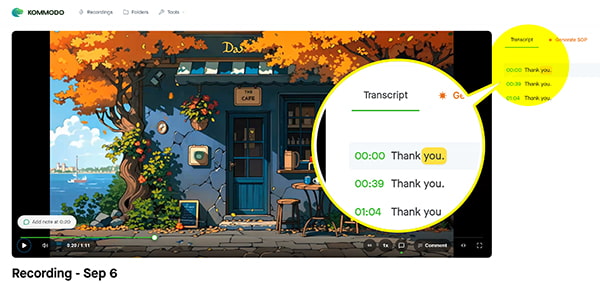
After you hit stop, the tool transcribes your speech. I tested it by speaking fast and using technical software terms. It got about 90% of the words right. When it makes a mistake, you can click on the text and fix the spelling yourself.
Generating Step-by-Step SOP Guides with Kommodo AI
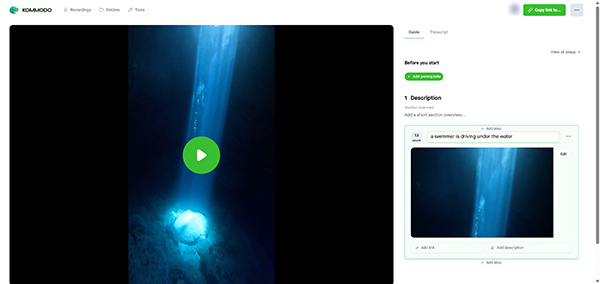
This is the feature people care about most. I ran a test: I recorded a 3-minute app walkthrough where I clicked five buttons and typed in two forms. I wanted to see how well the Kommodo SOP generator worked.
It got 5 out of my 7 actions right. It completely skipped one dropdown menu, and it mashed two text boxes into a single step. That annoyed me, but having five steps already typed out with cropped screenshots still saved me ten minutes of manual work. If you want to know how to create SOP with Kommodo, you simply do your work on screen and let the app build the guide.
Kommodo Team Library and Viewer Analytics
If you manage a remote team, sending random video links in chat gets messy very fast. Kommodo includes features to keep your team organized:
- • Team Folders: You can sort your guides into folders so new hires can find training steps without bugging you.
- • Viewer Analytics: The dashboard shows you who opened your link, how many minutes they watched, and where they stopped.
- • Custom Branding: Paid users can add their own company logo and web domain to the video player.
These tools help when training staff, supporting customers, or sending client pitches. Kommodo costs $9 a month on the annual plan for unlimited storage and team folders, which works well for growing teams.
Kommodo Free Plan Test: Video Limits and Watermarks
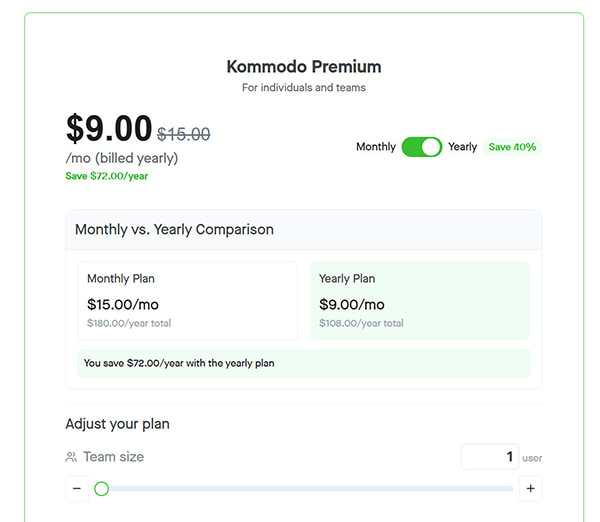
Is Kommodo actually free, or are there hidden paywalls?
I tested the free plan to check the limits:
- • Video Quality: Exports cap out at standard 1080p.
- • Watermark check: I checked my exported file frame by frame. There is no Kommodo watermark anywhere on your video.
- • Video limit: You can store 15 videos in your account. When you try to save video number 16, the app blocks you. You must delete an old video or pay for the upgrade.
- • Saving your files: You can download your MP4 files directly to your computer. They do not trap your files behind a web link.
Tip
If you hit the 15-video limit and do not want to pay, just download your finished MP4 files to your hard drive, copy the text guides into Google Docs, and delete the old videos from your Kommodo dashboard.
Free Tier Face-Off: Kommodo vs Loom:
When you look at Kommodo vs loom, Kommodo wins on time limits. Loom cuts off your free videos after 5 minutes, which is super annoying when you want to explain a long task. Kommodo lets you talk as long as you want.
If your team just needs a quick walkthrough tool, Kommodo cuts out the timer. But if you want the best video recording software that handles long meetings and offline work without cloud limits, browser extensions fall short.
Kommodo Reliability Complaints: Cloud Crashes and Bugs
No app is perfect, and this review would be fake if I hid the bad parts.
I looked at user feedback on the Kommodo appsumo deal and Product Hunt. Plenty of users ran into real headaches. People talk about audio drifting out of sync, uploads freezing at 99%, and desktop or mobile apps crashing in the middle of a task. Nothing makes you want to throw your mouse out the window like recording a 20-minute guide, only for the cloud upload to fail and eat your work. Several users also said that customer support takes days to reply to simple tickets.
Why does this happen? Even after you install the desktop app, Kommodo still routes your recordings through cloud pipelines to generate its guides. If your internet connection drops, your video hangs.
If you just need to record computer screen and audio locally without depending on cloud servers, relying on an online account is risky. A local recorder gives you a reliable backup that cloud-dependent tools cannot offer.
How to Record Screen and Make SOPs with Kommodo
Follow these exact steps to record your screen and turn your actions into a written guide:
1. Install Kommodo on your computer or browser
Head to Kommodo.ai/download to grab the desktop app for Windows or Mac, or add the Chrome extension. Sign up with your email. You do not need to give them a credit card.
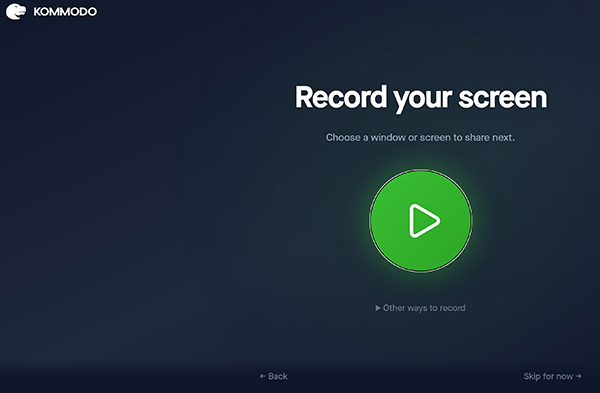
2. Set up your Kommodo screen and microphone inputs
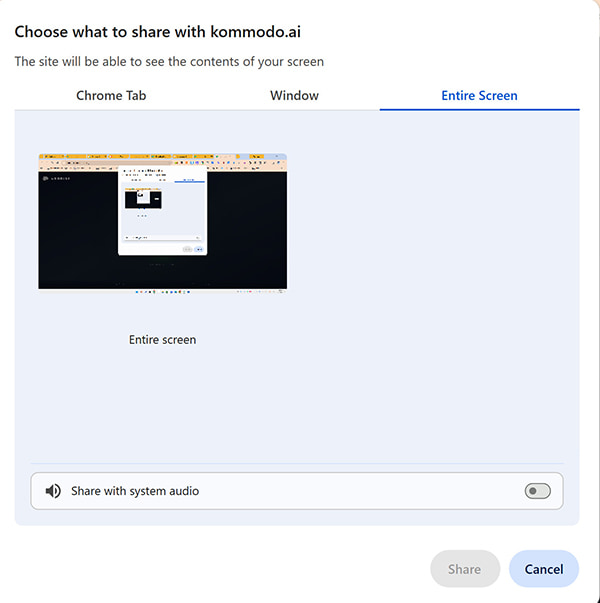
Open the app or click the browser icon. Pick your full screen, a single app window, or your current tab. Turn your webcam and microphone on or off.
Warm Tip
Always record a quick five-second test clip first and listen to it. Nothing feels worse than talking to your screen for twenty minutes only to realize your microphone was muted the whole time.
3. Record your screen in Kommodo
Click the red record button. This tool will start recording. While recording, you can enable the camera icon to take screenshots.
4. Trim your recording in the Kommodo editor
Click the stop button when you finish. Then click the three-dot of the top right corner to find Editor. Your video opens up right away. You can split boring pauses, fix mistakes, or redo a small clip without starting over.
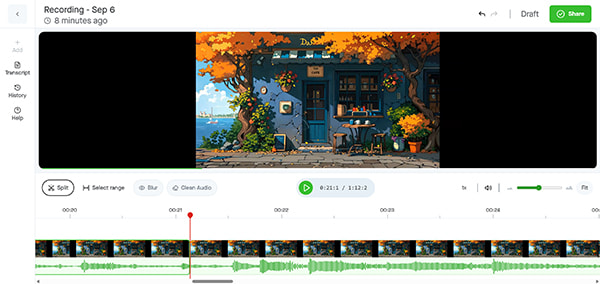
5. Clean up your Kommodo AI step-by-step guide
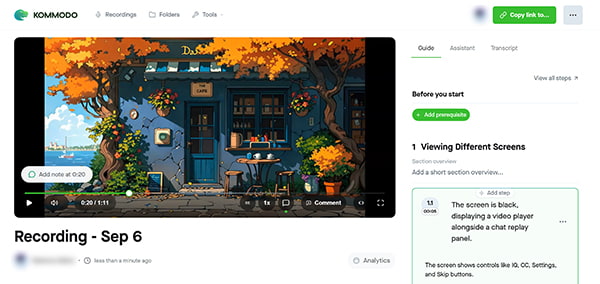
Click the Guide tab in the editor. You will see your steps laid out with screenshots and typed text. Fix any typos, delete duplicate clicks, and hit publish.
6. Share your Kommodo video link
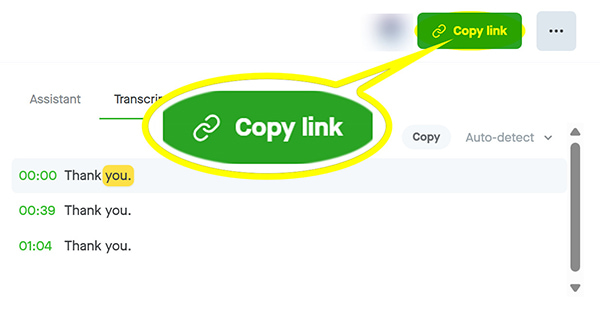
Once all the edits are done, you can copy the share link and paste it into Slack, send it in an email, or embed it on your site.
Kommodo Alternative: Why AnyMP4 Screen Recorder Is a Safer Choice
Kommodo is great for quick browser screen-recording guides, but it has clear limits. It fails if your internet is unstable, it cannot handle fast PC games, and it stops at 1080p. Besides, the AI tool is slow to use. When you need a smooth recording performance, a dedicated local desktop program is much better.
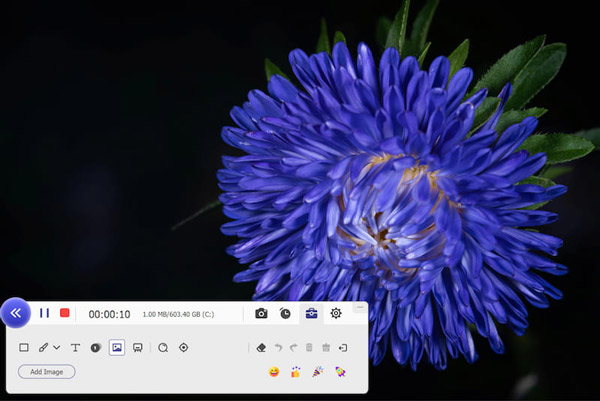
AnyMP4 Screen Recorder is a true local-first app for Windows and Mac. It writes raw video files straight to your local hard drive in real time, so a server crash will never ruin your recording. It provides you 7 capture modes: Video Recorder, Audio Recorder, Game Recorder, Window Recorder, Webcam Recorder, Phone Recorder, and a Screenshot tool. The app also makes it simple to record audio from computer system feeds and microphones at the same time. You never deal with the annoying voice echoes or out-of-sync audio that plague cloud tools. Students and remote workers can also rely on it as a steady lecture recorder for long webinars that last hours.
Gamers will appreciate that it acts as a lightweight game recorder for PC that captures 60 fps gameplay without dragging down graphics performance. That makes it the best Kommodo alternative and a dependable screen recorder for Windows with editor when you want reliable software that works completely offline.
| Kommodo (Kommodo Decks) |
VS |
AnyMP4 Screen Recorder |
| Free (15 videos) / $9 to $15 per month |
Price |
Free trial / Affordable one-time or subscription options |
| Desktop app (Win/Mac), Chrome, Web, Mobile |
Platforms |
Windows 11/10/8/7, macOS |
| Yes (Main feature) |
AI SOP Guide Maker |
No (Focuses on high-res capture) |
| Screen, Webcam, Meetings |
Recording Modes |
7 modes: Video, Audio, Game, Window, Phone, Webcam, Snapshots |
| 1080p |
Max Export Quality |
Up to 4K UHD (Lossless quality) |
| Cloud editor to cut clips and voice |
Video Editor |
Real-time drawing, trim, merge, compress, convert |
| Basic mobile app |
Phone Mirroring |
Yes (Mirror & record iPhone or Android on PC) |
| No (Requires cloud pipeline to process) |
Works Offline |
Yes (Runs 100% locally on your computer) |
| None |
Watermark |
None on paid version |
| Fast team guides and browser walkthroughs |
Best For |
Sharp tutorials, PC gaming, saving meetings, local work |
FAQs About Kommodo Screen Recorder
Is Kommodo (Kommodo Decks) free?
Yes. The free plan lets you store 15 videos. You can make SOP guides and record long clips without paying money.
Does Kommodo have a desktop app?
Yes. You can install the desktop software for Windows or Mac directly from Kommodo.ai/download, or stick with their Chrome extension.
Does Kommodo add a watermark?
No. Your videos stay completely clean on both the free and paid plans.
How many videos can I record on the free plan?
You can keep up to 15 videos in your account. Once you hit 15, you must delete an old one or pay for the Pro plan.
What is Kommodo Guides / SOP generation?
It is a tool that watches your mouse and keyboard while you record. It takes screenshots and writes out numbered steps so you do not have to write them yourself.
Is Kommodo better than Loom?
It depends on what you want. Kommodo gives you unlimited recording time on its free plan and writes steps for you. Loom runs smoother and crashes less often.
Can Kommodo record meetings?
Yes. You can link your Google Calendar so it joins your video calls and grabs the presentation.
Is Kommodo safe and reliable for business use?
It uses standard web safety protocols. But since it sends all your video data to cloud servers, teams with strict privacy rules might prefer saving files locally on their own computers.
What is the difference between Kommodo Decks and Kommodo?
They are the exact same app. The creators shortened the name to Kommodo to show that the tool does more than just make slides.
What are the best Kommodo alternatives?
If you want an offline desktop tool, AnyMP4 Screen Recorder is the best pick. If you compare Kommodo vs Camtasia, Camtasia has way more video editing tools, but it costs a lot more money and takes longer to learn.
Can I download my Kommodo recordings or are they link-only?
You can download your videos as MP4 files directly to your computer on both the free and paid plans.
Final Verdict: Is Kommodo Screen Recorder Worth It?
Kommodo gives you a lot of value for zero dollars. If your job involves showing coworkers how to use websites and apps, its automatic step-by-step guides will save you hours of boring typing.
However, even with its desktop app, it still relies on remote cloud processing. The 15-video storage limit, occasional upload stalls, and lack of offline 4K recording mean it cannot do every job. If you want a dependable recorder that saves clean 4K video straight to your computer without relying on the internet, AnyMP4 Screen Recorder is the safer tool to buy.



 Add your comments to join the discussion here