Invert Cam in OBS: 4 Fixes for Upside-Down & Mirrored Webcam
Summary
Right-click the source, go to Transform, and select Flip Horizontal or Flip Vertical to flip the camera in OBS. Rotate 90° and change the canvas resolution to 1080x1920 to set up the vertical video. If it’s upside down or backward everywhere, fix the camera orientation or app source settings first.
I open OBS before a stream and notice something wrong. My face looks mirrored, and the text on the sign behind me is backward. How do I fix it?
An upside-down or mirrored camera is the most common concern on the OBS forum. If you need to flip camera in OBS, you can fix it in the Transform menu. To turn the flip webcam OBS source 90 degrees, OBS also provides rotation controls. This post shows how to invert cam in OBS and how to mirror OBS camera. We will also cover what to do when the OBS camera is upside down across all apps.
Fix 1 (Recommended): Flip Your Camera in OBS - Flip Vertical & Flip Horizontal via the Transform Menu
OBS doesn’t have a flip button or a mirror filter to correct a camera orientation. So, how to flip the camera in OBS? The Transform menu, accessed by right-clicking the source, contains options to flip the camera vertically or horizontally.
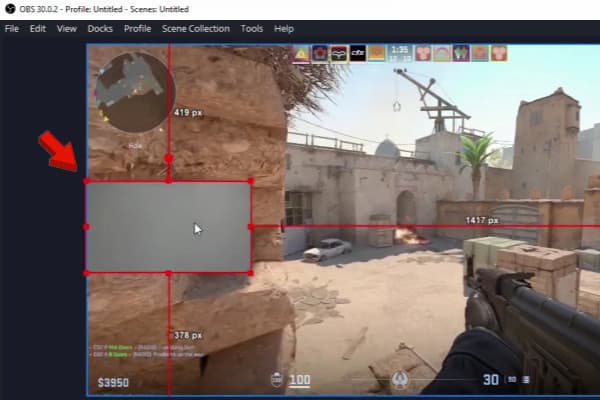
1. Go to the Sources panel and click your webcam source. A red outline appears around the camera in the preview.
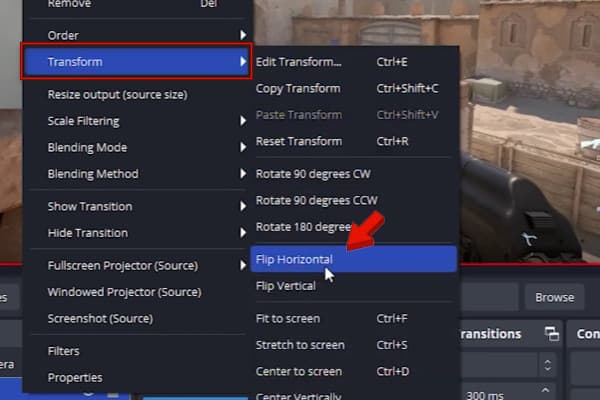
2. Right-click the webcam source and click Transform. Select Flip Vertical when the image is upside down or use Flip Horizontal to fix a mirrored camera.
Note
If you record Zoom meeting while using OBS as a camera, Zoom mirrors your self-view by default. But from the participants' perspective, they see the correctly mirrored OBS feed.
Fix 2: Rotate Your Webcam 90° or 180° with Edit Transform - Vertical Video Setup
Aside from horizontal and vertical flipping, you can also rotate the OBS vertical video webcam 90 degrees. The Transform menu’s presets also include Rotate 90° CW/CCW, Rotate 180°, and Edit Transform (Ctrl+E).
1. Right-click the source and head to Transform. Choose Rotate 90° CW, Rotate 90° CCW, or Rotate 180° to adjust the rotation.
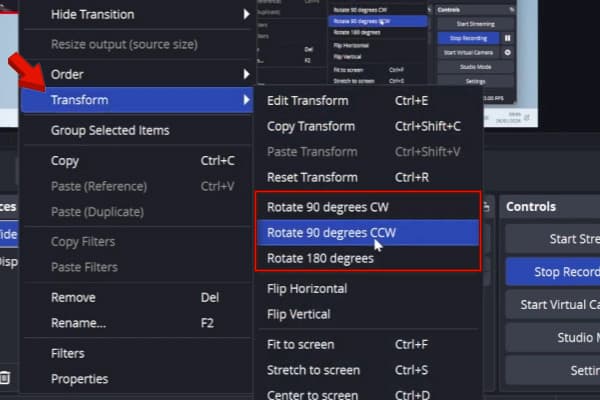
2. Select Edit Transform (Ctrl+E) from the Transform menu to accurately set the angle. Manually enter a degree value or adjust the alignment to your preference.
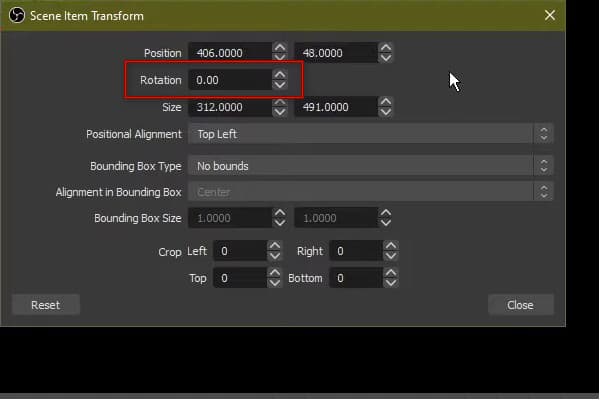
Note
Rotating the webcam alone isn’t enough for portrait footage. Vertical videos should also need the canvas resolution set to 1080×1920 portrait.
Fix 3: Fix the Upside-Down Camera at the Source - Windows Rotation, Logitech Capture & Physical Mounting
Why is my camera upside down in OBS and Zoom? Sometimes, OBS is nott the problem. It might be your camera, driver, or mount. The camera's physical mounting, driver, OS settings, or webcam software might be controlling the orientation.
Windows Camera Rotation (System Level)
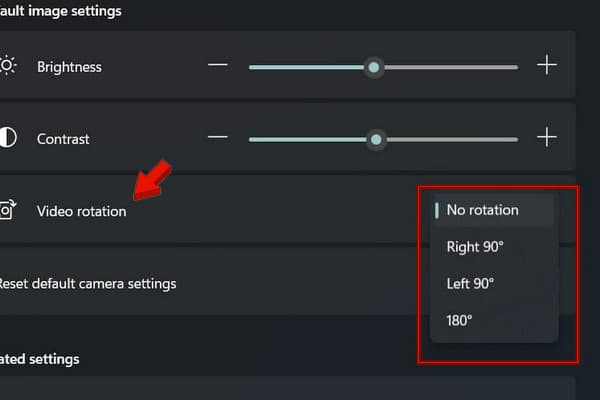
Go to Settings, click Bluetooth & devices, and select Cameras. Under Connected cameras, select your webcam source and click the Video rotation option. Select a rotation (Right 90°, Left 90°, or 180°) that corrects your image.
Manufacturer’s Software (Driver Level)
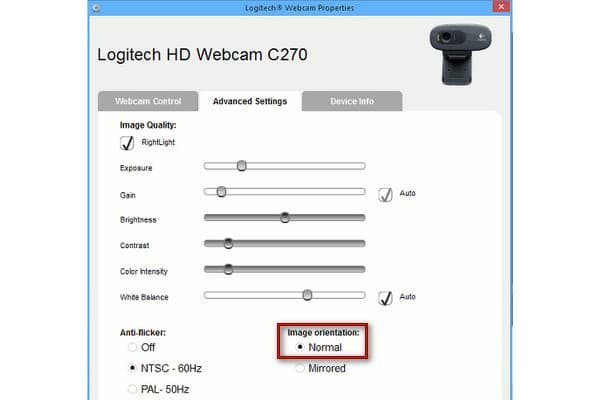
Open Logitech Capture and select the webcam source. Go to Advanced Settings and set Image Orientation to Normal.
Physical Mounting Adjustments
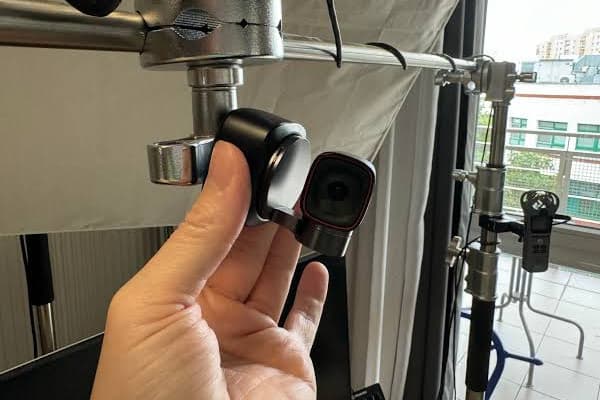
Sometimes, a camera is upside down because of how it is physically mounted. If the webcam is attached upside down to a boom arm, tripod, or rig, rotate the camera physically.
Fix 4: Record Webcam + Screen in One Click with AnyMP4 Screen Recorder
AnyMP4 Screen Recorder is a multi-source capturing software that features a 7-in-1 recording mode. AnyMP4 can record webcam and screen, webcam alone, or overlay webcam on a screen recording as a picture-in-picture (PIP). You can also adjust the recording resolution and adjust the system sound and microphone input volumes. It also provides a built-in Rotation feature that lets you adjust the camera orientation before recording.
1. Download AnyMP4 Screen Recorder and complete the installation.
After setup, select Webcam Recorder for webcam-only recording. But if you want to overlay a webcam on a screen recording, stay in the Screen Recorder mode.
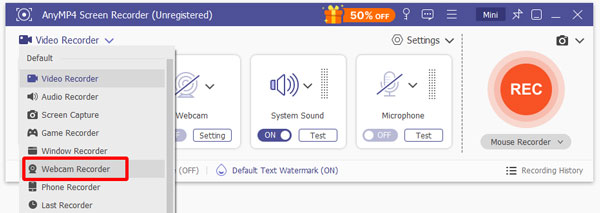
2. In the Webcam Recorder window, set your webcam source. Pick your Resolution (up to 4K) and adjust the volume for the system sound and microphone.
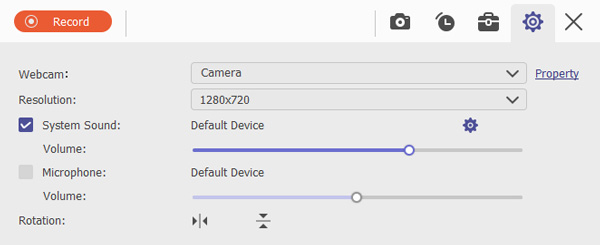
3. Click Record to record webcam. Once you’re done with the recording, click the Red Square button to end. Review it and trim the recording if needed.
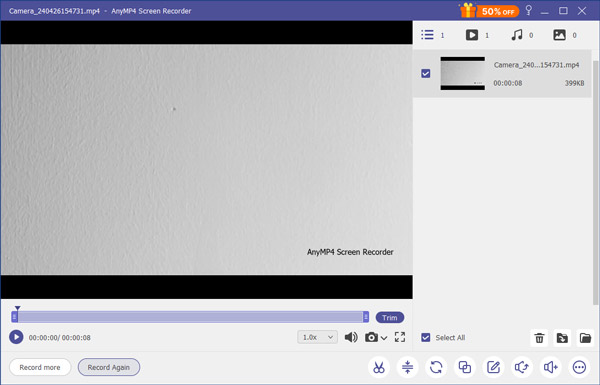
AnyMP4 Screen Recorder doesn’t require building scenes, filters, or a virtual camera. This tool records the camera signal as-is. It guarantees a perfect recording, as you can configure the orientation, resolution, and volume levels before recording.
Flip Horizontal vs Mirror: Why Your Text Looks Backward (And Who Actually Sees It)
If the camera looks normal but the text appears backward, the camera is mirrored. The usual fix In OBS is the Flip Horizontal in the Tranform menu. The confusing part is that the OBS camera mirror describes the result, whereas Flip Horizontal is the OBS command that produces it.
| What you see |
What it means |
| Upside-down image |
Image is vertically inverted |
| Text appears backward |
Image is mirrored left-to-right |
| The camera is turned sideways |
Image needs rotation |
| Looks mirrored only in the preview |
The viewing app might be showing a self-view |
Who actually sees the mirrored image?
A common source of confusion is the difference between preview and what other people see. Video conferencing tools mirror your self-view so it feels like looking into a mirror. Meanwhile, other participants may see a non-mirrored image.
Why Is My Camera Upside Down in OBS? 3 Real Causes (And When OBS Isn't the Fix)
Three causes account for most upside-down webcam situations:
1. Physical mounting: The camera is installed upside down on a boom arm, tripod, or overhead rig.
2. Camera or driver settings: The image is rotated by the webcam utility or by supported Windows camera settings before being received by OBS.
3. Phone or capture-device orientation: A phone-as-webcam app or HDMI capture setup delivers a rotated signal.
FAQs About Flipping & Inverting Your Camera in OBS
Why is my camera upside down in OBS, and will Flip Vertical fix it permanently?
Camera appears upside down because the webcam driver is sending incorrect orientation data. Using Flip Vertical can fix how it looks permanently for that scene.
Is Flip Horizontal the same as mirroring my webcam in OBS?
Yes, Flip Horizontal is the exact tool in OBS Studio used to mirror your webcam feed from left to right. When you apply Flip Horizontal, it reverses the video horizontally. If you have completed the recording, then you can flip the video recording file with an editor program.
Does flipping a source in OBS also flip the OBS Virtual Camera output in Zoom, Meet, or Teams?
Yes, flipping a source directly flips the OBS Virtual Camera output sent to Zoom, Meet, or Teams. The OBS Virtual Camera streams the exact canvas content shown in your OBS preview window.
Conclusion
Power users invert cam in OBS using Transform. If you’re new to OBS, use Flip Vertical when the image is upside down and Flip Horizontal to fix a mirrored camera. You can also rotate to 90° CW/CCW, Rotate 180°, or use Edit Transform (Ctrl+E) to adjust the canvas for portrait video. If you find OBS setup time-consuming and only need a simple webcam and screen recording, AnyMP4 Screen Recorder offers an easier approach. It can capture the webcam or overlay it on the screen recording with a single click.



 Add your comments to join the discussion here