PotPlayer Review: The Lightest Free Windows Media Player, Hands-On Tested
Quick answer:
PotPlayer is a free player for Windows. In my Windows 11 test it opened a 4K HEVC file at 120 Mbps. CPU stayed near 3.8% with hardware decoding on. It even ran on an eight-year-old laptop with an Intel i5-8265U. Is it safe? Yes, if you get it from the official site. Some 2019 builds added extra software. The player also showed ads in the corner. Wikipedia says both stopped by 2021. Two limits matter. It runs on Windows only. It can open a Blu-ray folder or an ISO file. But it cannot show Blu-ray menus. And AACS 2.0 copy protection is out of reach. For real discs you want a dedicated player. AnyMP4 Blu-ray Player is the one I use.
PotPlayer is a free player for Windows. It is small. It is fast. And it plays almost anything without extra codec packs. It stays quick on old hardware too. Its subtitle engine can translate text as it plays. I moved my whole library over to PotPlayer to see how it holds up. If you only play plain MP4 files and you never open the settings, VLC already does that job. You can stop reading here. But if you want a light player where you can change every hotkey, load custom shaders and translate foreign speech while you watch, keep going. This is my hands-on review of PotPlayer. I will show you where it wins, and where discs stop it.

How We Tested PotPlayer
Tested by: me, over three weeks. Two Windows PCs, one of them eight years old.
Main rig: Windows 11 Pro 24H2, Core i9-14900K, GeForce RTX 4070 Ti Super, 64 GB DDR5-6400, Samsung 990 Pro 2 TB, 1440p 240 Hz panel.
Low-end rig: a used Dell Latitude 5490, Core i5-8265U, 8 GB DDR4, Intel UHD 620.
Player build: PotPlayer 1.7.23121 (26.08.19.0).
For this PotPlayer review I moved my whole local library off VLC for a month. PotPlayer won me over on two things, subtitle handling and hardware decoding, and it lost me on exactly one: the settings menu is enormous, and I spent the first week hunting for toggles that other players put on the front screen. If you only ever open the occasional MP4, VLC already does that and you can stop reading here.
Is PotPlayer Worth It in 2026? The 30-Second Verdict
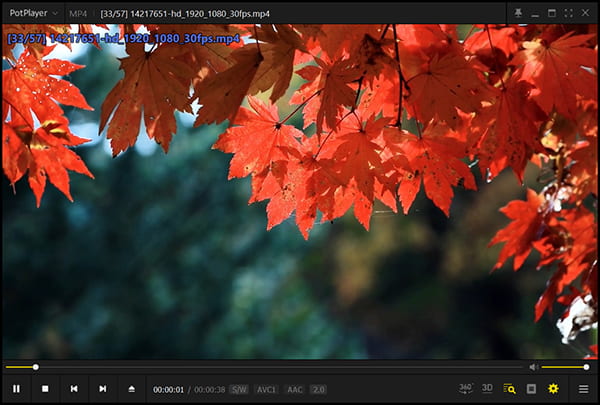
PotPlayer is a free Windows media player made by Kakao, the Korean company behind KakaoTalk. It carries its own decoder stack (FFmpeg plus an optional Open Codec pack), so you can throw almost any container at it without installing a codec pack.
Here is our scorecard. We weighted what a player is actually bought for, which is why the disc score drags the total down.
| Dimension |
Weight |
Score |
| Format and codec coverage |
25% |
9.2 |
| Hardware-accelerated playback |
25% |
9.3 |
| Feature depth (subtitles, customization) |
20% |
9.4 |
| Interface and learning curve |
15% |
7.1 |
| Disc and DRM support |
15% |
2.4 |
| Weighted total |
100% |
7.9 / 10 |
The one reason to switch: subtitle rendering and hardware decoding at this level cost nothing, and no free player matches its depth of settings.
The one reason not to: if your media lives on Blu-ray or DVD discs, PotPlayer is the wrong tool for the second half of your library.
PotPlayer 2026: Latest Build, License and What Actually Changed
The current PotPlayer 2026 version is 1.7.23121, from August 20, 2026. The build number is 26.08.19.0. A beta, 1.7.23135, appeared in early October. The installer is about 34 MB. The app ships in 33 languages.
PotPlayer is freeware, not open source. There is no public code audit. One vendor ships the security fixes.
What changed in the 2026 builds, from the official changelog:
- • 260811: you can now move the double-click zones. Custom live-stream URLs. Playlist sorting by release date.
- • 260626: the Kakao TV+ module is gone. Drag-to-pause is new. Bug fixes came with it.
- • 260116: added APV decoding and better subtitle encoding. Live-stream subtitle desync got a fix.
A native ARM64 build arrived in mid-2026. It runs on Windows on ARM devices.
The player started out as Daum Live. Its lead developer also wrote KMPlayer.
Is PotPlayer Safe? The Ads and Bundle Question, Answered with Sources
"Is PotPlayer safe to download" is the phrase that sends people to Reddit. So let us use dates, not vibes.
What happened?
In 2019, some installers bundled extra software. The player showed corner ads too. VideoHelp still has a thread from that time, titled "PotPlayer now Adware!". Two details get left out. The installers let you opt out. And per Wikipedia, both stopped by 2021.
Where the real risk is. Not in the official installer. It is in repacked builds. Some mirrors wrap the installer with their own downloader. Others swap in a modified file. If a page tells you to turn off your antivirus, close the tab.
How to check a download in 30 seconds:
1. Use potplayer.tv or the Microsoft Store.
2. Check the signature in Properties. It should say Kakao Corp.
3. Compare the file size. The official 64-bit build is about 34 MB.
Verdict: safe from the official source. The only catch is the 2019 to 2021 window. Three weeks on my main PC with Defender on, and no alerts.
The Standout Feature: Real-Time Subtitle Translation and PotPlayer's Subtitle Engine
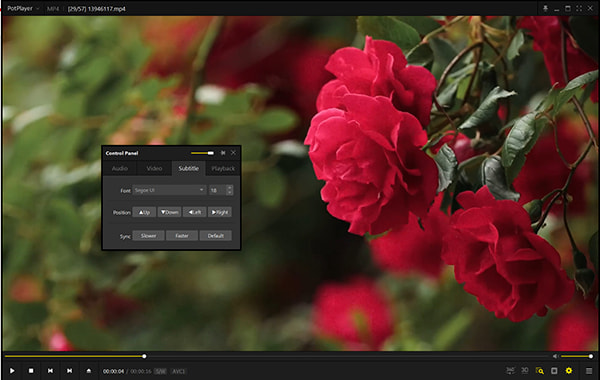
Most free players put subtitles on the screen and stop there. PotPlayer draws them properly.
It loads SRT and ASS files. ASS styling stays intact. Encoding is handled per file. That matters for old CP949 or GBK releases. One hotkey shifts the timing. A 300-line ASS file loaded in 1.2 seconds. The fonts and karaoke tags came through intact.
One feature no other free player has is live subtitle translation. Search traffic calls it PotPlayer live subtitle translation. The player writes captions as the file plays. A translation service renders them live. A film without subtitles gets translated captions.
Two warnings. It is not a replacement for real subtitles. It gets names wrong. It struggles with fast dialogue. Clean the output before you publish it. It is also young. Kakao was still fixing a live-stream desync bug in January 2026. So treat it as a shortcut, not a service.
Playback Performance Tested: 4K, 3D and Low-End Hardware
Hardware decoding is why people pick PotPlayer. So we toggled it on and off.
Test file: 4K UHD HEVC 10-bit, 3840x2160 at 60 fps, 120 Mbps.
| Configuration |
Average CPU |
Peak CPU |
Dropped frames |
| Hardware decoding on (DXVA2) |
3.8% |
5.1% |
0 in 30 min |
| Hardware decoding off (software) |
22.4% |
31.7% |
14 in 3 min |
With hardware decoding on, GPU load sat at 27%. Memory use with a 4K file was 218 MB. VLC 3.0.24 used 268 MB on the same file. Cold start took 0.8 seconds. A seek to 1:47:12 landed in 96 ms.
Windows 11 has no built-in HEVC decoder. A fresh install can error out. Add the Microsoft extension to fix it. See our list of the best HEVC players for Windows and Mac. It runs the same 10-bit 4K file through eight apps.
3D Playback Support
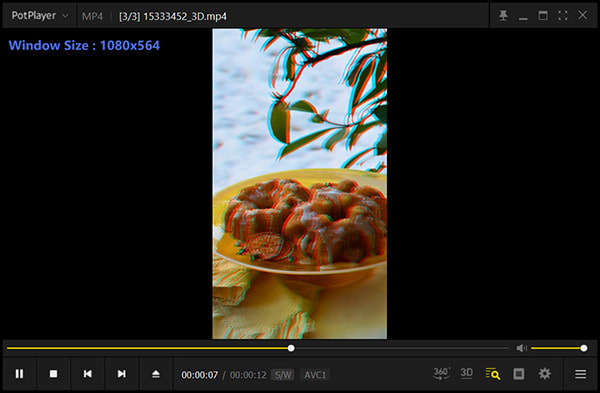
A 3D Blu-ray ISO converted to side-by-side in real time. GPU load held at 41%. CPU stayed at 9.4%. That was the 4070 Ti Super. Most free players refuse this job. See our guide to the 3D video players without glasses. It compares anaglyph, side-by-side and top-bottom output.
Low-end Hardware
On the eight-year-old Latitude, a 1080p H.264 file opened in 2.3 seconds. CPU stayed at 8.1%. A 4K HEVC file at 45 Mbps held 60 fps at 61% CPU. The UHD 620 only partly handles HEVC. An 8K AV1 file broke it. It dropped 63 frames in two minutes. Audio ran 220 ms behind. So the 8K claim needs a modern GPU. On the 4070 Ti Super the same file ran at 6.2% CPU and 44% GPU.
Hardware Decoding
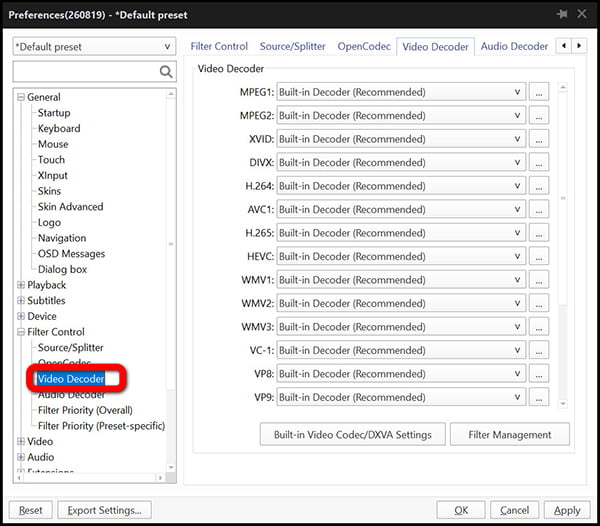
Hardware decoding is not on the main screen. You have to dig into F5 > Filter > Video Decoders. The dropdown only names DXVA after you expand it. The default is Auto, and that usually works. After the 26.08.19 update my saved preset reverted. The player fell back to software decoding on the first file I opened. That cost me one wasted test run.
PotPlayer vs VLC vs MPC-HC vs mpv: Which Free Windows Player Should You Choose?
| Dimension |
PotPlayer |
VLC |
MPC-HC |
mpv |
AnyMP4 Blu-ray Player |
| Category |
Free player |
Free player plus tools |
Free minimal player |
Free player, scriptable |
Commercial disc player |
| Platform |
Windows only |
Win, Mac, Linux, mobile |
Windows |
Win, Mac, Linux |
Windows and Mac |
| Price |
Free |
Free |
Free |
Free |
Paid, free trial available |
| Open source |
|
|
|
|
|
| Hardware acceleration |
(DXVA, CUDA, QuickSync, NVDEC) |
|
|
|
(GPU) |
| Subtitle engine |
Excellent (ASS styling, sync, live translation) |
Strong |
Basic |
Scriptable |
Standard |
| Live subtitle translation |
|
|
|
|
|
| Customization |
Extensive |
Limited |
Minimal |
Config file driven |
Standard |
| 3D playback |
Yes, including 3D BD ISO to SBS |
Limited |
Limited |
Limited |
|
| Blu-ray disc with menus |
Folder or ISO only, no menus |
Partial, no menus |
|
|
Full disc, folder and ISO with menus |
| Region-free and DRM |
|
Playback tricks only |
|
|
Regions A/B/C, DVD 0-6, AACS 2.0 and BD+ |
| Best for |
Windows power users who tune their setup |
Cross-platform everyday playback |
Minimalists running K-Lite |
Keyboard-driven experts |
Blu-ray and DVD discs with menus |
So which one do you pick? For the usual PotPlayer vs VLC choice, it comes down to two things. PotPlayer is lighter. You can change far more. VLC runs everywhere. You can check the code. PotPlayer vs MPC-HC is an older split. MPC-HC is a bare engine, and it leans on K-Lite for codecs. PotPlayer ships its own decoders and its own subtitles. Would you rather edit a config file than click a box? Then mpv is your pick.
Where PotPlayer Stops: Can PotPlayer Play Blu-ray, and Where It Gives Up
The short answer to can PotPlayer play Blu-ray is yes, but only halfway. Let us be precise.
It opens a Blu-ray folder or an ISO image. It finds the main .m2ts stream and plays it. Bitmap subtitles show up. You can switch audio tracks inside the stream. For a homemade disc, that is often enough. Same for an unprotected backup.
PotPlayer stops at discs. This is where AnyMP4 Blu-ray Player takes over:
- • Blu-ray and DVD discs, folders and ISO files. Full menu navigation and track selection.
- • Region-free: Blu-ray A, B, C and DVD 0 through 6.
- • Copy protection: AACS 2.0 and BD+. Protected commercial discs need both.
- • 4K UHD Blu-ray at 3840x2160 for H.265. Disc, folder and ISO playback all work. One note: the 8K figure means video files, not discs.
- • AI Super Resolution. It sharpens a 1080p disc toward near-4K in real time.
- • Audio passthrough for Dolby, DTS, DTS-HD, TrueHD and Atmos. Output runs 5.1 and 7.1.
- • Windows and macOS. PotPlayer is Windows only.
How to Use PotPlayer: 6-Step Setup for First-Time Users
This walkthrough covers how to use PotPlayer from a clean install to a tuned setup.
1. Download from the official source. Go to potplayer.tv and take the 64-bit installer for a modern PC, or the ARM64 build if you run Windows on ARM. Skip every mirror that offers a "faster" download.
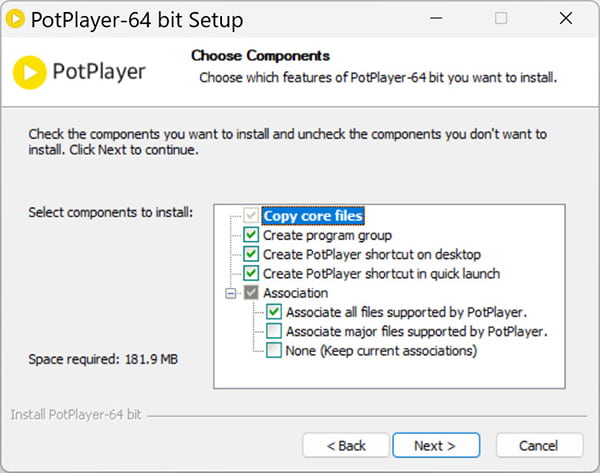
2. Install and check the extras. Run the installer. Pick your language. Read the optional-components screen before you click Next. Current builds are clean. But the check takes four seconds, and it is the step that catches a repacked installer.
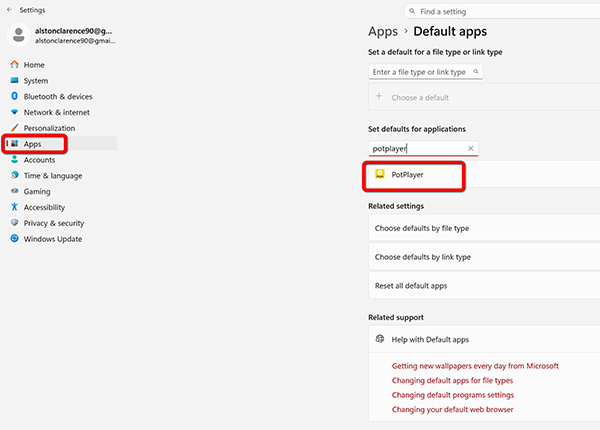
3. Make it your default player. Press F5 and open the Association tab, or use Windows Settings > Apps > Default apps. If you want PotPlayer only for video, associate the video formats and leave music alone.
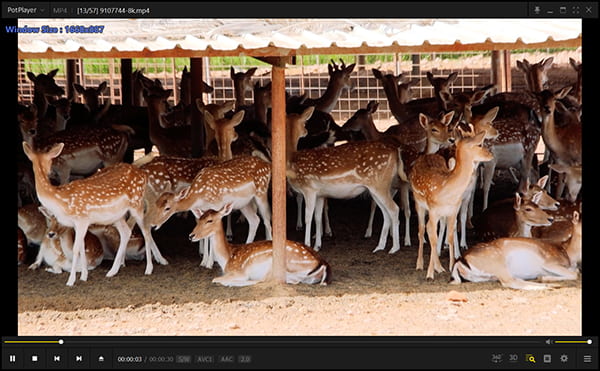
4. Open your media and build a playlist. Drag a file onto the window. Or press F3 to open a whole folder as a playlist. The August 2026 build added sorting by release date. That is handy for TV series and film collections.
5. Turn on hardware decoding. Go to F5 > Filter Control > Video Decoders. Open the hardware accelerator dropdown. Pick DXVA2, or your GPU maker's option (NVDEC for NVIDIA, QuickSync for Intel). Click Apply. Then play a 4K file and watch the CPU number drop.
If 4K and HDR are the main reason you are choosing a player, this comparison of 4K video players for Windows and Mac lists which ones actually ship AV1 decoding, HDR tone mapping and level-5 GPU acceleration, and which only claim to.
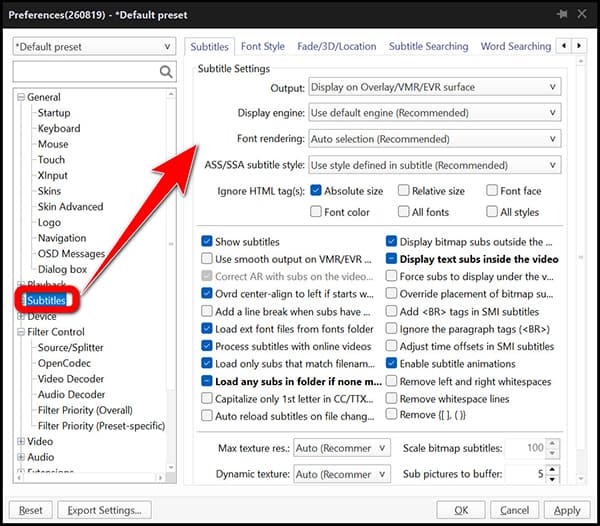
6. Set up subtitles. Go to F5 > Subtitles. Set the size, the position and the character encoding. Drag an SRT or ASS file onto the window to load it. If it drifts, use the timing hotkeys to shift it. Real-time translation lives in the same panel. The first time you turn it on, it asks you to pick a translation route.
Who Should Use PotPlayer, and Who Should Skip It
Install it if:
- • You play local files on Windows and you care about subtitle quality.
- • You want to tune the decoder, the renderer and the hotkeys yourself.
- • You use older hardware and need software that stays out of the way.
- • You want free, and you do not need Mac or mobile support.
Skip it if:
- • You need macOS, Linux, Android or iOS. Use VLC, IINA or mpv.
- • You play Blu-ray or DVD discs with menus, or protected commercial discs.
- • You want a player that works without any setup at all. PotPlayer rewards tinkering and punishes impatience.
- • You need someone to audit the source code. It is closed-source freeware.
FAQs
Is PotPlayer safe to download and use?
Yes, if you get it from the official site. Installers from 2019 bundled extra software. Ads showed up in the corner too. Wikipedia says both stopped by 2021. The real risk is a repacked installer from a random site. So check the Kakao signature and the file size before you run anything.
Does PotPlayer have ads?
No. Current builds carry no ad panel. The corner ads people remember came from versions released between 2019 and 2021, and they are gone in every build since.
Is PotPlayer better than VLC?
For Windows and for subtitles, yes. It is lighter. Its hardware decoding path has more options. And its subtitle engine handles ASS styling and live translation, which VLC does not. VLC wins on two things. It runs on more systems, and you can read the code. If you switch between Windows, Mac and Linux, VLC is the safer single install.
Can PotPlayer translate subtitles in real time?
Yes. It can generate subtitles from the audio and route them through a translation service while the file plays. It works for content with no subtitles available, but the accuracy is below a human translation and the output needs editing before publication.
Is there a PotPlayer portable version?
Yes. A portable build has been published alongside the regular installer for years, shipped as a 32/64-bit online installer you can run from a USB drive. Two caveats: it does not register file associations, and the first run needs a connection while it pulls down the codec components.
Is PotPlayer available for Mac?
No. PotPlayer is Windows-only, with a native ARM64 build for Windows on ARM. Mac users should look at VLC or IINA for file playback, and at AnyMP4 Blu-ray Player for discs.
Is PotPlayer free?
Yes. It is freeware, which means free to use but not open source.
Can PotPlayer play 4K, HEVC and 8K files?
Yes. Our 4K UHD HEVC 10-bit file at 120 Mbps played at 3.8% CPU once DXVA2 hardware decoding was on, and an 8K AV1 file held 6.2% CPU and 44% GPU on the RTX 4070 Ti Super. The limit is the hardware, not the player. On an eight-year-old laptop with Intel UHD 620 graphics the same 8K file dropped 63 frames in two minutes and drifted 220 ms out of sync, because that chip family has no AV1 decoder at all.
Conclusion: Which Player Should You Install?
PotPlayer is still the lightest good player for Windows. It is fast. It barely touches your CPU. And you can change almost everything in it.
- • You watch local MKV and MP4 files on Windows? Then PotPlayer is for you. You like to tweak your setup? Keep it as your main player.
- • Your movies live on Blu-ray or DVD discs? You need another tool. PotPlayer cannot show disc menus. It cannot play region-locked or AACS 2.0 discs either. AnyMP4 Blu-ray Player can. It handles discs, folders and ISO files. And it runs on Windows and Mac.





 Add your comments to join the discussion here