
Quick Summary:
You double-click an old family video or a movie download, only for QuickTime to tell you the file is ‘not compatible.’ Even in 2026, macOS doesn’t natively support the aging AVI (Audio Video Interleave) container because it relies on video codecs Apple has moved away from. This guide shares 3 reliable methods to play AVI on Mac, fully compatible with Apple Silicon M1/M2/M3/M4 chips.
You double-click an old family video or a movie download, only for QuickTime to tell you the file is ‘not compatible.’ Even in 2026, macOS doesn’t natively support the aging AVI (Audio Video Interleave) container because it relies on video codecs Apple has moved away from. In this article, we will provide three methods you can use to solve this problem. Each option will also have a full tutorial to help our readers learn how to play an AVI file on a Mac, even on modern Apple Silicon devices with M1/M2/M3/M4 chips. These options range from third-party media players and converter tools to an unconventional option for playing AVI without converting.

Since AVI files are now considered a dated video format, most of the codecs required to play them have been abandoned by Apple, especially in its QuickTime Player software. With that in mind, the AVI format is now difficult to access on modern macOS computers, prompting the need to learn how to play AVI files on a Mac.
Fortunately, the built-in video player in QuickTime has a limitation that’s easy to bypass, and you can use the methods below to resolve AVI playback conflicts. As a preview, the methods below detail how to use media players, convert to MP4 or MOV, and use QuickLook’s unconventional preview features.
Although QuickTime Player gets the job done for playing most widely supported video files, like standard MP4 and MOV, its limited codec support prevents it from playing more advanced formats like AVI and MKV.
As such, it is advisable to use third-party video player programs that natively support advanced formats, given their more advanced features and equipped codecs. With that in mind, three of the programs listed below function as reliable AVI players.
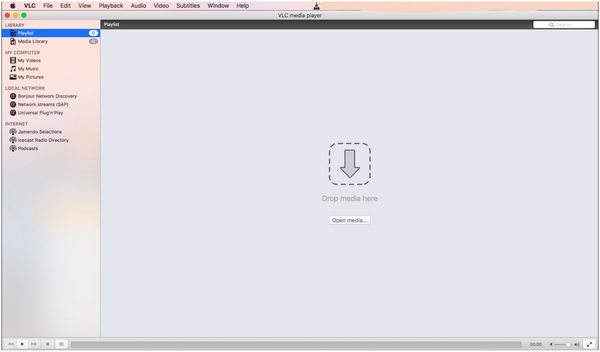
What is considered the industry standard, VLC Media Player is a cross-platform media player software that natively supports AVI formats. In fact, it has an advanced feature designed specifically to repair AVI or MKV videos.
To learn how to open AVI videos on VLC, please read our quick guide below.
1. To open AVI videos in VLC Media Player, open the program, select File on the taskbar, then Open File in the drop-down menu.
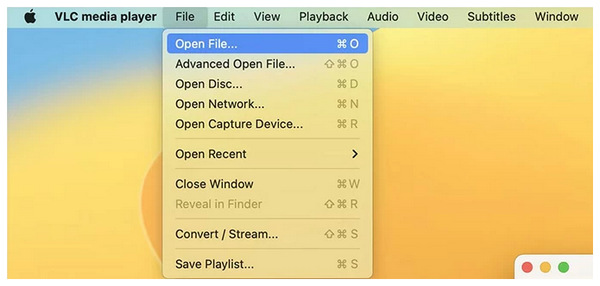
2. Selecting Open File lets you navigate your files. Find the AVI video, click it, and select Open.
To avoid using the Open File option, set VLC Media Player as your default media player so it opens AVI files automatically.
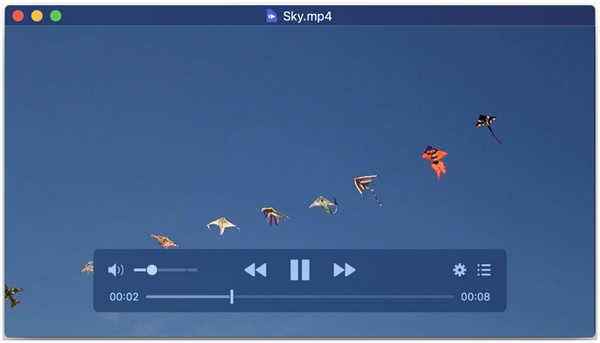
For an alternative modern choice, IINA is a solid option. Unlike VLC Media Player, it is an exclusive macOS app, making it highly optimized for modern Apple Silicon chips. This background also made its native UI fully integrated with Mac, and its Dark Mode is a welcome addition for most Mac users.
1. To open videos on IINA, simply select the Open option in its main menu, navigate through your files to find the AVI video, and then select it.
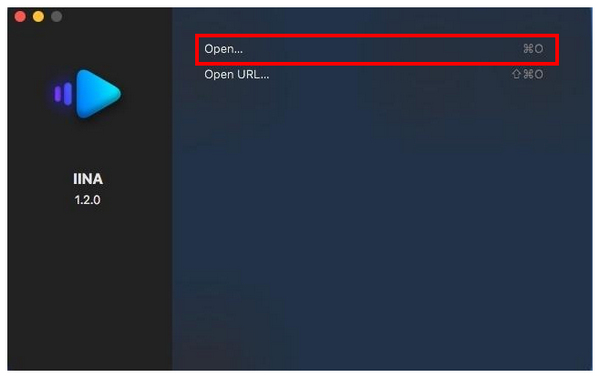
2. With the video selected, click on Open to watch it on the media player.
You can now enjoy the AVI video you have selected with IINA Media Player's modern interface.

Finally, the third software we will present is Elmedia Player, equipped with advanced features, including native streaming support via AirPlay, Chromecast, and DLNA. This makes the video player option a solid choice to bridge the gap between AVI-dated content and modern entertainment.
1. Open Elmedia Player and then select File. Then click on Open to navigate through your files.
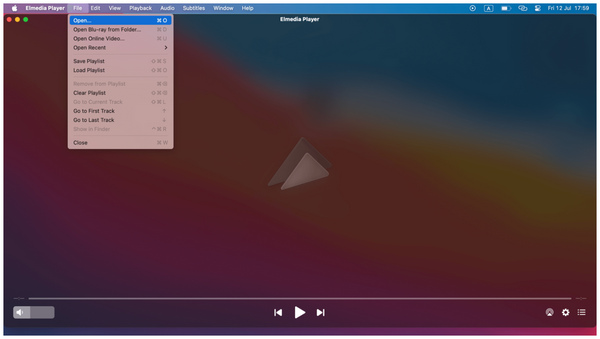
2. Once you have selected your video, click on Open to start watching it in Elmedia Player.
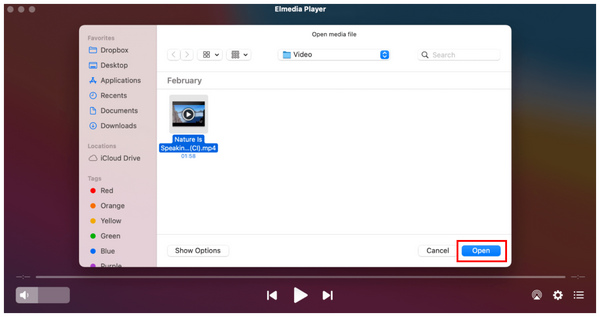
You can now start watching the selected video file back in Elmedia Player’s main player window.
With AVI video players now discussed, the second method we will provide is to use a format converter, such as AnyMP4 Video Converter Ultimate for Mac. Using format conversion, the date-related codecs in AVI videos will be completely resolved, making them playable in QuickTime Player. This also rewrites the AVI’s dated codecs, making it compatible with modern media players.
Fortunately, the tool’s format conversion operates much faster than other multimedia programs because it leverages the capabilities of Apple Silicon’s M1/M2/M3/M4 chips, making it 70x faster than standard performance.
This conversion feature also supports batch processing, and videos processed through it will undergo lossless conversion, ensuring your AVI video retains its original quality. The dated nature of AVI will not be a problem as well, since AnyMP4 Video Converter Ultimate can handle rarely used AVI codecs.
To learn how to use one of the most reliable video format converters for Mac computers, make sure to download AnyMP4 Video Converter Ultimate and read our three-step guide on how to use it below.
Secure Download
Secure Download
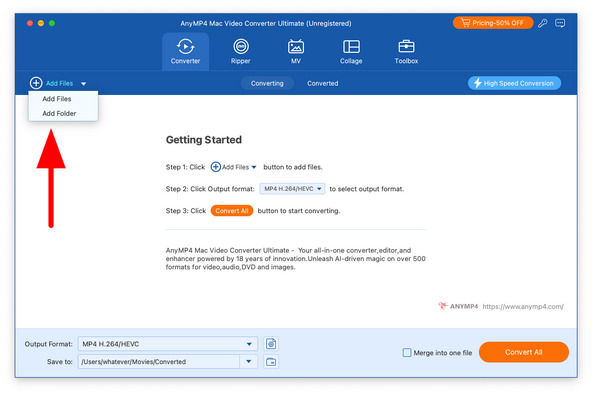
1. Open AnyMP4 Video Converter Ultimate for Mac and select the Add Files button in the Converter tab section of the program. Navigate through your files to find the AVI video you want to convert.
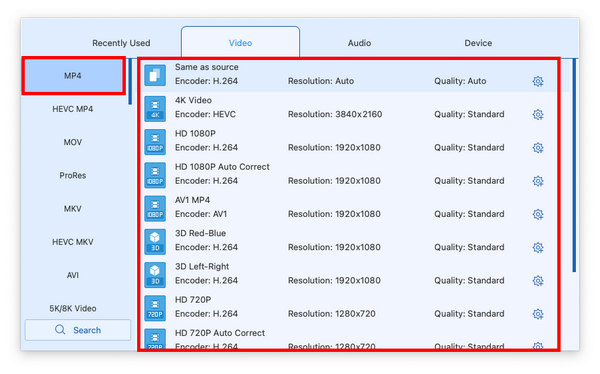
2. With the AVI video now imported, click on the Output Format option to select the conversion profile you want to use.
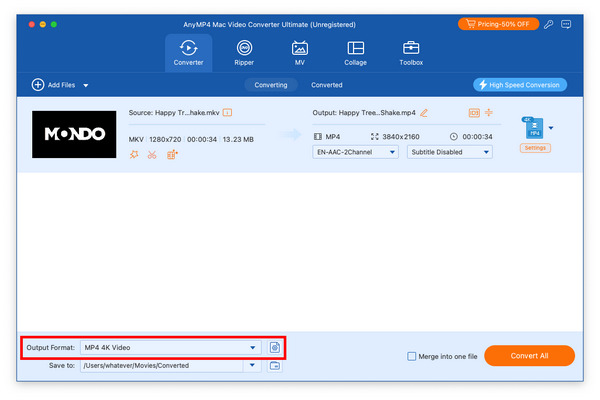
In this tutorial, select the MP4 option. Then, choose the Conversion Profile you want to use.
3. Once you are done setting up the format and conversion profile. You will move back to the Converter tab, where you can click on Convert All to begin the AVI to MP4 conversion process.
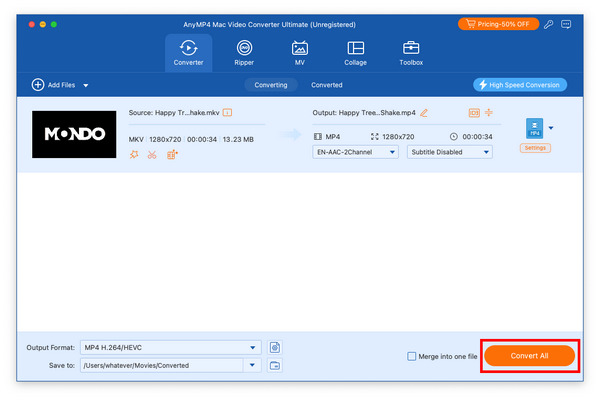
By following this simple three-step guide, you can now watch AVI videos in any media player, including the basic QuickTime Player included with the Mac operating system. This can be solved by simply converting your AVI to MP4 or MOV.
Alternatively, you can also use online format converters such as CloudConvert if you are only dealing with videos smaller than 100MB. Fortunately, this method is easy to use, free, and ideal for one-off format conversions. However, keep in mind that most web-based tools are limited to smaller files only.
To learn how to use CloudConvert for AVI to MP4 conversion, please read our tutorial on how to use it below:
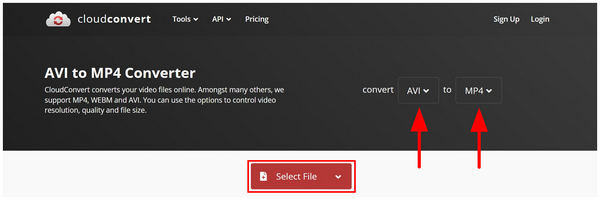
1. Go to the CloudConvert online tool and then adjust the Convert-To buttons to AVI and MP4. Then, click on Select File to import the media file you want to convert to MP4.
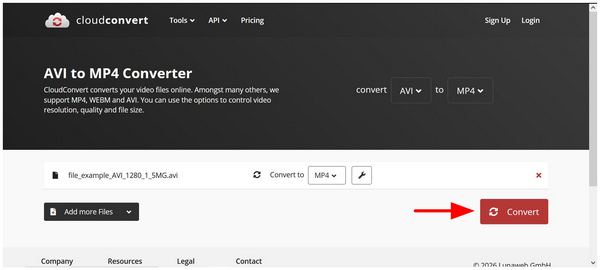
2. With the AVI now successfully imported into the online tool, select Convert to begin the process.
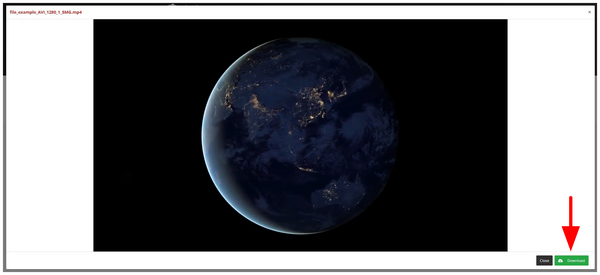
3. Once your video file has been imported, a pop-up preview window will appear on screen. Simply select the Download button on the lower right portion of the menu to save the file to your computer.
Although online tools may be the most accessible, they are extremely limited in security and file size. This makes the software ultimately unreliable if you plan on using it consistently as a professional tool.
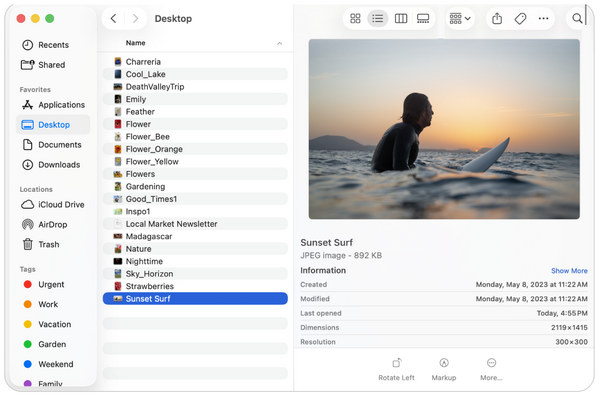
Although AVI files are not playable on QuickTime Player by default, you can still technically watch these videos using the Preview function of QuickLook or Finder. When using QuickLook, you can simply press the Spacebar to watch a quick portion of the AVI file. On the other hand, the Finder app provides a preview window when the AVI file you want to check is selected.
1. Open the Finder app, then go to the location where your AVI video is stored.
2. Select your AVI video. Then, press Spacebar to enable Quick Look Preview.
3. Select the Play button to watch the video preview.
However, this is not a complete playback solution, as some AVI files cannot be previewed with either tool, making it highly inconsistent. Unfortunately, playing unsupported video files in QuickTime Player is only possible with a third-party media player or a multimedia tool that can be used as an AVI converter.
When opening AVI files, you may encounter format corruption and missing codecs. As such, this portion of the article aims to provide basic troubleshooting solutions for these two common problems.
If you are using a third-party media player and the AVI file still isn’t working properly, the codec itself may be at fault. Fortunately, this can be solved by one of our proposed media players with VLC’s built-in Preferences tab, where video codec issues can be fixed.
To learn how to use this feature, read our guide below, which includes screenshots from VLC for Windows. Fortunately, these steps are also available for the macOS version of the program.
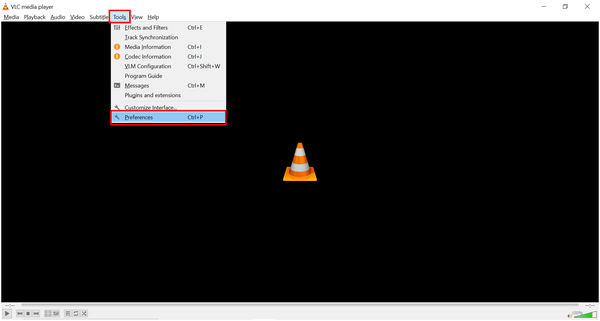
1. Open VLC Media Player, then click the Tools tab. Select the Preferences option on the list.
2. In the settings window that appears, go to the Input/Codecs section.
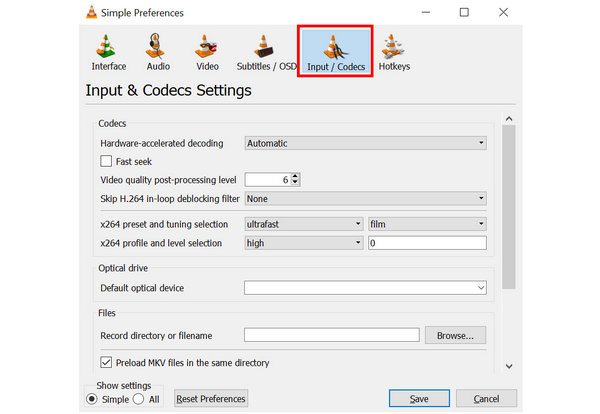
3. Inside Input/Codecs, scroll down and search for the setting labeled “Damaged or incomplete AVI file”. Expand the list of options next to the setting, then select Always fix. Click Save to make sure the setting is saved.
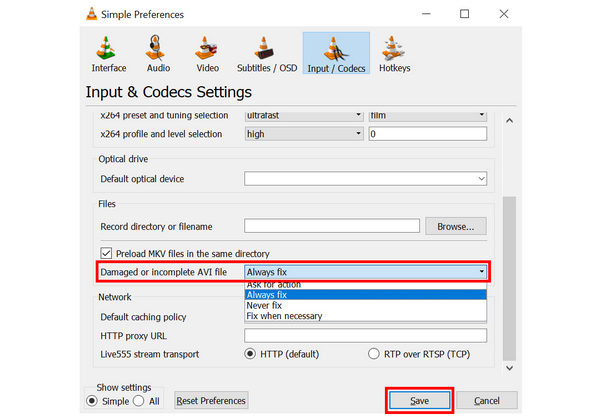
With the Always Fix option set, you can watch AVI videos in VLC without playback issues.
When dealing with missing codec issues, make sure not to download or entertain any Codec Pack option available online. These files are most likely only malware risks, and downloading them on your device may cause it to stop working properly. If you are having trouble with unsupported codecs, it is a smarter solution to use a standalone player with built-in codec support, or to convert your video file.
Can I play AVI on Mac without downloading software?
No, you cannot. AVI is not supported by QuickTime Player on Mac by default. You need to download third-party tools to play it.
Is AVI better than MP4?
No, it is not. MP4 is better in terms of compatibility and quality. MP4 is also modern and has wider support.
Why does my AVI file have sound but no video? (Explain Codec mismatch).
Your AVI may have a codec mismatch. The video encoder may have worked properly. However, the audio encoder is not set properly.
Why is MP4 widely used?
MP4 is popular due to its superb compatibility. It can play on different platforms without any problems. It also has a superb balance of file size and quality.
Can I use AVI for video editing?
Yes, you can. Most video editors support wide format. AVI may be uncommon for video players, but most traditional editing tools support it.
With the methods for playing AVI files on Mac now discussed and reviewed, we hope you won’t encounter any playback issues with these video files going forward. Keep in mind that you can easily use third-party media players to watch these videos, or use format converters like AnyMP4 Video Converter Ultimate to convert them to a modern format.
Secure Download
Secure Download
 Updated by Riley Mitchell to Player
More readings
 How to Convert AVI to MP4 Free Without Watermark
Looking for free ways to convert AVI to MP4? Here are the best free AVI to MP4 converters without watermark for Mac and Windows.
 9 Best Ways to Convert MP4 to AVI with Top 9 MP4 to AVI Converters
How to convert MP4 to AVI for being compatible with more devices? Here are the best 9 ways of converting MP4 to AVI with free & online converters.
 How to Compress AVI and Reduce AVI File Size [2026 New Post]
How to compress an AVI video and reduce its file size? This post shows 2 simple ways to help you reduce AVI file size for better uploading to the internet.
 What to Do If AVI Files Not Playing? Here're Your Smart Solutions
Don't worry if you find your AVI files not playing. You can follow the steps below and repair AVI files back to normal on your Windows or Mac computer.
 Add your comments to join the discussion here