
At a Glance:
If you have ever downloaded a video archive from Wikimedia Commons or an old HTML5 site, you will find it is often the .ogv file. When you try to double-click it to open or edit, your system throws a Format Not Supported error. It's frustrating, right?
This article explains why your OS rejects old web video files and provides the exact tools to bypass the error immediately. Whether you need to figure out what an OGV file is, solve an annoying OGV format not supported pop-up, or find a quick way to play OGV files on Windows 11 and Mac systems, you are in the right place. Figure this out now.
Let's skip the boring history books. To truly understand what an OGV file is, you need to open it up. If you download a free tool like MediaInfo and inspect a real .ogv file, you will see a clear metadata tree:
OGV is open-source, but modern web developers choose MP4 or WebM for better hardware and browser support. Compared to standards like H.264 or AV1, OGV needs a higher bitrate to look okay. You end up with huge files and mediocre picture quality.
Try dropping that old file into QuickTime on a modern Mac running macOS Sonoma, and you will hit a wall. Apple's native player will immediately throw a cold The document could not be opened dialogue box.
If you are trying to figure out how to open OGV files on Mac, you will quickly notice that macOS has completely dropped native support for these legacy formats.
Moving over to a PC brings no relief. If you try to open the file using Windows Media Player on a modern PC, you'll encounter the infamous play OGV file error code 0xc00d5212.
Why does this happen? Both Apple and Microsoft intentionally stripped native OS support for legacy Xiph codecs. They want hardware-accelerated, modern codecs like H.264, HEVC, and AV1 instead. Relying on an old FFmpeg codec pack or random web downloads usually breaks your system registry.
Just want to watch your OGV video right now without messing with settings? Use a player directly, and AnyMP4 OGV Player is recommended. It decodes older Theora and Vorbis codecs right out of the box. No hunting down sketchy codec packs online, and it skips annoying OS blocks in seconds.
How to play your OGV files directly:
1. Launch the Software: Download, install, and open AnyMP4 OGV Player on your Windows PC or Mac.
Secure Download
Secure Download
2. Import Your File: Click the prominent Open File button on the main dashboard. Alternatively, click File > Open File from the top menu bar.
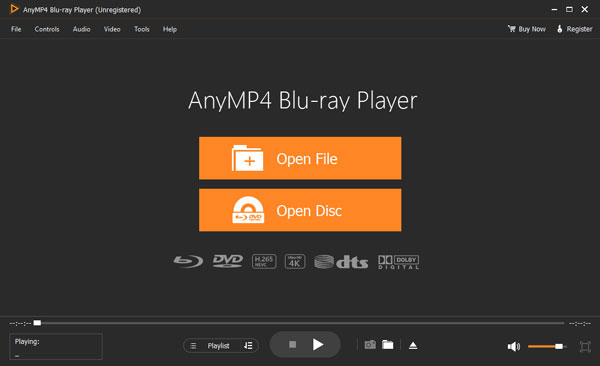
3. Play OGV File
Browse your computer folders, pick your .ogv file, and click Open. The player software will automatically decode the legacy streams and start OGV playback instantly.
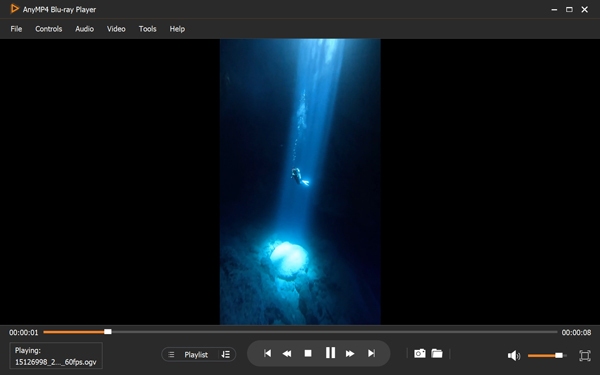
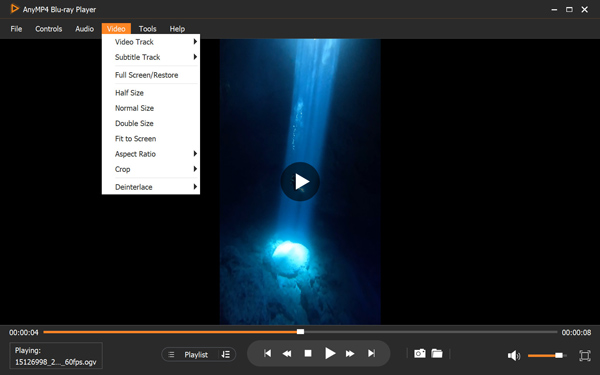
Use the built-in control panel to manage audio tracks, select subtitles, or switch to full-screen view for a comfortable watching experience.
If you are curious about other open web video formats you might encounter online, check out this helpful guide on WebM to see how newer web video standards compare.
If you plan to edit your video or share it with friends, playing it isn't enough. You need a permanent solution.
You should use AnyMP4 Video Converter Ultimate to convert your OGV files. It features GPU-accelerated batch processing that lets you convert an entire folder of dead HTML5 OGV files into modern MP4s. Once converted, your files will work smoothly inside Premiere Pro and upload nicely to social media.
How to convert your OGV files to MP4 permanently:
1. Open the OGV Converter
Download and launch AnyMP4 Video Converter Ultimate on your computer.
Secure Download
Secure Download
2. Add Your OGV Files
Click the Add Files button at the top-left or drag and drop your single .ogv file (or an entire folder of files) straight into the main workspace.

3. Select MP4 Output
Go to the Output Format drop-down menu and click it at the bottom-left side of the interface. Go to the Video tab and select MP4 from the left panel as your target format. You can choose a resolution preset, such as Same as source or 1080p HD.
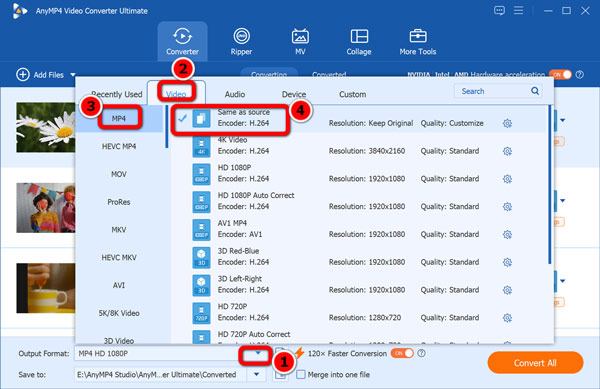
4. Start OGV Conversions
Find a destination to store your new converted files, then click the Convert All button. Your old OGV files will be turned into universally playable MP4s in just a few seconds.
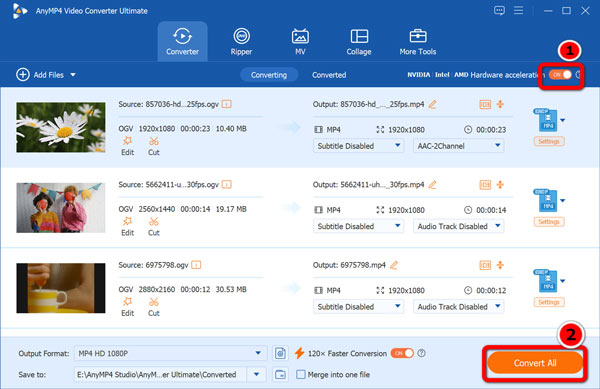
Make sure hardware acceleration is toggled on in the preferences menu to let your graphics card speed up the batch process.
Need to trim or adjust your audio tracks during conversion? Take a quick look at this guide on audio compression to keep your sound crisp and clear.
Don't want to install desktop software for just one small file? Web tools seem like an easy fix. But cloud converters bring baggage. Strict upload limits, long server queues, and privacy risks when sending personal videos to random websites.
If you still insist on using a browser-based tool, use AnyMP4 Free Online Video Converter. It keeps things safe and straightforward without forcing unwanted software onto your machine.
To see just how outdated OGV really is, I ran a quick lab test. I took a 1-minute 1080p source video and encoded it into both OGV and modern MP4 formats. The raw data speaks for itself:
| Codec Architecture | OGV (Theora/Vorbis) | MP4 (H.264/AAC) |
|---|---|---|
| Native OS Compatibility | No (Requires 3rd‑party apps) | Universal (Mac, Windows, iOS, Android) |
| Compression Efficiency (VMAF Score) | 81.4 (Noticeable artifacts) | 96.2 (Crisp and clean) |
| File Size (1‑min 1080p) | 142.7 MB | 48.2 MB |
As you can see, the OGV file is nearly three times larger while delivering a much lower visual quality score. Sticking to OGV makes zero sense for modern workflows.
Can I edit OGV files directly in Premiere Pro without converting?
No. Most editing tools like Adobe Premiere Pro and DaVinci Resolve does not support legacy OGV streams natively. You have to transcode the footage first. Need a closer look at that process? Read this guide on converting OGV to MP4.
Why does my OGV file have audio but a black screen in VLC?
This usually happens because your media player has an outdated version of the video muxing libraries, or the file's index is broken. Converting the file to a standard MP4 usually fixes the black screen issue instantly.
Is an OGV file the same format as WebM?
No. Both are open web formats, but they use different tech. OGV uses older Theora and Vorbis codecs inside an Ogg container. WebM relies on newer VP8, VP9, or AV1 video tech backed by Google.
How do I extract just the Ogg Vorbis audio track from an OGV video?
You can use an advanced desktop tool to separate the streams. If your project requires changing audio containers down the line, you can also look into alternative formats, such as OGV, and WMV converter tools, depending on your target device's needs.
OGV is a dead web format that belongs in the Wikipedia archives; attempting to force it into modern video workflows is a waste of time.
 Updated by Alice Thorne to Glossary
More readings
 What Is APE File? Easy Ways to Open & Play It Losslessly
What is the APE file? Learn this audio format and how to open and play it losslessly from this full guide. A comparison of APE, FLAC, and ALAC is also provided.
 What is the M4B Format: Everything You Need to Learn in 2026
Do you want to learn what M4B files are and how they compare to popular audio formats? Read this article to know more about this audiobook format.
 What Is ASF File? How to Open & Convert It Fast in 2026
Wondering what the ASF file is? Learn its definition, structure, differences from other formats, and how to play it in this 2026 beginner's guide.
 What Is an AVCHD File and How to Play It Without Quality Loss
Do you want to know what an AVCHD file is? Read this simple beginner’s guide to learn what it is, its folder structure, how to play and convert it losslessly.
 Add your comments to join the discussion here