
Quick Summary:
The AVCHD file is an HD video recording format developed by Sony and Panasonic using H.264 compression and Dolby audio. Stored in the complex BDMV folder structure with MTS or M2TS extensions, it has superior image quality. Converting it to MP4 can ensure smoother playback and editing.
You have just finished a breathtaking shoot on your Sony or Panasonic camcorder, but to find a complex web of 'PRIVATE' folders and MTS files that your iPad fails to open. Welcome to the world of AVCHD (Advanced Video Coding High Definition). Developed as the bridge between professional cinematography and home video, AVCHD is a powerhouse of compression. But it is also one of the most misunderstood formats in digital media. In this definitive 2026 guide, we will strip away the complexity to show you exactly how AVCHD works, why it is still the ‘gold standard’ for camcorders, and how to unlock those files for any device.

AVCHD, co-developed by Sony and Panasonic in 2006, revolutionized high-definition video recording by replacing physical tapes with digital storage cards.
AVCHD is based on the highly efficient H.264/MPEG-4 AVC compression standard, which can offer clear 1080i and 1080p footage even at low bitrates.
Check the differences between H.264 vs H.265 here.
For visual effects, AVCHD features a versatile audio architecture that supports both Dolby Digital surround sound and lossless stereo linear PCM with studio-grade clarity.
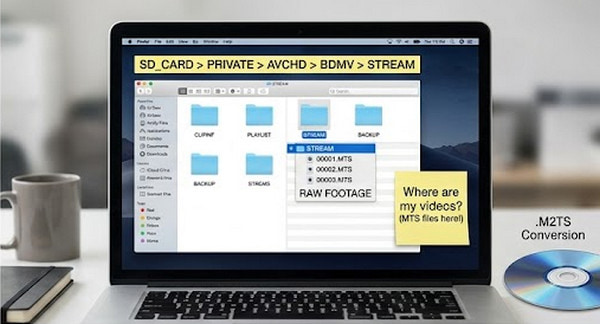
AVCHD uses a nested Blu-ray directory structure (PRIVATE > AVCHD > BDMV > STREAM) to store video clips, metadata, and playlists in separate subfolders, ensuring the camcorder can play the clips seamlessly and continuously. However, this differs from the requirements of standard video formats, which may cause the video not to play properly.
Raw video recorded directly in the STREAM folder of your camera’s SD card uses the MTS extension. When these files are saved on Blu-ray disc, they are converted to the M2TS container format, which can add extra stream data while maintaining the same video quality.
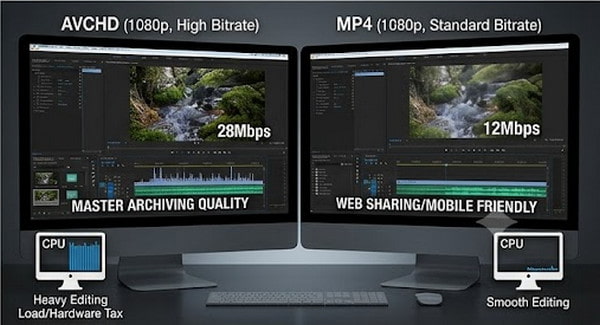
In this section, we will compare AVCHD vs. MP4 in terms of image quality, bitrate comparison, compatibility, and editing fluidity.
AVCHD excels in high image fidelity with a higher bit rate and lossless linear PCM audio options. Compared to MP4 files, these features make it an ideal choice for long-form video recording and high-definition master archiving.
MP4 offers better playback on mobile devices and has lower CPU usage. In contrast, editing raw AVCHD carries a heavier hardware ‘tax’ due to its complex inter-frame compression. But AVCHD can preserve crucial camera metadata, surround sound tracks, and more.
VLC Media Player is an open-source, cross-platform video/audio player. It can natively support complex camera folder structures and raw MTS/M2TS files/full BDMV folder packages without requiring extra codecs. Follow the steps below to play AVCHD in VLC directly without converting it into MP4 or other more widely supported formats.
1. Launch VLC on your computer. Go to Media > Open Folder (File > Open Folder on Mac).
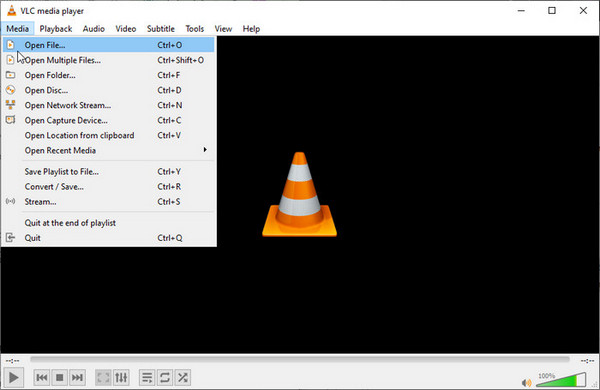
2. Select the AVCHD file/folder you want to play from your SD card. Then, VLC will read and play it immediately.

Playing the AVCHD folder directly, instead of opening files one by one, can make playback smoother without stuttering.
AVCHD files often fail on mobile and social media when played directly. This is because these files usually use the older MPEG-2 transport stream structure and high-bitrate codecs. So, modern apps like Instagram, YouTube, and the iPhone Photos cannot natively decode and play them without conversion.
AnyMP4 Video Converter Ultimate is the expert choice on Windows/Mac to convert AVCHD for universal playback. It can also convert AVCHD files to MP4 and many other video/audio formats and codecs while maintaining the original visual quality. Its batch conversion feature allows you to import and convert MTS files/folders simultaneously. Besides, this powerful converter includes editing tools to edit files before converting.
1. Download and install AnyMP4 Video Converter Ultimate on your computer. After installation, it will launch automatically.
Secure Download
Secure Download
Click Add Files in the upper-left corner, or drag and drop to load your AVCHD files into the program.

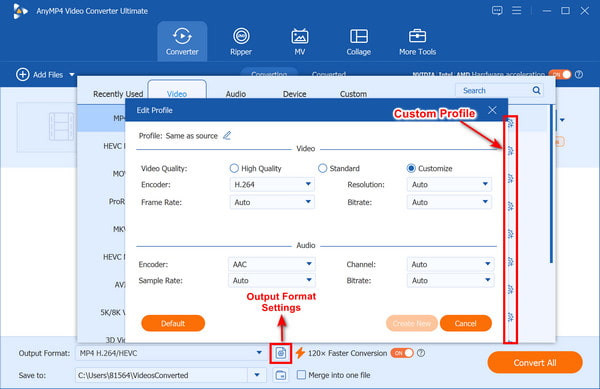
2. Click the Output Format option to select MP4 under the Video tab. You can also choose other video/audio formats.
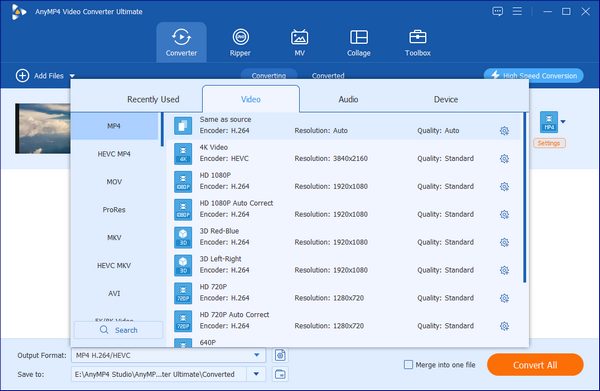
You can adjust the parameters, including encoder, resolution, frame rate, bitrate, channel, and more, by clicking Custom Profile/Output Format Settings.
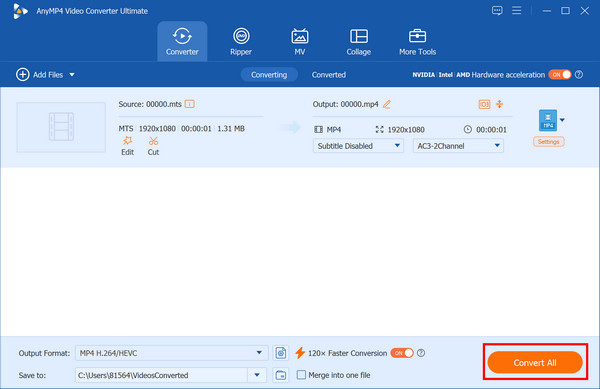
3. Select a save path for the converted file. Then, click Convert All to start processing your AVCHD files.
Is AVCHD 4K?
No, AVCHD is not 4K. Its resolution is strictly limited to 1080p(1920x1080).
Can I delete the BDMV folder and just keep the MTS files?
Yes, you can delete the BDMV folder and keep only the MTS (or M2TS) files.
Does AVCHD take up more space than MP4?
Yes, AVCHD takes up more space than MP4. It can be up to two to three times larger than the MP4 file with the same length and resolution.
How do I play AVCHD on my Smart TV?
To play AVCHD on a Smart TV, you need to convert the files to a more compatible format like MP4, or plug your camera or the USB drive directly into the television.
AVCHD remains a cornerstone of high-quality video production because it strikes a perfect balance between file size and visual fidelity. However, the format’s complexity should not be a barrier to sharing your memories or finishing your project. By understanding the structure and having the right tools in your belt, you can master this professional format with ease. Do not let your footage stay trapped in a folder!
Ready to turn those camcorder clips into shareable masterpieces? Download AnyMP4 Video Converter Ultimate today and experience the fastest, most reliable way to convert AVCHD to any format you need - guaranteed quality, every time.
Secure Download
Secure Download
 Updated by Alice Thorne to Glossary
More readings
 WMV File - What Is a WMV File and How to Open/Convert WMV Format
What is a WMV file? What will play a WMV file on Mac? Is WMV better than MP4? How to convert WMV to MP4? All the answers about WMV format are here.
 What Is An MKV File and How to Play It without Quality Loss
Do you have a video in MKV file and want to learn more information about it? You are at the right place since this concrete guide will tell you everything.
 What Is AAC and Why It Matters in Audio Technology
This post will highlight what AAC is. Discover the origins, advantages, disadvantages, and versatile applications of the Advanced Audio Coding files.
 FLAC: The Complete Guide to Lossless Audio in 2026
Learn what FLAC is, how it compares to MP3 and ALAC, when you should NOT use FLAC, and the best free FLAC players and converters for 2026.
 Add your comments to join the discussion here