4 Easy Methods to Convert WAV to Video Instantly
Summary:
- Best for Professionals: AnyMP4 Video Converter Ultimate (lossless conversion, batch conversion, and integrated video editing features).
- Best for Social Media: Headliner offers visual templates (waveform).
- Best for Open-Source Users: FFmpeg or VLC Media Player.
The Basic Issue: As WAV is strictly an audio format, converting it to video requires a container that combines the audio with visual content.
You have devoted hours to either recording or mastering a top-quality WAV file. However, you found out that YouTube, TikTok, Instagram, and Facebook do not allow uploading such files. Well, that is why modern platforms for content consumption were created for video content, not audio. In essence, when turning a WAV to video, you should not only change its file format; you also need to add video content or a still image to make it shareable. In this post, we will go through 4 proven ways for converting WAV files to videos. From beginner-friendly desktop software and online audiogram creators to free tools, the list will be quite varied. After reading this article, you will be able to choose the technique that best suits your requirements and delivers high-quality results.
Understanding the WAV to Video Challenges
Why Can’t I Upload a WAV?
A WAV file is a format that consists solely of audio content, while YouTube, Instagram, TikTok, and Facebook support only video formats, including MP4 and MOV. To upload a WAV file, one needs to add a visual element, such as a picture, album cover, waveform, or even a video.
Lossless Audio vs. Compressed Video
Regular WAV audio at a CD-quality bitrate of 1,411 kbps has no loss of quality due to no compression whatsoever. When converting this kind of audio to MP4/MOV video, it is recompressed to AAC, so selecting a higher audio bitrate (e.g., 320 kbps) and setting the export quality are necessary.
Method 1: AnyMP4 Video Converter Ultimate
AnyMP4 Video Converter Ultimate is the choice of professionals for converting WAV to video. This software does not just place the audio over a blank screen. With it, you can incorporate your WAV files into a still image, such as a photo, album artwork, or logo, to create a video. You can use the MV (Music Video) Maker to sync audio with a photo and theme.
The best deal is that it is not limited to syncing audio to a photo or video. It also includes editing tools for trimming, cropping, rotating, adding filters, adjusting effects, and modifying audio tracks. It uses the most advanced hardware-accelerated media processing to batch-convert WAV to MP4 with an image at 120× speed.
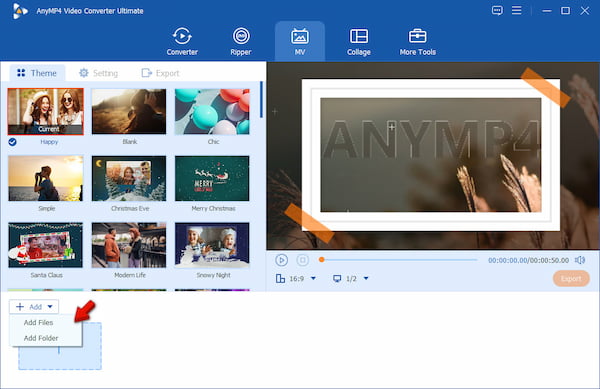
1. Download AnyMP4 Video Converter Ultimate and complete the setup procedure. After installation, it will run automatically. Go to MV and click +Add to upload the visual you want to incorporate with WAV. To import multiple WAV from a single folder, choose Add Folder instead.
Creative Tip
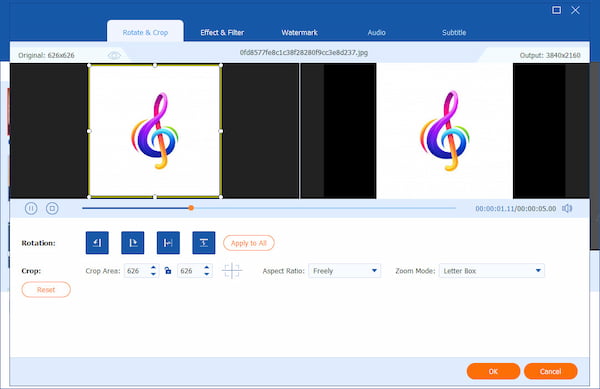
To perfect the still image, click Edit to explore the editing tools. Inside the Editor, you can access the Rotate & Crop, Effect & Filter, Watermark, and Audio tools. You can also add a theme that matches your sound.
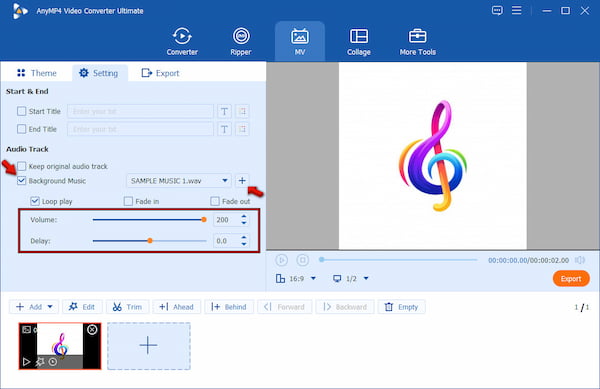
2. Go to Settings and uncheck the Keep original audio track option to avoid audio clashing. Next, check Background Music and click + to add the WAV file. You can alter the Volume up to 200% and adjust the Delay to align the audio with the video.
3. Navigate to Export and select your target format in the Format picker. Adjust the frame rate, resolution, and quality if needed. Most importantly, check the Turn on GPU Acceleration option to speed up rendering. Finally, click Start Export to convert WAV files to video.
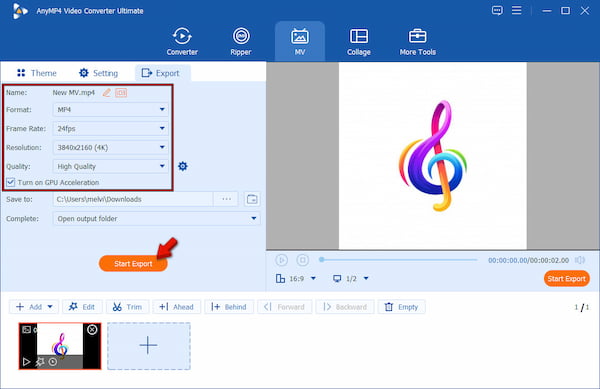
To be real with you, using the MV method is advisable only for a single conversion. If you need to convert WAV files in batches of up to 100 files at a time, we suggest using the Converter tool. To give you a highlight, it can convert 50 WAV files to a video format in less than 3 minutes. Be sure to enable the Hardware Acceleration to speed up the conversion.
Method 2: Headliner
If installing software isn't your cup of tea, an online tool is a good alternative. The best way to upload a WAV to YouTube without losing quality is to use Headliner. This unique tool can convert your WAV files into waveform clips and share them on platforms like YouTube.
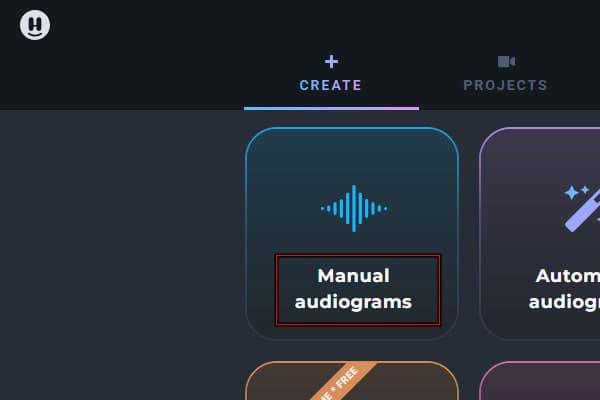
1. On the Headliner dashboard, click Manual Audiograms and select YouTube as your destination. Then, choose a video type: Full Episode, Episode Clip, or YouTube Short.
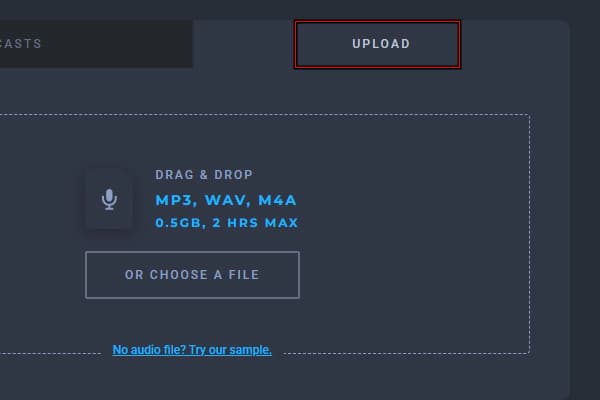
2. Go to Upload and drop the WAV file directly into the upload box. You can import WAV files up to 2 hours long or up to 0.5 GB.
3. Select a template for your audiogram before saving it. Alternatively, you can create your own by customizing the waveform, background, image, etc. Afterward, you can now save it.
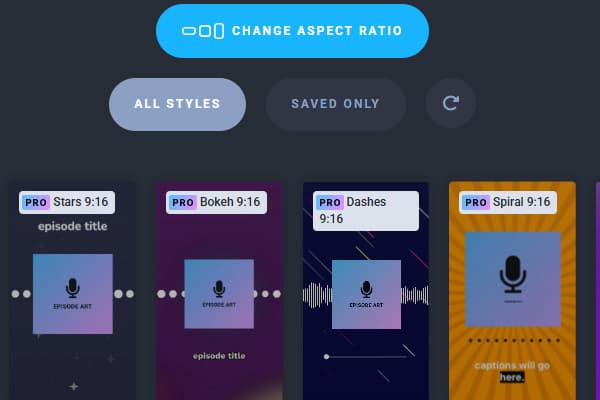
Headliner is a good WAV-to-Video converter for professional music producers who don’t want to install software. It lets you create a customizable audiogram with creativity. However, you need a subscription upgrade to save the audiogram. In other words, it is not free to use.
Method 3: The Free & Technical Route
VLC
VLC is not just a WAV player, as many people think. It includes a hidden Convert/Save feature that can create videos from WAV audio. It works by packaging the WAV audio into a video container when paired with a still image.
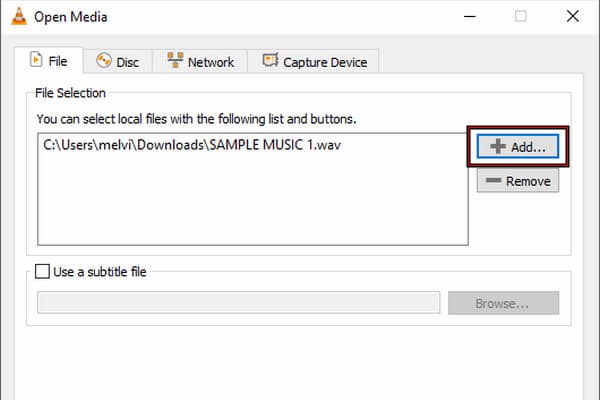
1. Press Ctrl+R or click Media and select Convert/Save to open the Open Media window. Upload your WAV file by clicking +Add, then hit Convert/Save to proceed.
2. In the Convert window, go to the Profile picker and choose Video - H.264 + WAV (MP4). Click Browse next to Destination File to set the output destination, then hit Start to convert.
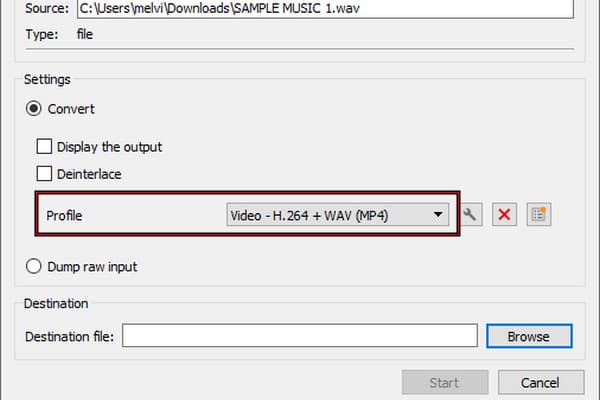
To convert WAV to video with the audio encoded as WAV, you need to create a new profile. Go to Create a New Profile, choose MP4/MOV in the Encapsulation tab, and make sure that default Audio Codec is set as WAV. In the Video Codec tab, make sure that video encoding is enabled.
FFmpeg
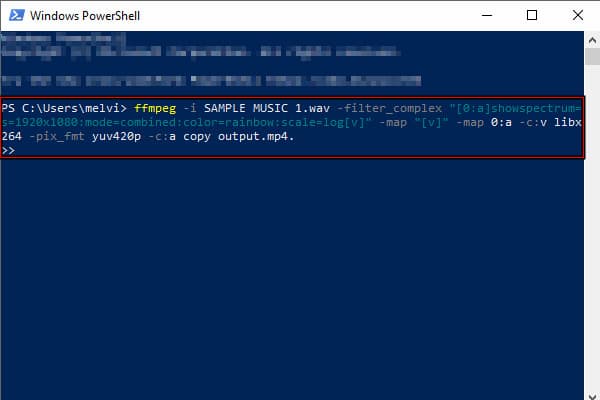
We all know FFmpeg is a powerful open-source multimedia framework that can convert, edit, and process media. You can encode all kinds of media using only commands in the terminal. It can create an audio visualization animation directly from your WAV file using showspectrum, showwaves, and showfreqs.
To convert WAV to MP4 with a spectrum visualizer: Enter ffmpeg -i input.wav -filter_complex "[0:a]showspectrum=s=1920x1080:mode=combined:color=rainbow:scale=log[v]" -map "[v]" -map 0:a -c:v libx264 -pix_fmt yuv420p -c:a copy output.mp4.
Important Note
Use the code with caution. If you prefer a different look, try ffmpeg -i input.wav -filter_complex "[0:a]showwaves=s=1920x1080:mode=line:colors=cyan[v]" -map "[v]" -map 0:a -c:v libx264 -pix_fmt yuv420p -c:a copy output.mp4. This creates a traditional oscilloscope moving waveform instead of a frequency spectrum.
Essential Troubleshooting: Fixing Common WAV-to-Video Issues
Issue: Audio Is Out of Sync with the Image
This problem occurs when the frame rate and the video duration do not match those of the audio file. The best way to solve this is to ensure the video has a consistent frame rate. Also, check that the image duration matches exactly the WAV file's duration.
Issue: The File Size Is Too Massive for Gmail/Discord
High-definition videos, along with lossless audio in WAV format, can result in massive files. You should decrease the resolution to 1080p, reduce the video bitrate, and change the audio format from WAV to AAC during export to MP4.
Issue: Black Screen When Playing on Mobile Devices
An incompatible video format or resolution causes the black screen issue. To avoid such incompatibility, the video needs to be encoded using the H.264 (AVC) codec. For audio, use the AAC codec and the YUV420p pixel format.
Expert Tips for the Best Audio-Visual Experience
Tip 1: Use a 1920×1080 (or 4K) Static Image
Although you may end up with only one picture in your video, begin with an artwork that is at least 1920×1080 or 3840×2160 resolution. Such artwork will appear sharper when displayed on a larger screen and retain its quality better after uploading to YouTube.
Tip 2: Check Metadata (ID3 Tags) Before Exporting
Before you convert WAV file to a video, make sure that you have corrected all of your metadata tags, including the song's title, artist, album title, and album cover. Metadata will help you keep your media library organized.
Frequently Asked Questions about WAV to Video Conversion
Does converting WAV to MP4 reduce audio quality?
Yes, it will lower the quality, particularly when you compress your audio tracks. WAV is an uncompressed format, and that means that converting to formats such as AAC and MP3 will cause inaudible data to be lost. However, when you encode using a high bitrate, the quality loss is imperceptible.
How do I put a picture on a WAV file?
Placing an image on a WAV file is quite difficult, since WAV files do not have a feature for adding cover art. You will need to use the MV utility in AnyMP4 Video Converter Ultimate. You can follow the guide we provided above for your reference.
Can I convert WAV to Video on iPhone/Android?
Yes, you can convert a WAV to a video by embedding the audio track with an image. The most effective way to do this is using AnyMP4 Video Converter Ultimate. It offers device presets for new iPhones, Android devices, and game consoles.
CONCLUSION
Converting WAV to video will make it compatible with YouTube, TikTok, Instagram, and Facebook. The four best ways to do this have been discussed above in this guide. From simple, easy methods for beginners to powerful yet free utilities such as VLC Media Player and FFmpeg, there is a range of techniques one can choose from. For those looking for the most efficient way to get the job done, AnyMP4 Video Converter Ultimate would be the perfect choice.




 Add your comments to join the discussion here