
Key Takeaways:
While we found Freemake's basic conversion tools straightforward to use, the forced watermarks and capped speeds made the free tier completely unusable for our real-world projects. For lightning-fast, watermark-free processing, especially with heavy 4K files, we suggest skipping Freemake entirely and using AnyMP4 Video Converter Ultimate instead.
You just shot a stunning 4K video with your camera, only to find your TV refuses to play the file. Searching for a quick fix, you download Freemake Video Converter. After waiting 20 minutes for the file to process, you hit play, and there’s a massive watermark plastered right across the center of your footage. Frustrating, right? We put this tool to the test to see what it actually offers today.
Our content team evaluates software through hands-on benchmarking, not just reading official spec sheets. We installed the latest version of Freemake on a Windows 11 machine and ran a series of stress tests.
We fed the software a 2.3 GB 4K MKV file to observe how it handles heavy compression down to standard MP4 and AVI formats. We specifically monitored the exact conversion times, CPU usage during the render, and the quality of the final output. We also tested the built-in trimming tools to see if they cause any audio sync issues.
Before we break down the specific features, here is exactly what you are getting with this software.
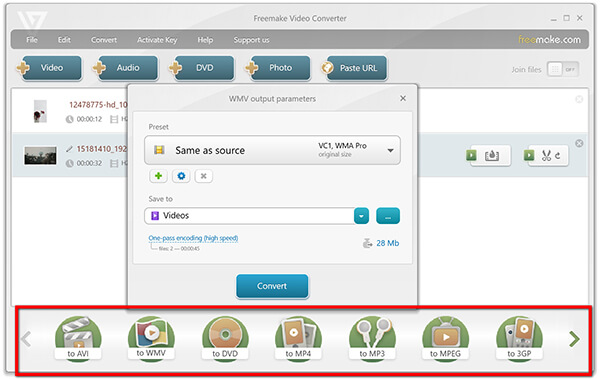
Freemake advertises support for over 500 digital media formats, including presets tailored for iOS, Android, and game consoles. During our testing, the software smoothly accepted common containers like MP4, AVI, and MOV. However, the reality of the "500+ formats" is mostly marketing fluff based on minor preset variations rather than distinct codecs. The actual list of unique supported formats sits closer to 120. The biggest hurdle here isn't format support-it is the forced watermark that renders the free output unusable for professional or personal sharing.
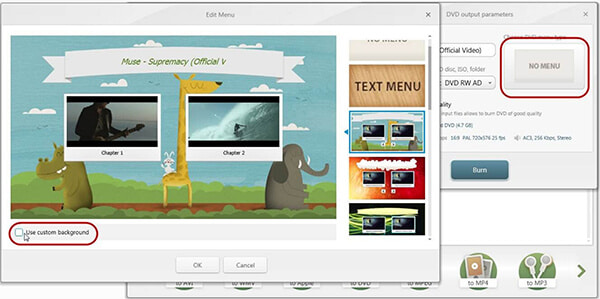
Extracting content from an old physical DVD to store on your hard drive is straightforward here. You can digitize discs into standard MP4 files for easy playback on modern devices. If you want to go the other direction and burn downloaded media onto a physical disc, you will hit a paywall. Burning full video DVDs is locked behind the premium version.
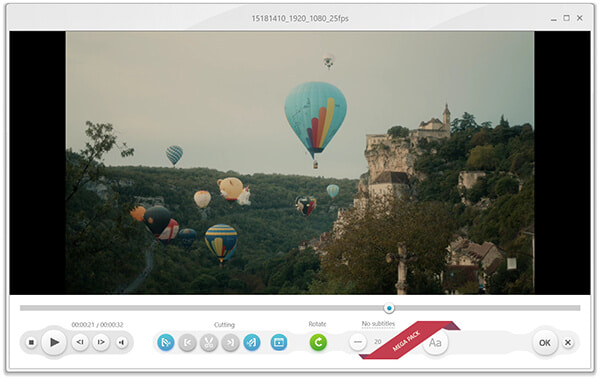
There is a rudimentary editor included for quick adjustments before you hit the convert button. You can trim dead space from the beginning of a clip, cut out unwanted middle sections, or rotate footage shot upside down on a phone. These sliders are responsive enough for absolute basics. Besides, it enables you to add a watermark in your output video file.
Just keep in mind that this isn't a timeline editor, and applying compression here can noticeably degrade your original visual quality.
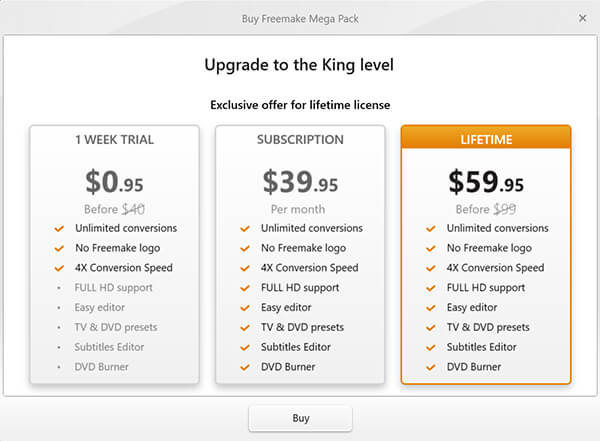
When we dug into the pricing, we found that Freemake actively pushes you toward their "Mega Pack." In our experience, the free version felt less like a full program and more like a restricted trial due to the sluggish speeds and forced watermarks. We did notice a 1-week trial for $0.95, but upon closer inspection, we realized it’s a trap: this cheap tier only removes the logo and bumps up the speed. It completely locks out Full HD support and the video editor. To actually use all the features we tested, the software forced us to choose between a $39.95 monthly subscription and a $59.95 lifetime license (which they constantly advertise as marked down from $99).
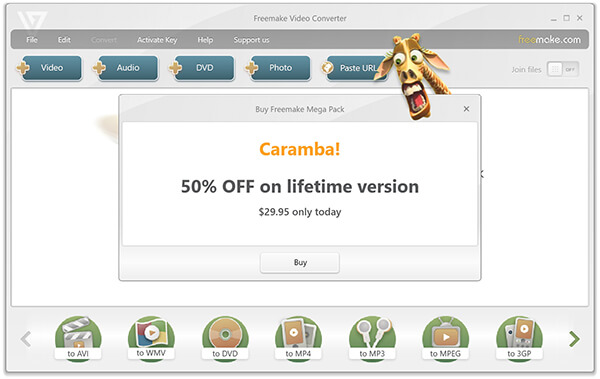
However, if you run this software without any operations for at least 2 minutes, you will receive a 50% discount to pay $29.95 for a lifetime license.
We prioritize your security, so our first step was testing the Freemake installer with several antivirus programs. We can confirm it's technically safe. First, the downloading page is safe to click and download. Then during the installation process, there is no ad popping up.
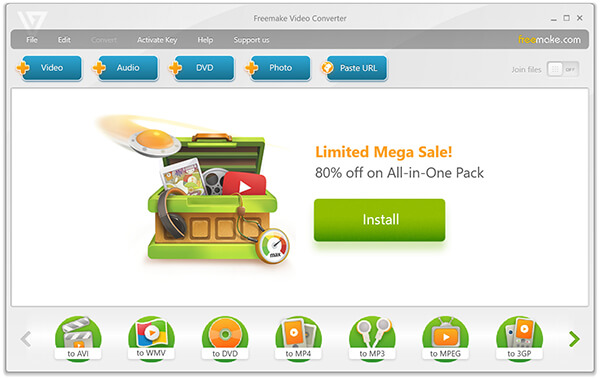
That said, our team quickly grew tired of its aggressive upselling tactics. Throughout our daily use, we constantly had to click out of pop-ups urging us to upgrade to the Mega Pack. Even though we don't officially label it as adware, we felt the constant in-app sales pitches were extremely annoying.
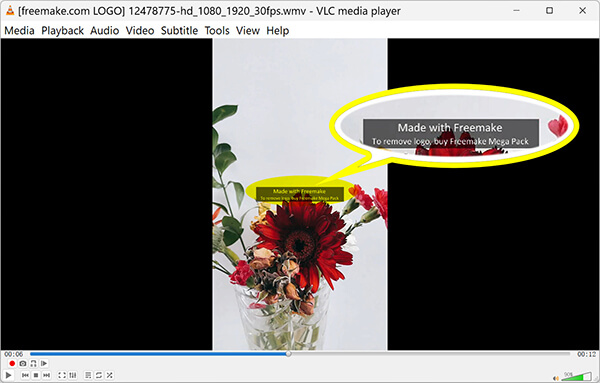
Does Freemake include a watermark on converted videos?
Yes. This is the biggest catch of the free version. Even if you just want to convert a simple 5-minute clip, Freemake slaps a large, highly visible branded watermark right across the center of your video. Furthermore, it adds a branded intro and outro to your file. The only way to remove this is to pay for the premium license. If you need a clean video for YouTube, school, or work, the free tier will not work for you.
The software is designed with beginners in mind. Here is how the basic workflow looks:
1. Import Your Media
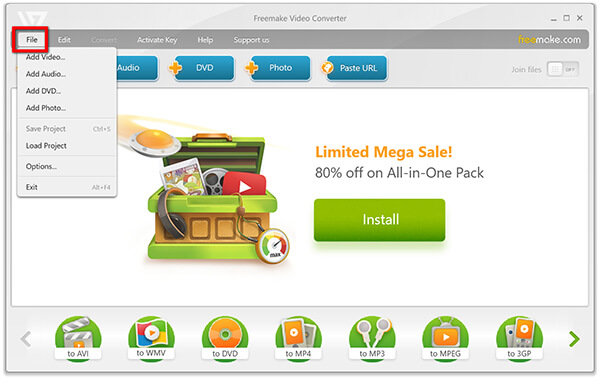
Click the "+ Video" button at the top left to load your file. It supports dragging and dropping, which is quite convenient.
2. Choose Output Format
At the bottom of the interface, select your desired format (e.g., "to MP4" or "to AVI").
3. Convert
When you click "Convert," the software will immediately prompt you with a pop-up warning about the watermark.
It will ask you to either buy the Mega Pack to remove it or "Continue with watermark." Additionally, the conversion speed will be artificially capped unless you pay to unlock hardware acceleration.
To ensure our review aligns with the broader community, we analyzed user sentiments across multiple software rating platforms.
Our Editor's Summary:
After putting the software through our rigorous testing pipeline, we have to be honest: Freemake feels severely outdated compared to current standards. While it was our go-to free recommendation a decade ago, we found that the current "free" tier acts more like an aggressive trial designed to force an upgrade to their $59.95 lifetime license. Between the intrusive mid-screen watermarks, blocked GPU acceleration, and a dated Windows-only UI, we find it incredibly difficult to recommend it, especially when we can easily get seamless, watermark-free alternatives that run circles around its speed.
If you need to process large files quickly or require a clean, unbranded video for your project, sticking with Freemake's free tier will only cause headaches. Power users and anyone dealing with high-res footage should look at AnyMP4 Video Converter Ultimate.
Secure Download
Secure Download
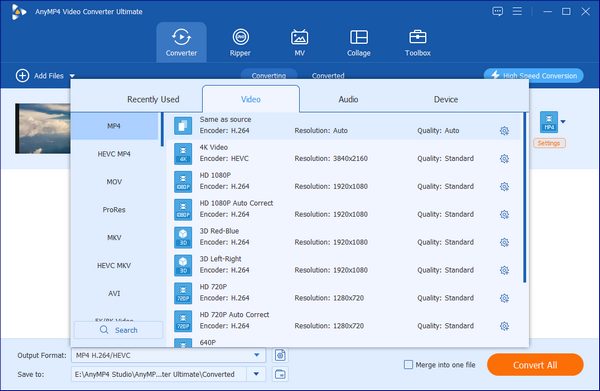
Here is exactly how the two tools stack up when processing high-resolution media:
| Freemake Video Converter | VS | AnyMP4 Video Converter Ultimate |
| Windows Only | Platform Support | Windows & macOS (Native Support) |
| 4× Speed (Throttled without Mega Pack) | Max Conversion Speed | Up to 120× Faster (Full GPU Acceleration) |
| Locked behind paywall (NVENC/QSV) | Hardware Acceleration | Enabled out of the box (NVIDIA, AMD, Intel) |
| Slow rendering; prone to quality drops | 4K / 8K / HEVC / AV1 | Lossless conversion with full modern codec support |
| Highly intrusive logo on all free exports | Watermark Policy | 100% Watermark-free outputs |
| Absolute basic cutting and trimming only | Video Editing Capabilities | 20+ advanced tools (AI Enhancer, Noise Removal, Trimming) |
| Basic DVD burning | Additional Features | DVD Ripping, MV Maker, Collage Design, ID3 Tag Editor |
| High price for highly restricted software | Value for Money | Industry-leading speed & features for the same investment |
Is Freemake Video Converter actually free?
Technically yes, but with severe restrictions. You can download and convert files for free, but every exported video will have a large, intrusive Freemake watermark in the center of the screen.
Is Freemake safe to download without getting adware?
Yes, the official installer is safe and virus-free. However, the software does aggressively prompt you to upgrade to their paid Mega Pack from within the application interface, which some users find annoying.
How fast is Freemake compared to other converters?
The free version is artificially throttled and runs significantly slower than open-source alternatives like HandBrake or premium GPU-accelerated software like AnyMP4.
Can Freemake convert 4K or H.265 (HEVC) videos?
While Freemake can handle 4K inputs, our test showed that the processing time is painfully slow on the free tier. When we tested compressing heavy modern codecs like H.265, we noticed a visible drop in output quality and compression efficiency compared to the crisp results we get using modern, AI-enhanced converters.
What is the best Freemake alternative for watermark-free conversion?
If you are on Windows or Mac and need a tool that handles heavy 4K and 8K files without slapping a massive logo on your work, we recommend AnyMP4 Video Converter Ultimate. We built this software specifically to give you unthrottled hardware acceleration and full editing flexibility, without the watermark headaches.
Freemake Video Converter remains a usable, no-brainer option for absolute beginners who only need a one-off conversion and truly do not mind a large, branded watermark across their footage.
However, for modern 4K clips, smartphone HEVC videos, or professional projects, Freemake’s free tier is simply too restrictive. Spending $39.95 a month or $59.95 for a lifetime license just to remove a watermark and unlock standard speeds is hard to justify when modern, cross-platform toolkits like AnyMP4 Video Converter Ultimate deliver 120× GPU acceleration and advanced AI editing tools out of the box for a similar investment. Skip the watermark hassle and opt for a modern converter instead.
Secure Download
Secure Download
 Updated by Alice Thorne to Convert Video, Converter
More readings
 HitFilm Express: Review, Features and Alternative
Contemplating if you want to use HitFilm Express software to edit your videos? Please read this article first where we will conduct a full review of this tool.
 Mp3Tag Review: Features, Ratings, and Alternative
Discover the details that make Mp3Tag an established file tag editor in this review of the software to discover its features, user ratings, and alternatives.
 A Complete and Unbiased Leawo Blu-ray Ripper Review
This post will highlight the Leawo Blu-ray Ripper review of features and functionalities. Check our complete assessment of the tool’s overall performance.
 DVDFab DVD Creator Review of Features for DVD Making
This DVDFab DVD Creator review will provide a complete evaluation of the tool. Discover if it is the right tool for your DVD creation needs, all right here!
 Add your comments to join the discussion here