How to Convert WAV to MIDI: 2026 Guide for Producers
Key Takeaway:
- Method 1: Browser-Based Web Transcription
Best for quick, casual projects. It turns clean, single-note WAV files into basic MIDI notes right in your web browser. You do not need to install any heavy software.
- Method 2: Professional DAW Native Extraction
Best for serious music makers who need high accuracy. Programs like Ableton Live or Logic Pro have built-in tools that read audio spikes and map notes directly onto a piano roll.
- Method 3: Open-Source Audacity with Third-Party Plugins
Best if you like tinkering and want a free workaround. You download external pitch-detection plugins and place them into your Audacity folders to try converting audio to notes.
- Bonus Desktop Pre-Processing
Using powerful offline software like AnyMP4 Video Converter Ultimate to clean up background noise, remove hiss, and isolate audio stems prior to running your transcription process.
Have you ever stared at a WAV audio recording and wished you could turn it into editable MIDI notes? Or, do you want to swap a sloppy guitar riff for a synth, fix a vocal take, grab a bassline from an old sample, or make lightweight game audio cues? If your answer is yes, then the core challenge is the same. You need a reliable way to convert WAV to MIDI and get past static audio limits. Here are 3 methods to do it and figure out which one fits your needs.

|
Pitch Detection Accuracy |
Polyphonic Chord Recognition |
Transcription Speed (3-min stem) |
Post-Conversion Cleanup |
| Web Transcription Tool |
89.2% on monophonic |
Unsupported |
14 seconds |
Medium |
| Audacity + Aubio Plugin |
72.40% |
Fails / Crashes |
48 seconds via plugin |
High (lots of ghost notes) |
| Modern DAW (Ableton/Logic) |
95.8% with native tools |
Good Triad Support |
5.1s via hardware acceleration |
Low |
Why Is It So Hard to Extract MIDI Notes from WAV?
Before we look at software, we need to talk about why this process gives people headaches.
Think about it like this: a WAV file is actual recorded acoustic sound. It's just a long stream of waveforms bouncing through the air and captured by a microphone. MIDI, on the other hand, is just data. It's digital sheet music that tells a synthesizer which note to play, when to play it, and how hard to hit the key.
When you try to extract MIDI notes from WAV, your computer has to use a complex pitch detection algorithm to listen to the audio wave and guess what note is playing.
If you have a single vocal line or a clean bass guitar riff, this is easy. That's a monophonic melody, meaning only one note plays at a time. But the moment you toss in a full band playing together, what we call polyphonic audio, and things get messy. Overlapping frequencies confuse almost every generic converter out there. The software hears multiple instruments at once, panics, and spits out a chaotic pile of notes that need heavy quantization and cleanup inside your digital audio workstation (DAW).
Method 1: Quick Web Tools for Single-Note Melodies
Before you upload your file, check that your WAV track has no heavy echo or background drums. Online tools often confuse snare hits with low piano notes. For the best results, use a clean, dry vocal or bassline with no other sounds behind it.
If you just need to grab a quick vocal melody to MIDI and don't want to install heavy software, you can use a clean browser-based transcription tool. One of the most reliable browser-based tool you can use is Basic Pitch by Spotify. It features advanced pitch-bend detection and runs entirely in your browser without requiring software installations or compromising your local data privacy.
1. Open your web browser (Chrome, Safari, Firefox, or Edge) and navigate to https://basicpitch.spotify.com/.
2. Drag and drop your target .wav audio file directly into the designated upload box on the webpage (or click the upload zone to browse and select the file from your computer's local directories). Alternatively, you can use the built-in browser microphone feature to record a melody directly.
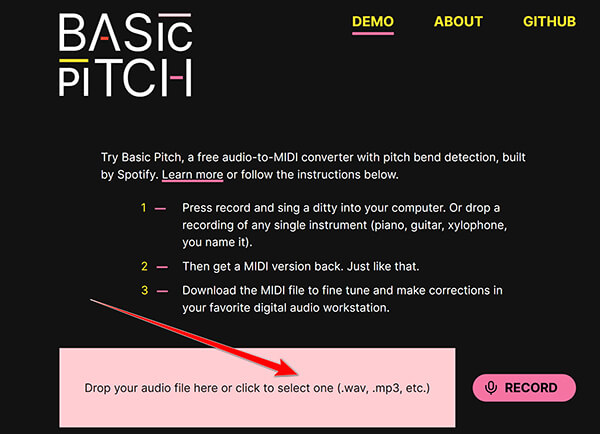
3. The lightweight tool will instantly analyze the audio transients, map out the note events, and calculate pitch bends within a few seconds.
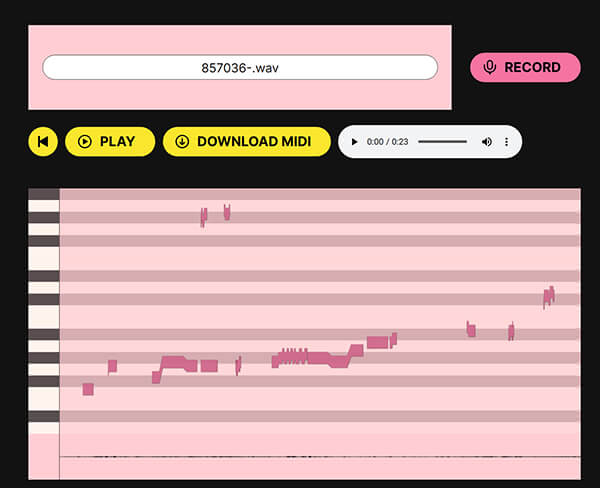
4. Once the processing completes, click the download button to save the generated .mid file directly to your desktop or downloads folder.
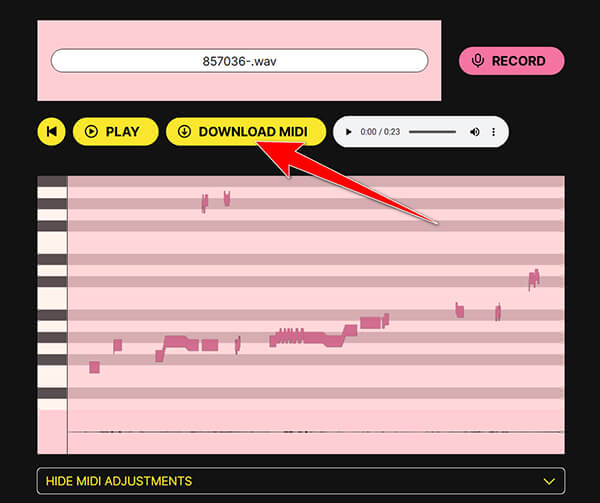
Note
Before you download the MIDI file, you can show the MIDI adjustment to adjust the Note Segmentation, Model Confidence Threshold, Minimum/Maximum Pitch, Minimum Note Length, and MIDI File Tempo.
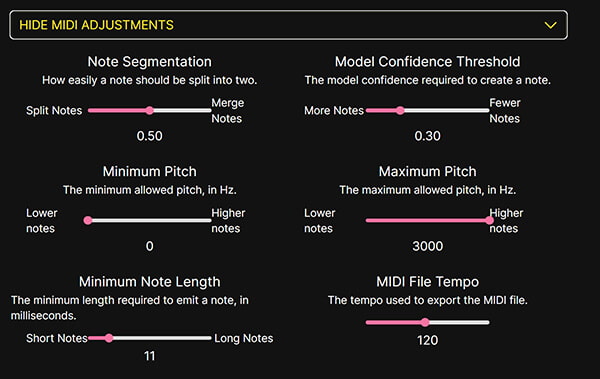
Then you can drag your newly created MIDI file into your favorite digital audio workstation (DAW) or editor to quantize the timing and clean up any minor ghost notes.
Method 2: The Producer's Choice - Using a Modern DAW's Native Audio-to-MIDI
If you are working on a multi-instrument track, don't try to process the whole master mix. Isolate the specific vocal or guitar stem first to give the internal algorithm a fighting chance.
If you are a regular music producer, you already have the best tool for this job installed on your computer. Modern professional DAWs like Ableton Live, Logic Pro, or Cubase have built-in extraction features that totally crush basic third-party utilities.
Here are the precise step-by-step instructions to do this inside a modern DAW (using Ableton Live as an example):
1. Open your DAW and create a brand-new project workspace.
2. Drag and drop your clean, isolated WAV audio stem directly into the arrangement timeline track.
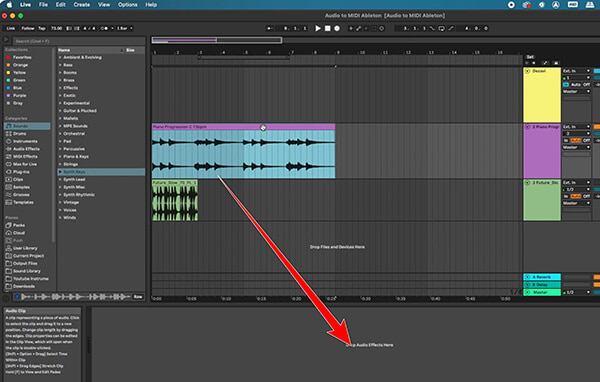
3. Right-click (or secondary-click) on the inserted audio clip to open the contextual utility menu.
4. Select the Convert Audio to MIDI command (you can choose options like Convert Harmony to New MIDI Track, Melody, or Drums depending on your source material).
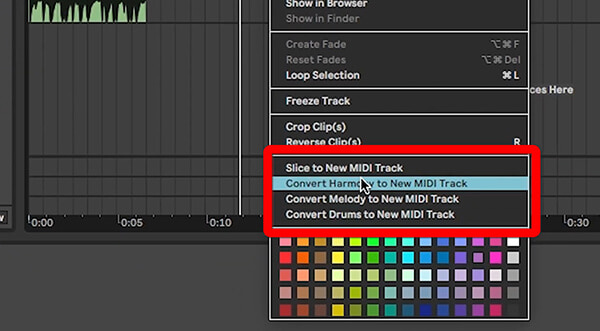
Let the software analyze the audio transients, map out the notes across the MIDI piano roll, and open the resulting track to clean up any stray or ghost notes manually.
Method 3: The Open-Source Headache - Transcribing Audio via Audacity Plugins
Warm Tip: Audacity can't do this out of the box. I had to manually download a third-party Aubio Vamp plugin, place it deep inside the hidden library folder, and restart the app. Even then, finding the export function took several clicks, and the resulting MIDI file had dozens of ghost notes I had to manually delete.
If you like free, open-source software, you might wonder if you can transcribe WAV to sheet music using Audacity. The short answer is yes, but it's a bumpy ride.
Here are the exact manual steps required to attempt this workflow:
1. Download the open-source Audacity application and install it on your operating system like Windows or Mac.
2. Head over to the Vamp Plugin Pack Page to download the Windows/Mac/Linux-compatible Vamp Plugin Pack (.exe installer).
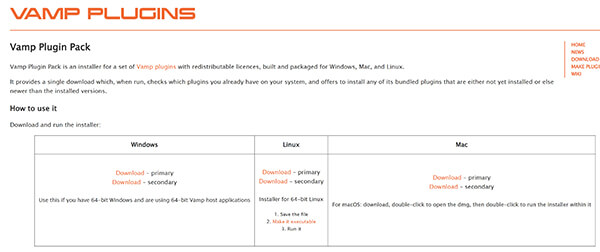
Double-click the downloaded installer, ensure the analysis plugins (including Aubio) are selected, and click Next to finish the setup.
3. Launch (or restart) Audacity. Go to File -> Open in the top menu bar to import your target WAV audio file.
Click and drag your mouse to highlight the imported audio track.
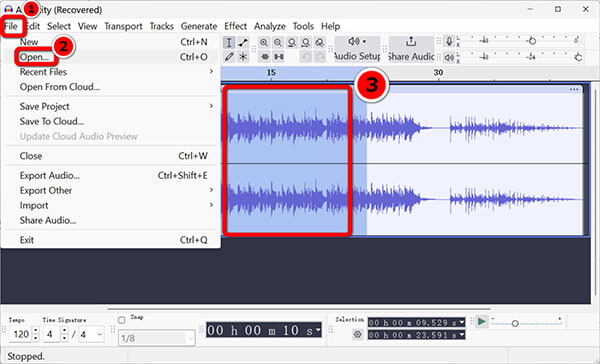
Note
If the track isn't selected, the options under the analysis menu will remain grayed out.
4. Click on Analyze in the top menu bar. Scroll down the dropdown list to locate the newly added Vamp analysis tools (such as Paul Brossier or Aubio pitch and beat detection options).
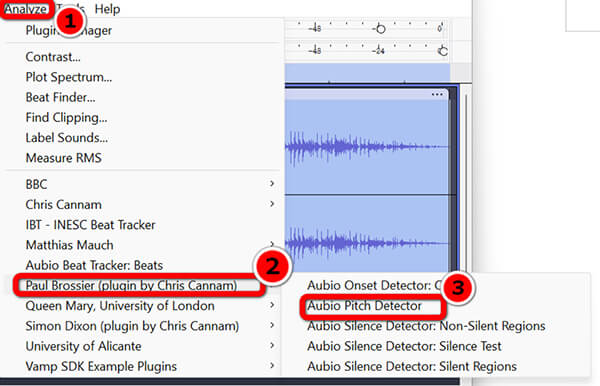
Select your desired Aubio analysis function, adjust any parameters or detection thresholds in the pop-up window, and click OK.
Then Audacity will scan your audio transients and pitch data, generating label tracks below your audio. From there, you can export or process your notes for further music production.
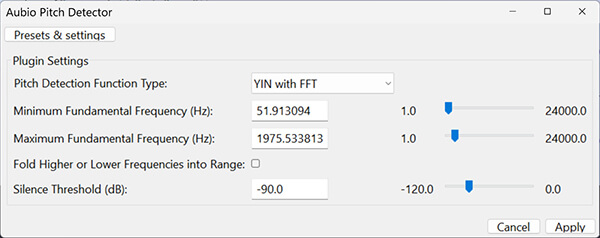
Audacity is a powerful audio editing software and free to remove background noise, trim, merge tracks, and edit audio effects with plugins support. Although it is not a direct way to convert WAV to MIDI, it is good option to check and analyze MIDI file data.
Bonus: Pre-Cleanup Prep with AnyMP4 Video Converter Ultimate
Before you try to convert audio to MIDI, you need to clean up your sound. Background noise is your biggest enemy. If your WAV file has low hums, room echo, or hiss, the conversion tool will get confused and make junk notes.
While dedicated tools handle the actual note transcription, running your audio through a robust desktop utility first can save your project. You can use AnyMP4 Video Converter Ultimate to clean up your source tracks.
Here is how to prep your files using its built-in toolkit:
1. Free download AnyMP4 Video Converter Ultimate on your Windows or Mac computer, then launch it after a successful installation.
Navigate to the Toolbox tab and open the Noise Remover utility.
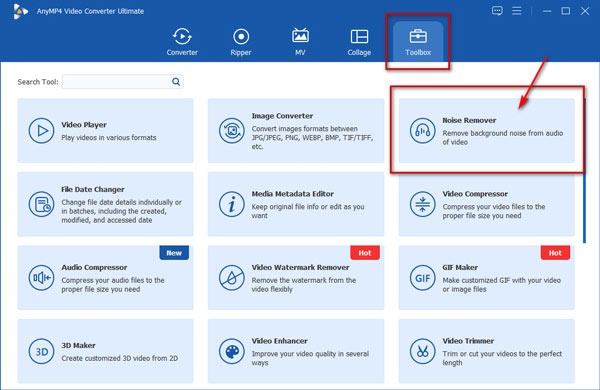
2. Import your messy WAV file.
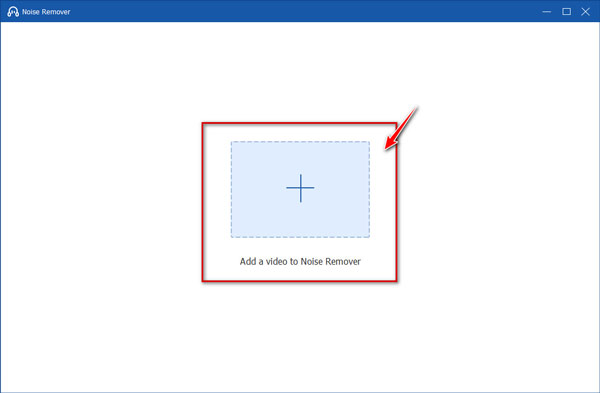
3. Apply the background noise reduction by checking the Enable audio noise reduction option. Then, export a crystal-clear audio stem.
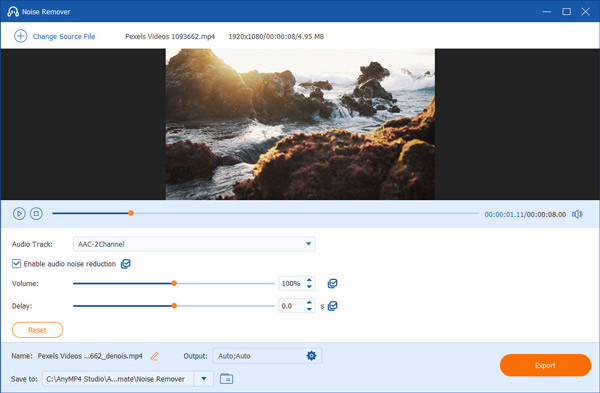
After that, you can import that clean, isolated audio file into your chosen MIDI converter for maximum accuracy.
By the way, if you ever need to handle other format adjustments later, like when you convert MP3 to WAV or deal with custom codecs, this software can also work.
FAQs
Can I turn a full WAV song with drums and vocals into a perfect MIDI file?
No. Right now, no software can take a finished song and turn it into perfect separate MIDI tracks. When you try to convert a busy mix, you will always get errors, missing parts, and extra unwanted notes.
Why does my converted MIDI file sound like a random piano banging?
This happens when the original audio has background noise, heavy echo, or too many sounds playing at once. The software gets confused by the mix and turns every tiny sound into a note. Cleaning up your audio file before you start fixes this problem.
How do I import the extracted MIDI file into FL Studio or Ableton Live?
Just drag and drop your newly exported .mid file right into your project's timeline or piano roll. Your DAW will automatically map the notes onto whichever software instrument track you choose.
Does converting WAV to MIDI keep the original singer's voice?
No, it does not. A WAV file contains actual recorded audio, including vocals and instruments. A MIDI file does not contain any audio. It only saves musical notes, timing, and pitch data. When you convert WAV to MIDI, the original voice is completely lost.
Conclusion: The Final Verdict on Audio-to-MIDI Transcription
Converting WAV audio to MIDI note data doesn't have to ruin your day if you pick the right tool for the job.
If you are a casual creator working with a single bassline or vocal hook, use a fast, clean web transcription tool right in your browser. If you are a tech-savvy tinkerer who loves messing around with open-source code and hidden plugin folders, go ahead and wrestle with Audacity.
However, if you are a serious producer who needs a reliable workflow to prepare and clean massive audio stems before transcription, make sure your production toolkit includes a solid pre-processing utility like AnyMP4 Video Converter Ultimate to get your raw audio pitch-perfect from the start.



 Add your comments to join the discussion here