
When it comes to multimedia software, Adobe Creative tools are among the most popular options across skill levels. For advanced visual effects editing, Adobe After Effects is the best option, as it is designed for this. However, basic audio editing is still available in the program to supplement its video editing needs. In this article, we will explore how to apply audio fade-out in After Effects using two built-in options. We will also provide an alternative for beginners, designed for ease of use and faster processing.
We will start this guide by featuring the easiest way to add audio fade effects in After Effects: keyframe adjustments. Although it is not an automated tool like many others, understanding keyframes is an important editing skill, making learning how to use them worthwhile, whether you want to cut clips in After Effects or other editing options.
To learn how to use keyframes for adding fade-out effects, please read our guide below:
1. Move the Playhead to the part of the audio where you want the Fade Out effect to start. Next, click Audio, then select Audio Levels. Then, click on Add Keyframe to add one where your playhead is located.
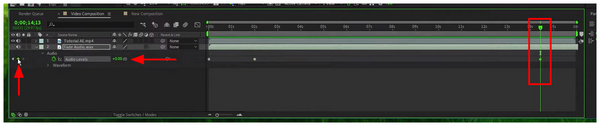
2. With the first keyframe now set, move your playhead again to the right of the first keyframe. Then, add another keyframe. This keyframe marks the end of the fade-out audio effect.
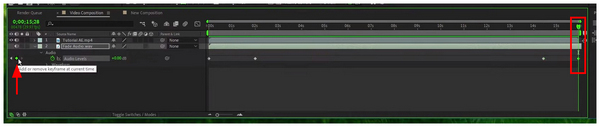
3. To add a fade-out effect, click on the second Keyframe you have selected. Then, lower the Audio Levels by clicking on the decibel value and sliding your cursor to the left.
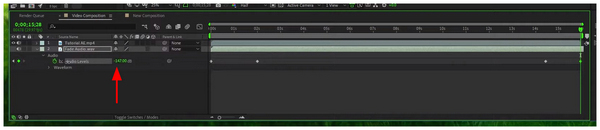
When learning how to fade in/fade out audio in After Effects, keyframe audio adjustments are the first option that new users learn. Although it is not as simple as other editing tools, keyframes are an essential editing concept, and learning to use them will provide a solid foundation for more complex editing works, such as slowing down video in After Effects.
AE Expressions is a new addition to After Effects. It uses script-based editing to enhance the workflow for users with sufficient After Effects mastery. Unfortunately, it is too complicated for beginners, making it unsuitable for amateur editors.
Read our three-step guide below to learn its basics:
1. Go to the Effects Control Text and select Audio Fade In & Out. Then, change the Fade Duration, Zero Value, Final Value, Enable Fade In, and Enable Fade Out elements in the effects control text.
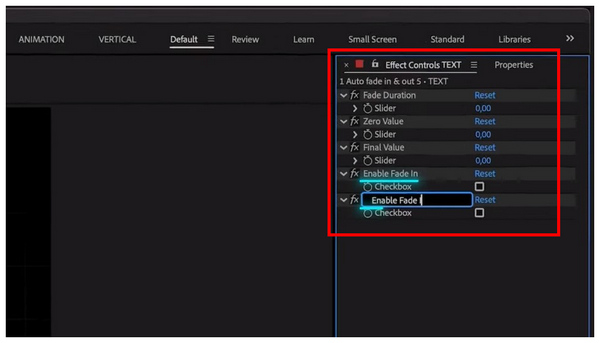
2. Once the effects on the Effects Control Text have been finalized, it will be automatically translated into an AE Expression script, which will then apply the effect to the layer you have selected.
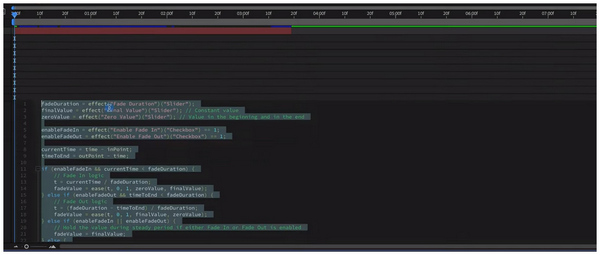
Although AE Expressions are faster to apply than keyframes, the steep requirement of learning how to use the Effects Control via Text might be too complex for beginners. As such, this option is only advisable for experienced editors who want a faster option to apply editing works, such as speeding up videos or fade-in or fade-out sound in After Effects.
With the built-in tools in After Effects now discussed, we can consider both options as solutions designed for intermediate to advanced video editors. As such, the alternative software we will feature in this article, AnyMP4 Video Converter Ultimate, is designed for ease of use.
Unlike the options in After Effects, which exclusively use keyframes and scripts, AnyMP4 Video Converter Ultimate’s MV Editor feature can apply audio fade-in or fade-out via one click, since the tool applies it via checkboxes and time adjustments.
Additionally, the program can batch-process up to 50 media files simultaneously for greater efficiency. These files can be edited without loss of quality, as the tool supports lossless conversion to maintain high-fidelity sound while adjusting volume.
To combat potential file size issues, the program's built-in Video Compressor can help automatically adjust the audio bitrate and sample rate of your files without affecting their quality.
To learn how to use AnyMP4 Video Converter Ultimate for easy audio fading adjustments, make sure to read our three-step guide below. Do not forget to download it as well to make it easier to follow our guide.
Secure Download
Secure Download
1. Open AnyMP4 Video Converter Ultimate and move to the MV Editor tab. Next, select the Add button to import the video with the audio you want to fade out.
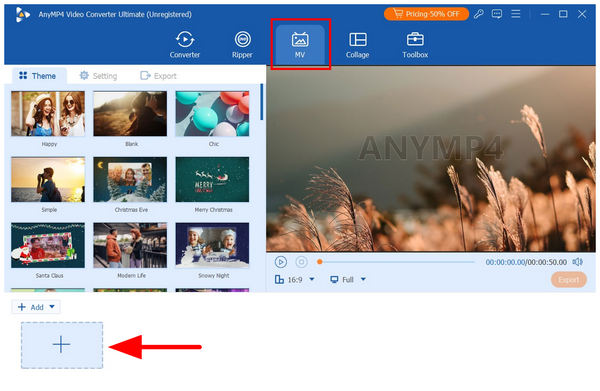
After importing the media file into MV Editor, click Trim.

2. In the MV Editor’s Trim menu, select the checkbox beside Fade Out. Then change the time to set where you want the fade-out effect to start. Select Save to confirm your fade-out setting.
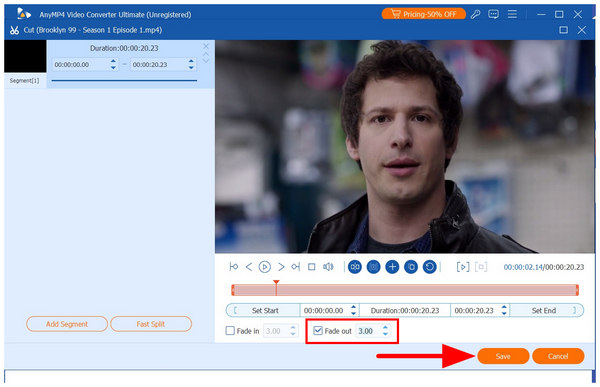
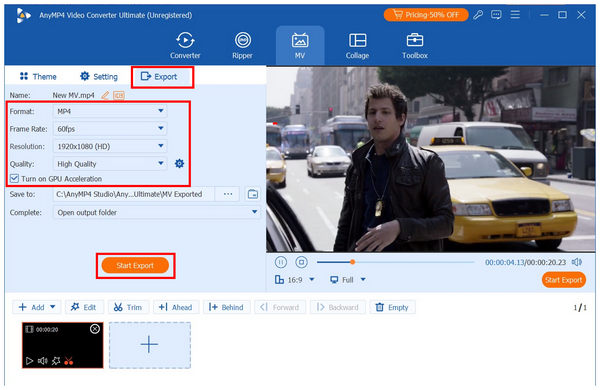
3. With the Fade Out setting finalized, return to MV Editor and click on the Export section. Then, you can edit more advanced video options from Format, Frame Rate, Resolution, and Quality. Finally, click on Start Export to begin producing the video with a smooth audio fade-out.
With the ease of use and simplicity of AnyMP4 Video Converter Ultimate now discussed, we hope you can now apply smooth audio fade-out to your editing projects without dealing with complex keyframe editing and scripting used when learning to fade music in After Effects.
Once you have understood the function of the editing tools in After Effects, the next step you should learn is to improve your workflow’s efficiency by using shortcut keys. Once you have mastered these keyboard combinations, your editing time may be cut in half.
When editing audio files, a good editing chain is to start with audio cleanup, balance the equalizer, compress the audio, and then limit volume and address other technical factors. Start with this process to avoid over-editing.
To avoid layer mixups, you can use guide layers as a reference guide for your overall editing project. This will greatly help your audio’s timing intact.
When editing with audio files, unwanted audio muting may occur if the pre-comp is trimmed or if the time is shifted incorrectly. To avoid this problem, keep the audio layers in the pre-comp untrimmed and adjust the audio timings only in the main comp.
If you are working on a video or audio project, you will likely use multiple media files, including video and audio. To keep your project's audio consistent and playback intact, use the same sample rate for all audio files.
To easily spot audio inconsistencies or volume changes, using a visualizer is a good option. In this case, make sure to enable Waveform in the Video Composition section to display it in the editing timeline and hear how your audio will sound throughout your project.
Why can't I see my audio waveform?
Audio waveforms are not presented by default in the editing timeline. However, you can make them appear by enabling the waveform option in the Video Composition settings. In general, it is advisable to use a waveform to have a visual guide on how your media project will sound.
What is the ideal DB for a fade-out?
There is no ideal decibel level when applying fade-out. Fade-out effect is a smooth transition effect, and your decibel level should smoothly transition all the way to zero. A good way to make smooth fade-outs is to test your transition, reducing it from 3dB until it reaches zero.
Can I fade audio in the Render Queue?
No, you cannot. Editing your project cannot be done directly in the render queue. To edit the audio fade-in and fade-out of projects saved in Render Queue, put them back into the composition timeline.
Can I edit audio files in After Effects?
Yes, you can. However, the audio editing options in After Effects are inherently limited since the program is primarily made for visual effects editing. It handles basic audio adjustments, but it is not advisable to use it as your main audio editor.
Why is audio editing limited in After Effects?
This is because After Effects is not an audio editor itself. It may include basic audio editing tools, but it can only make simple adjustments. The audio editing tools in After Effects are only added to support its visual effects and video editing functions.
Now that we have provided an overview and tutorial of the two built-in tools for applying audio fading adjustments in After Effects, we hope this article has given you enough knowledge to improve your general multimedia editing skills. To make editing your video projects easier, we highly recommend using AnyMP4 Video Converter Ultimate, especially if you are still a beginner. You may download the software using the link below.
Secure Download
Secure Download
 Updated by Mark Cristobal to Edit Audio
More readings
 How to Slow Down Videos With or Without After Effects
When you want to create slow-motion videos, click here to learn two detailed tutorials to use After Effects to slow down videos. An easy way is also provided.
 How to Speed Up Video in After Effects - Fast Forward Video
How to fast forward video on After Effects? Can you increase the speed of video? Learn two ways to speed up the video in After Effects Video Speed Controller.
 How to Fade in and out Audio in iMovie on MacBook Pro/Air/iMac
With your project opened, you can follow our comprehensive guide to fade audio in iMovie on Mac without damaging the video and audio quality.
 How to Add Text in DaVinci Resolve [Easy-to-Follow Guides]
If you want to add text in DaVinci Resolve and don’t know how to accomplish it, don’t stress. Check our post and learn a simple guide for adding text to videos.
 Add your comments to join the discussion here