Why Is OBS Automatically Dropping Frames? 4 Ways to Fix Lag
SUMMARY:
If you see Dropped Frames (Network), your upload is unstable, switch to Ethernet or lower your bitrate. Skipped Frames (Encoding Lag) is due to encoder overload; use NVENC, AMD AMF, or Intel QSV. Missed Frames (Rendering Lag) is GPU overload, make the scene simple.
"My OBS streams run fine, but then the status bar suddenly turns red and shows 35% dropped frames. Even my recordings stutter every few seconds. Why am I automatically dropping frames on OBS"?
Many users experience OBS dropping frames, but many don't know which frames it is losing. OBS drops frames for exactly three reasons. It categorizes them in the Stats dock/status bar: Dropped Frames (Network), Skipped Frames (Encoding Lag), and Missed Frames (Rendering Lag). This post explains how to fix dropped frames in OBS without wasting time changing the wrong settings. Each section points to a different problem and requires a different fix.

Fix 1 (Recommended): Fix Network Drops - "Dropped Frames (Network)" - Ethernet, Bitrate & Server
Why is OBS dropping frames? OBS shows Dropped Frames (Network) because the stream is struggling to send data to the streaming server. In other words, the frames leave OBS but fail to reach the streaming server. Here's how to fix network drops:
Use Ethernet Instead of Wi-Fi
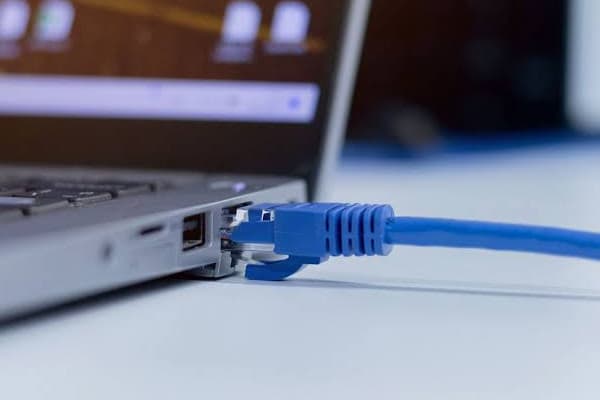
Connect your computer directly to your router using an Ethernet cable. Doing so prevents wireless interference and connection interruptions.
Lower the Bitrate
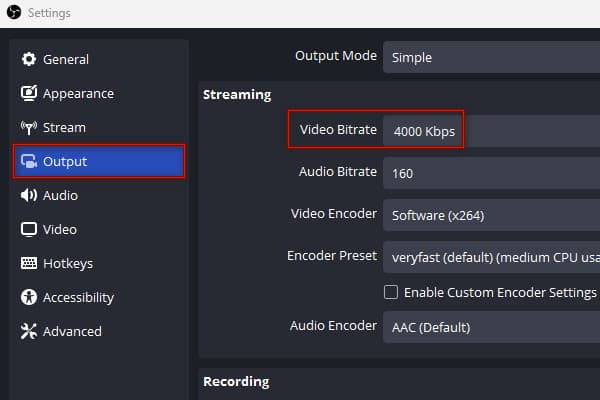
Click File, select Settings, and go to the Output section. Adjust the Video Bitrate to match your upload speed (6 Mbps > 3000-4000 kbps).
If you have a saved video and want to change the bitrate to reduce file size or adjust quality, use a Bitrate converter.
Change the Streaming Server
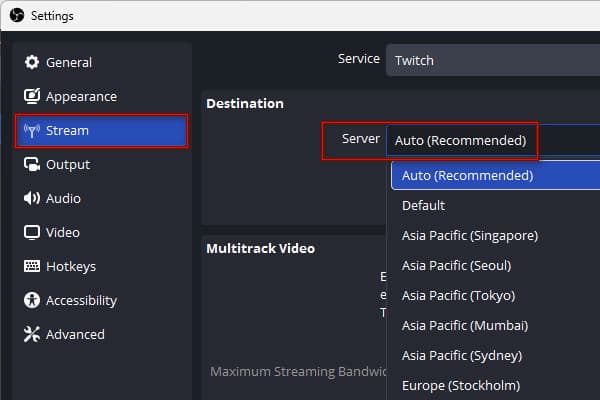
Go to File, click Settings, and select the Stream section. Choose Auto (Recommended) to fix dropped frames in OBS or select another nearby server if drops continue.
Note
Even with a 50 Mbps download speed, OBS can still drop frames if your upload speed is limited. Streaming at 6000 Kbps with only 6 Mbps upload leaves almost no room for connection fluctuations.
Fix 2: Fix Encoding Lag - "Skipped Frames" - Hardware Encoders & Lower Load
Skipped Frames (Encoding Lag) in OBS mean the encoder cannot process frames fast enough. This happens when using the ×264 CPU encoder while running high-end games or apps.
Switch to Hardware Encoding
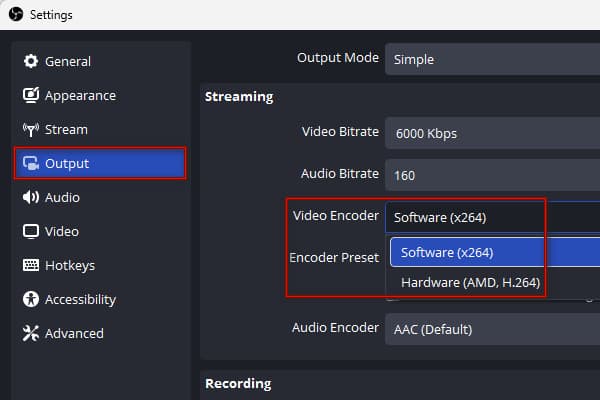
Click File, go to Settings, and select the Output option. Change the Video Encoder to your available GPU to fix OBS encoding lag. Choose NVIDIA NVENC H.264, AMD, or Intel QSV.
Use Faster ×264 Preset
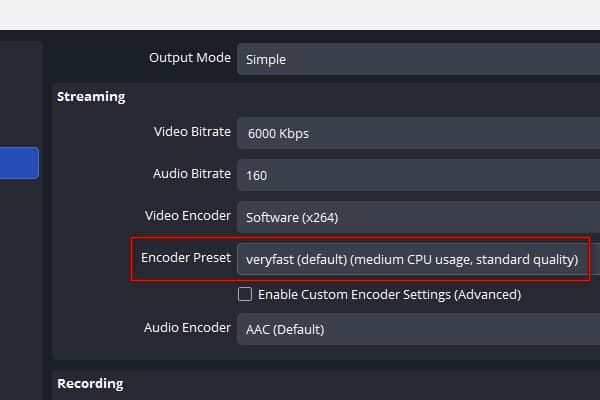
Head to File, click Settings, and choose the Output option. Set Encoder Preset to faster or veryfast (default)(medium CPU usage, standard quality) to reduce encoding lag.
If OBS shows encoding lag, check your encoder first. Switching to hardware encoding is more effective than repeatedly lowering your streaming bitrate.
Fix 3: Fix Rendering Lag - "Frames Missed" - Simplify the Scene & Unload the GPU
When OBS shows Missed Frames (Rendering Lag), the GPU cannot render scenes fast. This issue happens when streaming high-end games, using 4K sources, or running multiple overlays and filters. Here's how to fix OBS rendering lag issue:
Simplify the Scene
Turn off any unnecessary sources and filters, like animated overlays, browser sources, and unused webcam feeds. Browser sources consume GPU resources by constantly rendering web content.
Check GPU Usage
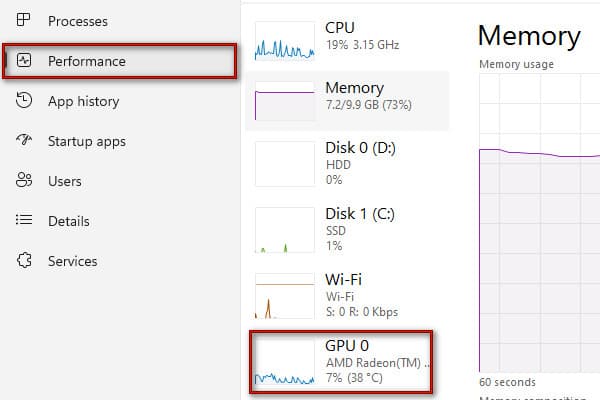
Open Task Manager on your computer and go to the Performance section. Monitor the GPU usage while streaming. If the GPU usage stays near 100%, lower your game's graphics settings ot limit the FPS to 60. This leaves more GPU resources available for OBS.
Note
OBS must render every scene before encoding it. If your GPU is already busy running a game, simply the scene and disable the preview to restore smooth performance.
Fix 4: Record Without Drops - AnyMP4 Screen Recorder (Alternative)
If you're recording, not streaming, and want to avoid OBS dropping frames, use AnyMP4 Screen Recorder. It is a multifunctional capturing software that features 7-in-1 recording modes. This software supports GPU acceleration, offloading heavy video encoding and rendering tasks. It can record gameplay, video conferences, and other screen activity at up to 4K and 60 fps. The tool also supports webcam overlay, mic input, and system sound integration.
1. Download AnyMP4 Screen Recorder, set it up, and complete the installation.
Upon launching, it opens to the Screen Recorder mode by default.
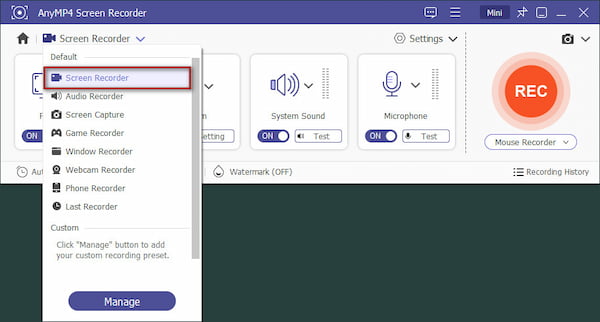
2. Select Full for full screen recording, or Custom to choose a custom resolution like 4K or 1080p. Activate the Webcam to create a PIP video, then turn on System Sound and Microphone to include audio.
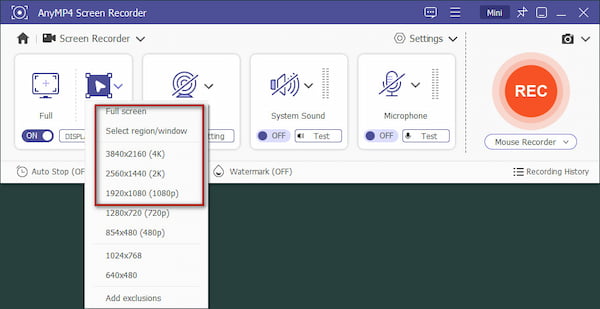
3. Click REC to start recording your screen activities. When finished, click Stop to end the recording. Preview the captured video, use the trimmer if needed, and then save it.
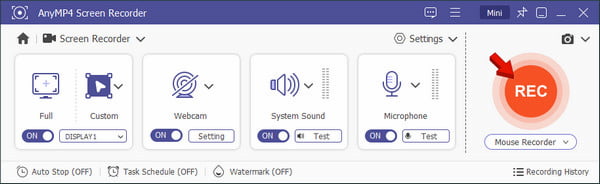
When OBS consumes too many resources, switch to AnyMP4 Screen Recorder for a recording-only task. This tool doesn't require upload bandwidth, so network-related frame drops aren't an issue.
Dropped, Skipped, or Missed? Read the OBS Status Bar Before You Change Anything
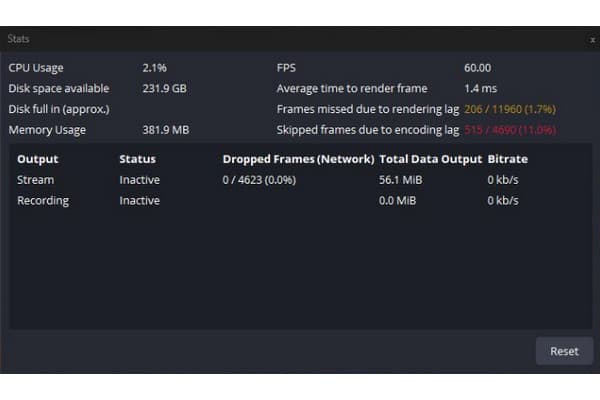
Why does OBS drop frames all of a sudden? Before changing multiple settings, identify which type of performance issue OBS reports. The three common problems are Dropped Frames, Skipped Frames, and Missed Frames. They seem similar, but an entirely different bottleneck causes each. Go to the View tab and select Stats to access detailed performance information.
Why Does OBS Drop Frames Only Sometimes? (Wi-Fi, Peak Hours & ISP Throttling)
OBS drops frames only sometimes when your network's actual upload capacity temporarily drops below your set streaming bitrate due to external interference, congestion, or throttling.
Why It Happens Only Sometimes
- • Even if your internet speed test looks good, brief connection interruptions can affect streaming stability.
- • When multiple people use the same network, available upload bandwidth can fluctuate.
- • Some internet providers manage network traffic during congestion. However, sudden frame drops alone don't prove that your ISP is throttling your connection.
FAQs About OBS Dropping Frames
Why is OBS dropping frames?
OBS automatically drops frames when the internet upload connection cannot keep up with the data rate you set. Another reason is when your computer's hardware is overloaded.
What bitrate should I use to stop OBS from dropping frames?
Set the bitrate to 70-80% of your upload speed to ensure it does not exceed the connection's actual capacity. For example, 6000 kbps requires a stable upload speed of 8-10 Mbps.
What's the difference between dropped, skipped, and missed frames in OBS?
In OBS, dropped frames are caused by network issues, skipped frames by encoder overload, and missed (lagged) frames by GPU rendering lag.
Conclusion
If you're still asking yourself why am I automatically dropping frames on OBS, remember that the cause comes down to three common problems. This includes network connectivity, encoding performance, or GPU rendering. The fixes above help address these issues. During live streams, OBS provides controls to diagnose performance problems. But if you only need to record the screen, not stream, use AnyMP4 Screen Recorder. It can capture screen, webcam, and audio without OBS's streaming setup.





 Add your comments to join the discussion here