How to Recover Crashed OBS Recording Without Losing Footage
Summary:
When OBS crashes, you can find the file in File → Show Recordings. You can also use File → Remux Recordings to recover MKV recordings. Check the Recycle Bin and recover any missing files with AnyMP4 Data Recovery. For future recordings, keep MKV enabled or go for AnyMP4 Screen Recorder for project-based recordings.
I recorded a two-hour tutorial in OBS, but my computer suddenly crashed. When I restarted it, the recording file was there, but it wouldn’t play. Is there any way to recover my footage?
Encountering a recording that gets interrupted unexpectedly is a common frustration for OBS users. Two hours of footage may seem lost after an unexpected crash, but the file isn't lost. This post explains how to recover a crashed OBS recording, starting with OBS’s built-in recovery option before exploring other methods. We will also cover why crashes happen and which settings can protect future recordings.

Fix 1 (Recommended): Salvage the MKV - File → Show Recordings + File → Remux Recordings
When OBS crashed while recording in MKV format, start with this method. MKV is a crash-safe format, meaning it continuously writes data even if OBS unexpectedly shuts down or crashes.
Here’s how to recover a crashed OBS recording:
1. Reopen OBS, go to File, and select Show Recordings to find the video recorded before the crash. Right-click the suspected video recording and select Properties. If it shows:
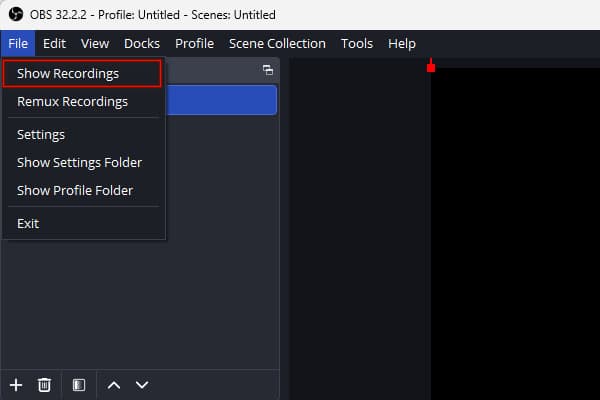
0 KB or a few: OBS failed to write recording data to disk.
Hundreds of MB or GB: The recording data is probably there.
2. Open the video recording in a media player that can read an incomplete MKV file, such as VLC. If VLC plays the entire available portion, the recording data is usable; keep MKV as-is.
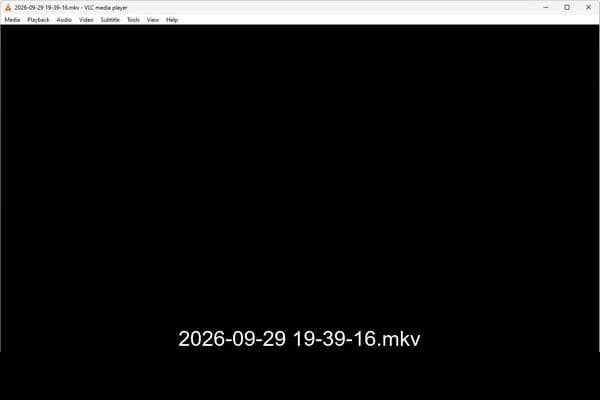
Check here where OBS saves recordings by default.
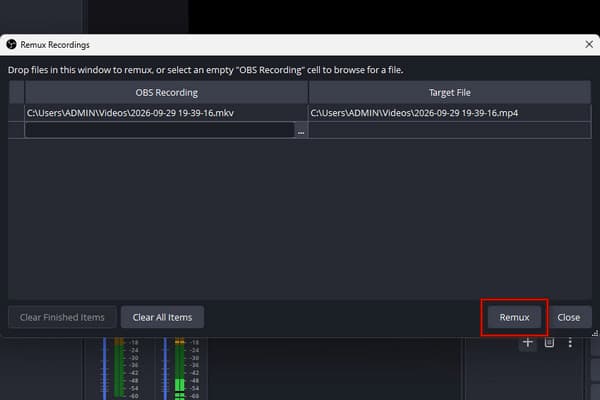
3. If VLC refuses to open it, go back to OBS, click File, and select Remux Recordings. Add the crashed .mkv recording, then click Remux to package it to an MP4 file.
Note:
If OBS remuxes with errors, try running mkclean to repair the MKV's internal structure, then remux again. Or, use ffmpeg -c copy to copy the existing media stream.
Fix 2: The File Is Missing - Check the Recording Folder, Recycle Bin & OBS Logs
Sometimes, OBS crashes before the recording appears in the usual folder. You might assume the entire video has disappeared, but the file could have been saved elsewhere. Below are some common ways to recover a crashed OBS recording that is missing.
Recording Folder
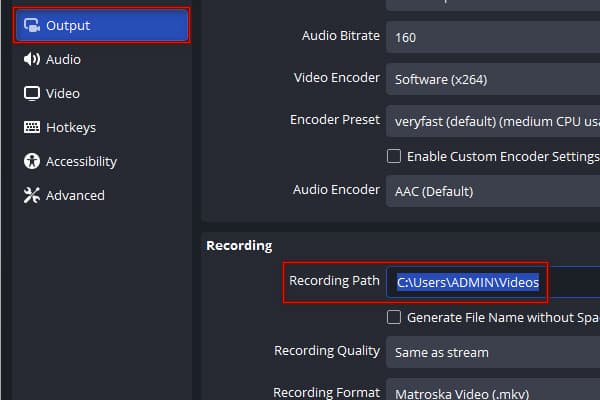
The recording path indicates where OBS normally saves video files. Open the File, select Settings, and click Output from the sidebar. Go to the Recording section and click the Recording Path text field. Copy the folder location and open it in File Explorer.
Recycle Bin
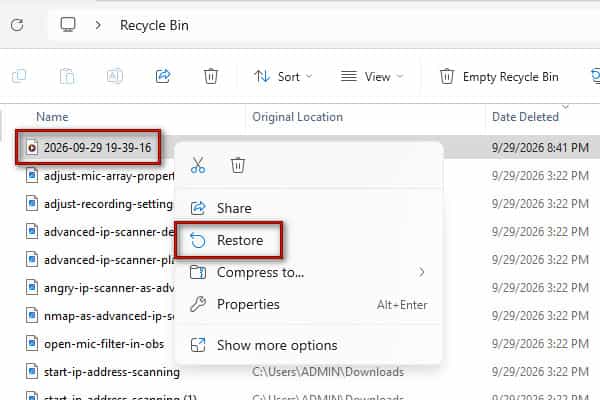
If the crashed OBS recording was accidentally deleted, open the Recycle Bin on your Windows. Find the deleted video recording, right-click it, and select Restore. Return to its original folder and try opening it again.
OBS Logs
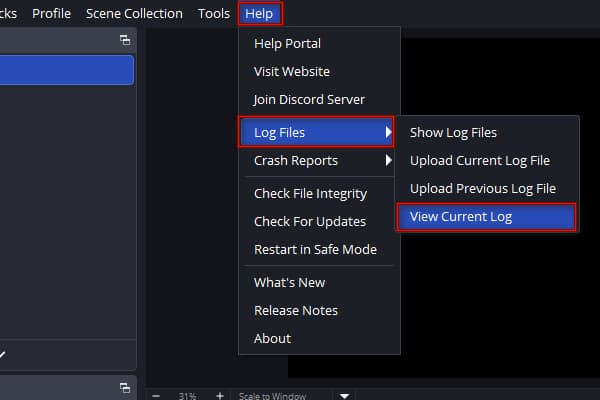
The logs may reveal when the OBS recording was corrupted after the crash or an unexpected shutdown. Open OBS, go to the Help option, and click Log Files. Select View Current Log to open the Log Viewer and identify when the recording crashed or errors occurred during recording.
Fix 3: Recover Deleted or Corrupted Recordings with AnyMP4 Data Recovery
After trying the first two fixes and still being unable to locate the video, continue with data recovery. AnyMP4 Data Recovery can restore almost all missing, deleted, or hidden files on Windows and Mac. It can scan storage devices, including computer hard drives, flash drives (USB drives), and memory cards/sticks, to recover lost OBS recordings.
1. Download AnyMP4 Data Recovery, set it up, and finish the installation.
In the Hard Drive Recovery section, select the drive where OBS stored the recording.
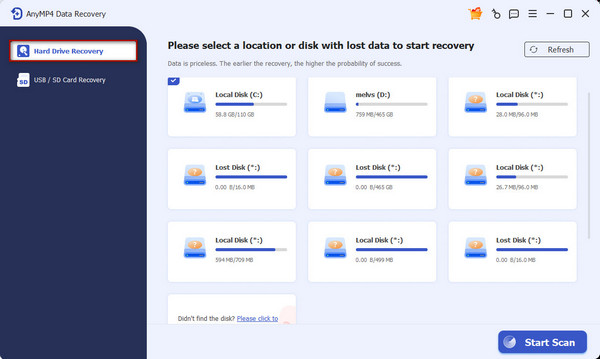
2. Click Start Scan to search for deleted or lost recording files. If the recording does not appear, click Deep Scan to locate files again in detail.
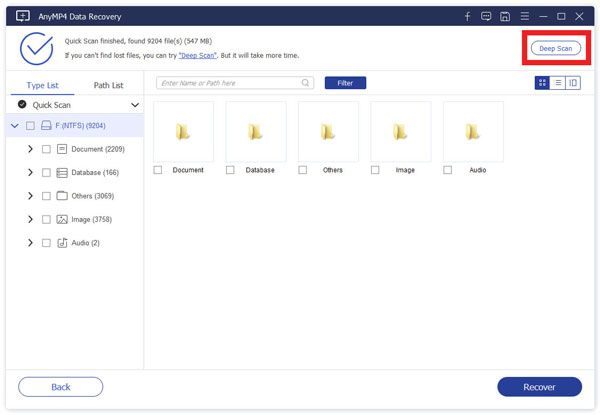
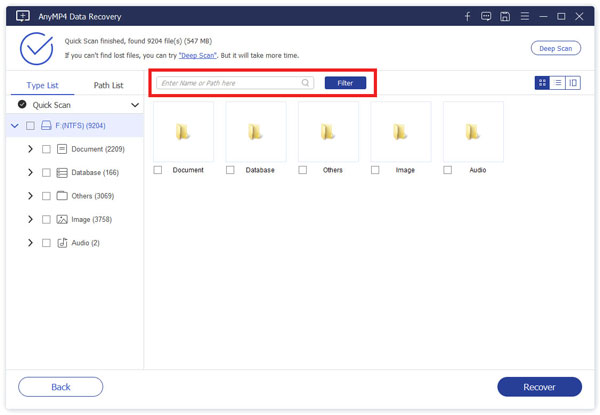
3. Browse the scan results or use the search field to look for your OBS recording. When you find it, click Recover to recover OBS recordings.
Note:
AnyMP4 Data Recovery is built to retrieve deleted or lost video data. The software cannot guarantee that every damaged recording can be restored. If the video was severely corrupted, use a corrupted video repair software instead.
Fix 4 (Alternative): Prevent the Loss - Record with AnyMP4 Screen Recorder Project Files
When OBS crashes frequently during long recordings, switching to another screen recorder can prevent the loss or corruption. AnyMP4 Screen Recorder is an all-around 7-in-1 screen and audio capturing software. It can capture the screen in full, a selected window, or a custom region. You can also overlay your webcam feed and include the system sound, mic input, or both on your recording.
Here’s what to do when OBS recording won't play after a crash:
1. Download AnyMP4 Screen Recorder and complete the installation.
After setup, it opens to the Screen Recorder mode by default.
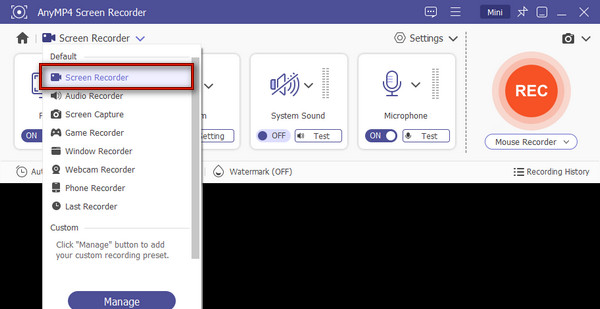
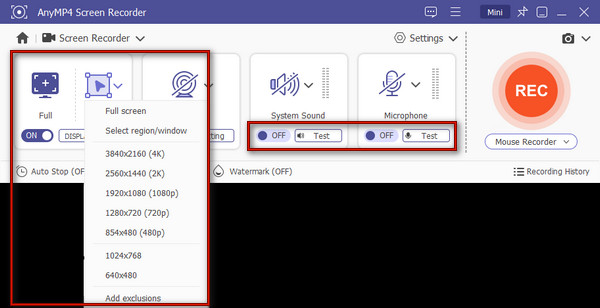
2. Select Full for full-screen recording or Custom to select the screen area you want to capture. Turn on System Sound and Microphone if you want to include audio on your recording.
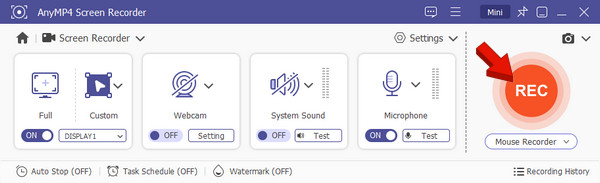
3. Click REC to start recording the selected screen and audio from your system and mic. When you’re done recording, click the Red Square button to end and preview the captured video.
AnyMP4 Screen Recorder, as a lightweight software, ensures a crash-free recording experience. Just be sure you have enough storage space when planning to make log recordings. It also includes annotation and editing tools you can use during and after recording.
Why Does OBS Crash Mid-Recording? (And How to Stop It)
High CPU or GPU Usage
If you have multiple apps running while recording, the CPU or GPU can’t do it all at once. To avoid this, close background applications that you do not need before recording. Lower the recording resolution and frame rate, and don't run resource-heavy apps.
Insufficient Space
When the destination drive is full, OBS does not properly save or finish the recording. Select a drive with enough free space and clear temporary files to avoid this.
Encoder Errors and GPU Driver Problems
If your encoder is unstable, OBS can freeze, stop recording, or crash unexpectedly. To avoid this, update OBS to a stable release and your graphics drivers. If the encoder you are using keeps crashing, try a different one.
MP4 vs MKV: The One Setting That Decides Whether a Crash Kills Your Recording
When comparing OBS record MKV vs MP4 crash behavior, the important difference is how each container handles incomplete recordings.
Why MP4 Fails
- • MP4 writes its index metadata at the very end of the file.
- • A sudden crash, power cut, or full hard drive prevents that finalization step.
- • The resulting MP4 file remains completely unreadable and unrecoverable.
Why MKV Succeeds:
- • MKV file uses fragment-based writing, saving data continuously as it records.
- • A crash only cuts off the final few seconds, leaving the rest of the recording fully playable.
- • Newer OBS versions also offer Hybrid MP4, combining crash safety with wide compatibility.
FAQs About Recovering a Crashed OBS Recording
Why is my OBS recording corrupted or unplayable after a crash?
The OBS recording is corrupted or unplayable because it was saved in MP4 format. Unlike MKV, MP4 requires a proper closing sequence to write index metadata to the end of the file.
Does OBS auto-save recordings (auto-recovery)?
Yes, OBS Studio can auto-save and recover recordings during a crash. However, it is only possible when you record in the MKV or Hybrid MP4 format.
Is it better to record in MKV or MP4 in OBS?
It is better to record in MKV format in OBS because it saves the recording if your computer or OBS crashes. MKV writes data continuously, so if a crash happens, you only lose the last few seconds.
CONCLUSION
To recover crashed OBS recording, start by checking the original MKV and using OBS's remuxing feature. If the video is missing, inspect the recording folder, Recycle Bin, and OBS log. If the video is missing check the recording folder, Recycle Bin and OBS log. If you lost or deleted the recording, AnyMP4 Data Recovery can scan for recoverable video files for you. Another option to record desktop activity to prevent loss recordings is AnyMP4 Screen Recorder.






 Add your comments to join the discussion here