3 Easy Ways to Play MOV on Windows Media Player
Quick Answer:
To play MOV files on Windows Media Player, you can install the HEVC Video Extension from the Microsoft Store, use a codec pack like K-Lite, or convert the MOV to MP4/WMV using a professional tool like AnyMP4 Video Converter Ultimate. Converting is the most reliable method for fixing codec missing errors and black-screen issues.
You just transferred a high-quality video from your iPhone or drone, but Windows Media Player says it can't play the file. Instead, you're hit with errors like 'unsupported format' or 'codec missing'. It prevents you from viewing your footage on Windows 11 or Windows 10. It is a common frustration with QuickTime MOV files. While Windows Media Player has improved over time, it still doesn't fully support all variations of the MOV format. That's because MOV is just a container, and many files use advanced codecs like HEVC (H.265) that require additional support. Without the right codec or proper conversion, playback issues are almost unavoidable. The good news is that there are simple ways to fix this. In this post, we'll show you several effective ways to play MOV on Windows Media Player. It includes converting files, installing the necessary codecs, and using alternative tools. We will help you fix playback errors quickly and achieve smooth, reliable video playback on your Windows device.

Why MOV Files Won't Play on Windows Media Player
Understanding the MOV Container vs. Codecs
The MOV file format, also known as Apple QuickTime format, is only a container. It is similar to a box that holds video and audio streams. Inside that box could be different codecs, such as H.264, HEVC, or ProRes. Windows Media Player lacks the necessary decoder to interpret these codecs, especially HEVC, which is common in iPhone recordings.
Version Compatibility
Older versions of Windows Media Player 12 struggle with modern compression formats. Meanwhile, the newer Windows 11 Media Player app supports more codecs, but still not all MOV variations. This mismatch is why playback failures occur even on updated systems.
Solution 1: Convert MOV to Windows-Friendly Formats (Recommended)
AnyMP4 Video Converter Ultimate (Best for Desktop)
If you need to play MOV files on Windows Media Player, the most reliable solution is to transcode them into a Windows-friendly format first. AnyMP4 Video Converter Ultimate is a professional media converter designed for fast, stable, and high-quality conversion. It can efficiently handle iPhone MOV files, HEVC (H.265) videos, or high-resolution 4K/8K footage that Windows cannot natively decode.
Moreover, its 120× faster conversion speed and lossless conversion mode ensure your videos retain original quality. What makes it even more powerful is its built-in Video Enhancer. This added feature can fix blurry MOV files, reduce noise, and optimize effects during conversion. It also supports batch processing, making it ideal for converting multiple clips simultaneously.
Here's how to play MOV files on Windows Media Player by converting the file first:
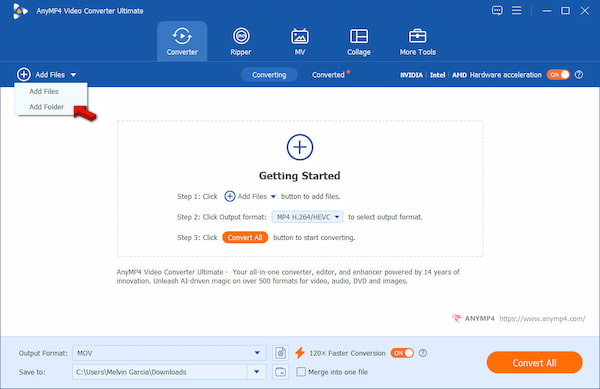
1. Upon opening AnyMP4 Video Converter Ultimate, the Converter tab opens by default. Click +Add Files and select Add Files to import your iPhone MOV videos. If you have multiple videos, use Add Folder to upload everything at once for batch conversion.
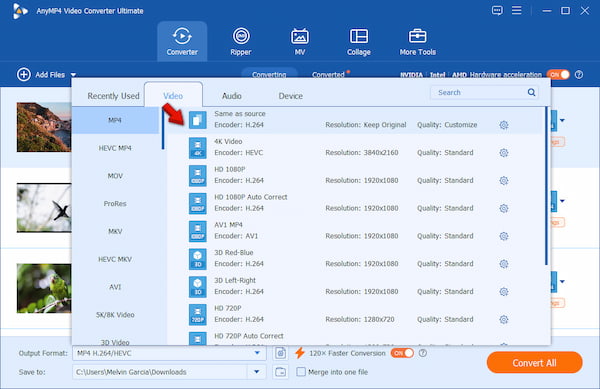
2. Click the Output Format selector and select the Video category. Choose MP4 H.264/HEVC as your output format for maximum compatibility with Windows Media Player. Select Same as Source as your quality to preserve the original quality.
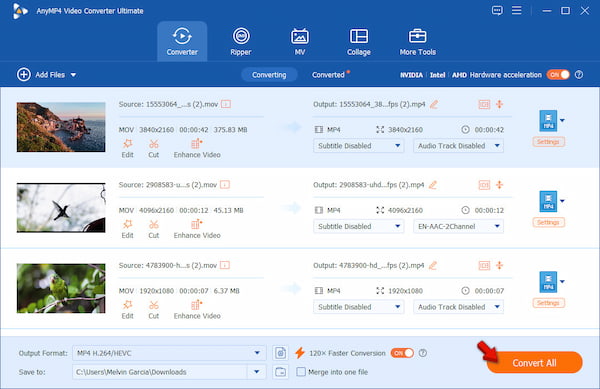
3. Specify your destination path in the Save To selector. Then, enable 120× Faster Conversion to activate GPU acceleration for faster processing. Finally, click Convert All to convert MOV files to MP4.
My Experience
On a mid-range PC, a 1.5GB 4K MOV file converted in just a few minutes. Playback in Windows Media Player was smooth, with no audio delay or black-screen issues. The GPU acceleration noticeably reduced conversion time compared to standard tools.
AnyMP4 Free Online Video Converter (Best for Quick Tasks)
For quick conversion without installing software, AnyMP4 Free Online Video Converter is a convenient solution to play .mov on Windows Media Player. It runs entirely in your browser, making it perfect for fast results with minimal setup. It is 100% free, requires no installation, and even supports batch processing with no file size limits. This tool is useful for occasional conversions, such as converting iPhone MOV clips to MP4 for easier playback or sharing.
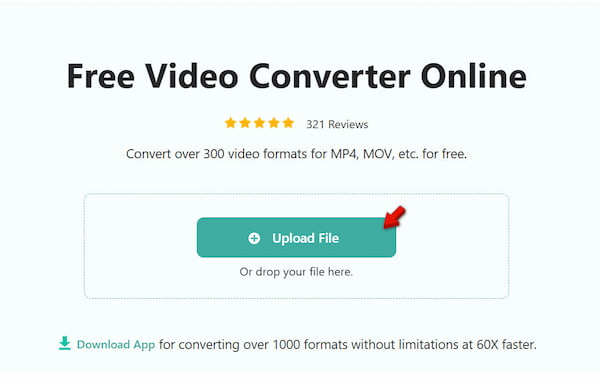
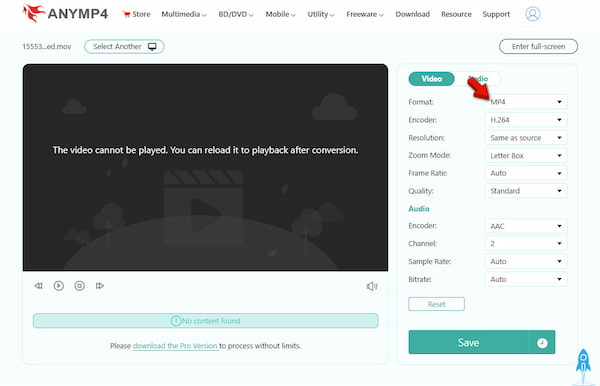
1. Open your browser and reach the official AnyMP4 Free Online Video Converter page through the link provided. On the homepage, click + Upload File to add your MOV video. You can also drag and drop it directly into the browser window for faster uploading.
2. Proceed to the Format selector and select MP4 as your output format. You can also adjust optional settings like resolution, bitrate, or frame rate if needed. Click Save to begin processing, then download the converted file.
My Experience
The conversion finished quickly for smaller files. Also, the downloaded MP4 played perfectly on Windows Media Player. The quality remained clear, and there were no audio sync issues during playback.
Solution 2: Download the Necessary MOV Codecs (Technical Fix)
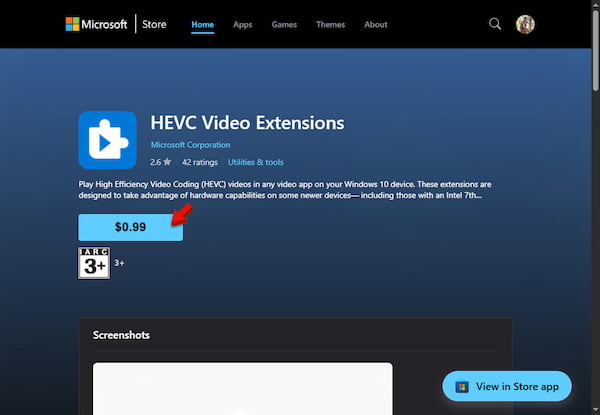
If you prefer not to use an MOV video converter, installing the correct codec is another way to watch MOV on Windows Media Player. The most reliable option is the official HEVC Video Extensions from Microsoft. It enables your system to decode H.265/HEVC videos, which are commonly used by iPhones and modern cameras.
1. On your Windows system, open the Microsoft Store and search for HEVC Video Extensions. Click Buy to purchase and install the codec.
2. After installation, it automatically integrates with Windows Media Player. If the codec is supported, the video should now play smoothly with both audio and visuals.
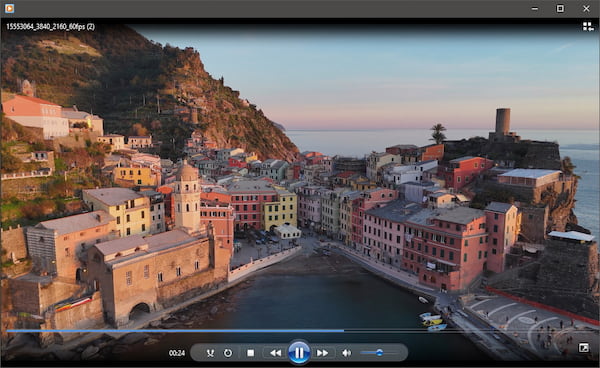
This method is fast and preserves your original file, making it ideal for direct playback. However, it may not work for all MOV variations (such as ProRes). Additionally, incorrect codec configurations can cause playback issues such as black screens or crashes.
Solution 3: Use Alternative Professional Media Players
If you want the fastest way to play MOV files without conversion or codec installation, a third-party media player is the easiest solution. VLC Media Player comes with built-in codecs, allowing it to handle almost any video format, including MOV files encoded with HEVC, H.264, or even ProRes.
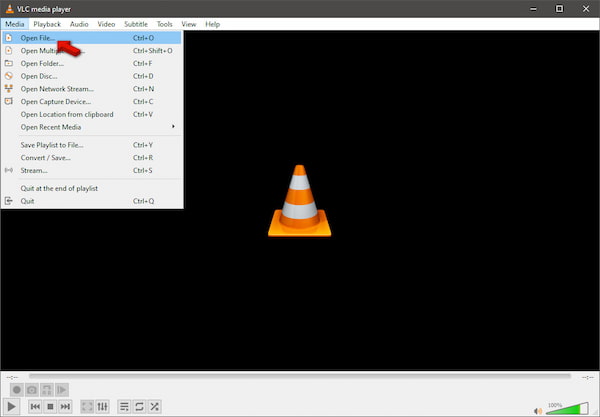
1. On VLC, click Media from the top menu and select Open File. Choose your MOV video from your local drive or drag and drop the file directly into the VLC window.
2. If needed, you can tweak playback settings, such as subtitles, audio tracks, and video filters, directly in VLC. It helps enhance viewing or fix minor playback issues.
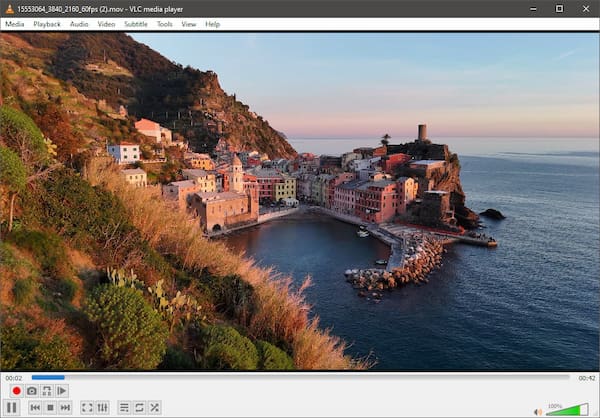
This method is ideal for users who don't want to install additional codecs or spend time converting files. Instead, you open the MOV file directly and start watching. While it doesn't improve compatibility with Windows Media Player itself, it bypasses its limitations.
How to Test MOV Files After Conversion
After converting your MOV file, it's important to verify that the output video works correctly and maintains its quality. Even with a reliable MOV-to-MP4 converter, small issues can occur if the settings aren't optimized. Performing these quick checks ensures your file is fully compatible with Windows Media Player and ready for smooth playback, editing, or sharing.
Check Metadata (File Format & Codec):
Confirm that the file extension has changed from .mov to .mp4 or .wmv. You can right-click the file, select Properties, and review details like codec, resolution, and bitrate.
Audio Sync Test (First 30 Seconds):
Play the first 30 seconds of the video and carefully check if the audio matches the visuals, especially during speech or fast movements. Even slight delays can affect viewing quality.
Scrubbing Test (Seek Bar Performance):
Drag the seek bar forward and backward quickly to test how the video responds. Smooth scrubbing indicates proper encoding and compatibility, while lag or freezing suggests potential issues.
FAQs about Playing MOV on Windows Media Player
Q: Is MOV better than MP4?
A: In terms of usage, MOV is better for video editing and professional workflows. This format preserves higher quality and supports advanced codecs like ProRes. On the other hand, MP4 is designed for universal compatibility. It uses efficient compression, making it smaller and easier to play across devices, platforms, and media players.
Q: Can I just rename .mov to .mp4?
A: No, simply renaming a .mov file to .mp4 does not actually convert it. The file's internal codec remains the same, and Windows Media Player will still struggle to decode it. It can result in playback errors, black screens, or audio-only issues.
Q: Why is my MOV file only playing audio?
A: This issue happens when your system lacks the correct video codec, most commonly HEVC (H.265) or ProRes. Windows Media Player can read the audio stream but cannot decode the video stream, resulting in sound without visuals.
Q: Is AnyMP4 safe to use?
A: Yes, AnyMP4 is safe to use. It offers a clean installer, free of bundled malware or unwanted software. Additionally, it is digitally signed to ensure authenticity. The software is widely used for video conversion tasks and follows standard security practices. As long as you download it from the official website, you can safely install and use it.
Q: How do I play iPhone videos on Windows?
A: Most iPhone videos are recorded in HEVC (H.265), which Windows Media Player does not fully support by default. To play them, you can either install the HEVC Video Extensions from Microsoft or convert the videos to MP4 for better compatibility.
CONCLUSION & SUMMARY
Achieving an error-free solution to play MOV on Windows Media Player can be challenging due to codec limitations. Fortunately, the solutions are straightforward once you understand the root cause. Whether you choose to install the codecs, use an alternative player, or convert your files, the goal is to ensure ultimate compatibility on your Windows 11/10 system. While Windows Media Player is evolving, converting your MOV files remains the most foolproof solution. It ensures your memories or professional projects play without a hitch. For batch processing and high-quality results, AnyMP4 Video Converter Ultimate stands out as the gold standard. Meanwhile, AnyMP4 Free Online Video Converter is perfect for quick, one-time fixes. By choosing the right method, you can future-proof your videos and enjoy smooth, hassle-free playback anytime.






 Add your comments to join the discussion here